
This post contains affiliate links, marked with *. As an Amazon Associate I earn from qualifying purchases, at no extra cost to you. It helps keep the tutorials free.
The video loads from YouTube (Google), which may set cookies. Privacy policy
📋 Quick Summary
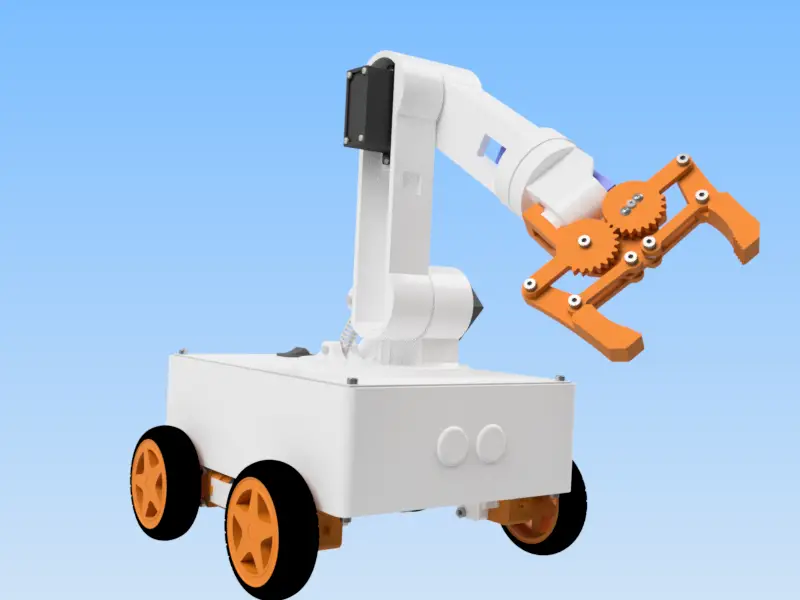
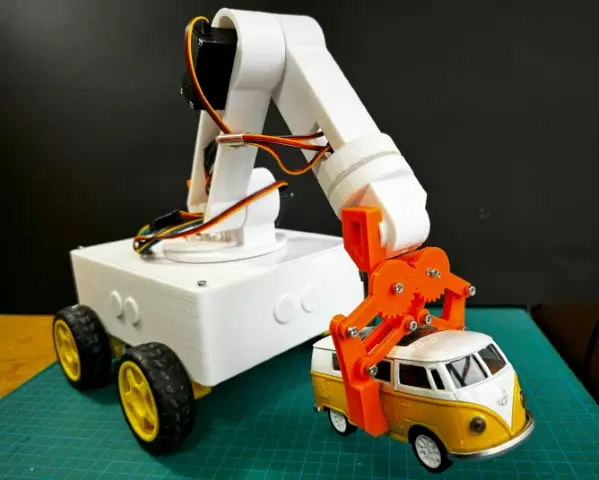
OmObiArm is a four-wheel rover with a six-servo robotic arm on top. The arm has five joints plus a gripper. An Arduino Mega 2560 controls both: the four DC motors through an Adafruit Motor Shield V1.2, the servos through a PCA9685 servo driver. An Android app built in MIT App Inventor sends the commands over an HC-05 Bluetooth module.
OmObiArm combines two of my earlier builds: OmObi, the Bluetooth-controlled rover, and OmArm, the robotic arm with Bluetooth control. The arm sits on the rover’s top plate, and one Arduino Mega runs both. The rover drives forward and backward and turns on the spot (skid steering: the wheels on the left and on the right turn in opposite directions). Six sliders in the app move the arm joints, a Save button records arm poses and a Play button replays them. For the test at the end of the video, I saved several poses and started playback. The robot lifted an object and carried it to another place.
How OmObiArm works
An Arduino Mega 2560 is the central controller. It receives the commands from the phone through the HC-05 module on the hardware serial pins (RX0 and TX0, pins 0 and 1). Depending on the command, it drives the rover or moves the arm.
For the rover, the Arduino uses the Adafruit Motor Shield V1.2. The shield plugs directly onto the Arduino Mega and drives the four DC motors through its L293D chips. Each L293D is a dual H-bridge (a transistor circuit that lets a DC motor run in both directions). How the shield works is covered in my Bluetooth-controlled robot car with Adafruit Motor Shield tutorial.
Arm control and wireless communication
For the arm, the Arduino talks to the PCA9685 16-channel servo driver over I2C (a two-wire bus: SDA carries the data, SCL the clock). The PCA9685 generates the PWM signals (pulse-width modulation: the pulse length sets the servo angle) for six servos on channels 0, 4, 8, 9, 12 and 13. The channels are not consecutive; the servoChannels array in the code maps servos 1 to 6 to them. Three MG996R servos move the base, the shoulder and the elbow, which carry the most load. Three SG90 micro servos move the wrist and the gripper.
The servos get their power from an LM2596 buck converter (a small adjustable DC-DC step-down module) that steps the 7.4 V of the LiPo battery (lithium polymer, see 4.2) down to 6 V. The servo current therefore never flows through the Arduino’s regulator. To join the two robots electrically, I added the LM2596 and the PCA9685 to the rover’s electronics. For servo basics and the PCA9685, see my Arduino servo motor control guide.
The Android app, built with MIT App Inventor, sends short text commands over Bluetooth. The command reference table in Step 5 lists all of them.
Components
You need the 3D-printed parts of the OmObi rover and the OmArm arm plus the electronics, motors and fasteners below.
Overview
| Category | Components |
|---|---|
| Controller | Arduino Mega 2560 |
| Motor driver | Adafruit Motor Shield V1.2 (L293D) |
| Servo driver | PCA9685 16-channel I2C servo driver |
| Bluetooth | HC-05 module |
| Motors | 4 DC motors with gearboxes, 4 wheels |
| Servos | 3 MG996R (high torque), 3 SG90 (micro) |
| Power | 7.4 V 2S LiPo (5300 mAh), LM2596 buck converter set to 6 V, power switch |
| 3D-printed parts | Chassis, top plate, arm links, gripper with gears and sleeves, joint pin, covers, Arduino holder (from the OmObi and OmArm designs) |
| Accessories | Jumper wires, 1 kΩ and 2 kΩ resistors (voltage divider, see 4.5), M3 and M2 screws, M3 heat-set inserts, extension spring, ball bearing 6806ZZ (30x42x7 mm), servo horns (small levers that screw onto the servo shafts) |
Complete bill of materials (BOM)
Parts marked “3D printed” are available as STL files in the OmArTronics Shop. The numbers are the item numbers of the CAD parts list.
3D-printed parts
| No. | Qty | Part | Notes |
|---|---|---|---|
| 1 | 1 | Lower Base (Chassis) | 3D printed. Lower part of the chassis, holds the motors and the electronics |
| 29 | 1 | Chassis Frame | 3D printed. Frame of the chassis |
| 31 | 1 | Robot Car Base | 3D printed base |
| 30 | 3 | Cover | 3D printed covers |
| 15 | 1 | Arm Base Link | 3D printed. Connects the arm to the rover |
| 10 | 1 | Arm Base Upper | 3D printed. Upper part of the arm base |
| 3 | 1 | Arm Link 1 | 3D printed |
| 14 | 1 | Arm Link 2 | 3D printed |
| 13 | 1 | Arm Link 3 | 3D printed |
| 9 | 4 | Link | 3D printed linkage parts |
| 8 | 1 | Gripper Assembly | 3D printed complete gripper assembly |
| 4 | 1 | Gripper Finger Right | 3D printed |
| 6 | 1 | Gripper Gear Right | 3D printed. Right-side gear for the gripper mechanism |
| 7 | 1 | Gripper Gear Left | 3D printed. Left-side gear for the gripper mechanism |
| 5 | 2 | Gripper Sleeve | 3D printed. Sleeve for the gripper joint axis |
| 18 | 1 | Joint Pin | 3D printed. Pin that fixes joints in the arm |
Electronics
| No. | Qty | Part | Notes |
|---|---|---|---|
| 32 | 1 | Arduino Mega 2560 | Controller |
| 33 | 1 | L293D Motor Driver (Adafruit Motor Shield V1.2) | Dual H-bridge motor shield for the four DC motors |
| 43 | 1 | PCA9685 servo driver | 16-channel I2C servo driver board |
| 40 | 1 | HC-05 Bluetooth module | Wireless link to the phone |
| 42 | 1 | LM2596 buck converter | Steps the battery voltage down to 6 V for the servos |
| 34 | 1 | 7.4 V 2S LiPo battery, 5300 mAh | Main power supply |
| 36 | 1 | Switch | Main power switch |
Motors, servos and wheels
| No. | Qty | Part | Notes |
|---|---|---|---|
| 44 | 4 | DC motor with gearbox | Rover drive |
| 26 | 4 | Motor Gear | Plastic gear for the motor shaft |
| 28 | 4 | 4WD Buggy Wheel | Plastic wheel |
| 27 | 4 | 4WD Tyre | Rubber tyre |
| 12 | 3 | MG996R servo | Base, shoulder, elbow |
| 11 | 3 | SG90 micro servo | Wrist pitch, wrist roll, gripper |
| 20 | 3 | MG955 Horn | Servo horns for the MG996R servos (the CAD part is named after the MG995, which uses the same 25-tooth horn) |
| 21 | 3 | SG90 Servo Horn | Horns for the SG90 servos |
Fasteners, bearings and small parts
| No. | Qty | Part | Notes |
|---|---|---|---|
| 2 | 1 | JIS B 1521 6806, 30x42x7 mm | Deep groove ball bearing for the arm base rotation |
| 17 | 1 | Extension Spring | Tension for the linkage |
| 35 | 16 | M3 inserts | Threaded heat-set inserts for the printed parts |
| 16 | 7 | AS 1420-1973 M3x16 | Hex socket head cap screw |
| 37 | 16 | AS 1420-1973 M3x6 | ISO metric hexagon socket head cap screws |
| 38 | 4 | ANSI B18.3.1M M3x0.5×30 | Broached socket head cap screw, metric |
| 39 | 4 | ANSI B18.3.1M M3x0.5×25 | Broached socket head cap screw, metric |
| 24 | 2 | DIN 7985 (Z) M3x6-Z | Cross recessed raised cheese head screws, Type Z |
| 25 | 3 | DIN 7985 (Z) M2x6-Z | Cross recessed raised cheese head screws, Type Z |
| 19 | 1 | ANSI B18.2.4.2M M3x0.5 | Hex nut (standard metric thread) |
| 22 | 8 | ANSI B18.6.4 No. 3-28 x 1/2 | Cross recessed truss head tapping screw, Type AB, Type I |
| 23 | 16 | ANSI B18.6.4 No. 2-32 x 3/8 | Cross recessed truss head tapping screw, Type AB, Type I |
| 41 | 4 | ANSI B18.6.4 No. 0-48 x 1/4 | Cross recessed truss head tapping screw, Type AB, Type I |
Step 1: 3D model design
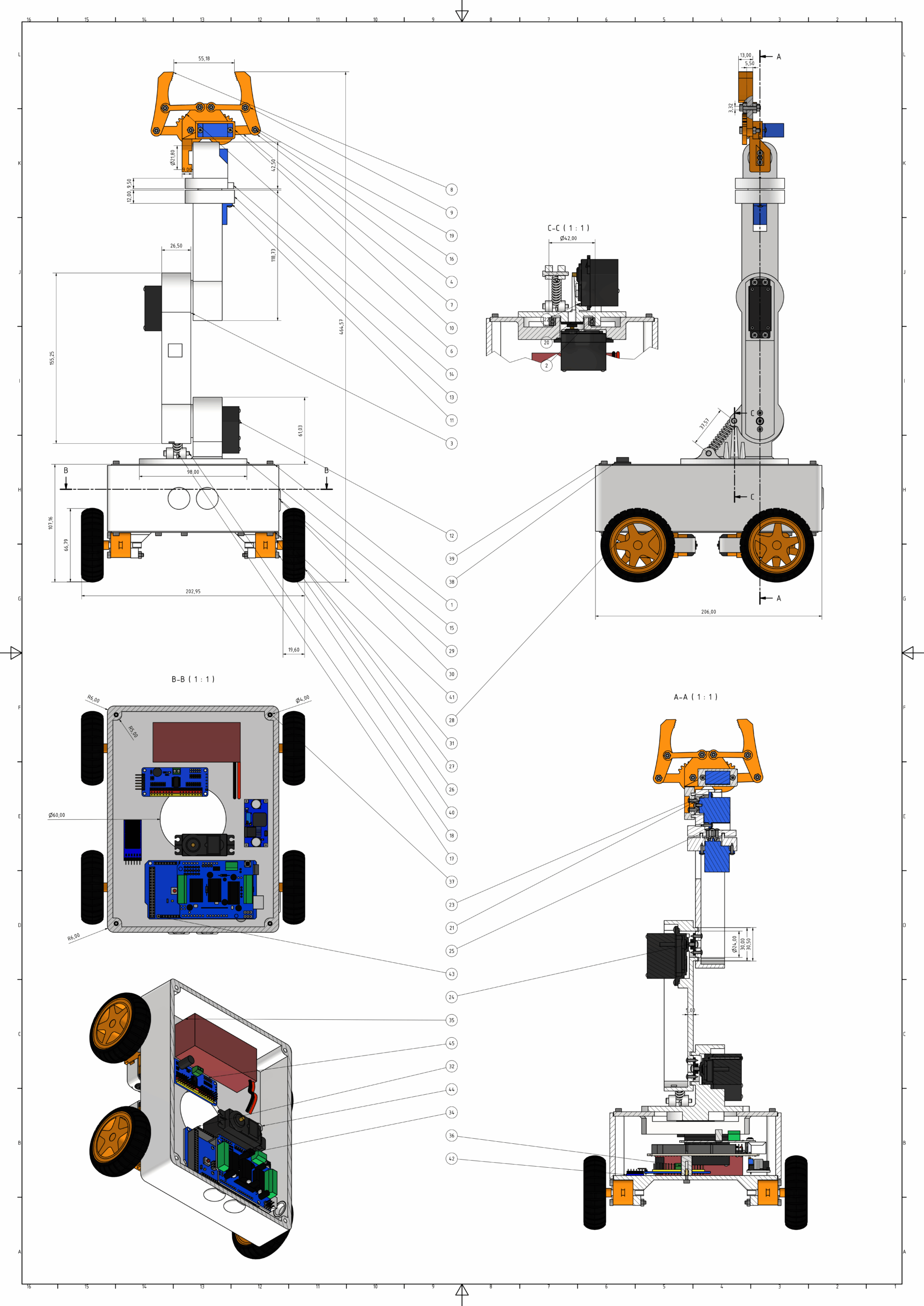
OmObiArm combines the designs of the OmObi rover and the OmArm arm. In Autodesk Inventor I modified the OmArm base and merged it with the top plate of the OmObi. The top plate is also the base of the arm. For the servo cables I made a hole in the base, so they run down into the rover. If you are new to 3D design for robotics, start with my introduction to 3D printing and Autodesk Inventor. The technical drawing below shows the main dimensions and sectional views of the assembly.
Step 2: 3D printing the parts
Print all parts marked “3D printed” in the BOM. PLA filament works well for most parts. Printer settings and material choice are covered in the introduction linked in Step 1.
Step 3: Assembling OmObiArm
3.1 Mounting the motors and wheels
The chassis holds M3 heat-set inserts (metal sleeves with an inner thread that you melt into the plastic). When I built the OmObi rover, I heated them and pressed them into the printed parts, so the screws hold in metal threads. Fix each of the four DC motors to the printed motor mounts with screws and nuts. Attach a wheel to each motor shaft.
3.2 Mounting the Arduino Mega, motor shield, PCA9685, LM2596 and HC-05
Screw the printed Arduino holder to the chassis, then screw the Arduino Mega into the holder. Plug the Adafruit Motor Shield onto the Arduino headers; it needs no extra wires. Check that every pin sits in its socket before you press the shield down. Fix the PCA9685, the LM2596 and the HC-05 to the chassis with zip ties or double-sided tape, close enough together that the wires stay short.
3.3 Fixing the top plate
Screw the top plate, which carries the arm, firmly onto the chassis so that the arm does not wobble while the rover drives.
3.4 Assembling the arm
The arm is assembled as described in the OmArm build guide. The screw sizes in this section match my OmArm guides. The CAD parts list above uses standard screws from the Inventor library, so you will not find these sizes there.
Sub-step 1: Fixing the servo to the base. Fix the first MG996R servo to the arm base with the screws that come with the servo, or with M3x12 self-tapping screws (screws that cut their own thread into the plastic). Add the 6806ZZ ball bearing (30x42x7 mm) for the base rotation; it reduces friction so that the base turns smoothly. Then fix the servo horn to the rotating upper part with M2x12 self-tapping screws.
Sub-step 2: Centering the servos. Center each servo before you fit its horn. For this, wire the servo to the PCA9685 as in Step 4, upload the sketch from Step 5 and switch on once: setup() moves every servo to PWM 375 (90°). Then fit the horn with the link in its middle position and fix it with the horn screw. A horn that sits twisted drives the joint against its mechanical stop at the next power-on.
Sub-step 3: Mounting the links. Screw each servo to its arm link and connect the links through the servo horns. Check that the joints move smoothly and are fastened securely.
Sub-step 4: Assembling the gripper. Fix the gripper to the last link with M3x20 screws. Check that it sits firmly on the arm. You test opening and closing with the app in 7.3.
3.5 Mechanical check
Before you wire the rest of the robot, turn each wheel by hand and check that it does not rub on the chassis. Check that no screw head or cable blocks an arm joint.
Step 4: Wiring
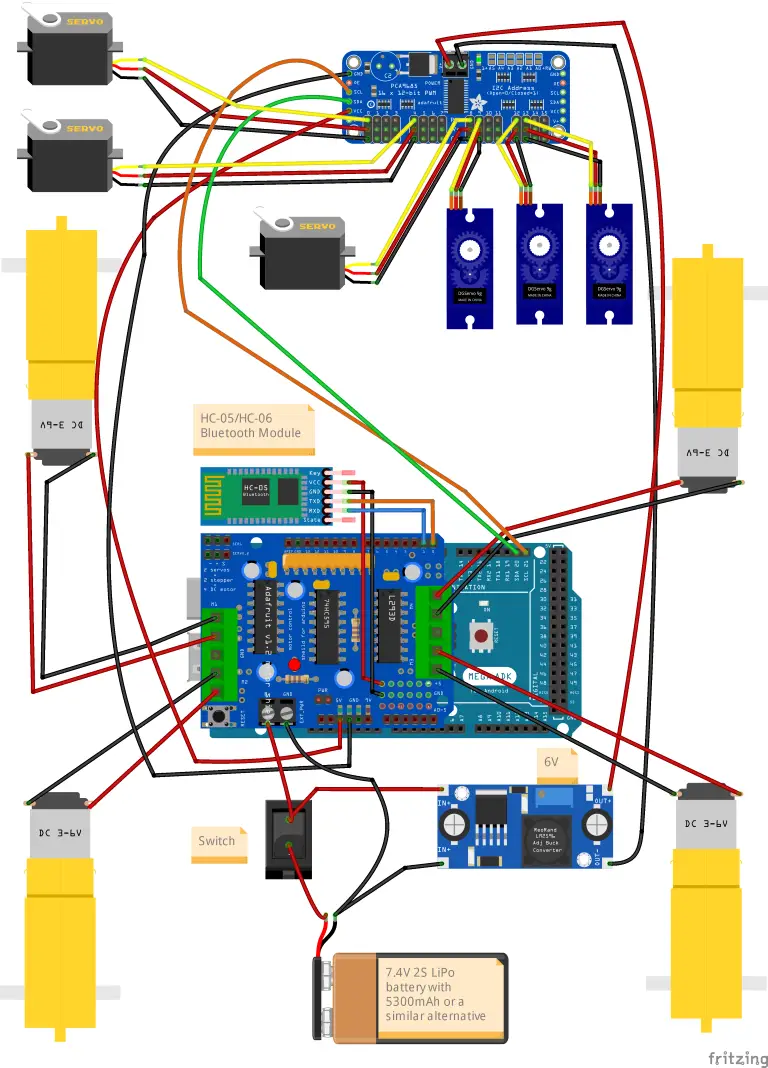
A wrong connection can damage the boards. Wire each group below and compare it with the wiring diagram at the end of this step.
4.1 DC motors to the motor shield
| Motor | Motor shield terminal | Side |
|---|---|---|
| Left front motor | M1 | Left |
| Left rear motor | M2 | Left |
| Right front motor | M3 | Right |
| Right rear motor | M4 | Right |
Connect the two left motors to M1 and M2 and the two right motors to M3 and M4. The polarity of each motor sets its direction; you check it in 7.2.
4.2 Battery and main power path
I use a 7.4 V 2S LiPo (two cells in series, 3.7 V nominal each) with 5300 mAh and an EC3 connector. Use a pack with at least this capacity. Solder the plug that matches your battery to the input of the circuit: EC3 like mine (a two-pin plug common on RC model batteries), XT60 or T plug. Put the power switch between the battery and the circuit.
Charge the pack only with a LiPo balance charger. It charges each cell to the same voltage through the pack’s small balance plug. Never leave the pack charging unattended. Stop driving when the pack drops to about 6.6 V (3.3 V per cell); below 3.0 V per cell the cells can be damaged permanently. A LiPo voltage alarm on the balance plug warns you in time. If you store the pack for more than a few days, charge or discharge it to about 7.6 V (3.8 V per cell), the storage voltage; most balance chargers have a storage mode for this.
The battery feeds the motor shield’s EXT_PWR terminal (the screw terminal for the motor supply) and, in parallel, the LM2596. With the PWR jumper on the shield fitted, the shield passes the battery voltage to the Arduino’s VIN pin (the input for an external supply), and the Arduino’s own regulator makes 5 V from it. Fit this jumper: in the wiring diagram, it is the Arduino’s only power path once the USB cable is unplugged.
4.3 LM2596 step-down converter
| LM2596 pin | Connection |
|---|---|
| IN+ | Battery positive (7.4 V, via the switch) |
| IN− | Battery ground |
| OUT+ | PCA9685 V+ screw terminal (servo power, set to 6 V) |
| OUT− | PCA9685 GND screw terminal |
Before you connect the PCA9685, turn the potentiometer (a small adjustable resistor with a screw on top) on the LM2596 until the multimeter shows exactly 6 V at OUT+. I soldered the converter’s wires first. With the charged pack the input read about 8 V, and I turned the screw while measuring the output until it showed 6 V. This 6 V rail powers the PCA9685 servo terminal and all six servos.
The LM2596 delivers about 2 to 3 A without a heatsink, and a single MG996R can draw about 2.5 A when it stalls. If the Arduino resets or the servos twitch when several joints move at once, replace the module with an XL4016 buck converter (up to 8 A). The wiring and the 6 V setting stay the same.
4.4 PCA9685 servo driver and servos
| PCA9685 pin | Connection |
|---|---|
| V+ (screw terminal, servo power) | LM2596 OUT+ (6 V) |
| GND (screw terminal) | LM2596 OUT− |
| SDA | Arduino Mega SDA (pin 20) |
| SCL | Arduino Mega SCL (pin 21) |
| VCC (logic pin) | Arduino 5 V |
| GND (logic pin) | Arduino GND |
Never connect the 6 V supply to the VCC logic pin. The PCA9685 chip is rated for 5.5 V at most. Do not power the servos from the Arduino’s 5 V pin either. Six servos draw more current than the board can supply, which causes voltage drops, servo jitter and Arduino resets.
Plug each servo onto its channel so that the signal, V+ and GND pins match the labels on the board. The code uses these channels:
| Servo | Joint | PCA9685 channel | Type |
|---|---|---|---|
| Servo 1 | Base rotation | 0 | MG996R |
| Servo 2 | Shoulder | 4 | MG996R |
| Servo 3 | Elbow | 8 | MG996R |
| Servo 4 | Wrist pitch | 9 | SG90 |
| Servo 5 | Wrist roll | 12 | SG90 |
| Servo 6 | Gripper | 13 | SG90 |
4.5 HC-05 Bluetooth module
| HC-05 pin | Arduino Mega pin |
|---|---|
| VCC | 5 V |
| GND | GND |
| TXD | RX0 (pin 0) |
| RXD | TX0 (pin 1) |
The HC-05 RXD pin uses 3.3 V logic, and TX0 of the Mega outputs 5 V. In my build, RXD goes straight to pin 1 as in the wiring diagram, and the robot worked that way. A voltage divider (two resistors that split the voltage) is the safer option. With 1 kΩ from TX0 to RXD and 2 kΩ from RXD to GND, RXD gets 5 V × 2 kΩ / 3 kΩ ≈ 3.3 V.
Pins 0 and 1: The HC-05 sits on the Mega’s hardware serial port Serial0 (pins 0 and 1). The USB connection uses the same two pins when you upload a sketch. Unplug the HC-05, or at least its TXD and RXD wires, before every upload. With the module connected, the upload fails with a communication error. Plug it back in afterwards. The alternative is Serial1 (pins 18 and 19): wire TXD to RX1 and RXD to TX1 (with the voltage divider). In the sketch, add Serial1.begin(9600) to setup() and read the commands from Serial1 instead of Serial. Serial stays on the USB connection, so uploads and the Serial Monitor (the Arduino IDE window that shows the text the board sends) work with the module connected. Wiring and pairing are explained step by step in my HC-05/HC-06 Bluetooth module tutorial.
4.6 Testing the power distribution
Before you switch on for the first time, check with the multimeter in continuity mode that battery plus and minus are not shorted. In this mode the multimeter beeps when two points are connected. Then switch on and measure: 5 V at the Arduino and the HC-05, 6 V at the PCA9685 V+ terminal, and battery voltage at the shield’s EXT_PWR terminal. The motors get a little less, because the L293D drivers lose part of the voltage.
Step 5: Programming the Arduino
The sketch reads the Bluetooth commands, drives the rover motors, moves the servos step by step and handles saving and playing poses. The complete code and the MIT App Inventor project file are in the GitHub repository. If you are new to Arduino, read my Arduino programming basics first. Unplug at least the HC-05 TXD and RXD wires before you upload (see 4.5). For the upload I took off the printed USB access cover and connected the robot to my computer.
Complete Arduino code
#include <Wire.h>
#include <Adafruit_PWMServoDriver.h>
#include <AFMotor.h>

// Constants and definitions
const int numServos = 6; // Number of servos
const int maxConfigurations = 10; // Maximum number of storable poses
const int stepDelay = 10; // Delay between each step to slow down the servo movement
const int stepSize = 1;   // PWM units per step

// Servo channels on the PCA9685
const int servoChannels[numServos] = {0, 4, 8, 9, 12, 13};

// Storage structures
int savedConfigurations[maxConfigurations][numServos];
int currentServoPositions[numServos] = {375, 375, 375, 375, 375, 375}; // Default positions
int configCount = 0;            // Counter for stored poses
bool isPlaying = false;         // Status indicating if poses are being played
bool loopPlayback = false;      // Status indicating if poses should be played in a loop
bool stopPlaying = false;       // Status indicating if playback should be stopped
int currentPoseIndex = 0;       // Index of the current pose during playback

// Motor instances for the rover
AF_DCMotor motor1(1);
AF_DCMotor motor2(2);
AF_DCMotor motor3(3);
AF_DCMotor motor4(4);

Adafruit_PWMServoDriver pwm = Adafruit_PWMServoDriver();
String input = ""; // Holds incoming Bluetooth data

void setup() {
  Serial.begin(9600); // Serial communication for Bluetooth

  // Initialize motors
  motor1.setSpeed(255);
  motor2.setSpeed(255);
  motor3.setSpeed(255);
  motor4.setSpeed(255);

  // Initialize servo controller
  pwm.begin();
  pwm.setPWMFreq(50); // Set frequency to 50 Hz for servos

  // Initialize servo positions
  for (int i = 0; i < numServos; i++) {
    pwm.setPWM(servoChannels[i], 0, currentServoPositions[i]);
  }

  Serial.println("Bluetooth Robot Controller ready. Waiting for commands...");
}
void loop() {
  // Process incoming commands
  if (Serial.available()) {
    input = Serial.readStringUntil('\n'); // Read data from Bluetooth
    input.trim();

    Serial.println("Received command: " + input);
    processCommand(input);
  }

  // Check if robot arm is playing poses
  if (isPlaying && !stopPlaying) {
    if (loopPlayback) {
      playPosesInLoop();
    } else {
      playNextPose();
    }
  }
}
void processCommand(String command) {
  // If playing, ignore all rover commands
  if (isPlaying) {
    if (command == "s") { // Allow stop playback command
      stopPlayingPoses();
    } else {
      Serial.println("Playback in progress. Ignoring command: " + command);
    }
    return;
  }

  // Control rover movement
  if (command == "F") {
    forward();
  } else if (command == "B") {
    backward();
  } else if (command == "L") {
    turnLeft();
  } else if (command == "R") {
    turnRight();
  } else if (command == "S") {
    stopMotors(); // Stop motors immediately on "S" command

  // Control robotic arm
  } else if (command.startsWith("1,")) {
    processServoCommand(command, 0); // Control Servo 1
  } else if (command.startsWith("2,")) {
    processServoCommand(command, 1); // Control Servo 2
  } else if (command.startsWith("3,")) {
    processServoCommand(command, 2); // Control Servo 3
  } else if (command.startsWith("4,")) {
    processServoCommand(command, 3); // Control Servo 4
  } else if (command.startsWith("5,")) {
    processServoCommand(command, 4); // Control Servo 5
  } else if (command.startsWith("6,")) {
    processServoCommand(command, 5); // Control Servo 6

  // Save, play, reset poses
  } else if (command == "v") {
    saveCurrentPose();
  } else if (command == "l") {
    startPlayingPoses();
  } else if (command == "r") {
    resetPoses();
  } else if (command == "s") {
    stopPlayingPoses();
  } else if (command == "o") {
    loopPlayback = true;
    Serial.println("Loop playback enabled.");
  } else if (command == "f") {
    loopPlayback = false;
    Serial.println("Loop playback disabled.");
  } else {
    Serial.println("Unknown command: " + command);
  }
}

void processServoCommand(String command, int servoIndex) {
  int commaIndex = command.indexOf(',');
  if (commaIndex > 0) {
    int position = command.substring(commaIndex + 1).toInt();
    int pwmValue = map(position, 0, 180, 150, 600);
    moveToPositionSmoothly(servoIndex, pwmValue);
  }
}
Motor control and servo movement
void forward() {
  motor1.run(FORWARD);
  motor2.run(FORWARD);
  motor3.run(FORWARD);
  motor4.run(FORWARD);
  Serial.println("Moving forward");
}

void backward() {
  motor1.run(BACKWARD);
  motor2.run(BACKWARD);
  motor3.run(BACKWARD);
  motor4.run(BACKWARD);
  Serial.println("Moving backward");
}

void turnLeft() {
  motor1.run(BACKWARD);
  motor2.run(BACKWARD);
  motor3.run(FORWARD);
  motor4.run(FORWARD);
  Serial.println("Turning left");
}

void turnRight() {
  motor1.run(FORWARD);
  motor2.run(FORWARD);
  motor3.run(BACKWARD);
  motor4.run(BACKWARD);
  Serial.println("Turning right");
}

void stopMotors() {
  motor1.run(RELEASE);
  motor2.run(RELEASE);
  motor3.run(RELEASE);
  motor4.run(RELEASE);
  Serial.println("Motors stopped");
}

// Arm servo control
void moveToPositionSmoothly(int servoIndex, int targetPwmValue) {
  int currentPwmValue = currentServoPositions[servoIndex];
  if (targetPwmValue > currentPwmValue) {
    for (int pos = currentPwmValue; pos <= targetPwmValue; pos += stepSize) {
      pwm.setPWM(servoChannels[servoIndex], 0, pos);
      delay(stepDelay);
    }
  } else {
    for (int pos = currentPwmValue; pos >= targetPwmValue; pos -= stepSize) {
      pwm.setPWM(servoChannels[servoIndex], 0, pos);
      delay(stepDelay);
    }
  }
  currentServoPositions[servoIndex] = targetPwmValue;
  Serial.println("Servo " + String(servoIndex + 1) + " set to position: " + String(targetPwmValue));
}
Pose functions
void saveCurrentPose() {
  if (configCount < maxConfigurations) {
    for (int i = 0; i < numServos; i++) {
      savedConfigurations[configCount][i] = currentServoPositions[i];
    }
    configCount++;
    Serial.println("Pose saved. Total poses: " + String(configCount));
  } else {
    Serial.println("Memory full. Cannot save pose.");
  }
}

void startPlayingPoses() {
  if (configCount > 0) {
    stopMotors(); // Ensure rover is stopped during playback
    isPlaying = true;
    stopPlaying = false;
    currentPoseIndex = 0;
    Serial.println("Starting pose playback");
  } else {
    Serial.println("No poses saved");
  }
}

void playNextPose() {
  if (currentPoseIndex < configCount) {
    for (int i = 0; i < numServos; i++) {
      moveToPositionSmoothly(i, savedConfigurations[currentPoseIndex][i]);
    }
    delay(1000);
    currentPoseIndex++;
  } else {
    isPlaying = false;
    Serial.println("Pose playback finished");
  }
}

void playPosesInLoop() {
  for (int i = 0; i < configCount; i++) {
    if (stopPlaying) break; // Never true here: loop() reads no commands while this runs
    for (int j = 0; j < numServos; j++) {
      moveToPositionSmoothly(j, savedConfigurations[i][j]);
    }
    delay(1000);
  }
}

void stopPlayingPoses() {
  stopPlaying = true;
  isPlaying = false;
  Serial.println("Pose playback stopped");
}

void resetPoses() {
  configCount = 0;
  isPlaying = false;
  loopPlayback = false;
  currentPoseIndex = 0;
  Serial.println("All poses reset");
}
Code walkthrough: libraries
#include <Wire.h>
#include <Adafruit_PWMServoDriver.h>
#include <AFMotor.h>
The sketch needs three libraries. Wire.h handles the I2C communication with the PCA9685. Adafruit_PWMServoDriver.h controls the servos through the PCA9685. AFMotor.h is the Adafruit Motor Shield library for the DC motors on the L293D H-bridges. Install all three in the Arduino IDE before you compile.
Code walkthrough: servo channels and variables
const int numServos = 6;
const int maxConfigurations = 10;
const int stepDelay = 10;
const int stepSize = 1;
const int servoChannels[numServos] = {0, 4, 8, 9, 12, 13};
int savedConfigurations[maxConfigurations][numServos];
int currentServoPositions[numServos] = {375, 375, 375, 375, 375, 375};
int configCount = 0;
bool isPlaying = false;
bool loopPlayback = false;
bool stopPlaying = false;
int currentPoseIndex = 0;
numServos is 6 because the arm has six servos. maxConfigurations limits the number of saved poses to 10. The poses live in SRAM (working memory, cleared at power-off), so they are lost when you switch the robot off. stepDelay (10 ms) and stepSize (1 PWM unit) set how fast the servos move: one PWM unit every 10 ms. The servoChannels array maps servos 1 to 6 to the PCA9685 channels 0, 4, 8, 9, 12 and 13. The currentServoPositions array stores where each servo is. The flags isPlaying, loopPlayback and stopPlaying control the pose playback.
The array stores raw PCA9685 values, not degrees. At 50 Hz the PCA9685 divides each 20 ms period into 4096 steps. The value is the number of steps the pulse stays high: 150 is about 0.7 ms, 600 about 2.9 ms. 375 is the midpoint of this range and corresponds to 90°.
Code walkthrough: motor and servo driver objects
AF_DCMotor motor1(1);
AF_DCMotor motor2(2);
AF_DCMotor motor3(3);
AF_DCMotor motor4(4);
Adafruit_PWMServoDriver pwm = Adafruit_PWMServoDriver();
Four DC motor objects are created for the shield’s motor terminals M1 to M4. The number in brackets is the terminal number. The Adafruit_PWMServoDriver object pwm uses the default I2C address 0x40 of the PCA9685. With a second PCA9685 board, pass its address here, for example Adafruit_PWMServoDriver(0x41). The address is set with the solder jumpers A0 to A5 on the board.
Code walkthrough: setup()
void setup() {
  Serial.begin(9600);
  motor1.setSpeed(255);
  motor2.setSpeed(255);
  motor3.setSpeed(255);
  motor4.setSpeed(255);
  pwm.begin();
  pwm.setPWMFreq(50);
  for (int i = 0; i < numServos; i++) {
    pwm.setPWM(servoChannels[i], 0, currentServoPositions[i]);
  }
}
setup() starts the serial port at 9600 baud (bits per second on the serial line), the default rate of the HC-05. It sets all four motors to full speed (255 of 255) and starts the PCA9685 with a PWM frequency of 50 Hz, the standard for hobby servos. Then it sends all six servos straight to PWM 375 (90°). This first move is not smoothed, so at power-on the arm jumps to its center pose at full servo speed. Keep hands and objects out of its reach when you switch on.
Code walkthrough: loop()
void loop() {
  if (Serial.available()) {
    input = Serial.readStringUntil('\n');
    input.trim();
    processCommand(input);
  }
  if (isPlaying && !stopPlaying) {
    if (loopPlayback) {
      playPosesInLoop();
    } else {
      playNextPose();
    }
  }
}
loop() checks for incoming data on the serial port. When data is there, readStringUntil(‘\n’) reads one complete command. The newline character (\n) marks the end of a command, so every command from the app must end with \n. After trim() removes spaces and line breaks, the command goes to processCommand(). The second half of loop() checks whether pose playback is active and, if so, calls playPosesInLoop() or playNextPose().
Code walkthrough: processCommand()
void processCommand(String command) {
  if (isPlaying) {
    if (command == "s") { stopPlayingPoses(); }
    return;
  }
  if (command == "F") forward();
  else if (command == "B") backward();
  else if (command == "L") turnLeft();
  else if (command == "R") turnRight();
  else if (command == "S") stopMotors();
  else if (command.startsWith("1,")) processServoCommand(command, 0);
  else if (command.startsWith("2,")) processServoCommand(command, 1);
  else if (command.startsWith("3,")) processServoCommand(command, 2);
  else if (command.startsWith("4,")) processServoCommand(command, 3);
  else if (command.startsWith("5,")) processServoCommand(command, 4);
  else if (command.startsWith("6,")) processServoCommand(command, 5);
  else if (command == "v") saveCurrentPose();
  else if (command == "l") startPlayingPoses();
  else if (command == "r") resetPoses();
  else if (command == "s") stopPlayingPoses();
  else if (command == "o") { loopPlayback = true; }
  else if (command == "f") { loopPlayback = false; }
}
processCommand() decides which function handles a command. While poses are playing (isPlaying is true), it accepts only the lowercase s to stop playback and ignores every other command. Drive commands cannot reach the motors during a pose sequence, so the rover cannot drive off while the arm works. For all other commands it calls the matching function. processServoCommand() reads the number after the comma, maps 0–180° to the PCA9685 range 150–600 and calls the smooth-movement function.
Command reference
Commands are case-sensitive: uppercase S stops the motors, lowercase s stops pose playback. The play command is a lowercase L (l), not the digit 1. Every command ends with a newline (\n).
| Command | Action | Group |
|---|---|---|
| F | Drive forward | Rover |
| B | Drive backward | Rover |
| L | Turn left on the spot | Rover |
| R | Turn right on the spot | Rover |
| S | Stop all four motors (the app sends it when you release a drive button) | Rover |
| 1,angle | Move servo 1 (base) to angle (0–180) | Arm |
| 2,angle | Move servo 2 (shoulder) to angle | Arm |
| 3,angle | Move servo 3 (elbow) to angle | Arm |
| 4,angle | Move servo 4 (wrist pitch) to angle | Arm |
| 5,angle | Move servo 5 (wrist roll) to angle | Arm |
| 6,angle | Move servo 6 (gripper) to angle | Arm |
| v | Save the current arm pose | Pose |
| l | Play the saved poses | Pose |
| r | Reset (clear) all saved poses | Pose |
| s | Stop pose playback | Pose |
| o | Enable loop mode | Pose |
| f | Disable loop mode | Pose |
Code walkthrough: rover motor functions
void forward() {
  motor1.run(FORWARD); motor2.run(FORWARD);
  motor3.run(FORWARD); motor4.run(FORWARD);
}
void backward() {
  motor1.run(BACKWARD); motor2.run(BACKWARD);
  motor3.run(BACKWARD); motor4.run(BACKWARD);
}
void turnLeft() {
  motor1.run(BACKWARD); motor2.run(BACKWARD);
  motor3.run(FORWARD); motor4.run(FORWARD);
}
void turnRight() {
  motor1.run(FORWARD); motor2.run(FORWARD);
  motor3.run(BACKWARD); motor4.run(BACKWARD);
}
void stopMotors() {
  motor1.run(RELEASE); motor2.run(RELEASE);
  motor3.run(RELEASE); motor4.run(RELEASE);
}
Each function sets all four motors at once. Forward and backward run all motors in the same direction. For a turn, the two left motors run one way and the two right motors the other way, so the rover turns on the spot (skid steering). stopMotors() uses RELEASE, which cuts the power to the motors. The speed is fixed at 255 in setup(); lower this value for slower, more controlled driving. For the basics of H-bridge motor control, see my L298N motor driver tutorial.
Code walkthrough: moveToPositionSmoothly()
void moveToPositionSmoothly(int servoIndex, int targetPwmValue) {
  int currentPwmValue = currentServoPositions[servoIndex];
  if (targetPwmValue > currentPwmValue) {
    for (int pos = currentPwmValue; pos <= targetPwmValue; pos += stepSize) {
      pwm.setPWM(servoChannels[servoIndex], 0, pos);
      delay(stepDelay);
    }
  } else {
    for (int pos = currentPwmValue; pos >= targetPwmValue; pos -= stepSize) {
      pwm.setPWM(servoChannels[servoIndex], 0, pos);
      delay(stepDelay);
    }
  }
  currentServoPositions[servoIndex] = targetPwmValue;
}
Jumping straight to the target position causes jerky movement and can damage the servo gears. This function therefore steps through the PWM values one unit at a time with a 10 ms delay between steps, up or down depending on where the target lies. At the end it stores the new position in currentServoPositions.
The for-loop blocks the Arduino. A full sweep from 150 to 600 takes 450 steps × 10 ms = 4.5 s. During that time the Arduino does not process new commands, not even S (stop motors). The commands wait in the serial buffer (a small memory for incoming characters). If the rover is driving while you move a slider, it keeps driving until the servo has reached its position. A non-blocking version would move each servo one step per pass of loop() and time the steps with millis() (the milliseconds since the Arduino started).
Code walkthrough: pose functions
void saveCurrentPose() {
  if (configCount < maxConfigurations) {
    for (int i = 0; i < numServos; i++) {
      savedConfigurations[configCount][i] = currentServoPositions[i];
    }
    configCount++;
  }
}
void startPlayingPoses() {
  if (configCount > 0) {
    stopMotors();
    isPlaying = true;
    stopPlaying = false;
    currentPoseIndex = 0;
  }
}
void playNextPose() {
  if (currentPoseIndex < configCount) {
    for (int i = 0; i < numServos; i++) {
      moveToPositionSmoothly(i, savedConfigurations[currentPoseIndex][i]);
    }
    delay(1000);
    currentPoseIndex++;
  } else {
    isPlaying = false;
  }
}
void playPosesInLoop() {
  for (int i = 0; i < configCount; i++) {
    if (stopPlaying) break;
    for (int j = 0; j < numServos; j++) {
      moveToPositionSmoothly(j, savedConfigurations[i][j]);
    }
    delay(1000);
  }
}
void resetPoses() {
  configCount = 0;
  isPlaying = false;
  loopPlayback = false;
  currentPoseIndex = 0;
}
saveCurrentPose() copies the six current PWM values into the savedConfigurations array and increments configCount, up to 10 poses. startPlayingPoses() stops the motors, sets isPlaying and resets currentPoseIndex to 0.
playNextPose() moves all six servos to the stored values of one pose, waits one second and advances to the next pose. After the last pose, playback ends on its own. playPosesInLoop() runs through all saved poses in one call, and loop() calls it again as long as isPlaying is true. resetPoses() clears the poses and all playback flags.
In loop mode, the stop command only takes effect after the arm has finished the whole sequence of saved poses. While playPosesInLoop() runs, the Arduino does not read new commands, so the check of stopPlaying inside the loop never sees the stop. With several poses this can take a long time. With loop mode off, stop takes effect between two poses.
Step 6: The OmObiArmControl app
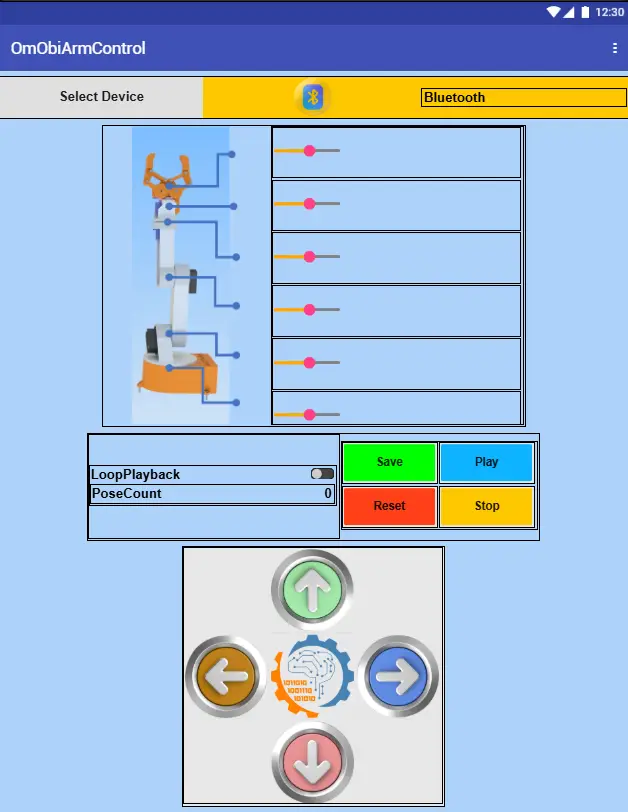
OmObiArmControl is the Android app for the robot, built in MIT App Inventor. The .aia project file (the project format that you import into MIT App Inventor) is in the GitHub repository.
Using the app
- Connect: Pair the HC-05 in your phone’s Bluetooth settings before you open the app (PIN 1234, 0000 on some modules). In the app, tap “Select Device” and choose the HC-05 from the list of paired devices. The label next to the button turns green and shows “Connected”. Red with “Not Connected” means the connection failed.
- Move the arm: Six sliders, one per servo from the base to the gripper. Each slider sends its value to the matching servo when you move it.
- Drive: The four arrow buttons drive the rover forward, backward, left and right. The rover drives only while you hold a button. When you let go, the app sends S and the motors stop, so there is no separate stop button for driving.
- Poses: “Save” stores the current arm position as a pose, up to 10 poses. “Play” replays them in order. The LoopPlayback switch repeats the sequence until you stop it. “Stop” ends playback; in loop mode the arm first finishes the current run through all poses. “Reset” clears all saved poses. In the code, saved poses are stored in the array savedConfigurations.
- Status: PoseCount, next to the LoopPlayback switch, counts your taps on Save. The Arduino keeps only the first 10 poses, so the count can be higher than the number of stored poses.
Bluetooth connection
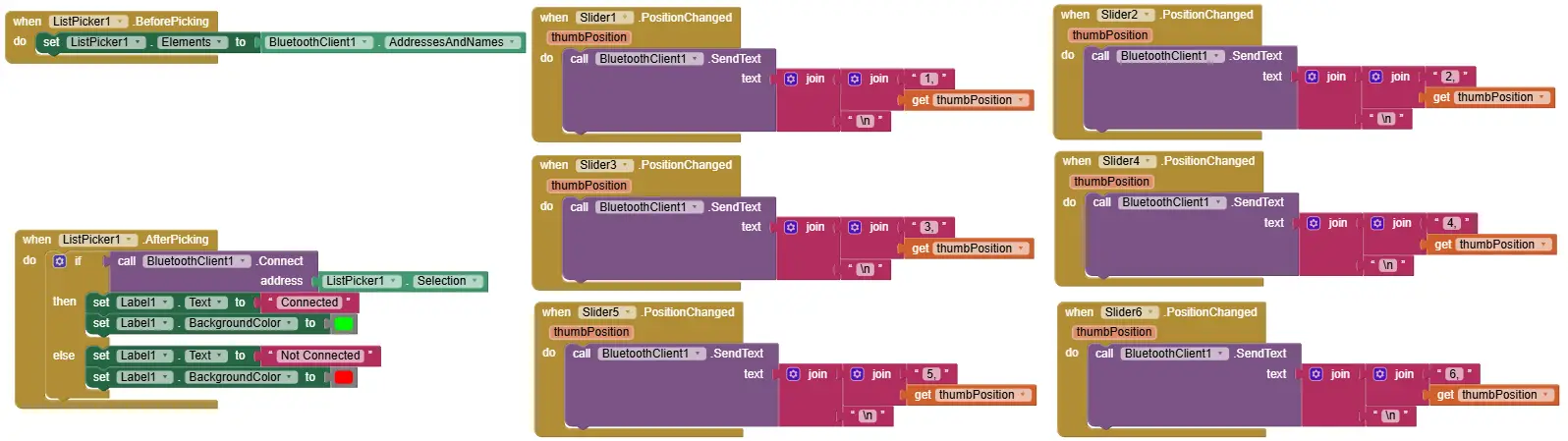
Use a ListPicker component. In its BeforePicking event, fill the list with the paired Bluetooth devices. In AfterPicking, connect to the selected device and set the status label to “Connected” on green, or to “Not Connected” on red if the connection fails. The Bluetooth blocks are explained in detail in my HC-05 Bluetooth module tutorial.
Arm sliders
Add six Slider components, one per servo, with MinValue 0 and MaxValue 180. In each slider’s PositionChanged event, send the command string over Bluetooth: Slider 1 sends 1,value\n, Slider 2 sends 2,value\n, and so on up to Slider 6.
Drive buttons
Add four Button components for Forward, Backward, Left and Right. In each button’s TouchDown event (finger on the button), send F\n, B\n, L\n or R\n. In its TouchUp event (finger lifted), send S\n. The app in the repository works this way.

Pose buttons and Loop switch
Add buttons for Save (v\n), Play (l\n), Reset (r\n) and Stop (s\n), plus a Switch for loop mode that sends o\n when on and f\n when off.
Status labels
Add Label components for the connection status and the pose count. Update them when the app connects, saves or resets.

Step 7: Testing and calibration
Put the rover on a flat surface, switch on with the arm in a relaxed position, and test each subsystem on its own before you run everything together. At power-on the arm jumps to its center pose at full servo speed, so keep your hands away from it.
7.1 Connection check
Pair and connect as described in Step 6. On the common ZS-040 version of the HC-05 module the LED blinks fast while it waits for a connection and changes to a double blink every two seconds once connected. If the connection fails, check that the HC-05 has power and that Bluetooth is switched on in your phone.
7.2 Rover drive
Test each direction one at a time: Forward, Backward, Left, Right. If a motor turns the wrong way, swap its two wires at the motor shield terminal; the code stays as it is. Check that all four motors stop when you release the button.
7.3 Servo calibration
Move each slider slowly, one after the other, and check that the matching servo moves. If a servo does not react, check its wiring and that its channel matches the code (0, 4, 8, 9, 12, 13). If it jitters or buzzes without moving, check the 6 V from the LM2596. If a servo reaches its mechanical stop before the slider reaches 0 or 180, limit its range. The map() line in processServoCommand() applies the same range to all six servos. To limit a single servo, set MinValue and MaxValue of its slider in App Inventor (for example 20 and 160), or give each servo its own minimum and maximum PWM value in the code.
7.4 Pose save and play
Move the arm to a position and tap Save. Move it to a second position and tap Save again. Tap Play: the arm must replay both poses in order. Switch loop mode on and start playback: the arm cycles through the poses until you tap Stop, and the stop takes effect after the current run. Tap Reset last, then Play: nothing happens, because no pose is saved.
7.5 Rover and arm together
Drive the rover while you move the arm sliders and watch the battery voltage. If the robot becomes sluggish, the servos jitter or the Arduino resets, the power supply is the likely cause (see Troubleshooting). In that case, use a battery with a higher capacity or lower the motor speed in setup().
Troubleshooting
HC-05 pairs but the robot does not react: Check that TXD goes to RX0 (pin 0) and RXD to TX0 (pin 1), and that the sketch uses 9600 baud. To see the debug output in the Serial Monitor, unplug the HC-05 (or move it to Serial1, see 4.5) and open the Serial Monitor. The sketch must print “Bluetooth Robot Controller ready. Waiting for commands…”.
Sketch upload fails: The HC-05 is still connected to pins 0 and 1. Unplug at least its TXD and RXD wires (see 4.5).
Servos jitter, buzz or stall: Measure the LM2596 output; it must be 6 V. An LM2596 module is rated for 3 A peak and about 2 A continuous without a heat sink. One stalled MG996R draws up to about 2.5 A at 6 V. If the voltage drops when the arm lifts, use a step-down module rated for at least 5 A. Jitter can also come from too little power when several servos work at the same time. Check the servo plugs on the PCA9685 too.
The rover drives but the arm does not react: Check SDA and SCL on pins 20 and 21 and the 6 V at the PCA9685 V+ terminal. The I2C address must be 0x40; run an I2C scanner sketch (a short test program that lists every device on the I2C bus) to confirm that the Arduino finds the PCA9685.
The arm moves but the rover does not react: Check the motor wires at M1 to M4, that the motor shield sits fully on the Arduino headers, and the battery voltage at the EXT_PWR terminal.
Poses do not save or play: Check that the app sends v for save and l for play (lowercase L). The Serial Monitor shows the pose count after each save (see the first entry for how to connect it). After 10 saved poses the sketch ignores further saves.
Loop playback does not stop: The app must send a lowercase s. In loop mode the stop takes effect only after the current run through all saved poses (see the pose functions walkthrough).
Voltage drops and erratic behavior under load: The battery or the LM2596 cannot deliver enough current for motors and servos at the same time. Charge the LiPo fully. If that does not help, power the motors and the servos from separate batteries.
Motors turn in the wrong direction: Swap the two wires of that motor at the shield terminal. The code does not need to change.
Frequently asked questions
The sketch fits: compiled for the Uno, it uses about 1.1 KB of the Uno’s 2 KB of SRAM for global variables. On the Uno, connect SDA and SCL of the PCA9685 to A4 and A5. The HC-05 stays on pins 0 and 1, because the Uno has no Serial1. The Mega has 8 KB of SRAM and more free pins, and it lets you move the HC-05 to Serial1 (see 4.5).
The Adafruit Motor Shield occupies several of the Arduino’s PWM pins. The PCA9685 needs only the two I2C pins (SDA and SCL) and provides 16 PWM channels. Its V+ rail takes the separate 6 V from the LM2596, so the servo current never flows through the Arduino.
The HC-05 uses Bluetooth Classic with the Serial Port Profile (SPP: Bluetooth that behaves like a serial cable), which iPhones do not offer to third-party apps. For iOS, replace the HC-05 with a BLE module (Bluetooth Low Energy), for example an HM-10 or an ESP32, and adapt the sketch and the app.
Resources and next projects
Project files
- GitHub repository: Arduino sketch and MIT App Inventor project file (.aia).
- OmArTronics Shop: print and CAD files (STL for printing, STP for opening the model in a CAD program) for the chassis, the top plate, the arm links and the gripper. Code, wiring diagram and parts list are on this page.
Related tutorials
- OmObi: Building the Bluetooth-Controlled Robot Car: the rover that OmObiArm is based on.
- OmArm: DIY 6-DOF Robotic Arm with Bluetooth Control: the arm that OmObiArm carries. DOF means degrees of freedom (independent joints); the name counts all six servos, including the gripper.
- DIY 6-DOF Robotic Arm: 3D Print, Wire, and Program: the earlier, potentiometer-controlled version of the arm.
- Arduino HC-05/HC-06 Bluetooth Module Complete Tutorial: wiring, pairing and the App Inventor Bluetooth blocks.
- Arduino Servo Motor Control Guide: SG90, PWM, and PCA9685: servo basics and the PCA9685.
- Arduino Programming Basics: Complete Beginner Guide: start here if you have never programmed an Arduino.
- Advanced Autonomous Robot Car with Arduino Mega and Ultrasonic Sensors: same motor shield and Arduino Mega, with obstacle avoidance.
- L298N Motor Driver with Arduino: DC Motor Control Guide: H-bridge motor control with a separate driver board.
Next upgrades
- Obstacle avoidance: add four HC-SR04 ultrasonic sensors so the rover can navigate on its own while the arm works. See my HC-SR04 ultrasonic sensor tutorial and the Arduino radar project.
- EEPROM pose storage: store the poses in EEPROM (memory that keeps its content without power), so they survive a power-off.
- Speed control: replace the fixed speed 255 with a slider in the app and pass its value to setSpeed().
- Camera and computer vision: add a Raspberry Pi or an ESP32-CAM for object detection. The Mega alone cannot process images.
- Wi-Fi: replace the HC-05 with an ESP32 for control from a web browser or from a home automation system.
The next arm project, OmArm Zero, takes this step and moves from Arduino to an ESP32. You control it from the browser over Wi-Fi, and later parts add ROS 2, MoveIt 2 and a camera.
All my robot arms compared: How to build a 6-axis robot arm at home explains what 6-axis means, puts the four designs in one table and tells you which one to build first.
Hi OmArTronics plus Team,
Hope all is well with you!
This is Ashley from JLCMC, a sub-brand of JLCPCB. We are dedicated to building a global one-stop-shop service. There are more than thousands of mechanical components to suit different usage scenarios and needs.
We’ve been impressed by your hands-on approach and creative DIY projects, especially your work with robotic arms. Your focus on practical, innovative solutions aligns perfectly with our mission at JLCMC to provide high-quality mechanical components. We believe a collaboration would be mutually beneficial, as your audience’s interest in robotics and automation closely matches the solutions we offer. Partnering with you would allow us to introduce our precision parts to a tech-savvy community eager for smart, efficient technologies.
We would be happy to provide you with our products for your use, if you are interested or if you happen to need to update your components or have any other questions, please feel free to contact us!
Thanks for your time and I’m looking forward to hearing from you!
Best regards,
Ashely
you are very creative and brave
i from Egypt and i love your app because i will Build a robot to my school and its our my frist robot
thank you
Odai
Thank you for your kind words, Odai
I wish you lots of success building your first robot for school!