
This post contains affiliate links, marked with *. As an Amazon Associate I earn from qualifying purchases, at no extra cost to you. It helps keep the tutorials free.
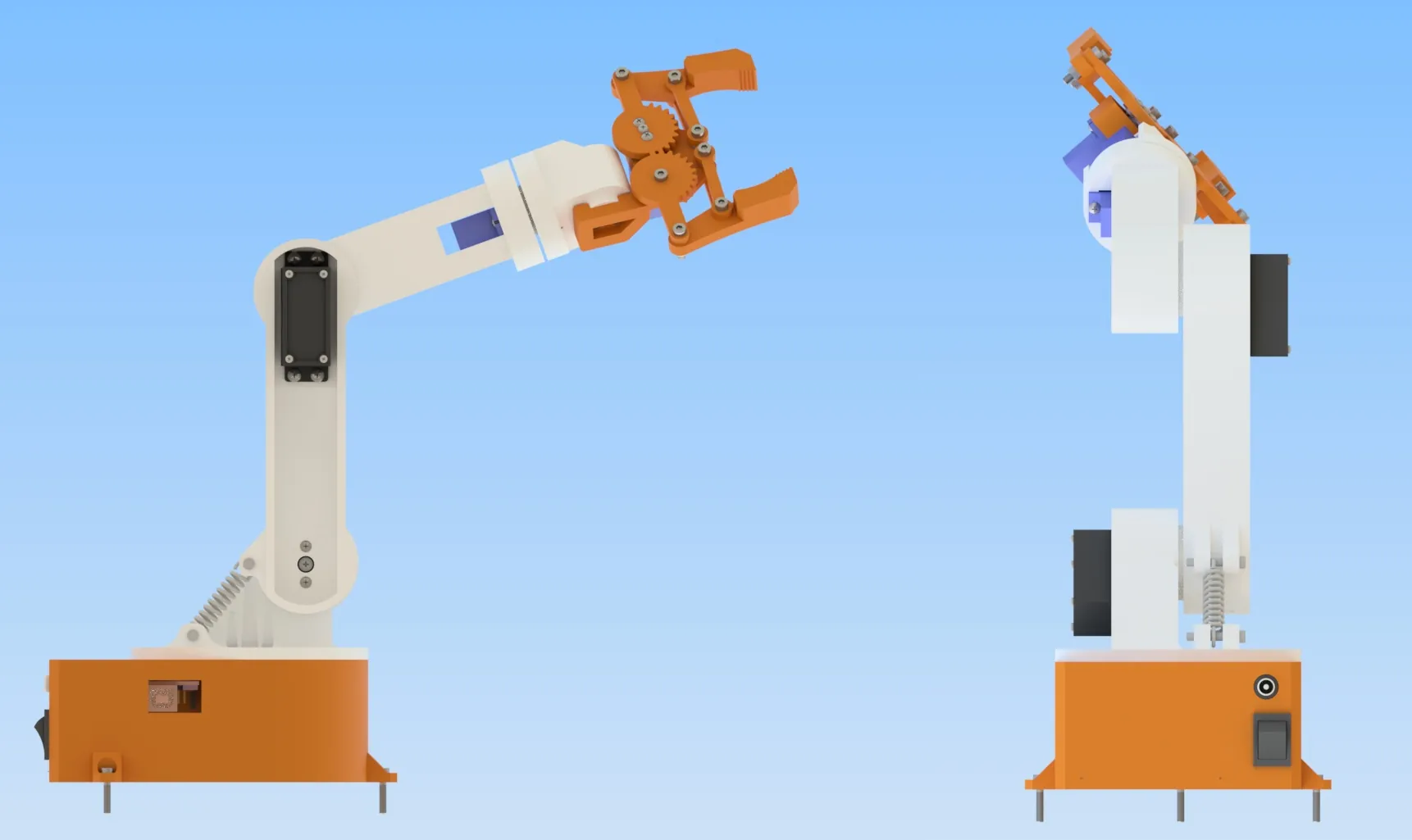
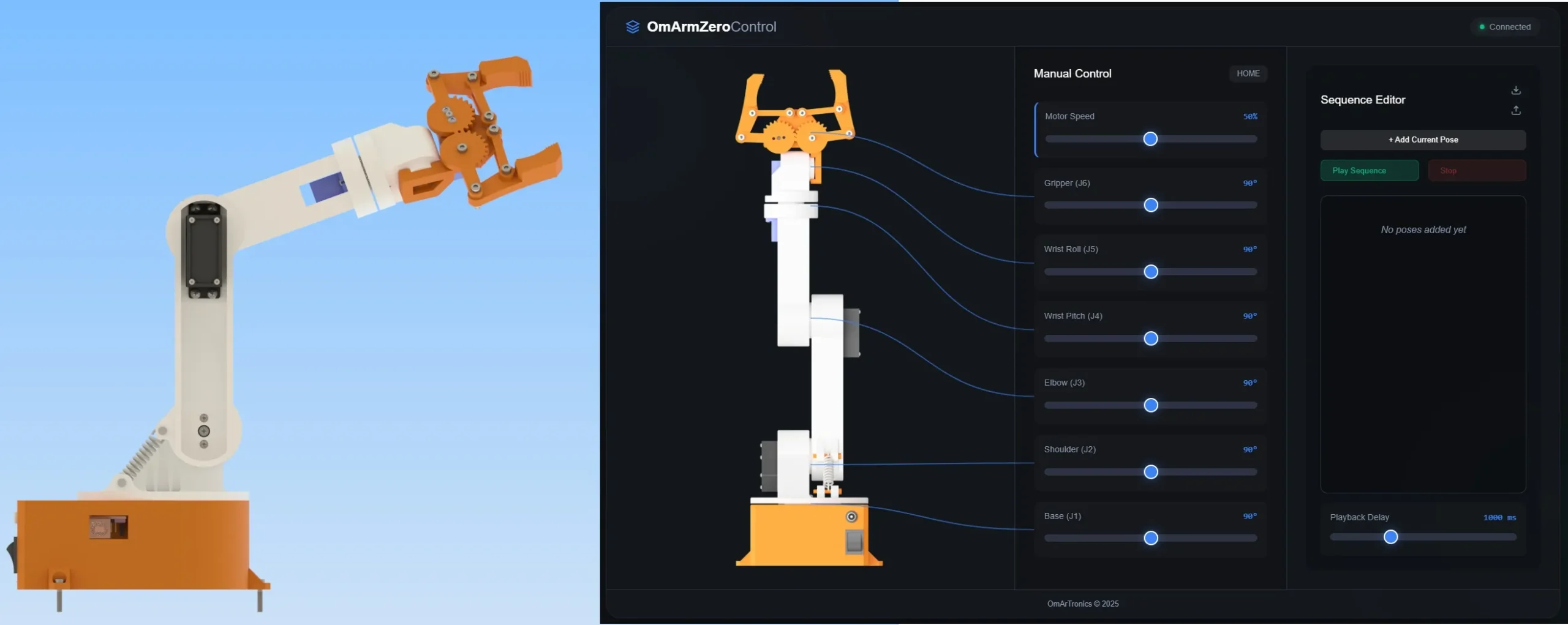
OmArm Zero is a 3D-printed ESP32 robotic arm: five arm joints plus a gripper, controlled from a browser over WiFi.
OmArm Zero Series
Part 1: Build (this post) · Part 2: URDF + RViz + Gazebo · Part 3: MoveIt 2 · Part 4: Computer Vision Pick-and-Place
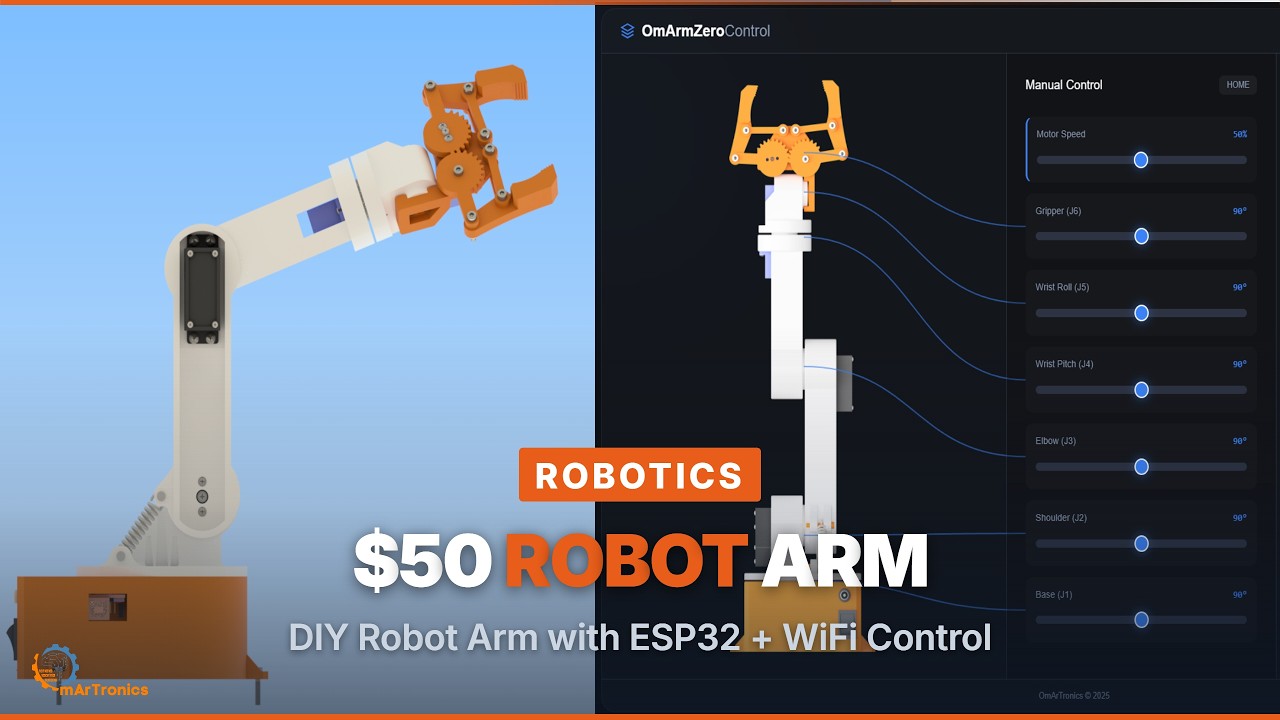
The video loads from YouTube (Google), which may set cookies. Privacy policy
At a glance
What you build: a robotic arm with six degrees of freedom (DOF, independent axes of movement): five arm joints plus a parallel-jaw gripper, one servo each. You control it over WiFi from your phone or laptop. 303 mm reach, 100 g payload (150 g maximum with the shoulder spring), all structural parts 3D printed, one 5 V supply.
Time required: about 12 hours of printing plus 8-12 hours of assembly and testing. The mechanical assembly alone takes about two to three hours if you take your time.
Total cost: about $48 in parts, filament included.
Difficulty: intermediate. You assemble mechanical linkages, wire the electronics (some soldering) and flash firmware. Arduino experience helps but is not required.
Tools: Allen key set, small Phillips screwdriver, wire cutters, soldering iron (optional but recommended), digital caliper for checking tolerances, 3.8 mm or 4 mm socket for the servo horns. A servo horn is the small arm or disc that screws onto a servo’s output shaft.
Files: the Part 1 package with the STL files (3D print files), the STEP model (the CAD assembly in a format most CAD programs open) and the firmware (link at the end).
1. Why build a robotic arm from scratch?
My earlier arm was a 6-DOF robotic arm with Bluetooth control built around an Arduino Uno and an HC-05 Bluetooth module. It worked, but the Bluetooth range was limited and it took two boards to do what one chip can, so I started from scratch. The ESP32 costs $5 and has WiFi built in, so it replaces both the Uno and the HC-05.
OmArm Zero is the result: five arm joints plus a gripper, 535 g, 303 mm reach, about $48 in parts. Unlike a kit arm, this guide shows the numbers behind each design decision, starting with the torque calculation that decides which servo goes where.
The arm runs on an ESP32 with built-in WiFi. Its web interface opens in the browser of your phone or laptop and is stored in the chip’s flash memory, so the arm needs no router and no cloud service. Serial control over USB is there too, for testing and for the later Parts on ROS 2 (Robot Operating System 2, a software framework for robot control).
I planned for ROS 2 from the start: the serial firmware already takes joint angles, so the ROS 2 connection in Part 3 is a thin layer on top. Part 3 flashes its own serial firmware for ROS 2 (omarm_zero_ros2_serial.ino), which takes the same MOVE command (Section 7).
2. System requirements and engineering specification
Before I drew the first part in CAD, I wrote down what the arm must do.
Functional requirements
- Reach: 303 mm from the shoulder axis to the jaw tips.
- Payload: 100 g in normal operation, 150 g maximum with the spring assist at the shoulder.
- Degrees of freedom: five arm joints plus a gripper: base rotation, shoulder lift, elbow, forearm rotation (J4), wrist tilt (J5) and a parallel-jaw gripper.
- Control: web interface over WiFi for everyday use, serial protocol over USB for testing and ROS 2.
- Motion: smooth movement without oscillation, speed adjustable from very slow to fast.
- Gripper: parallel jaws that hold a 100 g object without slipping.
Non-functional requirements
- Cost: about $48 in total, under $5 per servo.
- Printability: every part fits a 220 × 220 mm bed and prints in standard PLA. I print on a Bambu Lab X1 Carbon; all parts fit on two plates.
- Assembly: no tools beyond what a maker already owns; every structural part is 3D printed.
- Power: one 5 V supply, no extra voltage regulators.
- Build time: 8-12 hours of assembly and testing (printing not included) for someone who has soldered before.
Kinematic layout
The arm has five revolute joints (joints that rotate about one axis) plus the gripper:
- Joint 1 (Base): turns the whole arm about the vertical axis, 180 degrees of travel. Because this axis is parallel to gravity, the arm’s weight creates no torque about it; the servo only overcomes friction and inertia.
- Joint 2 (Shoulder): lifts the upper arm from horizontal to vertical. The whole arm pivots here and gravity pulls on its full length, so this joint needs the strongest servo.
- Joint 3 (Elbow): bends the forearm. It carries less than the shoulder because the upper arm is behind it.
- Joint 4 (Forearm rotation): turns the wrist and gripper about the forearm axis. Light load.
- Joint 5 (Wrist tilt): tilts the gripper up and down. Light load.
- Gripper: a parallel-jaw mechanism driven by a small servo; two fingers close symmetrically.
Why five arm joints and not six? A sixth joint would add a servo, more weight at the end of the arm and more load on the shoulder. Five joints place the gripper and set its tilt and rotation, which covers most pick-and-place tasks. What you give up is a free choice of gripper orientation at every point.
Denavit-Hartenberg parameters
New to robotics? You can skip this section. Denavit-Hartenberg (DH) parameters are four numbers per joint that describe where each joint axis sits relative to the previous one. Part 2 does not use them: the URDF describes the same geometry with joint origins and axes from the CAD export.
The table uses the modified DH convention described by Craig. Its values approximate the URDF geometry; the forearm, for example, measures 98.2 mm between the joint axes in the URDF.
| Joint | Theta offset (deg) | d (mm) | a (mm) | Alpha (deg) | Notes |
|---|---|---|---|---|---|
| 1 | 0 | 50.87 | 0 | 0 | Base lift, vertical axis |
| 2 | 0 | 0 | 23.14 | -90 | Shoulder, bends down |
| 3 | 0 | 0 | 113.11 | 0 | Elbow, reaches forward |
| 4 | 90 | 98.50 | 0 | -90 | Forearm rotation |
| 5 | 0 | 32.05 | 0 | 90 | Wrist tilt |
In each row, a is the link length and alpha the twist angle from the previous joint axis to this one. The offset d runs along this joint’s axis, and the theta offset is the commanded zero position.
Torque analysis
A servo’s rated torque means little until you compare it with the load. For each joint I drew a free-body diagram (a sketch of all forces acting on the part) and calculated the static torque with this formula.
tau_required = m_load * g * L_from_pivot * cos(theta)
m_load is the mass of everything beyond the joint, L_from_pivot the distance from the pivot to that mass’s center of mass, g gravity, and theta the joint angle. Torque is highest at theta = 0, with the arm horizontal.
Joint 1 (Base rotation): no gravitational torque, only friction and inertia. An MG996R is more than this joint needs; I use one anyway for consistency with J2 and J3. It costs about $2 more than an SG90 ($4 against $2 in the BOM, the bill of materials in Section 4).
Joint 2 (Shoulder): everything that moves above the base weighs 326 g in the CAD. For a simple, conservative estimate I count all of it plus the payload and put the sum at an average distance of about 180 mm from the pivot. With 150 g payload that is 476 g:
tau_required = 0.476 kg * 9.81 m/s^2 * 0.180 m * cos(0) = 0.84 N·m ≈ 8.6 kgf·cm
With the 100 g nominal payload the shoulder needs about 7.7 kgf·cm. A joint-by-joint calculation with the CAD masses and the payload at the jaw tips, 303 mm from the shoulder, gives 8.0 kgf·cm at 150 g. The simple estimate stays on the safe side.
The MG996R is rated 11 kgf·cm at 6 V. At 5 V, which is what the arm runs on, it delivers about 8.8 kgf·cm. That is a safety factor (available torque divided by required torque) of 1.02 at peak load. To gain margin I added an extension spring at the shoulder that pulls the upper arm up (details in Section 3).
Joint 3 (Elbow): carries the forearm, wrist and gripper, 132 g in the CAD. Their weight alone needs 0.13 N·m (1.3 kgf·cm). The payload hangs at the jaw tips, about 190 mm from the elbow. With 150 g payload:
tau_required = 0.13 N·m + 0.150 kg * 9.81 m/s^2 * 0.190 m = 0.41 N·m ≈ 4.2 kgf·cm
At 5 V the MG996R provides about 8.8 kgf·cm. Safety factor: 2.1.
Joint 4 (Forearm rotation): the gripper’s weight sits close to the rotation axis, so there is almost no gravitational torque. An SG90 is enough.
Joint 5 (Wrist tilt): carries the gripper, 50 g at 20 mm, plus the payload at the jaw tips, about 60 mm from the J5 axis. With 150 g payload:
tau_required = 0.0098 N·m + 0.150 kg * 9.81 m/s^2 * 0.060 m = 0.098 N·m ≈ 1.0 kgf·cm
The SG90 micro servo provides 1.8 kgf·cm. Safety factor: 1.8, enough at 100 g and tight at 150 g.
Summary:
| Joint | Load (g) | Distance (mm) | Required (kgf·cm) | Servo | Available (kgf·cm) | Safety factor | Constraint |
|---|---|---|---|---|---|---|---|
| 1 | 476 | 0 | 0 | MG996R | 8.8 | n/a (no gravity load) | None |
| 2 | 476 | 180 | 8.6 | MG996R | 8.8 | 1.02 | Critical |
| 3 | 282 | up to 190 | 4.2 | MG996R | 8.8 | 2.1 | Safe |
| 4 | 50 | 0 | ~0 | SG90 | 1.8 | n/a (no gravity load) | Safe |
| 5 | 200 | up to 60 | 1.0 | SG90 | 1.8 | 1.8 | Tight at 150 g |
Available torque means the value at 5 V: 8.8 kgf·cm for the MG996R, and 1.8 kgf·cm for the SG90, whose datasheet gives that value at 4.8 V.
Joint 2 limits the whole arm: at 150 g payload it needs 8.6 of the 8.8 kgf·cm available at 5 V. The spring adds about 2.9 kgf·cm of margin. Without it the shoulder servo gets hot and starts drifting after a minute or two, so I would then limit the payload to about 75 g.
Payload limit. The shoulder torque as a function of the payload P (in kg):
tau_J2 = (0.326 + P) * 9.81 * 0.180 = 0.576 + P*1.766 N·m
Setting this equal to the 8.8 kgf·cm available at 5 V and solving for P gives about 0.16 kg. That is a static ceiling: it ignores acceleration, friction, gear backlash (the small free play between gear teeth) and heat, and the MG996R’s sustained torque at 5 V is below the datasheet value. So I tested real weights: 100 g moves smoothly with no audible strain, 150 g holds reliably with the spring assist, and 200 g stalls the servo (it stops moving while powered) at extreme angles. Hence the spec: 100 g nominal (all day) and 150 g maximum (occasionally, with the spring). Beyond 150 g the servo heats up and can burn out.
Workspace and reach
Link lengths from the URDF: upper arm 113.1 mm, forearm 98.2 mm, wrist 32.1 mm, gripper about 60 mm to the jaw tips. With the arm stretched out horizontally, measured from the shoulder axis:
reach = 113.1 + 98.2 + 32.1 + 60 = 303.4 mm ≈ 303 mm
The 50.9 mm base height is vertical and does not add to the horizontal reach.
The reachable space is roughly a hemisphere of 303 mm radius above the table, centered on the base.
Power budget
Everything runs from one 5 V supply, so the currents have to add up.
- Each MG996R draws about 500 mA under typical load and up to 2500 mA when stalled.
- Each SG90 draws about 200 mA typical, up to 650 mA stalled.
- The ESP32 draws about 80 mA, up to 500 mA during WiFi transmission peaks.
- The PCA9685 servo driver board (Section 4) draws about 10 mA.
Typical total: 500 + 500 + 500 + 200 + 200 + 200 + 80 + 10 = 2190 mA.
Peak total, all six servos stalled at once: 2500 + 2500 + 2500 + 650 + 650 + 650 + 500 + 10 = 9960 mA.
The theoretical peak of 9960 mA stays below the 10 A rating of the 5 V 10 A supply. It only occurs if all six servos stall at once, which normal motion does not cause. If it did, the voltage would sag and the ESP32 could reset (brown-out: a reset caused by low supply voltage). I have run this arm for hours with normal movement patterns without a supply problem. Measured on my arm, it draws about 1.5 A while all servos hold position and about 4 A at peaks during fast multi-joint moves. A 5 V 10 A supply is the minimum; a 15 A unit costs about $3 more and leaves more margin. I connect the supply through a barrel jack with a screw terminal block (item 33) and run two wires from there to the PCA9685 power terminal. Many 5.5 × 2.1 mm jacks are rated for only 3-5 A, so check the rating of yours; for the full 10 A, use a supply with screw terminals.
Safety note: always power the servos from the separate 5 V supply, never from the ESP32’s USB port. The USB port delivers a few hundred milliamps; a single stalled MG996R draws 2500 mA.
3. Mechanical design and CAD
I designed OmArm Zero in Autodesk Inventor. For Part 2, the model was imported into Fusion 360 and exported as URDF (Unified Robot Description Format), the file format in which ROS 2 describes a robot’s links and joints. Inventor is parametric: link lengths, servo pocket dimensions and hole sizes are variables, and every related dimension updates when one of them changes. That saves redrawing parts when, for example, the shoulder length changes.
The design is modular: each joint is its own assembly, built for FDM printing (fused deposition modeling, the standard filament printer). Most walls are 1.2 mm: three perimeters (outline loops) laid by a 0.4 mm nozzle. M3 holes are 3.2 mm; the M3 screws cut their own thread in the PLA (see Fasteners in Section 4).
Base assembly
The base has two parts: a lower ring that stays put and an upper piece that rotates. The MG996R sits in the lower part, bolted to a reinforced shelf with four No.3-28 truss head screws (item 25). A 6806ZZ ball bearing (30 × 42 × 7 mm) sits at the center. Its inner ring rides on a 30 mm spigot (a short cylindrical peg) on base_link. Its outer ring sits in a 42 mm pocket on the underside of base_link_upper, and its 7 mm width fills that pocket. The bearing carries the upper base and removes play (slop) from the base rotation. Without it, only the servo horn would locate the upper base, with 6 mm of radial play all round, so treat the bearing as required. The servo horn bolts to the upper part, so the upper part follows the servo.
The base diameter is 85 mm, enough for a stable stand. It prints as two parts to avoid bridging (printing in the air between two supports) over the bearing pocket.
Shoulder joint
The shoulder carries the highest load, so it got the most attention. The shoulder bracket holds the MG996R with its output shaft horizontal, so the upper arm swings up and down. The upper arm bolts to the servo horn.
An extension spring between the upper arm and the bracket pulls the joint upward and counteracts about half the weight of the arm. When the servo lifts the arm, it only works against the spring pre-load plus the remaining weight. The spring is what lets the MG996R (8.8 kgf·cm at 5 V) hold the arm reliably.
The spring sits in a channel on the inner side of the shoulder bracket. One end hooks into a slot on the bracket, the other into a slot on arm_link_1 (the upper arm). With the upper arm horizontal, its lowest position, the spring is stretched furthest and applies about 2.9 kgf·cm; as the arm rises, the spring relaxes.
Spring specs: extension spring (not compression), about 4 mm outer diameter, 0.5 mm wire, 15 mm free length, roughly 0.8 N/mm spring rate (the force per millimeter of stretch). Hardware-store spring assortments have them for about $1. The exact rate is not critical; anything between 0.5 and 1.2 N/mm works. A stiffer spring means the servo works less when lifting but more when lowering. I tested three springs and settled on the 0.8 N/mm one because it felt balanced in both directions.
Elbow joint
The elbow uses the same servo bracket as the shoulder but needs no spring, because it only carries the forearm, wrist and gripper.
Wrist assembly
The wrist consists of two SG90 servos at right angles. The first (J4) sits in the end of the forearm and turns the wrist bracket about the forearm axis. The second (J5) sits in the wrist bracket and tilts the gripper up and down. Each SG90 measures 23 × 12.2 × 29 mm. With servos this small, the J5 axis sits only 32 mm beyond J4, which keeps the wrist short and light.
Gripper assembly
The gripper turns the servo’s rotation into a closing motion of two parallel fingers. Two printed gears turn in opposite directions; each drives one finger through a linkage. The left gear bolts to the servo horn; the right gear spins freely on a shaft and is driven by the left one. Because both fingers close symmetrically, the object stays centered. I have picked up objects from marker pens to small DC motors with it.
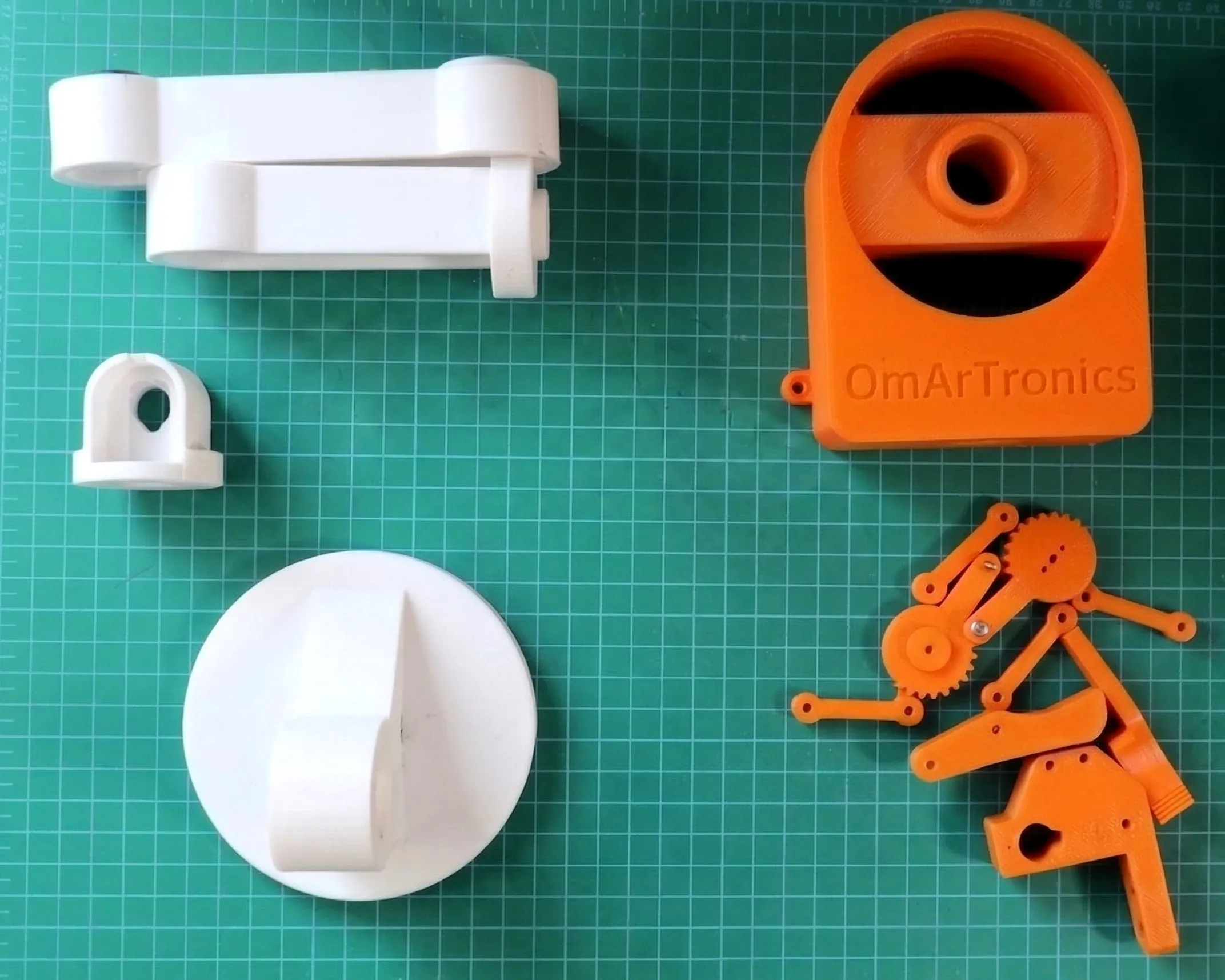
3D printing: orientation, parts list and slicer settings
Every part has a defined print orientation that reduces support material (temporary printed scaffolding under overhangs) and keeps the layer lines along the load. The upper arm prints lying flat, lengthwise, so the layer lines run along the span where the bending load is; printed upright, the layers would separate under load. The gripper gears print flat too, because vertical layers would shear through the teeth.
Wall thickness is 1.2 mm except at stress concentrations, where it is 2.0 mm. The bearing pocket in base_link_upper has a 5 mm wall (a 42 mm bore inside a 52 mm boss, the raised ring around the bore) so the press fit cannot split it. The tolerances (for example 0.2 mm clearance around each servo pocket) are built into the CAD, so print the STLs at 100 % scale with no XY compensation.
The arm consists of 16 printed parts from 12 STL files: gripper_link prints four times, gripper_sleeve twice, every other file once. The item numbers match the BOM in Section 4. Gear_links and Gear_rechts are German file names: links = left, rechts = right.
| Item | STL file | Qty | Description | Print orientation |
|---|---|---|---|---|
| 1 | base_link.stl | 1 | Stationary base with servo pocket and 30 mm bearing spigot | Flat, bottom face down |
| 2 | base_link_upper.stl | 1 | Rotating upper base with 42 mm bearing pocket, mounts to the servo horn | Flat, bottom face down |
| 3 | arm_link_1.stl | 1 | Upper arm (shoulder to elbow) | Horizontal, lengthwise flat |
| 4 | arm_link_2.stl | 1 | Forearm (elbow to wrist) | Horizontal, lengthwise flat |
| 5 | arm_link_3.stl | 1 | Wrist bracket (carries the J5 servo) | Upright, base face down |
| 6 | gripper_base.stl | 1 | Gripper housing, mounts to the J5 servo horn | Flat, open face up |
| 7 | Gripper_2.stl | 1 | Right gripper finger | Flat |
| 8 | Gear_rechts.stl | 1 | Right gear, driven, spins freely on its shaft | Flat, teeth face up |
| 9 | Gear_links.stl | 1 | Left gear, driving, bolts to the servo horn | Flat, teeth face up |
| 10 | Gripper.stl | 1 | Left gripper finger | Flat |
| 11 | gripper_link.stl | 4 | Gripper linkage connector | Flat |
| 12 | gripper_sleeve.stl | 2 | Gripper sleeve (bushing / spacer) | Flat |
| Total | 16 |
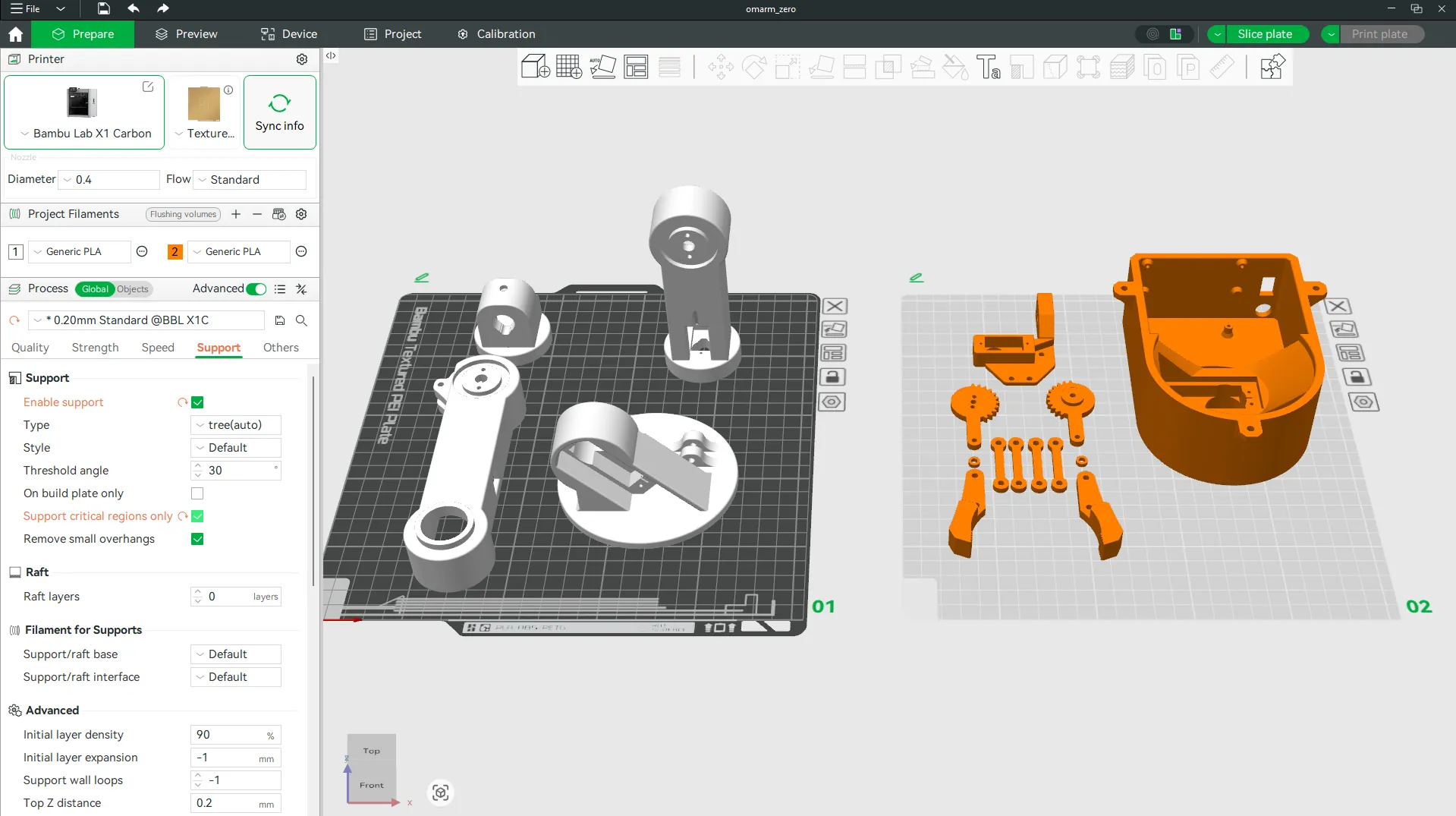
Everything fits on two plates of 220 × 220 mm, so printers with a smaller bed than the X1 Carbon work too. Plate 1 holds the structural parts (base, arm links), plate 2 the gripper and small parts.
Slicer settings (Bambu Studio):
| Parameter | Value |
|---|---|
| Material | PLA (any brand) |
| Nozzle | 0.4 mm |
| Layer height | 0.20 mm |
| First layer height | 0.12 mm |
| Infill | 15 % rectilinear |
| Wall loops | 3 (= 1.2 mm wall) |
| Top/bottom layers | 4 |
| Support type | Tree support (auto) |
| Support threshold | 45 degrees |
| Plate adhesion | Brim (a one-layer rim around the part) on base_link only |
Print time is about 6 hours per plate, 12 hours in total, with roughly 200 g of filament. The settings work on any FDM printer with a 0.4 mm nozzle. Enable tree supports for the arm links: the servo pockets have overhangs around 50 degrees.
After printing, remove the support material with flush cutters and check every bearing and servo pocket with a caliper. The bearing spigot on top of base_link should measure 30.0 mm (-0.1 mm tolerance), the bearing pocket on the underside of base_link_upper 42.0 mm (+0.1 mm). Servo pockets should fit the MG996R body (40.7 × 19.7 mm) with about 0.2 mm clearance on each side.
The Bambu Studio project file (omarm_zero.3mf) in the Part 1 package loads both plates with all parts positioned.
4. Bill of materials and component selection
The technical drawing shows every part with its item number; the BOM table uses the same numbers.
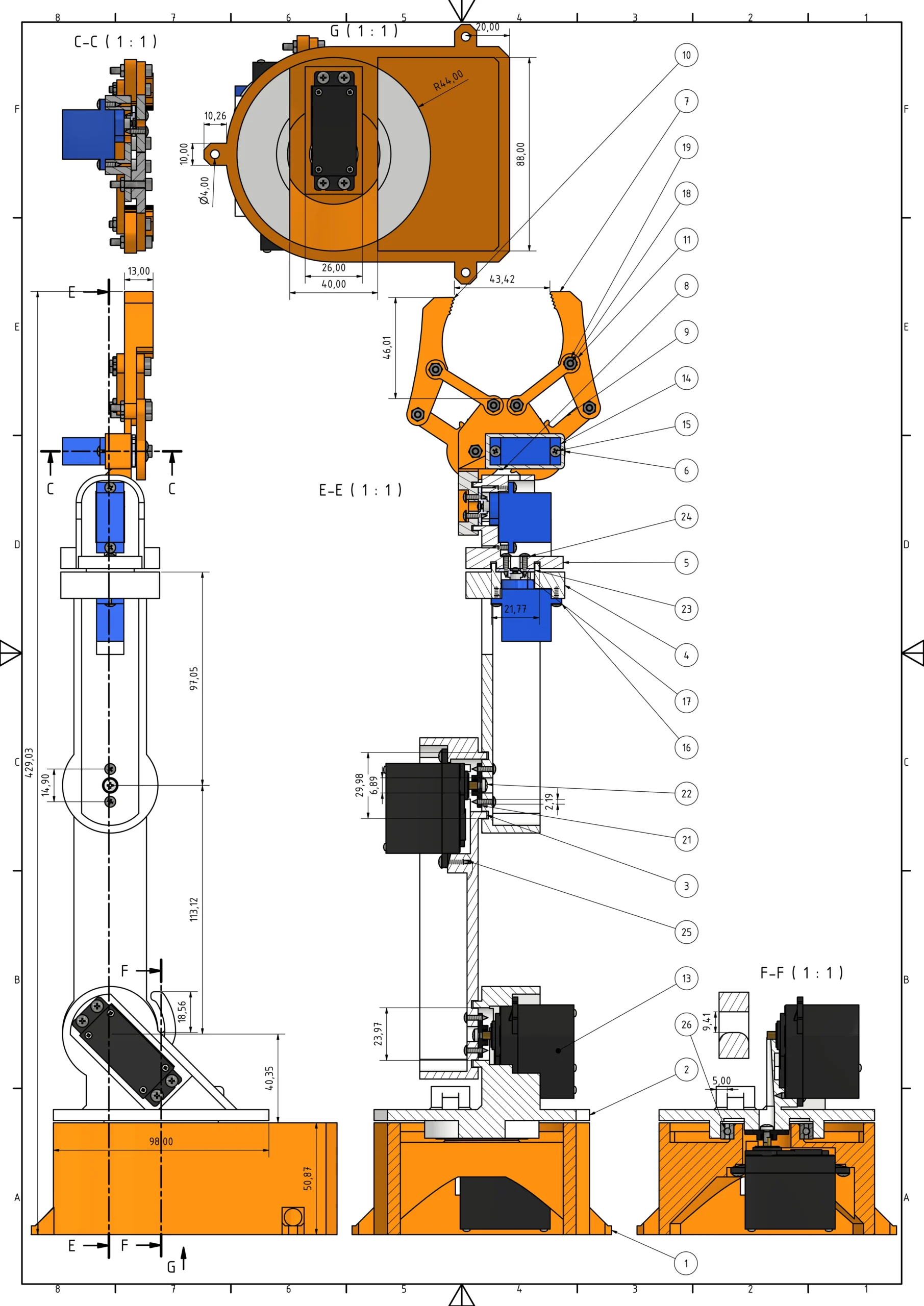
The STL files, the STEP model and the PDF build guide are in the OmArm Zero Part 1 package (link at the end). The firmware is free on GitHub.
Complete parts list
| Item | Qty | Part | Description | Source | Price |
|---|---|---|---|---|---|
| 1 | 1 | base_link | Base platform with servo pocket and 30 mm bearing spigot | 3D printed | |
| 2 | 1 | base_link_upper | Rotating upper base with 42 mm bearing pocket, mounts to the servo horn | 3D printed | |
| 3 | 1 | arm_link_1 | Upper arm (shoulder to elbow) | 3D printed | |
| 4 | 1 | arm_link_2 | Forearm (elbow to wrist) | 3D printed | |
| 5 | 1 | arm_link_3 | Wrist bracket (carries the J5 servo) | 3D printed | |
| 6 | 1 | gripper_base | Gripper housing, mounts to the J5 servo horn | 3D printed | |
| 7 | 1 | Gripper_2 | Right gripper finger | 3D printed | |
| 8 | 1 | Gear_rechts | Gripper gear, right, driven | 3D printed | |
| 9 | 1 | Gear_links | Gripper gear, left, driving | 3D printed | |
| 10 | 1 | Gripper | Left gripper finger | 3D printed | |
| 11 | 4 | gripper_link | Gripper linkage connector | 3D printed | |
| 12 | 2 | gripper_sleeve | Gripper sleeve / spacer | 3D printed | |
| 13 | 3 | MG996R servo | Metal gear, 11 kgf·cm at 6 V, digital, J1, J2, J3 | Buy | $12 (3 × $4) |
| 14 | 3 | SG90 micro servo | Plastic gear, 1.8 kgf·cm, analog, J4, J5, gripper | Buy | $6 (3 × $2) |
| 15 | 14 | ANSI B18.6.4 No.2-32 3/8″ | Truss head screw, US size #2, 32 threads per inch, 3/8 inch long | Buy | in screw kit |
| 16 | 2 | ANSI B18.6.4 No.2-32 1/4″ | Truss head screw No.2-32, 1/4 inch long | Buy | in screw kit |
| 17 | 3 | DIN 7985 M1.6×2-Z | M1.6 × 2 cross-recess screw | Buy | in screw kit |
| 18 | 7 | ISO 4762 M3x16 (AS 1420) | M3 × 16 hex socket screw | Buy | in screw kit |
| 19 | 12 | ISO 4032 M3 (AS 1112) | M3 hex nut | Buy | in screw kit |
| 20 | 2 | ANSI B18.6.4 No.2-32 1/2″ | Truss head screw No.2-32, 1/2 inch long | Buy | in screw kit |
| 21 | 3 | MG955 Horn | Servo horn for the MG996R (the horn supplied with the servo) | Included with servo | |
| 22 | 3 | DIN 7985 M3x6-Z | M3 × 6 cross-recess screw | Buy | in screw kit |
| 23 | 3 | SG90 servo horn | Servo horn for the SG90 | Included with servo | |
| 24 | 2 | ANSI B18.6.4 No.2-32 3/8″ | Truss head screw No.2-32, 3/8 inch long | Buy | in screw kit |
| 25 | 12 | ANSI B18.6.4 No.3-28 1/2″ | Truss head screw No.3-28, 1/2 inch long | Buy | in screw kit |
| 26 | 1 | Ball bearing 6806ZZ (30 × 42 × 7) | Deep-groove bearing for the base rotation, 30 mm bore, 42 mm outer diameter, 7 mm wide (not 686ZZ) | Buy | $2 |
| 27 | 1 | ESP32 DevKit | 38-pin WROOM module, 4 MB flash, built-in WiFi | Buy | $5 |
| 28 | 1 | PCA9685 servo driver board | 16-channel servo driver | Buy | $2 |
| 29 | 1 | Extension spring | 4 mm OD, 0.5 mm wire, 15 mm free length, about 0.8 N/mm, J2 shoulder assist | Buy | $1 |
| 30 | 1 | 5 V 10 A power supply | Servo power, 5.5 × 2.1 mm barrel jack | Buy | $8 |
| 31 | 1 | Jumper wires (male-male) | ESP32 to PCA9685 | Buy | $2 |
| 32 | 1 | Jumper wires (male-female) | General wiring | Buy | with item 31 |
| 33 | 2 | Barrel jack connector | 5.5 × 2.1 mm, power breakout | Buy | $1 |
| 34 | 1 | Solder, flux, heat shrink | 60/40 or lead-free, assorted | Buy | $3 |
| 35 | 200 g | PLA filament | Any color | Buy | $3 |
| Screw kit (items 15-25) | $2 | ||||
| Total (purchased parts) | ~$47.50 |
Items 1-12 are printed (16 parts from 12 STL files) and items 13-14 are the servos. Items 15-25 are fasteners and servo horns: one assorted screw kit covers the screws, and the horns come with the servos. Items 26-35 are electronics, hardware and consumables.
Choosing the servos
The MG996R is the main servo. Its metal gears do not strip under load. It is rated 11 kgf·cm at 6 V, which at 5 V is barely enough for the shoulder (Section 2). It is sold as a digital servo: a small controller inside drives the motor at a higher rate than an analog servo, so it holds its position more firmly. Both types take the same 50 Hz control signal. At about $4 each, it is the cheapest metal-gear servo I found. Quality varies between sellers, so test every servo with the serial firmware before you build it in.
Why not use the MG996R everywhere? Weight and power. Each MG996R weighs 55 g; the three of them are 165 g of the arm’s 535 g. MG996R servos at the wrist (J4, J5) would add another 110 g at the end of the arm. At 180 mm from the shoulder pivot, that raises the required J2 torque by:
0.110 kg * 9.81 m/s^2 * 0.180 m = 0.194 N·m ≈ 2.0 kgf·cm of additional load
With the shoulder already at its limit, another 2 kgf·cm would make it unreliable.
The SG90 micro servo weighs 9 g; three of them weigh 27 g instead of 165 g. Its 1.8 kgf·cm covers the wrist tilt (1.0 kgf·cm with 150 g payload) and the forearm rotation (close to zero). The trade-off: SG90s are analog servos and can twitch slightly around the target position.
ESP32 choice
The ESP32 is a 32-bit dual-core microcontroller with a 240 MHz clock, 4 MB flash, 520 KB RAM, built-in WiFi and Bluetooth, and 16 PWM channels. PWM (pulse-width modulation) is the pulse signal that sets a servo’s angle; the ESP32 generates it in its LEDC (LED controller) hardware. It costs $5. The alternatives were an Arduino Mega (no WiFi, needs an external radio module), an Arduino MKR WiFi 1010 (about $30) and an STM32 Blue Pill (no WiFi).
The ESP32 covers everything I need: WiFi without a separate $15 radio module, and enough RAM for a web server and for parsing JSON (JavaScript Object Notation, a text format for structured data). Its 16 PWM channels could drive the servos directly, but I use a PCA9685 servo driver instead (next section).
PCA9685 servo driver
The PCA9685 is a servo driver board. It talks to the ESP32 over I2C, a two-wire bus (SDA carries data, SCL the clock), and generates the PWM signals itself. For a servo, the PWM signal is a pulse every 20 ms whose width, 0.6 to 2.4 ms here, sets the angle.
I use it because it drives up to 16 servos over two I2C wires and has servo headers with a separate V+ power rail. The ESP32 pins stay free, and the servo current never passes through the ESP32. The board costs $2, Adafruit maintains a tested library for it, and the I2C bus needs only GPIO21 and GPIO22 on the ESP32.
Fasteners and extras
The design mixes metric and imperial fasteners. The No.2-32 and No.3-28 truss head screws (items 15, 16, 20, 24, 25) mount the servos in their brackets. The M3 × 16 hex socket screws (item 18) with M3 nuts (item 19) form the pivots of the gripper linkage. The M3 × 6 cross-recess screws (item 22) fix the servo horns to the links. The M1.6 × 2 screws (item 17) secure the SG90 servos. One assorted screw kit covers all sizes, with spares.
Heat-set inserts (threaded brass sleeves that you melt into the plastic) are not needed: the M3 screws thread directly into the printed holes, and PLA takes the thread cleanly without pre-drilling. If you plan to take the arm apart often, inserts make the threads more durable.
Order the right bearing: item 26 is a 6806ZZ (30 × 42 × 7 mm). A 686ZZ (6 × 13 × 5 mm) is a different bearing and fits neither part.
Correction (17 September 2026): earlier versions of this post, the PDF guide, the GitHub README and the Part 1 video listed a “686ZZ (6x13x5)” bearing and a “13.0mm” pocket. That was a transcription error on my side: the CAD has always used the 6806ZZ (30 × 42 × 7 mm). If you ordered a 686ZZ from the old list, it will not fit, and I’m sorry for the wasted order. Thanks to the reader who measured his printed parts and caught it.
5. Assembly guide
Before you start: all 16 parts printed and checked with a caliper, servos and fasteners at hand. Joint numbers J1 to J5 and the gripper follow the kinematic layout in Section 2; in the serial commands the gripper is joint 6.
Step 0: move every servo to 0°, its home position (do this first)
Step 0 needs the electronics from Section 6 and the serial firmware from Section 7. Wire the six servos to the PCA9685 on the bench (horns off), flash OmArmZeroControl.ino and open the Serial Monitor at 115200 baud (baud rate: the serial transmission speed). At start-up the firmware moves every servo to 0°, its home position; send HOME to repeat it:
HOME
This 0° position is the reference for all assembly steps. Why before any screw? A servo knows its own shaft angle, but not how the horn sits on the splined shaft (the output shaft with fine teeth that grip the horn). If you bolt a horn to a link while it is 45 degrees off, every angle command afterwards is wrong by 45 degrees.
Leave the horns off and wait until every servo has stopped. Do not turn a powered servo by hand: the gears can strip. The horns go on during assembly: you bolt each horn to its part first, then push part and horn onto the shaft so that the part points in the direction the step describes.
Step 1: insert the base servo (J1) into base_link
Start with base_link, the stationary bottom part. Slide the first MG996R into the rectangular servo pocket from the top, output shaft pointing up. It should fit snugly. Fix it with four No.3-28 1/2″ truss head screws (item 25) through the servo mounting lugs. Do not over-tighten: firm is enough.
Step 2: install the bearing

Press the 6806ZZ bearing (item 26) onto the 30 mm spigot in the center of base_link, inner ring first. The fit is tight by design. If it does not seat, lightly sand the spigot with 120-grit sandpaper and try again. It should go on with firm hand pressure and sit flat on the step at the base of the spigot.
Step 3: attach the servo horn to base_link_upper
Take base_link_upper, the rotating top part. Bolt the cross-shaped MG996R horn (item 21) to its underside with an M3 × 6 cross-recess screw (item 22), centered. This horn connects the upper base to the servo shaft.

Step 4: mount base_link_upper on base_link
Lower base_link_upper over the bearing so that its 42 mm pocket drops over the outer ring and the horn engages the splines of the centered servo shaft. If the pocket does not go over the outer ring, lightly sand the inside of the pocket. Fix the horn with the servo’s center screw (supplied with the servo). Turn the upper base by hand: it should spin smoothly without binding.

Step 5: mount the shoulder servo (J2)
Insert the second MG996R into the shoulder bracket on base_link_upper, output shaft horizontal, pointing to the side. Fix it with four No.3-28 1/2″ truss head screws (item 25).

Step 6: attach the servo horn to arm_link_1 (upper arm)
Bolt an MG996R horn (item 21) to arm_link_1 with an M3 × 6 screw (item 22). Align the horn so that the upper arm points forward when the servo is at 0° (home position).

Step 7: install the spring assist
Hook the extension spring (item 29) between base_link_upper and arm_link_1. Both parts have a small slot with a hook point on the inner side. Loop one end into the slot on base_link_upper, stretch the spring slightly and loop the other end into the slot on arm_link_1. With the upper arm horizontal the spring must be under tension and pull the arm upward; it relieves the shoulder servo by about 2.9 kgf·cm.

Step 8: mount the elbow servo (J3)
Insert the third MG996R into the elbow bracket at the end of arm_link_1, output shaft pointing to the side. Fix it with four No.3-28 1/2″ truss head screws (item 25).

Step 9: attach the servo horn to arm_link_2 (forearm)
Bolt the third MG996R horn (item 21) to arm_link_2 with an M3 × 6 screw (item 22). Align it so that the forearm extends straight when the servo is at 0°.

Step 10: connect arm_link_2 to arm_link_1
Slide arm_link_2 onto the elbow servo shaft so that the horn engages the splines, and fix it with the servo’s center screw (supplied with the servo). The forearm should swing freely through its full range.

Step 11: mount the forearm rotation servo (J4)
Insert the first SG90 into the round pocket at the end of arm_link_2, output shaft pointing along the forearm. It clips into place; secure it with an M1.6 × 2 screw (item 17).

Step 12: attach the servo horn to arm_link_3 (wrist bracket)
Bolt an SG90 horn (item 23) to arm_link_3 with two No.2-32 3/8″ truss head screws (item 24). This horn connects the J4 servo to the wrist bracket.

Step 13: connect arm_link_3 to arm_link_2
Slide arm_link_3 onto the J4 servo shaft and fix it with the servo’s center screw. The wrist bracket should turn freely about the forearm axis.

Step 14: mount the wrist tilt servo (J5)
Insert the second SG90 into the side pocket of arm_link_3, at right angles to J4, and secure it with an M1.6 × 2 screw (item 17).

Step 15: attach the servo horn to gripper_base
Bolt an SG90 horn (item 23) to gripper_base. This horn connects the J5 servo to the gripper housing.

Step 16: attach gripper_base to arm_link_3
Slide gripper_base onto the J5 servo shaft and fix it with the servo’s center screw. The gripper should tilt up and down freely.

Step 17: mount the gripper servo
Insert the third SG90 into the gripper housing and secure it with an M1.6 × 2 screw (item 17). This servo opens and closes the jaws (joint 6 in the serial commands).

Step 18: attach the servo horn to the gripper gear
Bolt the third SG90 horn (item 23) to the left driving gear (Gear_links). The servo turns this gear, and the gear moves the jaws.

Step 19: install the gripper gears in gripper_base

Mesh Gear_links and Gear_rechts in the gripper base. The teeth should barely touch: too tight and the servo cannot turn, too loose and the gripper has play.
Step 20: complete the gripper

Attach both gripper fingers (Gripper and Gripper_2) to the gear linkages and the gripper_link connectors (item 11) with M3 × 16 screws (item 18) and M3 nuts (item 19). With the servo unpowered, turn the horn slowly by hand: both fingers should close symmetrically. Open fully, close fully, open again, without jamming.
Step 21: final check
Route all six servo wires back toward the base. Leave slack so the wires do not pull when the arm moves, and bundle them with loose cable ties.


Mount the ESP32 and the PCA9685 near the base. Connect the servo wires to the PCA9685 channels (table in Section 6), the ESP32 to the PCA9685 over I2C (GPIO21 SDA, GPIO22 SCL) and the 5 V supply to the PCA9685 power terminal. Then plug in the USB cable and flash the firmware.
6. Wiring and electronics integration
The electrical system has three parts: power supply, servo driver and microcontroller.
System architecture
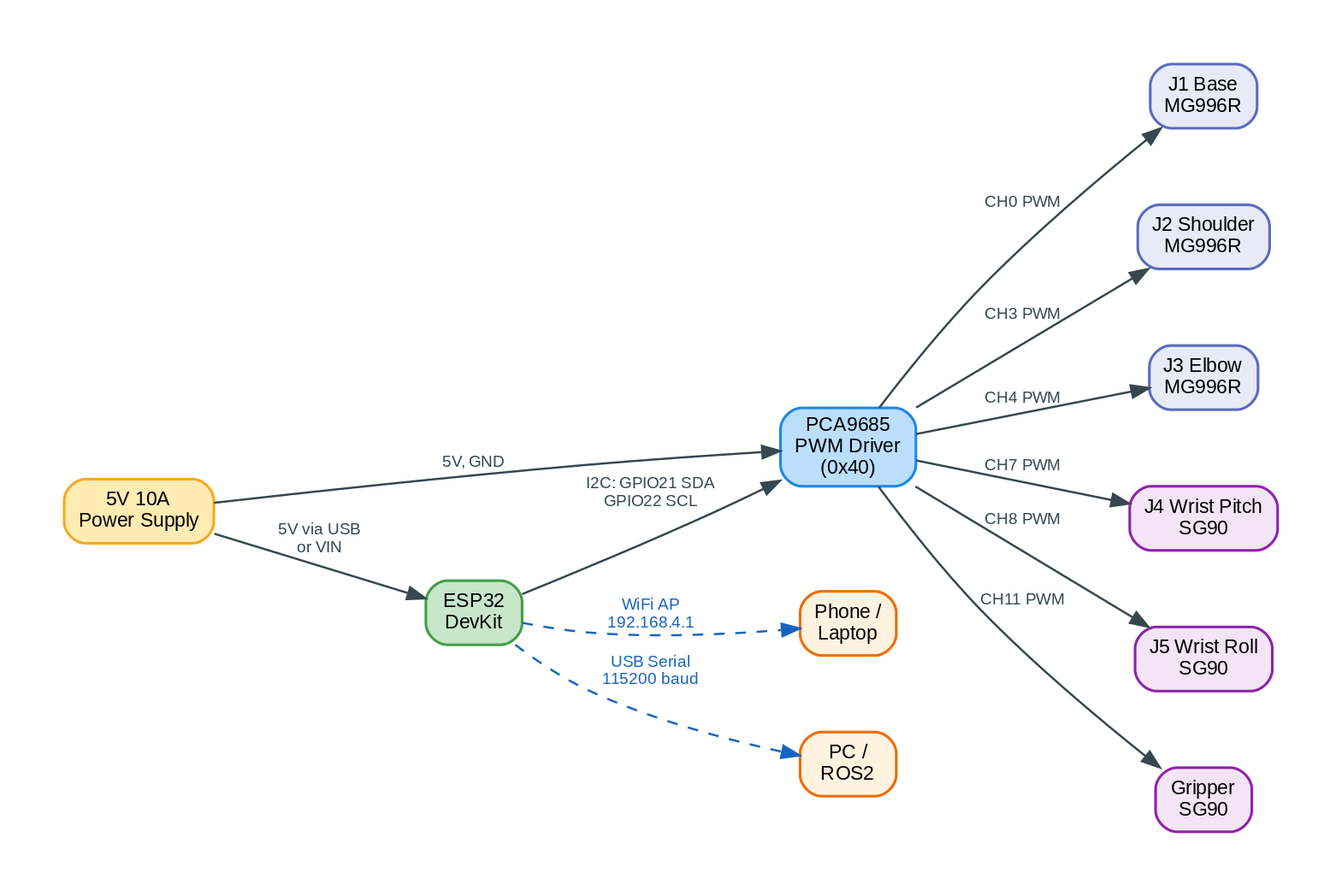
The ESP32 talks to the PCA9685 over I2C and to the outside world over WiFi or USB serial. The PCA9685 generates the six servo signals. All servos draw their power from the 5 V supply through the PCA9685 board, not from the ESP32.
Wiring diagram
- Power: 5 V 10 A supply positive (red) to PCA9685 V+, negative (black) to PCA9685 GND. If the ESP32 is not powered over USB, run a wire from the same 5 V rail to the ESP32 VIN pin (the board’s 5 V power input).
- I2C bus: ESP32 GPIO21 (SDA) to PCA9685 SDA, ESP32 GPIO22 (SCL) to PCA9685 SCL. Connect all GND lines together (ESP32, PCA9685, power supply).
- Servos: each servo has three wires (V+, GND, signal) and plugs onto one PCA9685 channel header.
| Servo | Joint | PCA9685 channel |
|---|---|---|
| MG996R | J1 Base | CH0 |
| MG996R | J2 Shoulder | CH3 |
| MG996R | J3 Elbow | CH4 |
| SG90 | J4 Forearm rotation | CH7 |
| SG90 | J5 Wrist tilt | CH8 |
| SG90 | Gripper | CH11 |
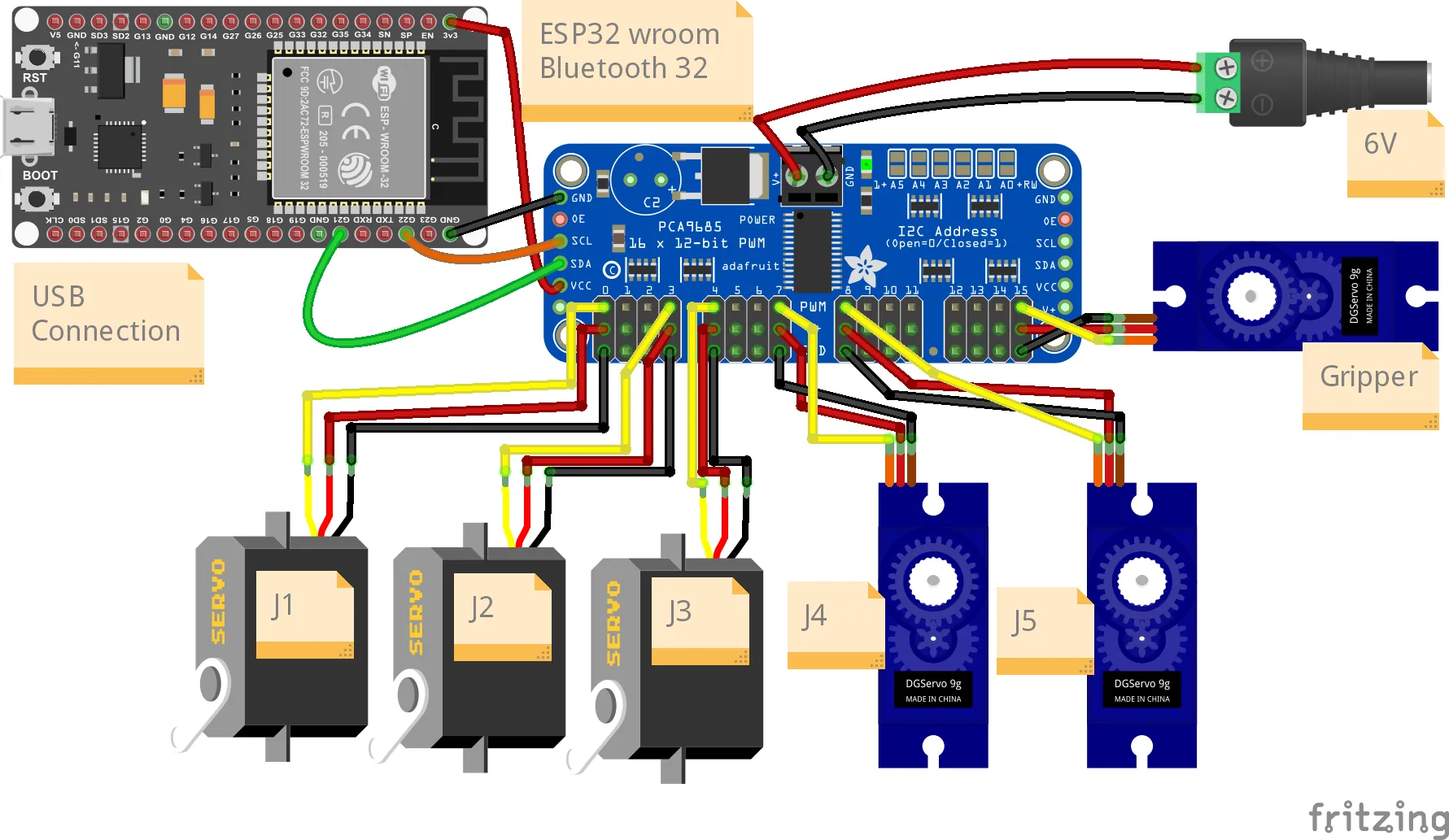
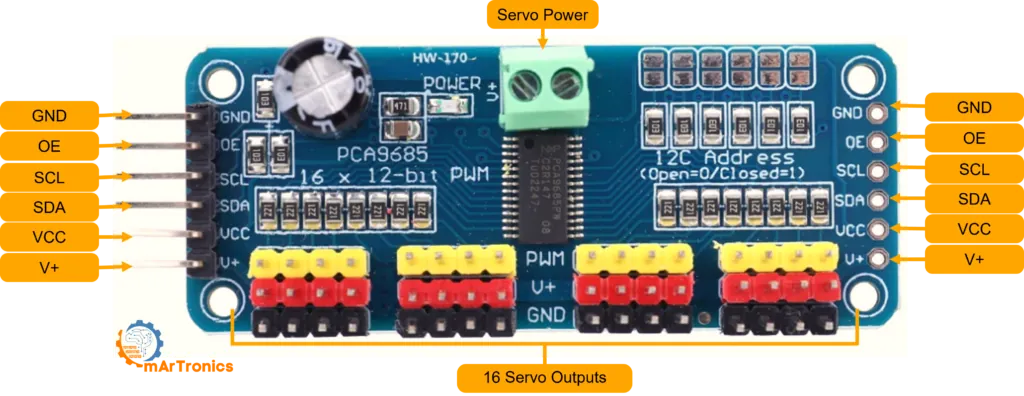
Wire gauge and connections
Servo leads are usually 22 AWG (American Wire Gauge; a higher number means a thinner wire). The PCA9685 chip only generates the control signal. Servo current flows from the 5 V supply through the V+ terminal and the board’s power rail. A stalled MG996R draws up to 2.5 A, so keep servo extension leads short.
Run the 5 V supply with 18 AWG or 16 AWG wire directly to the V+ and GND screw terminal of the PCA9685, not through breadboard rails (they are rated for about 1 A). Thick wire keeps the voltage drop small.
The I2C wires between ESP32 and PCA9685 carry almost no current and can be thin (22 AWG). Use separate wires, not a twisted pair, to keep the capacitance low.
Common mistakes
- Missing common ground: connect GND of the ESP32, the PCA9685 and the power supply. Without a shared ground the I2C and servo signals have no common reference, and the servos move erratically or not at all.
- Powering servos from the ESP32 board: don’t. The 5V pin only passes through USB power (about 500 mA from a PC port), and the 3.3 V regulator is sized for the ESP32 itself. One stalled MG996R draws 2500 mA, so the ESP32 browns out and resets. Always use the external 5 V supply.
- I2C pull-up resistors: I2C needs pull-up resistors, which hold SDA and SCL high while no device pulls them low. The PCA9685 breakout board already has them, enough for short wires. My arm runs without extra resistors. If I2C is unreliable, add 4.7 kΩ pull-ups from SDA and SCL to 3.3 V.
- Wrong I2C address: the PCA9685 uses I2C address 0x40 by default, and the code assumes 0x40. The solder jumpers A0-A5 on the board shift it (A0 closed = 0x41). If no jumper is closed, the address is 0x40.
- Voltage sag during long sequences: if the voltage drops during a long movement sequence, the supply is at its limit. Use a bigger supply or slow the movements down with the SPEED command.
7. Firmware: ESP32 serial control
The serial firmware runs on the ESP32 and accepts text commands over USB serial. It is the fastest way to test joint angles before you set up the web interface.
Setup
You need:
- Arduino IDE 2.x (or PlatformIO).
- The ESP32 board package: open File > Preferences, paste https://raw.githubusercontent.com/espressif/arduino-esp32/gh-pages/package_esp32_index.json into “Additional Board Manager URLs”, then open Tools > Board > Boards Manager, search “esp32” and install “esp32 by Espressif Systems”.
- The Adafruit PWM Servo Driver library: Sketch > Include Library > Manage Libraries, search “Adafruit PWM Servo Driver Library”, install.
- A USB-C or micro-USB cable (depending on your DevKit) to connect the ESP32 to your computer.
Select Tools > Board > ESP32 Dev Module (not “ESP32S2” or another variant) and the correct COM port. Open the Serial Monitor (Ctrl+Shift+M) and set the baud rate to 115200.
The firmware code
The listing below shows the logic of OmArmZeroControl.ino. Flash the sketch from the Firmware folder of the project package (also on GitHub): that is the tested version. Some names and details differ from this listing, among them the pulse range.
#include <Wire.h>
#include <Adafruit_PWMServoDriver.h>

// Create servo driver object. Address 0x40 is the default
Adafruit_PWMServoDriver pwm = Adafruit_PWMServoDriver(0x40);

// Servo configuration
// Standard servo: 1000 us = 0 degrees, 2000 us = 180 degrees
// But we're using a wider range for these servos:
// MG996R: 500-2500 us (but safer to limit to 600-2400 us)
// SG90: 500-2400 us

// Define which servo is on which channel
const int SERVO_BASE = 0;     // J1: MG996R
const int SERVO_SHOULDER = 3; // J2: MG996R
const int SERVO_ELBOW = 4;    // J3: MG996R
const int SERVO_WRIST_PITCH = 7;  // J4: SG90
const int SERVO_WRIST_ROLL = 8;   // J5: SG90
const int SERVO_GRIPPER = 11;     // Gripper: SG90

// Servo angle limits (degrees)
const int ANGLE_MIN = 0;
const int ANGLE_MAX = 180;

// Pulse width range for servos (in microseconds)
// MG996R on 5V is roughly 500-2500 us, but we'll be conservative
const int PULSE_MIN = 600;   // 0 degrees (microseconds)
const int PULSE_MAX = 2400;  // 180 degrees (microseconds)

// PCA9685 frequency is 50Hz for servos (20ms per cycle)
#define SERVO_FREQ 50

// Smooth movement parameters
int targetAngles[6] = {0, 0, 0, 0, 0, 0};  // Target angles for each servo
int currentAngles[6] = {0, 0, 0, 0, 0, 0}; // Current angles
int moveSpeed = 5;  // Degrees per 20ms cycle (5 = 5 deg/20ms = 250 deg/s max)
int moveInterval = 20;  // Milliseconds between updates

// Serial buffer
const int BUFFER_SIZE = 128;
char serialBuffer[BUFFER_SIZE];
int bufferIndex = 0;

// Timing for smooth motion
unsigned long lastMoveTime = 0;

void setup() {
  Serial.begin(115200);
  delay(1000);

  Serial.println("OmArm Zero - 6-DOF (5+1 Gripper) Robotic Arm");
  Serial.println("Initializing I2C and servo driver...");

  Wire.begin(21, 22);  // SDA=GPIO21, SCL=GPIO22
  pwm.begin();
  pwm.setOscillatorFrequency(27000000);
  pwm.setPWMFreq(SERVO_FREQ);

  Serial.println("PCA9685 initialized at 50Hz");
  Serial.println("Sending all servos to home position (0 degrees)...");

  // Move all servos to home
  for (int i = 0; i < 6; i++) {
    targetAngles[i] = 0;
    currentAngles[i] = 0;
    setServoAngle(i, 0);
  }

  delay(1000);
  Serial.println("Ready. Send commands:");
  Serial.println("  HOME                 - move all to 0 degrees");
  Serial.println("  STATUS               - print current positions");
  Serial.println("  MOVE:d1,d2,d3,d4,d5,d6  - move to angles");
  Serial.println("  1,90                 - move J1 to 90 degrees");
  Serial.println("  SPEED:speed,interval - set move speed");
  Serial.println();

  lastMoveTime = millis();
}

void loop() {
  // Handle serial input
  if (Serial.available()) {
    char c = Serial.read();

    // Basic line buffering
    if (c == '\n' || c == '\r') {
      if (bufferIndex > 0) {
        serialBuffer[bufferIndex] = '\0';
        processCommand(serialBuffer);
        bufferIndex = 0;
      }
    } else if (bufferIndex < BUFFER_SIZE - 1) {
      serialBuffer[bufferIndex++] = c;
    }
  }

  // Update servo positions smoothly
  updateServoMovement();
}

void processCommand(const char* cmd) {
  String input(cmd);
  input.trim();
  input.toUpperCase();

  if (input == "HOME") {
    // Move all servos to home position
    for (int i = 0; i < 6; i++) {
      targetAngles[i] = 0;
    }
    Serial.println("HOME command: moving all servos to 0 degrees");

  } else if (input.startsWith("STATUS")) {
    // Print current angles
    Serial.print("Current angles: ");
    for (int i = 0; i < 6; i++) {
      Serial.print("J");
      Serial.print(i + 1);
      Serial.print("=");
      Serial.print(currentAngles[i]);
      if (i < 5) Serial.print(", ");
    }
    Serial.println();

  } else if (input.startsWith("MOVE:")) {
    // Parse MOVE:d1,d2,d3,d4,d5,d6
    String params = input.substring(5);
    parseAngles(params);
    Serial.print("Moving to: ");
    for (int i = 0; i < 6; i++) {
      Serial.print(targetAngles[i]);
      if (i < 5) Serial.print(", ");
    }
    Serial.println();

  } else if (input.startsWith("SPEED:")) {
    // Parse SPEED:speed,interval
    String params = input.substring(6);
    int commaIndex = params.indexOf(',');
    if (commaIndex > 0) {
      moveSpeed = params.substring(0, commaIndex).toInt();
      moveInterval = params.substring(commaIndex + 1).toInt();
      Serial.print("Speed set to ");
      Serial.print(moveSpeed);
      Serial.print(" deg/");
      Serial.print(moveInterval);
      Serial.println(" ms");
    }

  } else if (input.indexOf(',') > 0) {
    // Single joint command: J,angle
    int commaIndex = input.indexOf(',');
    int jointNum = input.substring(0, commaIndex).toInt() - 1;  // Convert 1-based to 0-based
    int angle = input.substring(commaIndex + 1).toInt();

    if (jointNum >= 0 && jointNum < 6 && angle >= ANGLE_MIN && angle <= ANGLE_MAX) {
      targetAngles[jointNum] = angle;
      Serial.print("J");
      Serial.print(jointNum + 1);
      Serial.print(" -> ");
      Serial.println(angle);
    } else {
      Serial.println("Invalid joint or angle");
    }
  } else {
    Serial.println("Unknown command");
  }
}

void parseAngles(const String& params) {
  // Parse comma-separated angles
  int angles[6];
  int angleCount = 0;
  int lastComma = -1;

  for (int i = 0; i <= params.length(); i++) {
    if (params[i] == ',' || i == params.length()) {
      if (i > lastComma + 1 && angleCount < 6) {
        String numStr = params.substring(lastComma + 1, i);
        angles[angleCount] = numStr.toInt();
        angleCount++;
      }
      lastComma = i;
    }
  }

  // Apply parsed angles
  for (int i = 0; i < angleCount && i < 6; i++) {
    if (angles[i] >= ANGLE_MIN && angles[i] <= ANGLE_MAX) {
      targetAngles[i] = angles[i];
    }
  }
}

void updateServoMovement() {
  unsigned long now = millis();

  // Check if it's time to update servo positions
  if (now - lastMoveTime >= moveInterval) {
    lastMoveTime = now;

    // Move each servo toward its target
    for (int i = 0; i < 6; i++) {
      if (currentAngles[i] != targetAngles[i]) {
        int diff = targetAngles[i] - currentAngles[i];

        // Move by up to moveSpeed degrees per interval
        if (abs(diff) <= moveSpeed) {
          currentAngles[i] = targetAngles[i];
        } else if (diff > 0) {
          currentAngles[i] += moveSpeed;
        } else {
          currentAngles[i] -= moveSpeed;
        }

        // Send new angle to servo
        setServoAngle(i, currentAngles[i]);
      }
    }
  }
}

void setServoAngle(int servoIndex, int angle) {
  // Clamp angle to valid range
  if (angle < ANGLE_MIN) angle = ANGLE_MIN;
  if (angle > ANGLE_MAX) angle = ANGLE_MAX;

  // Convert angle (0-180) to pulse width (PULSE_MIN to PULSE_MAX)
  int pulseWidth = map(angle, 0, 180, PULSE_MIN, PULSE_MAX);

  // Convert pulse width (microseconds) to PCA9685 tick count.
  // The PCA9685 divides one 20ms cycle into 4096 ticks.
  // So we map from the full 20000us period to the 0-4096 range.
  // Example: 1500us (90°) → map(1500, 0, 20000, 0, 4096) = 307 ticks.
  int pwmValue = map(pulseWidth, 0, 20000, 0, 4096);

  // Get the channel for this servo
  int channel = getChannelForServo(servoIndex);

  // Set the PWM pulse
  pwm.setPWM(channel, 0, pwmValue);
}

int getChannelForServo(int servoIndex) {
  // Map servo index to channel
  const int channels[6] = {
    SERVO_BASE,         // Index 0 -> J1
    SERVO_SHOULDER,     // Index 1 -> J2
    SERVO_ELBOW,        // Index 2 -> J3
    SERVO_WRIST_PITCH,  // Index 3 -> J4
    SERVO_WRIST_ROLL,   // Index 4 -> J5
    SERVO_GRIPPER       // Index 5 -> Gripper
  };
  return channels[servoIndex];
}
Naming note: the firmware calls the two wrist servos SERVO_WRIST_PITCH (J4) and SERVO_WRIST_ROLL (J5), and the web interface labels them “J4 Wrist Pitch” and “J5 Wrist Roll”. The names are historical; J4 turns the forearm and J5 tilts the gripper. The channel numbers are what matter.
Code walkthrough
- Libraries and I2C setup: the Wire library handles I2C, Adafruit_PWMServoDriver the PCA9685. setup() starts Wire on GPIO21 (SDA) and GPIO22 (SCL) and sets the PWM driver to 50 Hz.
- Servo channels: the constants SERVO_BASE, SERVO_SHOULDER and so on map the joints (J1 to J5 and the gripper) to the PCA9685 channels CH0, CH3, CH4, CH7, CH8 and CH11 instead of 0 to 5. Spacing the channels keeps the six three-pin plugs from crowding one side of the board. If your wiring differs, change the numbers in getChannelForServo(): the mapping lives in that one place.
- Pulse width conversion: the pulse width sets the angle. 1500 µs is the middle position (90 degrees); the firmware uses 600 µs for 0 degrees and 2400 µs for 180 degrees. The PCA9685 counts in its own units (0 to 4095 ticks per 20 ms cycle), so setServoAngle() maps microseconds to ticks.
- Smooth movement: a command only sets a new target; every moveInterval ms (20 by default) the loop moves each joint moveSpeed degrees (5 by default) toward it. That is 250 degrees per second at constant speed.
- Serial protocol: processCommand() parses the commands. HOME moves all servos to 0 degrees. MOVE:a1,a2,a3,a4,a5,a6 sets all six targets. A single-joint command such as “1,45” moves J1 to 45 degrees. SPEED:speed,interval changes the movement speed.
- Safety: commands with a joint number outside 1-6 or an angle outside 0-180 are rejected with “Invalid joint or angle”; setServoAngle() also clamps every value to 0-180 as a second safeguard.
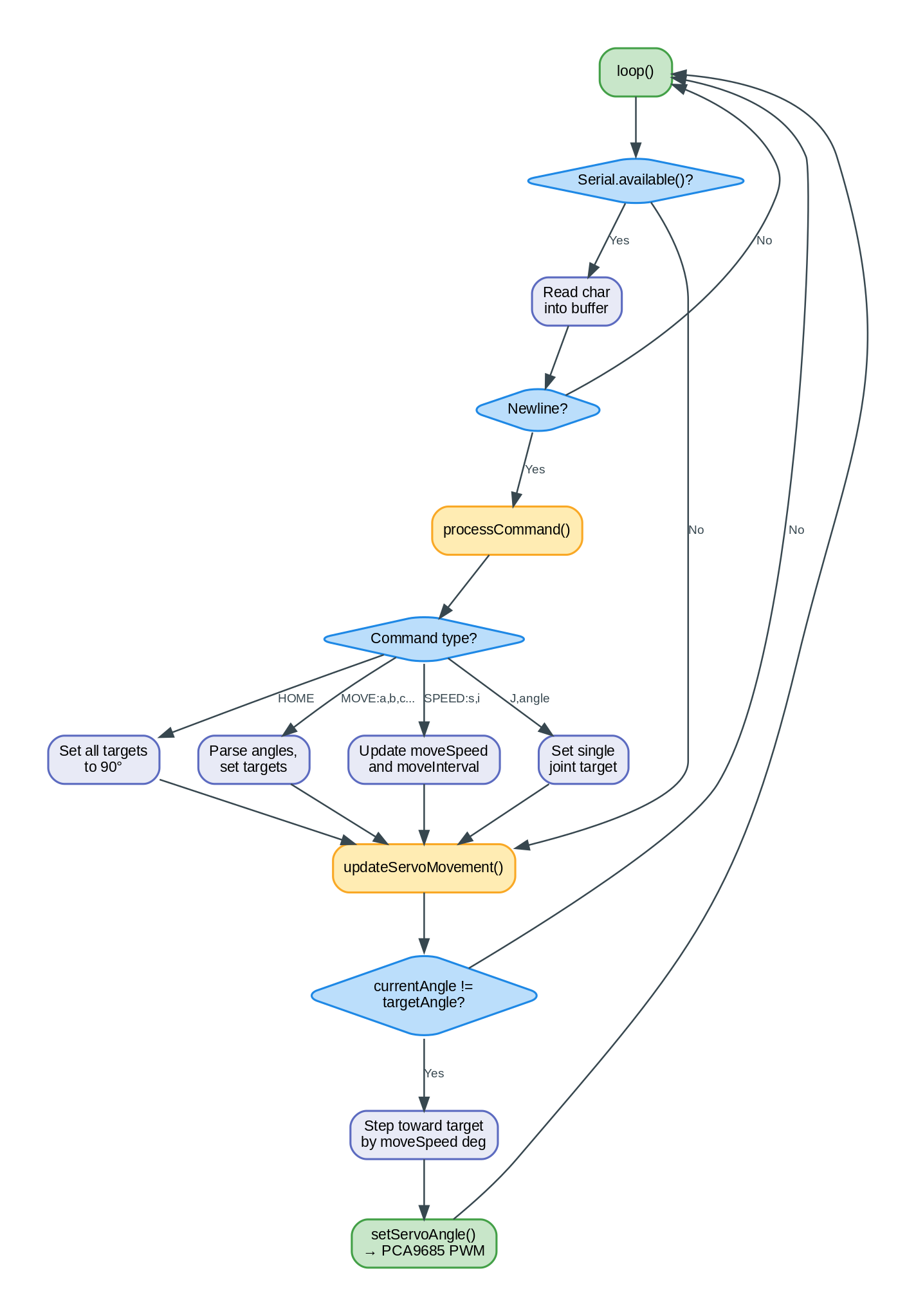
The main loop does two jobs on every pass: read serial input, then update the servo positions. The joints keep moving toward their targets whether or not a new command arrived.
Testing the serial firmware
Before uploading the servo code, check the I2C wiring with a scanner sketch:
#include <Wire.h>
void setup() {
  Serial.begin(115200);
  Wire.begin(21, 22);
  Serial.println("Scanning I2C bus...");
  for (byte addr = 1; addr < 127; addr++) {
    Wire.beginTransmission(addr);
    if (Wire.endTransmission() == 0) {
      Serial.print("Found device at 0x");
      Serial.println(addr, HEX);
    }
  }
  Serial.println("Done.");
}
void loop() {}
You should see “Found device at 0x40”. If nothing shows up, check the SDA/SCL wiring. If you see a different address, such as 0x41, your PCA9685 has an address jumper closed; change the address in the servo code.
Once I2C works, upload the OmArmZeroControl sketch and open the Serial Monitor (Ctrl+Shift+M) at 115200 baud. You should see the start-up message. Then try these commands:
HOME
All servos move to 0°, the home position. If one does not move, check its wiring.
1,180
J1 (the base) turns fully clockwise.
1,0
J1 turns back fully counterclockwise, to 0°.
MOVE:90,45,135,90,90,90
J2 moves to 45 degrees (arm lifts), J3 to 135 degrees (elbow bends), the others go to 90.
STATUS
Prints the current angle of each joint.
SPEED:2,50
Sets the speed to 2 degrees per 50 ms update, which is slower.
If a servo does not respond, use the troubleshooting table at the end of Section 9. Once serial control works reliably, continue with the web interface.
8. Web interface
Text commands are fine for testing but slow for everyday use. The web interface gives you one slider per joint in the browser of your phone or laptop.
The OmArmZero_LittleFS firmware runs the ESP32 as a WiFi access point: the ESP32 opens its own WiFi network. It serves the web interface from its flash memory via LittleFS, a small file system for the flash. Turn on the arm, connect to its WiFi network and open 10.10.10.1 in your browser.
Architecture
The ESP32 runs three services at once:
- a WiFi access point named “OmArmZero”,
- an HTTP web server on port 80,
- the same servo control logic as the serial firmware.
The web interface is a single-page app (SPA): one HTML page whose JavaScript talks to the ESP32 without reloading. HTML, CSS and JavaScript are stored in LittleFS. When you open 10.10.10.1, the server sends index.html, and the JavaScript posts commands to the ESP32’s API (the address /api/command).
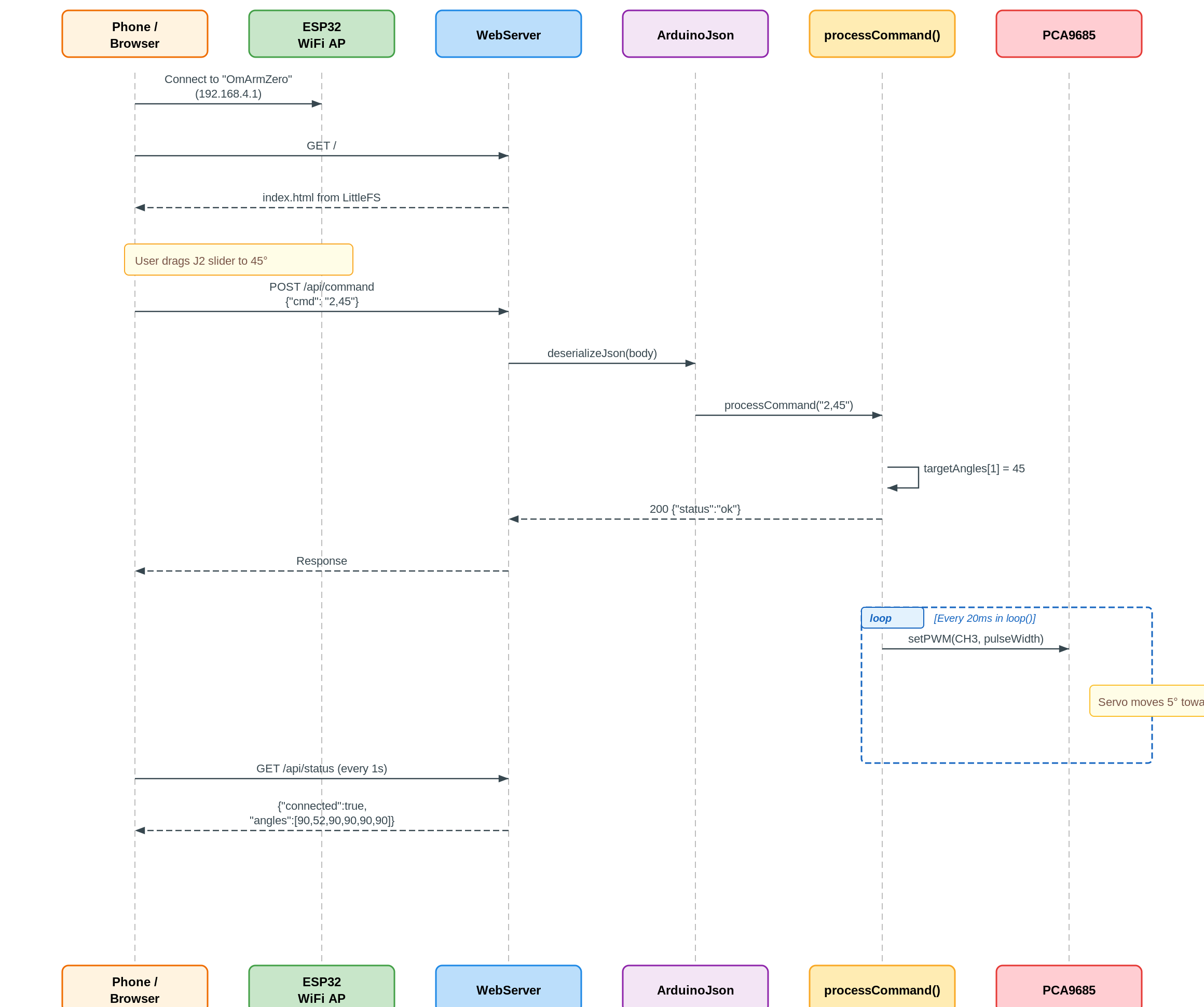
When you drag a slider, the browser sends an HTTP POST with a small JSON message. The firmware parses it and sets a target angle; the same smooth-movement loop as in the serial firmware moves the joint toward it step by step. The browser requests /api/status every second to show whether the connection to the arm is alive.
I store the page in LittleFS instead of a string in the firmware because the web files stay separate from the control code and can include images.
Setting up the web interface
You need the LittleFS upload plugin for Arduino IDE 2.x:
- Download the .vsix file from the release page.
- Copy the .vsix file into the folder
.arduinoIDE/pluginsin your user folder (on WindowsC:\Users\YourName\.arduinoIDE\plugins). Create the folder if it does not exist, then restart the IDE. - Press Ctrl+Shift+P and run “Upload LittleFS to Pico/ESP8266/ESP32”.
Before you upload, create a folder named “data” next to the .ino file. Put index.html, style.css, app.js and any optional image files in it. The upload command packs the data folder into a LittleFS image and flashes it to the ESP32.
Troubleshooting the LittleFS upload.
- Upload fails with “Wrong board” or hangs at “Connecting…”: select “ESP32 Dev Module” as the board, not a generic ESP32, check the COM port and close the Serial Monitor (it locks the port).
- Upload succeeds but the page shows “index.html not found”: the partition scheme is wrong. Go to Tools > Partition Scheme and select “Default 4MB with spiffs (1.2MB APP/1.5MB SPIFFS)”. Despite the name, this scheme reserves 1.5 MB of flash that LittleFS uses for your web files; LittleFS replaced SPIFFS as the recommended file system, but the partition label was never renamed. Upload again after changing it.
- The data folder is not found: it must be named exactly “data” (lowercase) and sit in the same folder as the .ino file, not one level up and not in a subfolder.
Web interface files
index.html:
<!DOCTYPE html>
<html lang="en">
<head>
  <meta charset="UTF-8">
  <meta name="viewport" content="width=device-width, initial-scale=1.0">
  <title>OmArm Zero Control</title>
  <link rel="stylesheet" href="style.css">
</head>
<body>
  <div class="container">
    <header>
      <h1>OmArm Zero</h1>
      <div id="status" class="status disconnected">Disconnected</div>
    </header>

    <main>
      <section class="control-panel">
        <h2>Joint Control</h2>
        <div class="joint-group">
          <label for="j1">J1 Base (0-180°)</label>
          <input type="range" id="j1" min="0" max="180" value="0" class="slider">
          <span id="j1-value">0</span>°
        </div>

        <div class="joint-group">
          <label for="j2">J2 Shoulder (0-180°)</label>
          <input type="range" id="j2" min="0" max="180" value="0" class="slider">
          <span id="j2-value">0</span>°
        </div>

        <div class="joint-group">
          <label for="j3">J3 Elbow (0-180°)</label>
          <input type="range" id="j3" min="0" max="180" value="0" class="slider">
          <span id="j3-value">0</span>°
        </div>

        <div class="joint-group">
          <label for="j4">J4 Wrist Pitch (0-180°)</label>
          <input type="range" id="j4" min="0" max="180" value="0" class="slider">
          <span id="j4-value">0</span>°
        </div>

        <div class="joint-group">
          <label for="j5">J5 Wrist Roll (0-180°)</label>
          <input type="range" id="j5" min="0" max="180" value="0" class="slider">
          <span id="j5-value">0</span>°
        </div>

        <div class="joint-group">
          <label for="gripper">Gripper (0-180°)</label>
          <input type="range" id="gripper" min="0" max="180" value="0" class="slider">
          <span id="gripper-value">0</span>°
        </div>
      </section>

      <section class="settings">
        <h2>Settings</h2>
        <div class="setting-group">
          <label for="speed">Movement Speed (deg/update)</label>
          <input type="number" id="speed" min="1" max="20" value="5">
        </div>

        <button id="homeButton" class="button primary">Home Position</button>
      </section>

      <section class="sequences">
        <h2>Sequences</h2>
        <button id="recordButton" class="button">Record Sequence</button>
        <button id="playButton" class="button" disabled>Play Sequence</button>
        <button id="clearButton" class="button">Clear Sequence</button>
        <textarea id="sequenceJSON" placeholder="Recorded sequence will appear here"></textarea>
        <input type="file" id="loadSequence" accept=".json" style="display:none">
        <button id="loadButton" class="button">Load Sequence</button>
      </section>
    </main>

    <footer>
      <p>OmArm Zero v1.0 - 6-DOF (5+1 Gripper) Robotic Arm</p>
    </footer>
  </div>

  <script src="app.js"></script>
</body>
</html>
style.css:
* {
  margin: 0;
  padding: 0;
  box-sizing: border-box;
}

body {
  font-family: -apple-system, BlinkMacSystemFont, "Segoe UI", Roboto, Oxygen, Ubuntu, sans-serif;
  background: linear-gradient(135deg, #667eea 0%, #764ba2 100%);
  min-height: 100vh;
  padding: 10px;
}

.container {
  max-width: 600px;
  margin: 0 auto;
  background: white;
  border-radius: 12px;
  box-shadow: 0 20px 60px rgba(0, 0, 0, 0.3);
  overflow: hidden;
  display: flex;
  flex-direction: column;
  min-height: 100vh;
}

header {
  background: linear-gradient(135deg, #667eea 0%, #764ba2 100%);
  color: white;
  padding: 20px;
  text-align: center;
}

header h1 {
  font-size: 28px;
  margin-bottom: 10px;
}

.status {
  display: inline-block;
  padding: 6px 12px;
  border-radius: 20px;
  font-size: 12px;
  font-weight: bold;
}

.status.connected {
  background: #4caf50;
  color: white;
}

.status.disconnected {
  background: #f44336;
  color: white;
}

main {
  flex: 1;
  padding: 20px;
  overflow-y: auto;
}

section {
  margin-bottom: 30px;
  padding-bottom: 20px;
  border-bottom: 1px solid #eee;
}

section:last-child {
  border-bottom: none;
}

section h2 {
  font-size: 18px;
  margin-bottom: 15px;
  color: #333;
}

.joint-group {
  display: flex;
  align-items: center;
  margin-bottom: 15px;
  gap: 10px;
}

.joint-group label {
  flex: 0 0 150px;
  font-size: 14px;
  color: #555;
}

.joint-group input[type="range"] {
  flex: 1;
  height: 6px;
  border-radius: 3px;
  background: #ddd;
  outline: none;
  -webkit-appearance: none;
  appearance: none;
}

.joint-group input[type="range"]::-webkit-slider-thumb {
  -webkit-appearance: none;
  appearance: none;
  width: 18px;
  height: 18px;
  border-radius: 50%;
  background: #667eea;
  cursor: pointer;
  box-shadow: 0 2px 4px rgba(0, 0, 0, 0.2);
}

.joint-group input[type="range"]::-moz-range-thumb {
  width: 18px;
  height: 18px;
  border-radius: 50%;
  background: #667eea;
  cursor: pointer;
  border: none;
  box-shadow: 0 2px 4px rgba(0, 0, 0, 0.2);
}

.joint-group span {
  flex: 0 0 40px;
  text-align: right;
  font-weight: bold;
  color: #333;
}

.setting-group {
  margin-bottom: 15px;
}

.setting-group label {
  display: block;
  font-size: 14px;
  margin-bottom: 5px;
  color: #555;
}

.setting-group input[type="number"] {
  width: 100%;
  padding: 8px;
  border: 1px solid #ddd;
  border-radius: 4px;
  font-size: 14px;
}

.button {
  display: inline-block;
  padding: 10px 20px;
  border: none;
  border-radius: 4px;
  font-size: 14px;
  cursor: pointer;
  transition: all 0.3s ease;
  background: #f0f0f0;
  color: #333;
  margin-right: 10px;
  margin-bottom: 10px;
}

.button:hover {
  background: #e0e0e0;
}

.button.primary {
  background: #667eea;
  color: white;
}

.button.primary:hover {
  background: #5568d3;
}

.button:disabled {
  opacity: 0.5;
  cursor: not-allowed;
}

#sequenceJSON {
  width: 100%;
  height: 120px;
  padding: 10px;
  border: 1px solid #ddd;
  border-radius: 4px;
  font-family: monospace;
  font-size: 12px;
  resize: vertical;
  margin: 10px 0;
}

footer {
  background: #f5f5f5;
  color: #999;
  text-align: center;
  padding: 15px;
  font-size: 12px;
  border-top: 1px solid #eee;
}

@media (max-width: 600px) {
  header h1 {
    font-size: 22px;
  }

  main {
    padding: 15px;
  }

  .joint-group label {
    flex: 0 0 120px;
  }
}
app.js:
// OmArm Zero Control Web App

const API_BASE = "/api";
const STATUS_CHECK_INTERVAL = 1000;

const sliders = {
  j1: document.getElementById("j1"),
  j2: document.getElementById("j2"),
  j3: document.getElementById("j3"),
  j4: document.getElementById("j4"),
  j5: document.getElementById("j5"),
  gripper: document.getElementById("gripper")
};

const sliderValues = {
  j1: document.getElementById("j1-value"),
  j2: document.getElementById("j2-value"),
  j3: document.getElementById("j3-value"),
  j4: document.getElementById("j4-value"),
  j5: document.getElementById("j5-value"),
  gripper: document.getElementById("gripper-value")
};

const statusDisplay = document.getElementById("status");
const speedInput = document.getElementById("speed");
const homeButton = document.getElementById("homeButton");
const recordButton = document.getElementById("recordButton");
const playButton = document.getElementById("playButton");
const clearButton = document.getElementById("clearButton");
const loadButton = document.getElementById("loadButton");
const sequenceJSON = document.getElementById("sequenceJSON");
const loadSequenceInput = document.getElementById("loadSequence");

let isConnected = false;
let isRecording = false;
let recordedSequence = [];

// Initialize
document.addEventListener("DOMContentLoaded", () => {
  // Slider listeners
  for (const [id, slider] of Object.entries(sliders)) {
    slider.addEventListener("input", (e) => {
      const angle = e.target.value;
      sliderValues[id].textContent = angle;
      sendCommand(id, angle);
    });
  }

  // Button listeners
  homeButton.addEventListener("click", () => {
    sendCommand("HOME", null);
    // Reset sliders to home position
    for (const slider of Object.values(sliders)) {
      slider.value = 0;
    }
    for (const value of Object.values(sliderValues)) {
      value.textContent = 0;
    }
  });

  recordButton.addEventListener("click", () => {
    if (!isRecording) {
      recordedSequence = [];
      isRecording = true;
      recordButton.textContent = "Stop Recording";
      recordButton.classList.add("recording");
    } else {
      isRecording = false;
      recordButton.textContent = "Record Sequence";
      recordButton.classList.remove("recording");
      saveSequenceToJSON();
    }
  });

  playButton.addEventListener("click", () => {
    playRecordedSequence();
  });

  clearButton.addEventListener("click", () => {
    recordedSequence = [];
    sequenceJSON.value = "";
    playButton.disabled = true;
  });

  loadButton.addEventListener("click", () => {
    loadSequenceInput.click();
  });

  loadSequenceInput.addEventListener("change", (e) => {
    const file = e.target.files[0];
    if (file) {
      const reader = new FileReader();
      reader.onload = (event) => {
        try {
          recordedSequence = JSON.parse(event.target.result);
          saveSequenceToJSON();
          playButton.disabled = false;
          alert("Sequence loaded successfully");
        } catch (err) {
          alert("Failed to parse sequence file: " + err.message);
        }
      };
      reader.readAsText(file);
    }
  });

  speedInput.addEventListener("change", () => {
    sendCommand("SPEED", speedInput.value);
  });

  // Check connection status periodically
  checkConnection();
  setInterval(checkConnection, STATUS_CHECK_INTERVAL);
});

function sendCommand(cmd, value) {
  let fullCmd = cmd;

  if (cmd === "HOME") {
    fullCmd = "HOME";
  } else if (cmd === "SPEED") {
    fullCmd = "SPEED:" + value + ",20";
  } else if (["j1", "j2", "j3", "j4", "j5", "gripper"].includes(cmd)) {
    // Single joint command
    const jointNum = cmd === "gripper" ? 6 : parseInt(cmd.slice(1));
    fullCmd = jointNum + "," + value;

    // Record if recording
    if (isRecording) {
      recordedSequence.push({
        j1: sliders.j1.value,
        j2: sliders.j2.value,
        j3: sliders.j3.value,
        j4: sliders.j4.value,
        j5: sliders.j5.value,
        gripper: sliders.gripper.value,
        timestamp: Date.now()
      });
    }
  }

  fetch(API_BASE + "/command", {
    method: "POST",
    headers: { "Content-Type": "application/json" },
    body: JSON.stringify({ cmd: fullCmd })
  }).catch(err => console.log("Command send error:", err));
}

function checkConnection() {
  fetch(API_BASE + "/status")
    .then(response => response.json())
    .then(data => {
      isConnected = true;
      statusDisplay.textContent = "Connected";
      statusDisplay.classList.remove("disconnected");
      statusDisplay.classList.add("connected");
    })
    .catch(err => {
      isConnected = false;
      statusDisplay.textContent = "Disconnected";
      statusDisplay.classList.remove("connected");
      statusDisplay.classList.add("disconnected");
    });
}

function saveSequenceToJSON() {
  sequenceJSON.value = JSON.stringify(recordedSequence, null, 2);
  playButton.disabled = recordedSequence.length === 0;
}

function playRecordedSequence() {
  if (recordedSequence.length === 0) return;

  playButton.disabled = true;
  let index = 0;

  const playStep = () => {
    if (index >= recordedSequence.length) {
      playButton.disabled = false;
      return;
    }

    const step = recordedSequence[index];
    const delay = index > 0 ? recordedSequence[index].timestamp - recordedSequence[index - 1].timestamp : 0;

    setTimeout(() => {
      for (const joint of ["j1", "j2", "j3", "j4", "j5", "gripper"]) {
        sliders[joint].value = step[joint];
        sliderValues[joint].textContent = step[joint];
        sendCommand(joint, step[joint]);
      }
      index++;
      playStep();
    }, Math.max(delay, 100));
  };

  playStep();
}
Firmware for web control
OmArmZero_LittleFS.ino is similar to the serial firmware but adds WiFi and an HTTP server. The listing is condensed; flash the complete sketch from the Firmware folder of the project package:
#include <Wire.h>
#include <Adafruit_PWMServoDriver.h>
#include <WiFi.h>
#include <WebServer.h>
#include <LittleFS.h>
#include <ArduinoJson.h>

Adafruit_PWMServoDriver pwm = Adafruit_PWMServoDriver(0x40);
WebServer server(80);

// WiFi AP credentials
const char* SSID = "OmArmZero";
const char* PASSWORD = "omarmcontrol";

// Same servo configuration as serial version
const int SERVO_BASE = 0;
const int SERVO_SHOULDER = 3;
const int SERVO_ELBOW = 4;
const int SERVO_WRIST_PITCH = 7;
const int SERVO_WRIST_ROLL = 8;
const int SERVO_GRIPPER = 11;

const int ANGLE_MIN = 0;
const int ANGLE_MAX = 180;
const int PULSE_MIN = 600;
const int PULSE_MAX = 2400;
#define SERVO_FREQ 50

int targetAngles[6] = {0, 0, 0, 0, 0, 0};
int currentAngles[6] = {0, 0, 0, 0, 0, 0};
int moveSpeed = 5;
int moveInterval = 20;

unsigned long lastMoveTime = 0;

void setup() {
  Serial.begin(115200);
  delay(1000);

  Serial.println("OmArm Zero - Web Control Interface");

  // Initialize LittleFS
  if (!LittleFS.begin()) {
    Serial.println("LittleFS mount failed");
    return;
  }
  Serial.println("LittleFS mounted");

  // Initialize I2C and servo driver
  Wire.begin(21, 22);
  pwm.begin();
  pwm.setOscillatorFrequency(27000000);
  pwm.setPWMFreq(SERVO_FREQ);

  // Move all to home
  for (int i = 0; i < 6; i++) {
    setServoAngle(i, 0);
  }

  // Start WiFi AP
  WiFi.mode(WIFI_AP);
  WiFi.softAP(SSID, PASSWORD);
  delay(500);  // Wait for AP interface to fully initialize

  // Set static IP (must be AFTER softAP on ESP32)
  IPAddress local_IP(10, 10, 10, 1);
  IPAddress gateway(10, 10, 10, 1);
  IPAddress subnet(255, 255, 255, 0);
  WiFi.softAPConfig(local_IP, gateway, subnet);
  IPAddress IP = WiFi.softAPIP();
  Serial.print("AP IP address: ");
  Serial.println(IP);

  // Set up web server routes
  server.on("/", handleRoot);
  server.on("/api/command", HTTP_POST, handleCommand);
  server.on("/api/status", HTTP_GET, handleStatus);
  server.onNotFound(handleNotFound);

  server.begin();
  Serial.println("Web server started");

  lastMoveTime = millis();
}

void loop() {
  server.handleClient();
  updateServoMovement();
}

void handleRoot() {
  if (LittleFS.exists("/index.html")) {
    File file = LittleFS.open("/index.html", "r");
    server.streamFile(file, "text/html");
    file.close();
  } else {
    server.send(404, "text/plain", "index.html not found");
  }
}

void handleCommand() {
  if (server.hasArg("plain")) {
    String body = server.arg("plain");

    StaticJsonDocument<256> doc;
    DeserializationError error = deserializeJson(doc, body);

    if (!error) {
      String cmd = doc["cmd"];
      processCommand(cmd.c_str());
      server.send(200, "application/json", "{\"status\":\"ok\"}");
    } else {
      server.send(400, "application/json", "{\"error\":\"JSON parse error\"}");
    }
  } else {
    server.send(400, "application/json", "{\"error\":\"No command\"}");
  }
}

void handleStatus() {
  StaticJsonDocument<256> doc;
  doc["connected"] = true;
  doc["angles"][0] = currentAngles[0];
  doc["angles"][1] = currentAngles[1];
  doc["angles"][2] = currentAngles[2];
  doc["angles"][3] = currentAngles[3];
  doc["angles"][4] = currentAngles[4];
  doc["angles"][5] = currentAngles[5];

  String response;
  serializeJson(doc, response);
  server.send(200, "application/json", response);
}

void handleNotFound() {
  // Try to serve the requested file from LittleFS
  String path = server.uri();
  if (path.endsWith("/")) {
    path += "index.html";
  }

  if (LittleFS.exists(path)) {
    File file = LittleFS.open(path, "r");
    String contentType = "application/octet-stream";
    if (path.endsWith(".html")) contentType = "text/html";
    else if (path.endsWith(".css")) contentType = "text/css";
    else if (path.endsWith(".js")) contentType = "application/javascript";
    else if (path.endsWith(".png")) contentType = "image/png";
    else if (path.endsWith(".jpg")) contentType = "image/jpeg";

    server.streamFile(file, contentType);
    file.close();
  } else {
    server.send(404, "text/plain", "File not found");
  }
}

void processCommand(const char* cmd) {
  String input(cmd);
  input.trim();
  input.toUpperCase();

  if (input == "HOME") {
    for (int i = 0; i < 6; i++) {
      targetAngles[i] = 0;
    }
  } else if (input.startsWith("MOVE:")) {
    String params = input.substring(5);
    parseAngles(params);
  } else if (input.startsWith("SPEED:")) {
    String params = input.substring(6);
    int commaIndex = params.indexOf(',');
    if (commaIndex > 0) {
      moveSpeed = params.substring(0, commaIndex).toInt();
      moveInterval = params.substring(commaIndex + 1).toInt();
    }
  } else if (input.indexOf(',') > 0) {
    int commaIndex = input.indexOf(',');
    int jointNum = input.substring(0, commaIndex).toInt() - 1;
    int angle = input.substring(commaIndex + 1).toInt();

    if (jointNum >= 0 && jointNum < 6 && angle >= ANGLE_MIN && angle <= ANGLE_MAX) {
      targetAngles[jointNum] = angle;
    }
  }
}

void parseAngles(const String& params) {
  int angles[6];
  int angleCount = 0;
  int lastComma = -1;

  for (int i = 0; i <= params.length(); i++) {
    if (params[i] == ',' || i == params.length()) {
      if (i > lastComma + 1 && angleCount < 6) {
        String numStr = params.substring(lastComma + 1, i);
        angles[angleCount] = numStr.toInt();
        angleCount++;
      }
      lastComma = i;
    }
  }

  for (int i = 0; i < angleCount && i < 6; i++) {
    if (angles[i] >= ANGLE_MIN && angles[i] <= ANGLE_MAX) {
      targetAngles[i] = angles[i];
    }
  }
}

void updateServoMovement() {
  unsigned long now = millis();

  if (now - lastMoveTime >= moveInterval) {
    lastMoveTime = now;

    for (int i = 0; i < 6; i++) {
      if (currentAngles[i] != targetAngles[i]) {
        int diff = targetAngles[i] - currentAngles[i];

        if (abs(diff) <= moveSpeed) {
          currentAngles[i] = targetAngles[i];
        } else if (diff > 0) {
          currentAngles[i] += moveSpeed;
        } else {
          currentAngles[i] -= moveSpeed;
        }

        setServoAngle(i, currentAngles[i]);
      }
    }
  }
}

void setServoAngle(int servoIndex, int angle) {
  if (angle < ANGLE_MIN) angle = ANGLE_MIN;
  if (angle > ANGLE_MAX) angle = ANGLE_MAX;

  int pulseWidth = map(angle, 0, 180, PULSE_MIN, PULSE_MAX);
  int pwmValue = map(pulseWidth, 0, 20000, 0, 4096);
  int channel = getChannelForServo(servoIndex);

  pwm.setPWM(channel, 0, pwmValue);
}

int getChannelForServo(int servoIndex) {
  const int channels[6] = {
    SERVO_BASE,
    SERVO_SHOULDER,
    SERVO_ELBOW,
    SERVO_WRIST_PITCH,
    SERVO_WRIST_ROLL,
    SERVO_GRIPPER
  };
  return channels[servoIndex];
}
Using the web interface
After uploading the firmware and the LittleFS files:
- Power on the arm.
- On your phone or laptop, open the WiFi list and connect to “OmArmZero”. The password is “omarmcontrol” (both are set in the firmware lines const char* SSID and const char* PASSWORD).
- Open 10.10.10.1 in a browser. The page shows six sliders, a speed field and buttons for home, recording and playback.
- Drag a slider: the arm moves at once.
- Press Home: all joints move to 0°, the home position.
- Press Record, move the arm through a sequence, then Stop Recording. The sequence appears as JSON in the text box below.
- Press Play to repeat the sequence.
- To export the sequence, copy the JSON from the text box into a .json file. Load Sequence reads such a file back later.
In my tests the web interface responds without noticeable lag. I mostly use the phone: I hold it in one hand and stand right next to the arm while it moves.
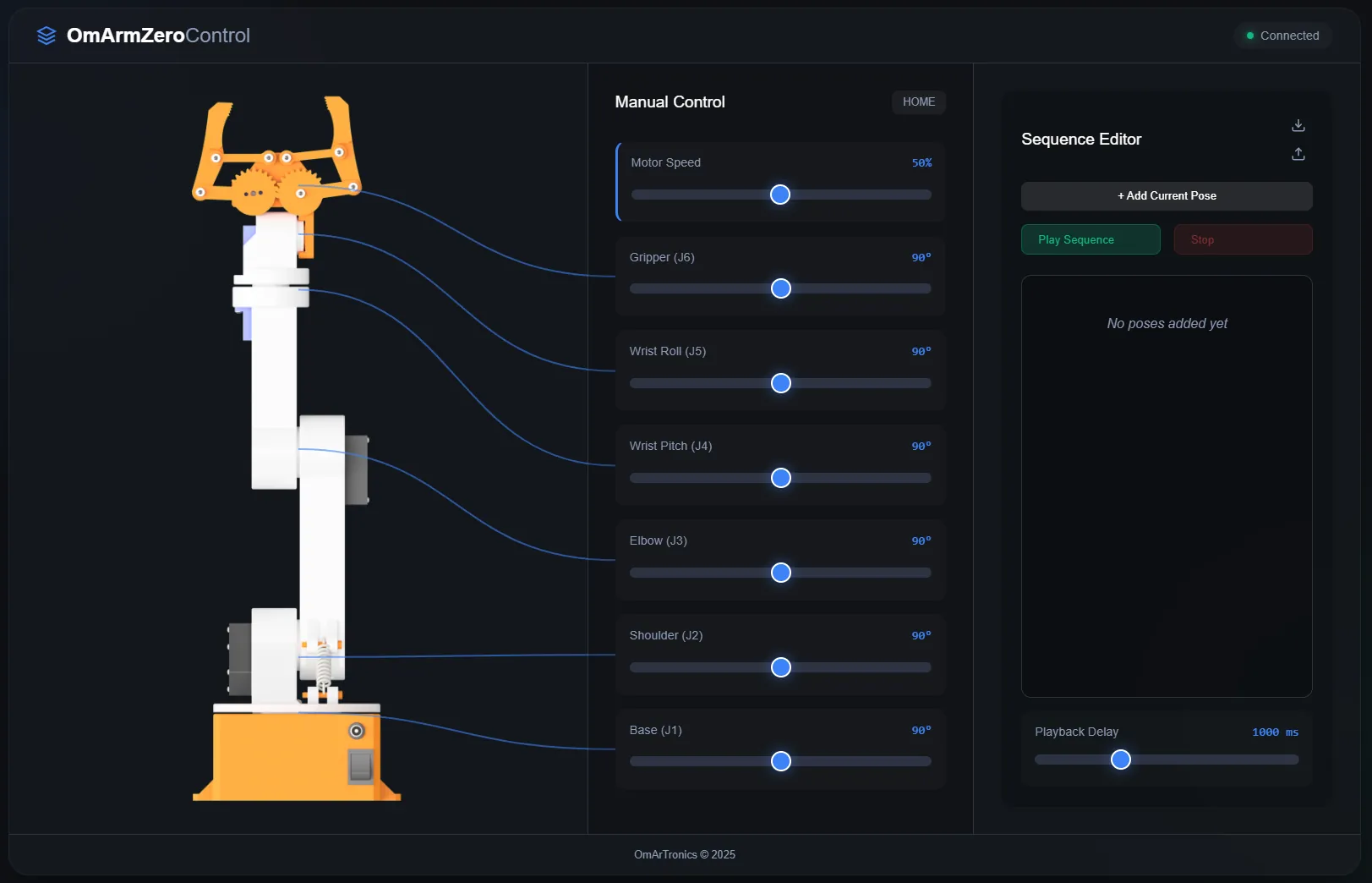
The screenshots show the web interface from the project package (also on GitHub). It looks different from the shortened listing above but sends the same commands. On a desktop it has three columns: a picture of the arm on the left, the sliders and the HOME button in the middle, the sequence editor on the right. In the sequence editor you save poses with the “+ Add Current Pose” button and play them back; the two arrow icons export and import the sequence as a JSON file.
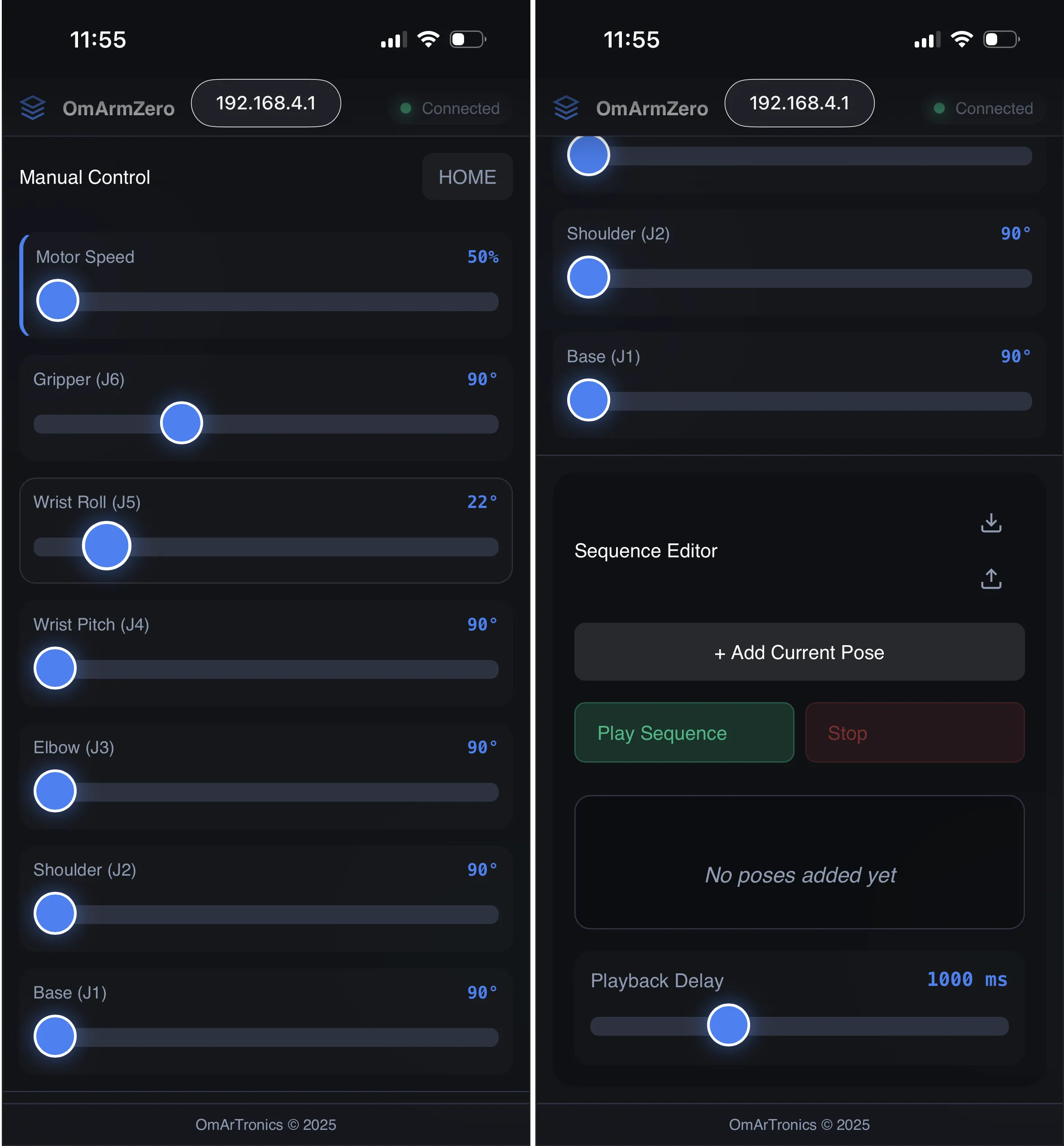
On a phone the layout is responsive: the sliders stack vertically and the sequence editor moves below the controls. The phone screenshot comes from an earlier firmware version that used the ESP32’s default address 192.168.4.1; the current firmware uses 10.10.10.1.
9. Testing and validation
Servo range test
Each servo has a nominal range of 0-180 degrees, but mechanical limits and print tolerances can reduce it. Send each joint to 0 and then to 180 and check that it reaches both ends without binding:
Serial commands:
1,0    (J1 fully counterclockwise)
1,180  (J1 fully clockwise)
2,0    (J2 lowered)
2,180  (J2 raised)
3,0    (J3 elbow down)
3,180  (J3 elbow up)
4,0    (J4 forearm rotation, one end stop)
4,180  (J4 forearm rotation, other end stop)
5,0    (J5 wrist tilt, one end stop)
5,180  (J5 wrist tilt, other end stop)
6,0    (Gripper open)
6,180  (Gripper closed)
After each command, listen for grinding and feel the joint by hand for binding. If a joint does not reach its limit smoothly, loosen the fasteners and try again, and check that the servo horns are fully seated on the shafts.
Accuracy test
Command an angle and measure the real angle with a protractor. The joint should land within 5 degrees. If it is consistently off by the same amount, the horn is misaligned: repeat Step 0 for that servo.
Speed test
Send a 0-to-180 sweep and time it:
1,0    (note the time)
1,180  (note the new time)
Film the sweep with your phone (slow motion if available) and count the frames from start to stop. At the default speed (5 degrees every 20 ms = 250 degrees per second) a 180-degree sweep takes about 720 ms; I measured 750 ms. If yours differs a lot, adjust moveSpeed with the SPEED command.
Payload test
The gripper itself weighs 50 g. Place test weights in the gripper and check that the arm holds its position.
- Send HOME. At 0° (home position) the upper arm points forward and the forearm is straight (Steps 6 and 9): full horizontal extension, where the shoulder torque is highest.
- Hold a 50 g weight in the gripper and check for drift. The arm must hold its position without shaking.
- Repeat with 100 g, 150 g (spring assist installed) and 200 g and compare with the results table below. Do not run the arm at 200 g: it exceeds the spec.
WiFi range test
Test the web interface from different distances and through walls:
- 2 m, line of sight: no perceptible delay.
- 5 m, through a wall: still fine.
- 10 m: the delay is noticeable but the arm still responds.
- Open air: about 15 m with line of sight (my measurement).
- Across the whole house it no longer works. The ESP32 runs its own access point and does not use your router.
Repeatability test
Send the arm to a position (for example 45, 90, 90, 90, 90, 90), home it, and return to the same position. Measure the error with a protractor or by eye. Repeat 10 times. A growing error points to a servo problem or a loose fastener.
Sequence playback test
Record a simple pick-and-place sequence: lower the arm, close the gripper, raise the arm, move to the side, lower, open the gripper, return. Play it back 10 times. Skipped steps or jitter point to a firmware problem (usually a buffer overflow if the sequence is very long).
Test results summary
Measured on my working OmArm Zero:
| Test | Result | Notes |
|---|---|---|
| Servo range | 0-180° full travel | No binding, smooth motion |
| Accuracy (static) | ±3 degrees | Within spec |
| Speed (0-180 sweep) | 750 ms | Matches the 5 deg/20 ms theory |
| Payload 50 g | Holds | No visible deflection |
| Payload 100 g | Holds | Slight deflection at full reach |
| Payload 150 g | Holds with spring | Minor tremor, acceptable |
| Payload 200 g | Servo strains | Not recommended |
| WiFi range | 15 m line of sight | Typical for AP mode |
| Repeatability | ±2 degrees | Consistent over 10 cycles |
| Sequence playback | 10/10 runs identical | No skipped steps |
If a test fails, use this table:
| Symptom | Check | Fix |
|---|---|---|
| No servo moves | Measure 5 V at the PCA9685 V+ terminal; run the I2C scanner | Fix the supply wiring; fix SDA/SCL or the I2C address |
| One servo does not move, the others do | Plug a second servo into the same channel; check the channel number in getChannelForServo() | If the second servo moves, the first one is dead: replace it. If it does not move either, correct the channel number; if the number is right, that channel outputs no PWM signal |
| Servo moves but is weak | Measure the supply voltage with a multimeter during movement | If it sags toward 4 V, the supply is undersized: use a bigger one |
| Servo is jittery | Capacitor on V+ and GND; movement speed | Solder a 470-1000 µF electrolytic capacitor across V+ and GND on the PCA9685 (the board has a footprint for it) and reduce the speed (SPEED:2,20) |
| Arm moves to wrong angles | Horn position on the servo shaft | Repeat Step 0 for that servo |
| WiFi is slow | Metal objects near the arm or the ESP32 antenna | Move the antenna (if external) or the arm away from metal objects; WiFi at 2.4 GHz is blocked by metal |
10. What comes next
Part 2 exports the CAD model to URDF and shows the arm in RViz (the 3D viewer of ROS 2) and in the Gazebo robot simulator. Part 3 adds MoveIt 2 motion planning. Sliders set joint angles; for a real task you give a position instead, for example (200, 100, 50) mm, and MoveIt computes the joint angles (inverse kinematics). Part 4 adds a camera and ArUco markers (printed black-and-white squares that a camera can locate) for pick-and-place.
Download project files
The OmArm Zero Part 1 package (14.90 €) contains the STL, STEP and 3MF files (3MF: the Bambu Studio project), the firmware, the wiring diagram and the PDF build guide. The firmware alone is free on GitHub.
Get the OmArm Zero project files
Get the OmArm Zero Part 1 package (14.90 €) • Firmware and series overview on GitHub
The firmware is licensed under MIT. The CAD files and the PDF guide are for personal use: print, build and modify the arm for yourself, but please do not share or sell the files.
Final notes
If you get stuck, check the GitHub issues first; if your question is not there, open one. I got hundreds of questions on the original 6-DOF arm and try to answer them all. If you build your own version or modify the design, leave a comment below or tag me.
All my robot arms compared: How to build a 6-axis robot arm at home explains what 6-axis means, puts the four designs in one table and tells you which one to build first.
which raspberry pi camera can be used