
This post contains affiliate links, marked with *. As an Amazon Associate I earn from qualifying purchases, at no extra cost to you. It helps keep the tutorials free.
The video loads from YouTube (Google), which may set cookies. Privacy policy
Quick summary
With a KY-022 receiver and the IRremote library, an Arduino Uno reads a kit or TV remote. Stage 1 switches an LED with one remote button. Stage 2 adds a servo-driven door latch with its own 5 V supply.
This Arduino IR remote tutorial has two stages:
- Stage 1 (LED only): a KY-022 receiver reads the IR remote, and one button toggles an LED on D8 (each press switches it on or off).
- Stage 2 (LED + servo door): two more buttons make an SG90 servo on D9 open and close a door latch. The servo runs from an external 5 V supply, and the LED shows the door state: ON = open, OFF = closed.
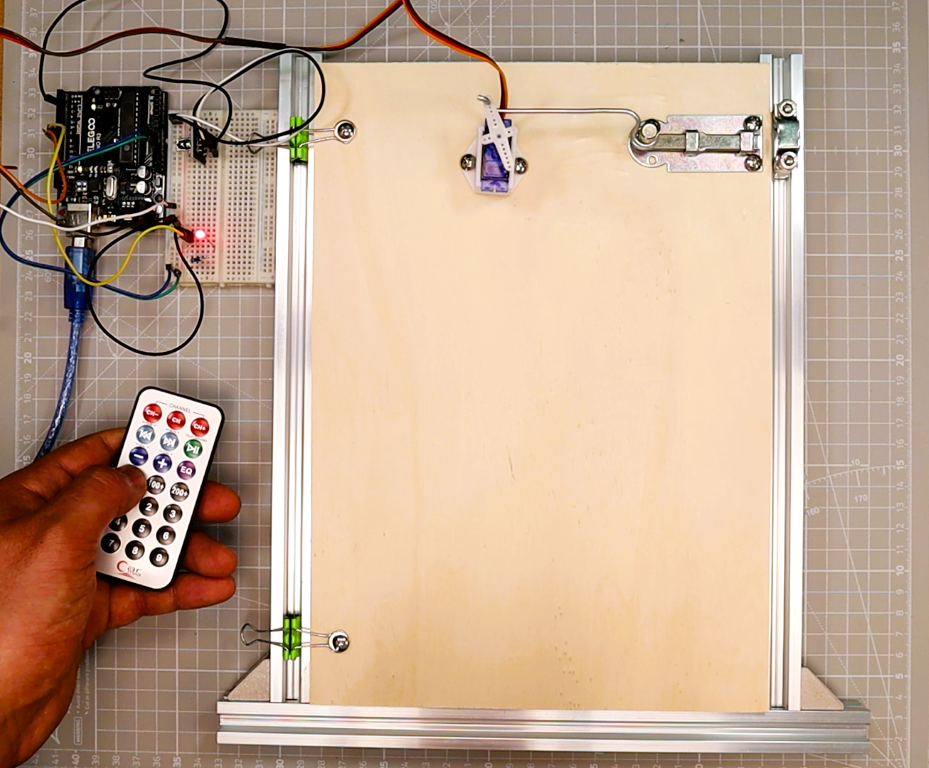
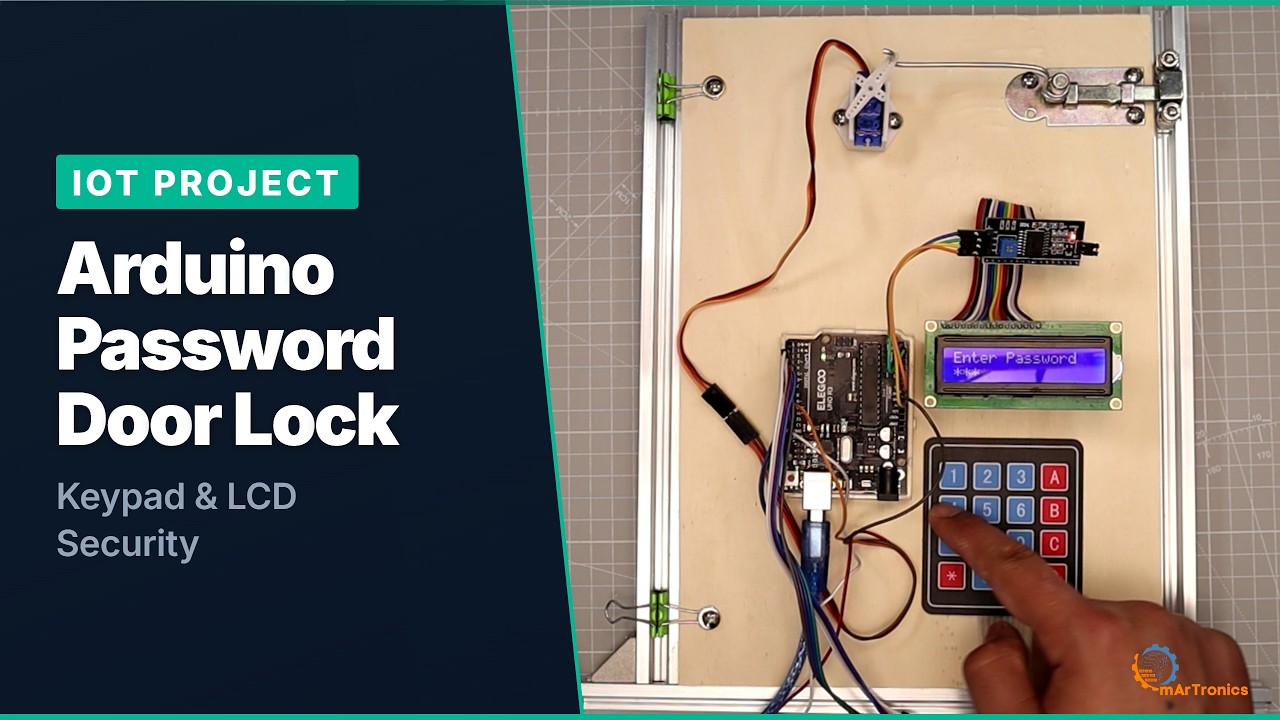
If you built the Arduino Password Door Lock, you can reuse its door latch here. For this build I took the test door from that project and replaced the keypad with the 21-key kit remote. The servo motor with joystick and OLED tutorial explains how servos work.
How the System Works
- The remote sends an IR signal. When you press a button, the infrared LED in the remote switches on and off 38,000 times per second (the 38 kHz carrier). The receiver responds only to light that flickers at this frequency, so it filters out most constant light from the sun and room lamps. The pattern of carrier bursts and pauses for one button press is called a frame, and it encodes the button. Most kit remotes use the NEC protocol, a timing format that sends an address (which device) and a command (which button).
- The KY-022 receiver demodulates the signal. It removes the 38 kHz carrier and outputs a series of digital pulses on its OUT pin, which connects to Arduino pin D2.
- The IRremote library decodes the frame. The library measures the length of each pulse in the background. It uses a timer interrupt (a hardware signal that briefly pauses the running program for a short routine), so the program does not have to wait for the signal. It identifies the protocol and stores two values: command (the short button code) and decodedRawData (the complete 32-bit frame). It marks the repeat frames that the remote sends while you hold a button.
- The Arduino acts on the command. Your sketch (an Arduino program) compares the received command with stored values. In Stage 1, a match toggles the LED. In Stage 2, OPEN and CLOSE move the servo to the target angle, and the LED follows the door state.
Components Required
Parts marked Yes in the Stage 1 column are all you need for Stage 1. Add the remaining parts for Stage 2.
| Component | Stage 1 (LED only) | Stage 2 (servo door) | Notes |
|---|---|---|---|
| Arduino Uno (or Nano) | Yes | Yes | Any board with the ATmega328 microcontroller (the chip on the Uno and Nano) works |
| IR receiver: KY-022 module (VS1838B receiver on a small board) | Yes | Yes | 3-pin module; wire it by the printed labels (S, +, -); S (OUT) goes to D2 |
| IR remote (kit remote) | Yes | Yes | Most NEC-protocol remotes work |
| LED (any color) | Yes | Yes | Standard 5 mm through-hole |
| 220 Ω resistor | Yes | Yes | Current-limiting resistor for the LED |
| Breadboard and jumper wires | Yes | Yes | Half-size breadboard is enough |
| Micro servo (SG90 or MG90S) | No | Yes | SG90 for lightweight doors |
| External 5 V power supply (1 A or more) | No | Yes | Prevents brownouts (short voltage dips that reset the Arduino); do not power the servo from the Arduino 5 V pin |
| Door latch | No | Yes | 3D-printed, wire, or cardboard |
A bare VS1838B or TSOP1838 without a board has a different pin order than the KY-022 module: OUT, GND, VCC, seen from the front. I used the module version.
The door latch in my build is a barrel bolt (a metal bolt that slides into a catch) on a plywood test door in a frame of aluminum profile bars. The SG90 sits in a plastic holder screwed to the door, and a bent wire connects the servo horn (the plastic arm on the servo shaft) to the knob of the bolt. The code comment “tune to your linkage” refers to this wire.
Stage 1: LED Control
LED Wiring
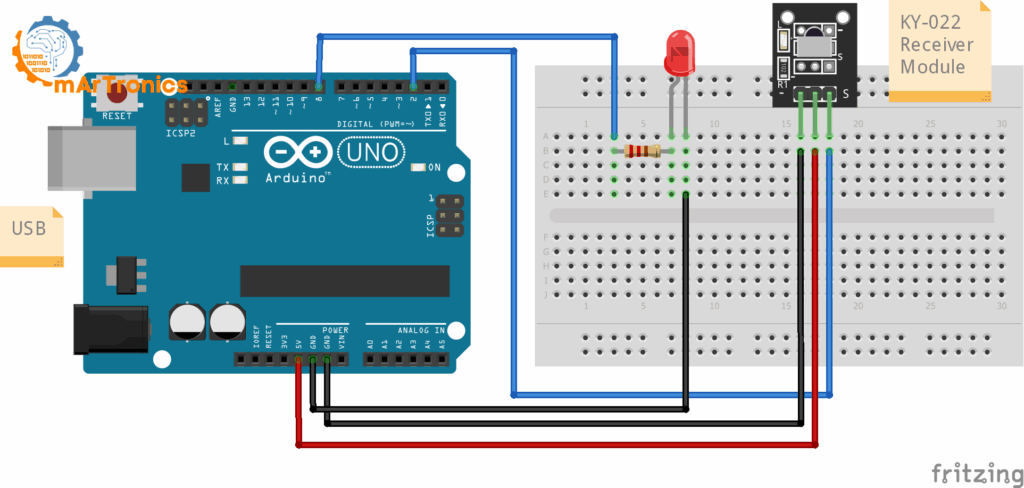
Wire the IR receiver and the LED to the Arduino as in the table and the diagram. The IR receiver OUT pin connects to D2, the pin the IRremote examples use on the Uno. Any digital pin works, because you pass the pin number to IrReceiver.begin(). The LED anode connects through a 220 Ω resistor to D8.
| Component | Pin / Terminal | Connects To |
|---|---|---|
| IR receiver (KY-022) | OUT (S) | Arduino D2 |
| IR receiver (KY-022) | VCC (+) | Arduino 5 V |
| IR receiver (KY-022) | GND (-) | Arduino GND |
| LED anode (long leg) | Anode (+) | 220 Ω resistor, then Arduino D8 |
| LED cathode (short leg) | Cathode (-) | Arduino GND |
Beginner tip: LED polarity. The longer leg of the LED is the anode (positive), the shorter leg is the cathode (negative, often marked by a flat edge on the LED body). The 220 Ω resistor can go on either side of the LED, because it only limits the current to protect the LED and the Arduino pin. If the LED does not light up, flip it around.
Step 1: Install the IRremote Library
Open the Arduino IDE and go to Tools > Manage Libraries. Search for IRremote by Arduino-IRremote and install the latest version. The sketches use the IRremote 4.x API (IRremote.hpp, IrReceiver.begin()), and I tested them with version 4.5.0.
Two lines start the receiver:
#include <IRremote.hpp>
// ...
IrReceiver.begin(pin, ENABLE_LED_FEEDBACK);
ENABLE_LED_FEEDBACK makes the onboard LED (pin 13) blink whenever an IR signal arrives, so you can see that the receiver works. In the sketches, IrReceiver.resume() tells the library to listen for the next signal, and F(“…”) stores fixed text in flash memory (the program memory) instead of RAM (the small working memory for variables).
Step 2: Scan Your Remote
Remotes that look identical can still send different codes. The example values in the sketches (0x45, 0x46, 0x47) come from a common 21-key kit remote, so scan your own remote before you use them. The prefix 0x marks a hexadecimal (base-16) number, the format the scanner prints.
Upload the scanner sketch below and open Serial Monitor (the window in the Arduino IDE that shows text sent by the board over USB). The sketch uses 115200 baud (transmission speed in bits per second) instead of the common 9600, so each printed line takes less time. Set Serial Monitor to the same value, otherwise it shows unreadable characters. Press each remote button a few times.
// IR Code Scanner (IRremote >= 3.x)
#include <IRremote.hpp>
const uint8_t IR_RECEIVE_PIN = 2;
void setup(){
  Serial.begin(115200);
  IrReceiver.begin(IR_RECEIVE_PIN, ENABLE_LED_FEEDBACK);
  Serial.println(F("IR Scanner ready. Press remote buttons..."));
}
void loop(){
  if(IrReceiver.decode()){
    IrReceiver.printIRResultShort(&Serial); // concise one-liner
    Serial.print(F("Protocol="));   Serial.print(IrReceiver.decodedIRData.protocol);
    Serial.print(F("  Command=0x"));Serial.print(IrReceiver.decodedIRData.command, HEX);
    Serial.print(F("  RAW=0x"));    Serial.println(IrReceiver.decodedIRData.decodedRawData, HEX);
    IrReceiver.resume();
  }
}
What to look for: Each press prints two lines. The first comes from printIRResultShort() and names the protocol, for example NEC. The second is the sketch’s own line: Protocol= shows the protocol as a number, Command= the button code and RAW= the full frame.
Write down the command value (after Command=) of each button. In most cases it stays the same on every press. If the command value changes between presses of the same button, or every button shows 0x00, write down the RAW value (after RAW=) instead. For most remotes, the RAW value is a usable fallback.
Pick one button for the LED toggle. For Stage 2, pick two more buttons for OPEN and CLOSE. Write down all three values.
Step 3: LED Sketch
In the sketch, replace the example value 0x45 of CMD_LED_TOGGLE with the command value from your scan. If the command value of your remote was unstable, uncomment both RAW lines (the constant and the else if line). To uncomment a line, remove the // at its start. Paste your RAW value into the constant. IRremote 3.x and newer print RAW values in a different bit order than older tutorials (0xBA45FF00 instead of 0x00FFA25D for the same button), so copy the value from your own scanner output.
// IR remote: toggle an LED (IRremote 4.x)
#include <IRremote.hpp>
const uint8_t IR_RECEIVE_PIN = 2; // IR OUT → D2
const uint8_t LED_PIN        = 8; // LED → 220Ω → D8
// Replace with your scanned value:
const uint32_t CMD_LED_TOGGLE = 0x45;  // example NEC command
// Alternative if command is unstable:
// const uint32_t RAW_LED_TOGGLE = 0xBA45FF00; // example 32-bit RAW
bool ledOn = false;
void setLED(bool on){
  ledOn = on;
  digitalWrite(LED_PIN, ledOn ? HIGH : LOW);
}
void setup(){
  pinMode(LED_PIN, OUTPUT);
  setLED(false);
  Serial.begin(115200);
  IrReceiver.begin(IR_RECEIVE_PIN, ENABLE_LED_FEEDBACK);
  Serial.println(F("LED-only mode. Press your toggle key."));
}
void loop(){
  if(!IrReceiver.decode()) return;
  if(!(IrReceiver.decodedIRData.flags & IRDATA_FLAGS_IS_REPEAT)){
    uint32_t cmd = IrReceiver.decodedIRData.command;
    uint32_t raw = IrReceiver.decodedIRData.decodedRawData;
    if (cmd == CMD_LED_TOGGLE)        setLED(!ledOn);
    // else if (raw == RAW_LED_TOGGLE) setLED(!ledOn); // use if needed
    Serial.print(F("[IR] cmd=0x")); Serial.print(cmd, HEX);
    Serial.print(F(" raw=0x"));     Serial.println(raw, HEX);
  }
  IrReceiver.resume();
}
How the LED Sketch Works
- IRDATA_FLAGS_IS_REPEAT: While you hold a button, an NEC remote sends a short repeat frame about every 108 ms. Without filtering, one long press would toggle the LED many times. The line if(!(IrReceiver.decodedIRData.flags & IRDATA_FLAGS_IS_REPEAT)) ignores these repeat frames, so only the first press counts.
- command vs. decodedRawData: The command field holds the short button code, one byte for NEC. The decodedRawData field holds the full 32-bit frame including the address. Use command while it is stable for your remote, and fall back to decodedRawData when command varies or is zero.
- setLED(): setLED() is the only place that writes the LED pin and updates ledOn, so the variable and the real LED always agree. Stage 2 relies on this.
Stage 2: Add the Servo Door
Keep the wiring and the LED logic from Stage 1. Add the servo and two more remote buttons, OPEN and CLOSE.
Servo Wiring
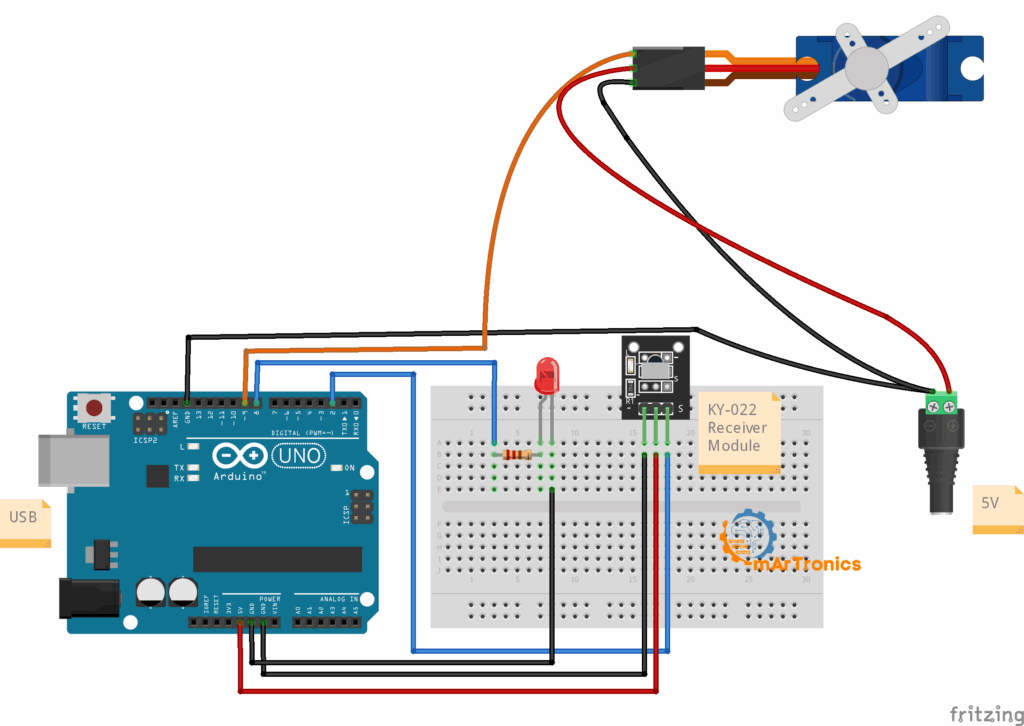
Add the connections in the table to the Stage 1 circuit. The servo signal goes to D9, marked PWM (pulse-width modulation) in the table. This signal is a repeating pulse, and the pulse length sets the servo angle.
| Component | Pin / Wire | Connects To |
|---|---|---|
| Servo (SG90) | Signal (orange/yellow) | Arduino D9 (PWM) |
| Servo (SG90) | VCC (red) | External 5 V supply (+) |
| Servo (SG90) | GND (brown/black) | External 5 V supply (-) |
| External supply GND | GND | Arduino GND (common ground) |
Why an external 5 V supply: On USB power, the Arduino 5 V pin can deliver about 500 mA in total. An SG90 draws about 100 mA when it moves freely and up to about 650 mA when it is blocked (stall current). These current spikes pull the Arduino 5 V line down, which resets the board, disturbs IR reception and makes the servo jitter. Use a separate 5 V supply rated 1 A or more and connect its GND to Arduino GND. Without this common ground, the signal on D9 has no reference voltage, and the servo does not respond or moves erratically.
Combined Sketch: LED + Servo Door
Replace the example values of CMD_LED_TOGGLE, CMD_OPEN and CMD_CLOSE (0x45, 0x46, 0x47) with the three command values from your scan. If your remote needs the RAW fallback, uncomment the three RAW constants and paste your RAW values. Comment out the three command checks (put // in front of each line) and uncomment the three RAW checks. If both are active and both match, the toggle button switches the LED twice and nothing seems to happen.
// Arduino IR remote LED + Servo Door (IRremote >= 3.x)
#include <IRremote.hpp>
#include <Servo.h>
const uint8_t IR_RECEIVE_PIN = 2;   // IR OUT → D2
const uint8_t LED_PIN        = 8;   // LED → 220Ω → D8
const uint8_t SERVO_PIN      = 9;   // Servo signal → D9
// === Replace with your scanned values ===
const uint32_t CMD_LED_TOGGLE = 0x45; // LED toggle
const uint32_t CMD_OPEN       = 0x46; // door open
const uint32_t CMD_CLOSE      = 0x47; // door close
// RAW fallback (uncomment if needed):
// const uint32_t RAW_LED_TOGGLE = 0xBA45FF00;
// const uint32_t RAW_OPEN       = 0xB946FF00;
// const uint32_t RAW_CLOSE      = 0xB847FF00;
const int OPEN_ANGLE  = 20;  // tune to your linkage
const int CLOSE_ANGLE = 90;
const int STEP_DEG    = 2;
const int STEP_MS     = 10;
Servo door;
bool ledOn = false;
int  curAngle = CLOSE_ANGLE;
void setLED(bool on){
  ledOn = on;
  digitalWrite(LED_PIN, on ? HIGH : LOW);
}
void moveServoTo(int target){
  int dir = (target > curAngle) ? 1 : -1;
  while(curAngle != target){
    curAngle += dir * STEP_DEG;
    if((dir > 0 && curAngle > target) || (dir < 0 && curAngle < target)) curAngle = target;
    door.write(curAngle);
    delay(STEP_MS);
  }
}
void setDoorOpen(bool open){
  moveServoTo(open ? OPEN_ANGLE : CLOSE_ANGLE);
  setLED(open); // LED shows door status: ON=open, OFF=closed
}
void setup(){
  Serial.begin(115200);
  pinMode(LED_PIN, OUTPUT);
  setLED(false);
  door.attach(SERVO_PIN);
  door.write(CLOSE_ANGLE);
  IrReceiver.begin(IR_RECEIVE_PIN, ENABLE_LED_FEEDBACK);
  Serial.println(F("LED + Servo mode. Use TOGGLE / OPEN / CLOSE keys."));
}
void loop(){
  if(!IrReceiver.decode()) return;
  if(!(IrReceiver.decodedIRData.flags & IRDATA_FLAGS_IS_REPEAT)){
    uint32_t cmd = IrReceiver.decodedIRData.command;
    uint32_t raw = IrReceiver.decodedIRData.decodedRawData;
    if (cmd == CMD_LED_TOGGLE) setLED(!ledOn);
    else if (cmd == CMD_OPEN)  setDoorOpen(true);
    else if (cmd == CMD_CLOSE) setDoorOpen(false);
    // RAW fallback:
    // if (raw == RAW_LED_TOGGLE) setLED(!ledOn);
    // if (raw == RAW_OPEN)       setDoorOpen(true);
    // if (raw == RAW_CLOSE)      setDoorOpen(false);
  }
  IrReceiver.resume();
}
How the Servo Door Sketch Works
- OPEN_ANGLE and CLOSE_ANGLE: These two constants set how far the servo turns for the open and the closed position. The default values (20° and 90°) are starting points. For the barrel bolt in my video I used 0° for open and 110° for closed. The right values depend on your latch, so tune them with the test sequence below.
- Small-step movement (moveServoTo): Moving in 2° steps with 10 ms pauses spreads the 70° travel between 20° and 90° over about 0.35 s. This lowers the current spike at the start and makes the door move more quietly. Increase STEP_DEG for faster movement, decrease it for smoother movement.
- LED shows the door state: setDoorOpen() calls setLED() after the servo has moved. After each OPEN or CLOSE command, the LED is ON for open and OFF for closed. The LED toggle button still works, but then the LED no longer matches the door until the next OPEN or CLOSE command.
How to Test and Tune the Build
- Test the scanner first. Upload the scanner sketch from Step 2 and open Serial Monitor at 115200 baud. Press each remote button and confirm that the output is consistent. If nothing appears, check the wiring, in particular IR receiver OUT on D2.
- Check the LED sketch. Upload the LED sketch from Step 3 and press your toggle button. The LED on D8 turns on with the first press and off with the second. Serial Monitor shows the decoded command values, so you can compare them with your scan.
- Test the servo without the door. Before you attach the servo to the door latch, upload the combined sketch and test with the servo loose on the desk. Press OPEN and CLOSE and check that the servo turns between the two angles. This avoids stripped gears if the angles are wrong.
- Tune the angles. Adjust OPEN_ANGLE and CLOSE_ANGLE until the servo horn reaches the correct positions for your door latch. Re-upload and test after each change, 5 to 10 degrees at a time.
- Attach the door latch. Connect the servo horn to your door latch. Run the combined sketch and check that the door opens and closes and that the LED shows the state.
Troubleshooting
| Problem | Likely Cause | Solution |
|---|---|---|
| No serial output appears | Wrong baud rate or wiring error | Set Serial Monitor to 115200. Check that the IR receiver OUT is on D2 and the module has 5 V and GND. |
| Remote button does not trigger reliably | Weak signal, distance, or angle | Point the remote at the receiver from within 3 m. Remove bright IR sources (sunlight, some lamps) that can overload the receiver. |
| The command value changes unexpectedly | Protocol mismatch or noisy signal | Use the RAW (decodedRawData) fallback instead of command. Some remotes use protocols where the command value varies. |
| LED does not toggle | Wrong command value in the sketch | Open the scanner sketch, press the button, and compare the printed command value with the one in the LED sketch. Check the LED polarity (flip it if needed). |
| Long presses cause repeated toggling | Repeat filtering missing | Keep the IRDATA_FLAGS_IS_REPEAT check in the sketch. |
| Servo jitters or buzzes | Insufficient power or noisy signal | Use the external 5 V supply with common ground, see Servo Wiring. Keep the signal wire short and away from power cables. |
| Servo does not move at all | Wrong pin, no power, or wrong command | Check that the signal wire is on D9, the external supply is on and its GND is connected to Arduino GND. Compare the OPEN and CLOSE values with your scanner output. |
| Servo moves the wrong direction | OPEN_ANGLE and CLOSE_ANGLE swapped | Swap the two values in the sketch and re-upload. |
| Arduino resets when the servo moves | Servo draws its current from the Arduino | Use the external 5 V supply, see Servo Wiring. The Arduino 5 V pin cannot handle the servo current spikes. |
| IR stops working after adding the servo | Power supply noise or timer conflict | Add a 470 µF electrolytic capacitor (rated 10 V or more) between the servo supply + and GND, close to the servo. Connect the side marked with the stripe (-) to GND; a reversed electrolytic capacitor can overheat and burst. On the Uno, IRremote uses Timer 2 and the Servo library uses Timer 1, so they do not conflict. A conflict appears if the sketch adds a second Timer 2 user, such as tone(). |
Frequently Asked Questions
Most TV and universal remotes work. The KY-022 is tuned to 38 kHz; remotes with other carriers from 36 to 40 kHz work at shorter range. Air-conditioner remotes send long frames (often more than 100 bits) that IRremote usually cannot decode into one command, so avoid them for this project. Run the scanner sketch to find the button codes of your remote.
Tutorials written for IRremote 2.x use IRrecv and decode(&results). Since version 3.x the library uses IrReceiver.decode() and IrReceiver.decodedIRData. The old calls are deprecated (marked as outdated in the library) and may not work as expected, so use the sketches in this post with the current library.
Resources
Related OmArTronics Tutorials
- Arduino Password Door Lock with Keypad and LCD: the door latch this project reuses, controlled by a keypad and an LCD.
- Control a Servo Motor with Joystick and OLED Display: servo control with an analog input and a display.
External Resources
Suggested Next Projects
- Add a relay module to switch a low-voltage load, such as a 12 V LED strip or fan. Do not switch mains voltage (230 V or 120 V) unless you are trained for it: mains wiring can kill, and a relay board on a breadboard is not insulated for it.
- Add an LCD or OLED screen that shows the door state and the last received command.
- Combine the IR remote with the keypad lock so the door needs both. IR codes are not encrypted. Any learning remote (a universal remote that records and replays IR codes) can copy them, so use the combination as a demo only. It does not secure a real door.
- Log the received IR commands to an SD card.
Conclusion
Both stages follow the same pattern: scan a button, store its code, and add one condition per action. More outputs, such as a relay or a second servo, need only more scanned codes and conditions.