
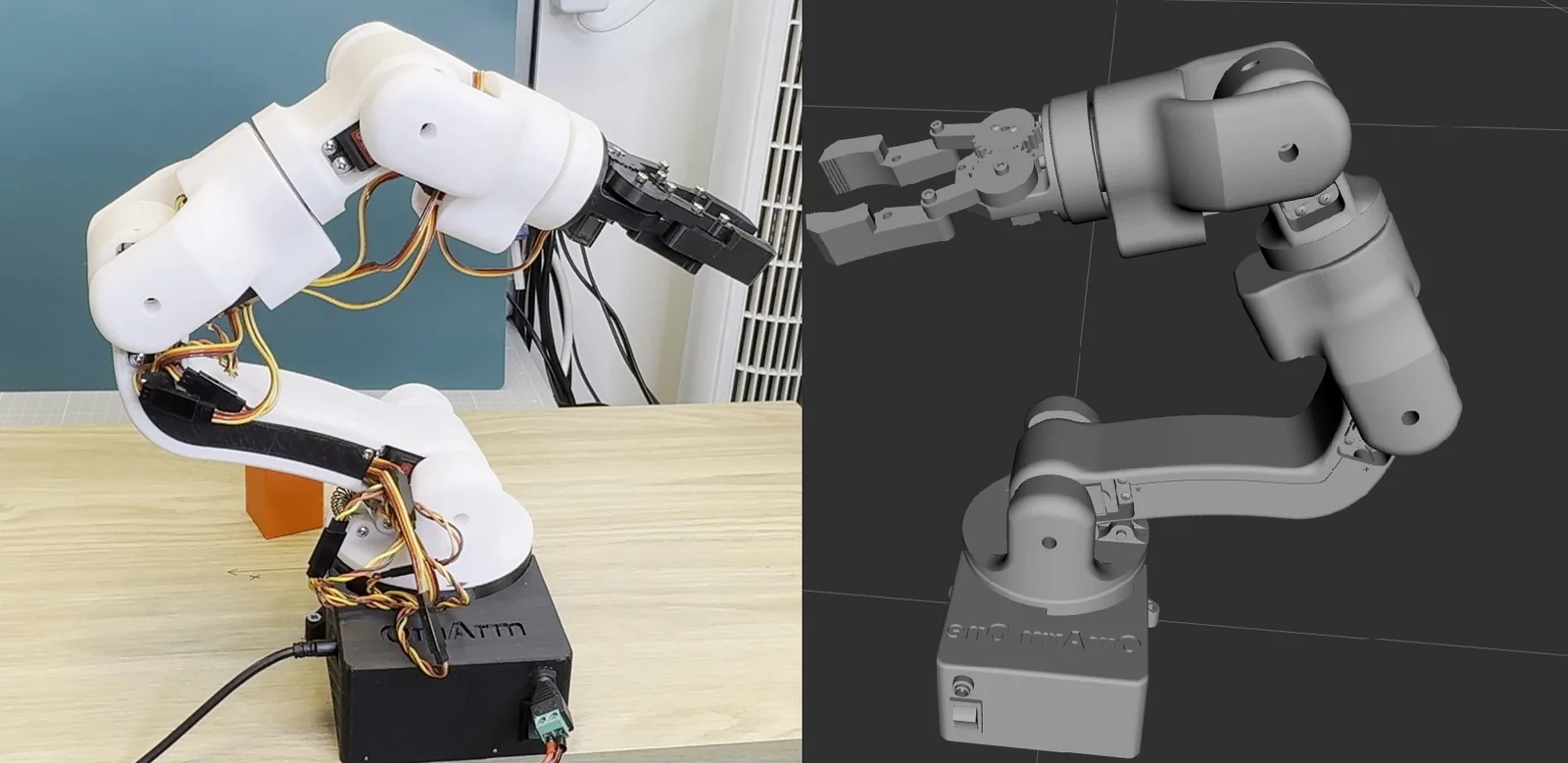
OmArm One Series
- Part 1: Build, statics and payload.
- Part 1.5: Drive it with a game controller.
- Part 2: Digital twin, URDF in RViz and Gazebo (this post).
- Part 3: MoveIt 2 and ros2_control on real hardware (video).
- Part 4: Computer vision pick and place (coming soon).
- Part 5: AI: grasping by name, by voice (coming soon).
You need a finished OmArm One from Part 1, or any arm you have CAD for. No firmware is flashed in this part.
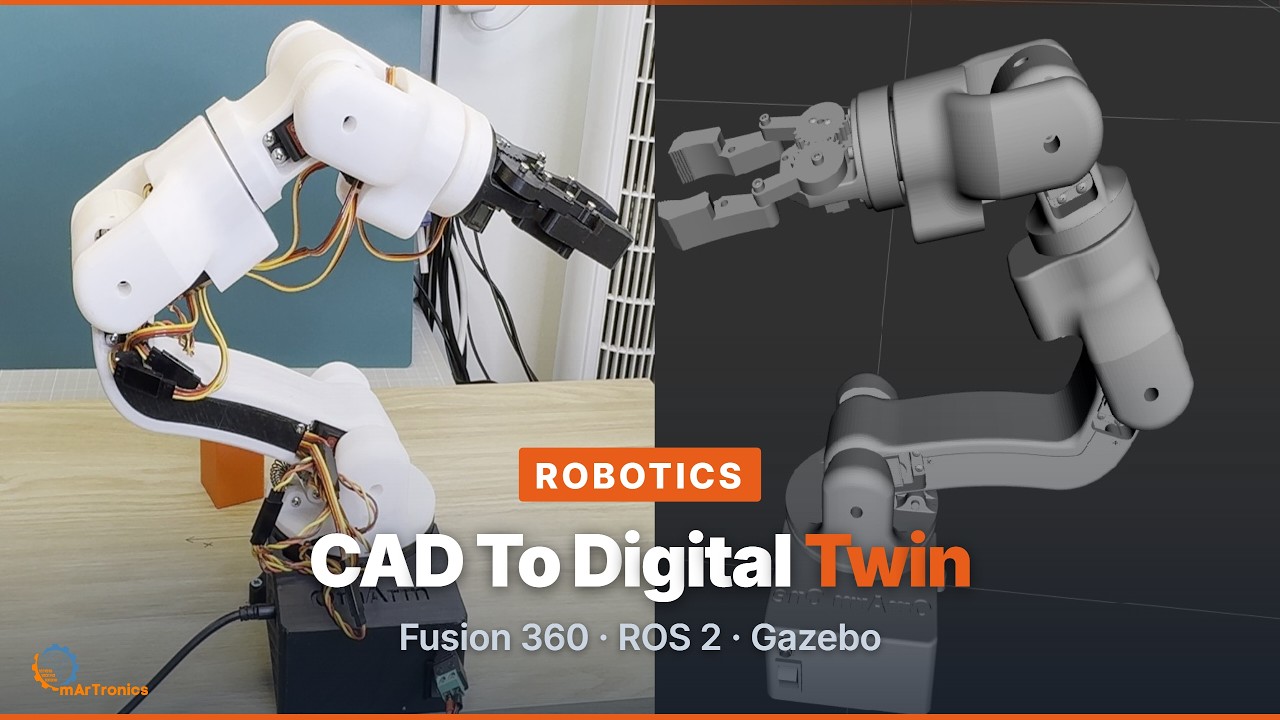
The video loads from YouTube (Google), which may set cookies. Privacy policy
The 16-minute video version: the export, the preparation rules that decide its quality, and the model running in RViz and Gazebo.
Part 1 gave the arm a body and a web app. Part 1.5 gave it a game controller. Both drive the arm joint by joint: a slider sets a joint angle, a stick sets a joint speed. They also leave the hardest part to you: working out where the gripper will end up. Six joint angles are not a position in space. If you want the arm to reach a point on the table, you have to solve that backwards, and neither sliders nor sticks do that for you. In Part 1 I left inverse kinematics (working out joint angles from a target point) out of the web app on purpose. Without a planner that checks the path for collisions first, a half-working version would have been worse than none.
Software can compute the gripper position from the joint angles, and the joint angles from a target point, if it has a model of the robot. In ROS 2, that model is written in a file format called URDF. Once it exists, RViz shows the robot, Gazebo drops it into a physics world, and in Part 3 MoveIt plans motions for it.
A model exported from CAD describes the CAD assembly, and the real robot differs from it in ways that look small on screen and matter in practice. On this arm: a joint that turns the wrong way, a zero that sits 45 degrees off, and a speed limit nineteen times higher than the servo’s top speed at 5 V. Below are the export and every change I made afterwards, with the reasons and the arithmetic, so you can repeat it for your own arm.

At a glance
What you’ll build: A ROS 2 package that describes OmArm One well enough for software to reason about it. You export the model from CAD, audit the result, and correct the joint directions and zeros so the model matches the arm on your bench. Then you make it physically valid for a simulator and end with the arm standing in RViz and running in Gazebo. One argument switches the same description between simulation and real hardware. To see the arm on screen without exporting it yourself, use the finished package: Route A in section 4, then section 11.
What you’ll learn: What a URDF is and the one formula behind every joint. How to prepare a CAD assembly so the export is usable, and how to read the exported model critically. The difference between a joint’s zero, direction and scale, and why one measurement cannot separate them. How to put a measured offset into the joint geometry: one number for a joint on a coordinate axis, a composed rotation for a tilted one. Why a model that satisfies RViz can still fail in Gazebo.
Time required: Ten minutes if you run the finished package. An evening if you export your own model from CAD, and two to four hours more if you also prepare the assembly and measure joints.
Total cost: 0 € in parts, because everything in this part runs on a PC. The finished package and the audit script come with the paid Part 2 download (see Files you’ll need).
Difficulty: Intermediate. No robotics maths beyond one matrix identity, which is written out, and a library call for the tilted-axis case. You should be comfortable in a terminal.
Safety: Most of this part is a PC job. You need the powered arm only for the two calibration measurements in section 8 and for the checks in sections 11 and 13. Move one joint at a time and keep the workspace clear. Drive the arm with the web app or the Part 1.5 game controller; nothing in this part sends commands to the servos.
What you need: Ubuntu 24.04 with ROS 2 Jazzy, and CAD for an arm. The OmArm One model ships with the package, or use your own. A finished arm from Part 1 for the measurements and checks named under Safety.
Files you’ll need: the omarm_description package and the audit script, in the Part 2 download, which also contains this guide as a PDF.
1. What a digital twin is, and what it is not
In this part, a digital twin means a description of the robot’s geometry, joint structure and mass, accurate enough for a planner to work with. It is not a rendering, and it does not replace the firmware: the motion engine still runs on the ESP32 as in Part 1.
The twin is used in three steps, and this part covers the first two.
You can see the robot’s state. RViz draws the model at whatever joint angles you feed it. Feed it the arm’s real angles and you see a live picture of a machine that has no screen. Feed it slider values and you can check the model itself.
You can simulate it. Gazebo takes the same model, adds gravity, contact and a physics loop, and lets you test a motion that would hit the table without damaging anything. This step uses the mass and inertia values from the model.
You can plan with it. MoveIt takes the model and answers the inverse question: which joint angles put the gripper there, and what path gets it there without a collision. Planning is the topic of Part 3, and the reason this part checks the model so carefully: a planner trusts the model completely. If your model says the arm is 10 mm shorter than it is, the planner will plan a path that drives the gripper into the table, and no software layer will report an error.
Limit: The twin knows where you told the arm to go, never where it is. OmArm One has no encoders (sensors that measure the real joint angle). Part 1 explains what the firmware does about it. The model can be correct and still show a pose the arm is not in, for example after a joint moved without a command. The PDF guide in the Part 2 download covers this in chapter 12, and Part 1.5’s confirm gesture exists for the same reason.
2. ROS 2, the short version
If you already work with ROS 2, skip to section 3. If Part 1 and 1.5 were your only robotics so far, this section is the vocabulary for the rest of this post.

A node is a program that does one job. robot_state_publisher is a node. RViz is a node. In Part 3, MoveIt’s planner is a node. They are separate processes, they can be started and stopped independently, and they can run on different machines.
Topics are named channels between nodes. A node publishes messages on a topic; any number of nodes subscribe. /joint_states carries the current joint angles. The publisher does not know who listens. So you can swap a slider GUI for a real robot driver without changing anything downstream: the topic is the interface.
TF, the ROS 2 library that tracks coordinate frames, answers one question: where is that, relative to this. A robot has many coordinate frames (a coordinate frame is an origin point with three axes), one per link, plus the world. TF continuously publishes the position and orientation of every frame relative to its parent. Any node can ask “where is gripper_base_1 in world coordinates” and get an answer. robot_state_publisher is the node that produces the arm’s frames: it reads your URDF, subscribes to /joint_states, and publishes a TF frame for every link. This node does most of the work behind the RViz launch file in section 11.
A package is a folder with a package.xml. It groups files that belong together and tells the build system what they depend on. omarm_description is a package: the model, the meshes (the 3D shape files of the parts), the launch files. A workspace is a folder with a src/ directory holding packages. You build it with colcon build and activate it with source install/setup.bash.
A launch file starts several nodes at once, with their configuration. It saves opening one terminal per node. display.launch.py in this package starts three nodes and hands the model to the one that needs it.
3. URDF: links, joints, and the one formula that matters
URDF stands for Unified Robot Description Format. It is XML, and it describes a robot as a tree of rigid bodies connected by joints. In this tree, every link except the single root is the child of exactly one joint, and there are no closed loops.

A link is one rigid body with up to three descriptions. <visual> is the shape RViz draws, and <collision> is the shape used for contact checks. <inertial> holds the mass and the moments of inertia (ixx, iyy, izz, in kg·m²), which say how hard the body is to rotate about each axis:
<link name="link_1_1">
  <inertial>   <!-- mass and inertia: physics only, Gazebo reads this, RViz ignores it -->
    <mass value="0.3149105967000781"/>   <!-- the exporter writes full float precision; harmless, and left as it came -->
    <inertia ixx="0.001311" iyy="0.001223" izz="0.000194" ixy="1e-06" iyz="0.000215" ixz="1e-06"/>
  </inertial>
  <visual>     <!-- what you SEE -->
    <origin xyz="0.03063 0.0 -0.09157" rpy="0 0 0"/>
    <geometry><mesh filename="file://.../link_1_1.stl" scale="0.001 0.001 0.001"/></geometry>
  </visual>
  <collision>  <!-- what collision checking uses -->
    <origin xyz="0.03063 0.0 -0.09157" rpy="0 0 0"/>
    <geometry><mesh filename="file://.../link_1_1.stl" scale="0.001 0.001 0.001"/></geometry>
  </collision>
</link>
Two details in there need explaining. The scale="0.001 0.001 0.001" is there because the STL file (a common file format for 3D meshes) is in millimetres and ROS works in metres. Without it, the robot is drawn 1000 times too large. The <origin> inside <visual> exists because the mesh carries its own coordinate origin from the CAD assembly, where every part sits at its assembled position. The link frame sits at the joint axis. The visual origin is the offset that maps one onto the other. Every mesh below the base therefore has an origin like 0.03063 0.0 -0.09157, while base_link, sitting on the assembly origin, has 0 0 0.
One consequence follows from that: a correct TF tree does not prove a correct picture. If a visual origin is wrong, the link is in the right place and its mesh is drawn somewhere else. This distinction helped me when a gripper part appeared to float next to the base. The TF frames of all gripper links were complete and the visual origins consistent, so the model was not at fault. The cause was in the MoveIt configuration, which Part 3 covers.
A joint says how the child moves relative to the parent:
<joint name="Revolute 2" type="revolute">
  <origin xyz="-0.03063 0.0 0.049" rpy="-1.356194163 0 0"/>
  <parent link="base_link_upper_1"/>
  <child  link="link_1_1"/>
  <axis xyz="1.0 -0.0 -0.0"/>
  <limit upper="3.141593" lower="0.0" effort="3.5" velocity="5.2"/>
</joint>
| Element | Meaning |
|---|---|
origin xyz |
translation from the parent frame to the joint frame, in metres |
origin rpy |
rotation of the joint frame: roll, pitch, yaw, in radians |
axis |
the direction the joint rotates about, expressed in the joint frame |
limit lower / upper |
how far it may turn, in radians |
limit velocity |
maximum speed, in radians per second |
type |
revolute turns and has limits, fixed does not move, continuous turns without limits |
A joint places the child frame relative to the parent frame in two steps. As a matrix:
T_joint = T_origin · R_axis(q).
The fixed part first, then the rotation by the joint angle q about the axis. Section 8 uses this formula to put a measured calibration into the geometry. It is also why the “subtract from roll” shortcut you will find on forums is wrong for five of this robot’s six arm joints.

The diagram shows the finished model after the corrections in sections 8 and 9. The raw export has one link and one joint fewer, and four of these axes point the other way. Only one joint on this arm is a plain +X hinge, which matters in section 8.
xacro, because raw URDF does not scale
Writing that XML by hand for twelve links is slow and error-prone. And plain URDF has no way to say “if this is a simulation, use a different driver”. Xacro is a preprocessor that adds includes, variables, macros and conditionals to URDF, then expands to plain URDF before anything else sees it.
This package uses four files, and the main one includes the other three:
urdf/omarm.xacro         links, joints, and the includes below
urdf/materials.xacro     colour definitions
urdf/omarm.ros2control   which driver moves the joints
urdf/omarm.gazebo        surface properties and the Gazebo plugin
Check what xacro produced; the expanded file is what every other program reads:
xacro src/omarm_description/urdf/omarm.xacro > /tmp/robot.urdf
4. Setting up the PC
Everything below runs on Ubuntu 24.04 with ROS 2 Jazzy, the pairing this workspace was built and tested on. The official ROS 2 installation instructions change often, so they are not repeated here. Follow the official guide for your distribution, then add the pieces this part needs:
sudo apt install \
  ros-jazzy-rviz2 \
  ros-jazzy-robot-state-publisher \
  ros-jazzy-xacro \
  ros-jazzy-joint-state-publisher-gui \
  ros-jazzy-ros2-control ros-jazzy-ros2-controllers \
  ros-jazzy-ros-gz \
  ros-jazzy-gz-ros2-control \
  ros-jazzy-tf2-tools
What each package does:
rviz2: the 3D viewer (section 11).robot_state_publisher: turns joint angles into TF frames.xacro: expands the model files.joint_state_publisher_gui: the sliders in section 11.ros2_controlandros2_controllers: the controller framework.ros_gz: the Gazebo integration.gz_ros2_control: lets the same controllers drive the simulated robot.tf2_tools: draws the TF tree (section 13).
A workspace is a folder with a src/ inside it:
mkdir -p ~/omarm_one_ws/src
Everything else waits until there is a package in src/: the one from the Part 2 download, or the one you export in section 6. Once it is there:
cd ~/omarm_one_ws
colcon build
source install/setup.bash
colcon build compiles and installs every package under src/. source install/setup.bash makes them findable, and it has to be repeated in every new terminal. Nearly every “package not found” for a package that is sitting right there is a missing source.
Two habits save time later. Build one package while you are iterating on it:
colcon build --packages-select omarm_description
And after changing anything in urdf/, config/ or meshes/, rebuild before launching. Those files are installed into install/, and the launch files read the installed copy, not the one you edited. Editing a URDF and seeing no change is almost always this.
Two ways from here
There are two routes through the rest of this post, and they meet again in the same terminal.
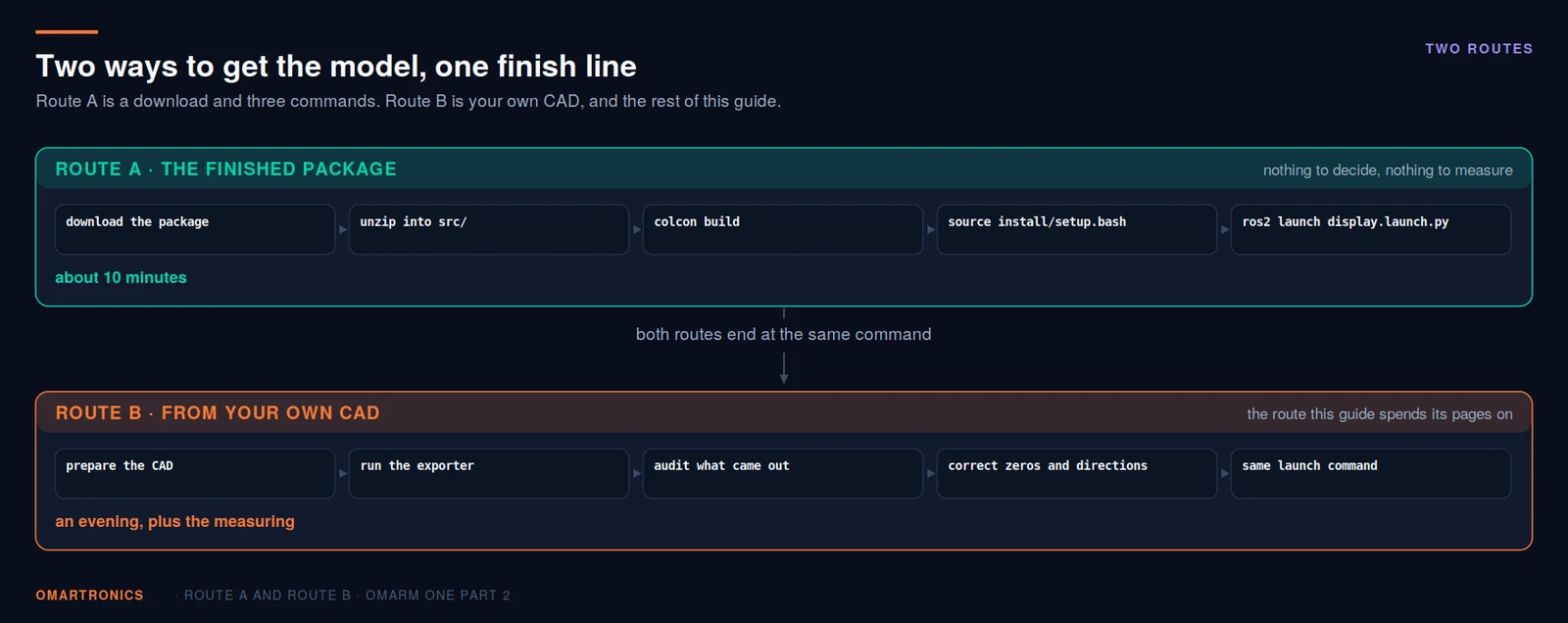
Route A, the finished package. Take omarm_one_ws from the Part 2 download, build it, launch it, then jump to section 11. The model in there is already matched to the arm on my bench (directions, zeros and speed limits), which is the work sections 8 and 9 describe. Read them when you want to know why it runs, or when your own arm is not this one.
Route B, your own CAD. Sections 5 to 10 in order, then sections 11 to 13. Take this route if the arm on your desk is not an OmArm One.
# Route A. The download unpacks to a folder OmArm-One-Digital-Twin with the
# workspace omarm_one_ws inside it. Put the workspace in your home folder:
cp -r ~/Downloads/OmArm-One-Digital-Twin/omarm_one_ws ~/
cd ~/omarm_one_ws
colcon build --packages-select omarm_description
source install/setup.bash
ros2 launch omarm_description display.launch.py
5. Preparing the CAD in Fusion 360
I designed OmArm One in Autodesk Inventor for Part 1. The exporter runs in Fusion 360, so I set up the assembly in Fusion for this part. The exporter reads the structure you built there, and the quality of the export is almost entirely decided before you run it.

One component per link sits at the bottom of the browser, with the Joints group above it. The exporter walks this tree, so the names in it are the names you type into YAML files (plain-text configuration files) for the rest of the series, spaces included.
One component per link. A URDF link is one rigid body, so every part that moves independently has to be its own component in Fusion. Parts that never move relative to each other, such as a bracket and its screws, belong in the same component. Splitting them only adds links that can never do anything.
Joints, in the order of the chain. Build the joints from the base outwards, each one connecting a component to the one before it. The exporter turns the Fusion joint tree directly into the URDF tree, so if the chain is wrong here it is wrong everywhere afterwards. Use revolute joints for the six arm axes and for the gripper gears; use rigid joints where parts are fastened together.

Set the motion limits. In the Motion tab of the joint dialog, enable motion limits and enter the range the joint can physically reach: the servo’s mechanical range, not the range you intend to use. For OmArm One that is 0 to 180 degrees on every arm joint. A standard hobby servo has 180 degrees of travel, and each servo drives its joint directly through the servo horn (the lever on the servo’s output shaft). The two values become lower and upper in the URDF, and in Part 3 MoveIt refuses to plan outside them.
Set the material. The exporter reads mass and inertia from the Fusion physical material. Assign PLA (the plastic the parts are printed in) to the printed parts before exporting. Otherwise you get the mass of the default material, and Gazebo simulates that mass. Part 1 weighed the finished arm at 1283 g, and the OmArm One model sums to 1284 g. That match comes from two errors that cancel: the model treats every printed part as solid material and carries no servos, bearings or fasteners (Part 1, section 4). On your own arm, do not rely on that: give the servos, bearings and fasteners inside each component their own masses in Fusion. The audit script prints the sum, so you can check it in one line.
Check the origin. The assembly origin becomes the robot’s base frame. Put it where the arm meets the table, Z pointing up, and you save a correction later.
What none of this gives you. The Fusion joint zero is wherever the components sit at the moment you run the exporter; the exporter reads the current position and orientation of each component, not the pose the joint was created in. The real arm’s zero is wherever the servo horn was when you bolted it on. The two are unrelated, so careful CAD work cannot align them. Section 8 closes that gap.
6. Generating the ROS 2 package
The exporter is fusion360-urdf-ros2 (MIT licence), the same one I used for OmArm Zero. It reads offsets and inertia values from the assembly, so nothing has to be measured by hand. The output is a complete ROS 2 package rather than a bare file: meshes, xacro files, launch files, package.xml, setup.py. Several exporters like it exist and they differ in detail. What matters is what comes out, and the audit in the next section works regardless of which one you used.
Getting the exporter into Fusion

Download it from GitHub: the green Code button, then Download ZIP, then unpack it somewhere you will find again. You get a folder called fusion360-urdf-ros2-main, and one level down inside it a folder called Fusion_URDF_Exporter_ROS2. That inner folder is the one Fusion wants. It holds Fusion_URDF_Exporter_ROS2.py and the matching .manifest, and Fusion looks for those two directly in whatever folder you hand it. The usual mistake is the last step: select the inner folder, not the archive folder.
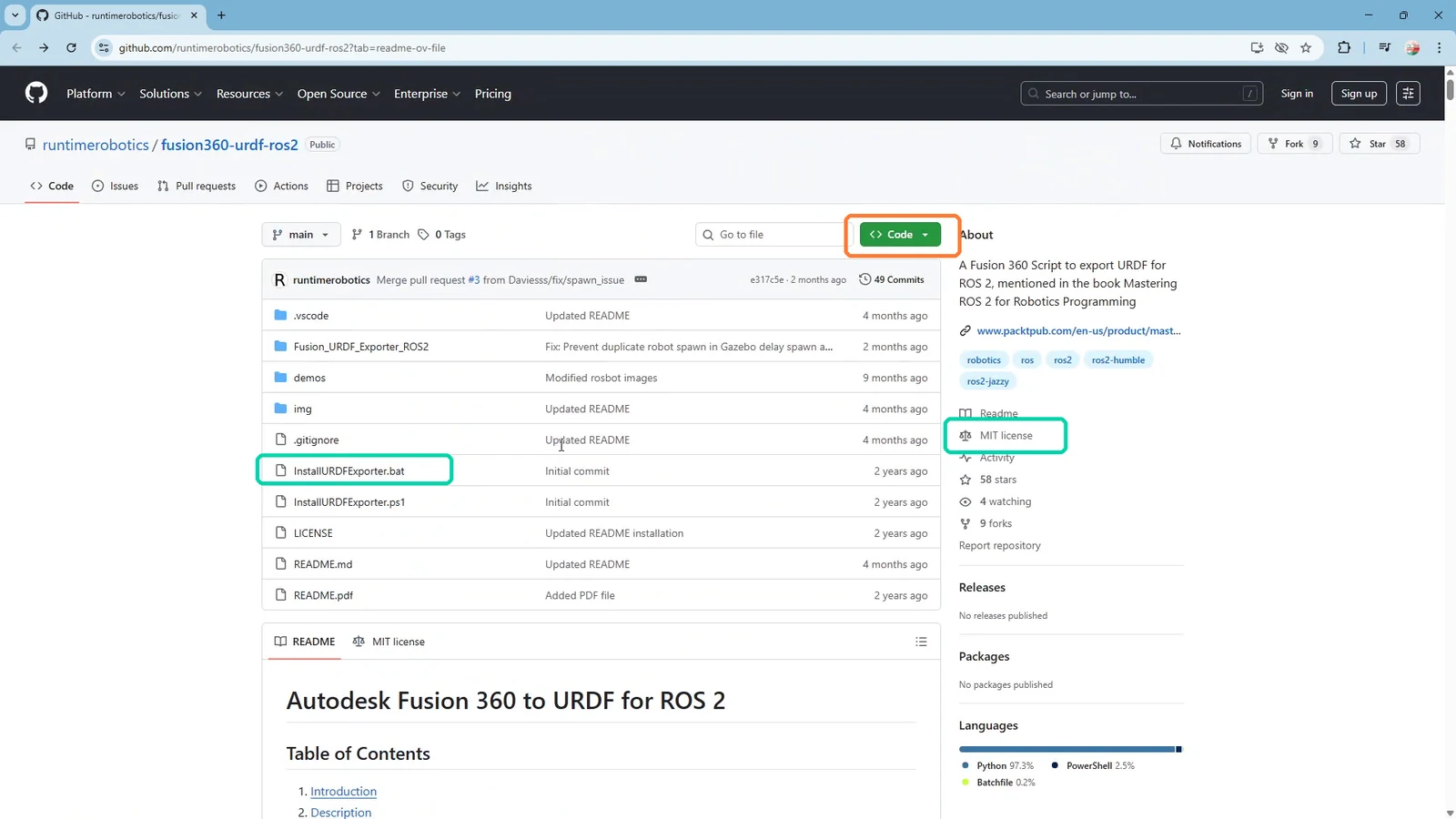
It registers as a script, not as an add-in; its manifest says "type": "script". That decides where it ends up. In Fusion, press Shift + S (the menu route is Utilities → ADD-INS) to open Scripts and Add-Ins. Click the green +, choose Script or add-in from device, and select Fusion_URDF_Exporter_ROS2. It then shows up under My Scripts and stays there between sessions. Selecting it there and pressing Run is the whole export.

On Windows there is a shortcut. The repository ships InstallURDFExporter.bat, which copies the same folder into %APPDATA%\Autodesk\Autodesk Fusion 360\API\Scripts\ for you; restart Fusion and the script is already there. On macOS you use the green +.

Two points about the run itself. It asks whether you are on Gazebo Harmonic or Gazebo Classic; on Jazzy the answer is Harmonic. The choice changes the launch files it writes, not the model. And it restructures your design document: every component is copied to a new one ending in _1, and the originals are renamed old_component (1), old_component (2) and so on. The copies are where the _1 in link_1_1 and gripper_base_1 comes from. Because the exporter changes your design this way, close Fusion afterwards without saving.
What it produced:
omarm_description/
├── urdf/
│   ├── omarm.xacro          341 lines: 12 links, 11 joints
│   ├── materials.xacro      colour definitions
│   ├── omarm.gazebo         surface properties per link
│   └── omarm.ros2control    an empty <robot> element
├── meshes/                  12 STL files, one per link
├── launch/
│   ├── display.launch.py    RViz with sliders
│   └── gazebo.launch.py     spawn into Gazebo
├── config/                  RViz configurations, bridge config
├── package.xml
└── setup.py
The meshes are the real geometry and they are correct; in the finished model they are byte-for-byte the same files the exporter wrote. None of the corrections below touches the 3D data. Every fix is a number or an attribute in a text file: the xacro for the model, one YAML file for the controllers, and two lines of Python in the Gazebo launch file. You can redo all of it in a text editor. A fresh export into the same folder overwrites every file in the tree above, including the four files in urdf/ and both launch files, and the corrections in them are lost. Only the controller YAML survives, because the exporter does not write it.
7. Reading the export critically
Before changing anything, find out what you have. Expand the xacro and audit it. The script below ships with this part; it only checks for problems I ran into on this arm.
cd ~/omarm_one_ws
colcon build --packages-select omarm_description && source install/setup.bash
xacro src/omarm_description/urdf/omarm.xacro > /tmp/robot.urdf
python3 tools/check_description.py /tmp/robot.urdf
The build and source are not optional here. The xacro files reference each other and every mesh through $(find omarm_description), which xacro can only resolve for a package that is installed and on the path. The expansion also pulls the installed copies of materials.xacro, omarm.ros2control and omarm.gazebo. So after editing any of them, rebuild before you audit, or you will be auditing the previous version.
check_description.py sits in tools/ at the root of the workspace, next to src/, not inside the package. If you came the Route B way, copy tools/ from the download into your workspace root first. It is a single file with no dependencies beyond the Python standard library.
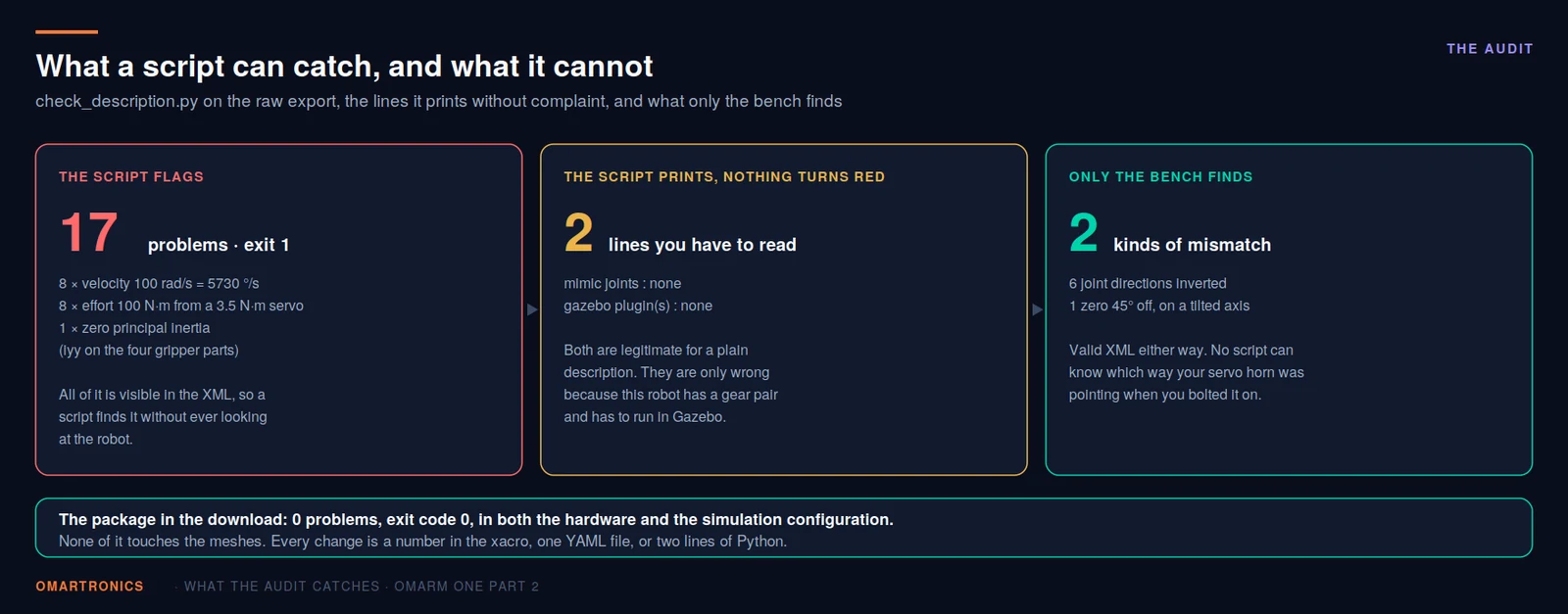

Run against the raw export, it prints a full joint table. Abridged to the lines that matter here:
links      : 12
joints     : 11
root link(s)          : ['base_link']
                        [... joint table, 11 rows ...]
zero principal inertia: ['gripper_gear_left_1.iyy', 'gripper_gear_right_1.iyy',
                         'gripper_finger_left_1.iyy', 'gripper_finger_right_1.iyy']
mimic joints          : none
gazebo plugin(s)      : none

17 problem(s):
  - Revolute 1: velocity 100.0 rad/s = 5730 deg/s - an exporter default, not a servo
  - Revolute 1: effort 100 Nm - an exporter default, not a servo torque
  [... the same pair for Revolute 2, 3, 4, 5, 6, 8 and 9; there is no Revolute 7 ...]
  - zero inertia makes the physics engine misbehave: [...]
Eight velocity complaints, eight effort complaints and one inertia complaint make the seventeen. None of them shows up as an error message anywhere else. There is no Revolute 7 because joint 7 is Rigid 7, the fixed joint between the tool link and the gripper base; the exporter numbers all joints in one sequence. Revolute 1 to Revolute 6 are J1 to J6 from Part 1, base yaw to tool roll. The gripper, J7 in Part 1 and in the firmware, is Revolute 8 here, and Revolute 9 is its second gear.
The seventeen problems fall into three kinds. The output shows a fourth issue that the script does not flag: there is no mimic joint. Section 9 fixes all four.
Script findings (fixed in section 9)
- Every movable joint says
velocity="100". The three fixed joints carry no<limit>at all. 100 is 100 radians per second, 5730 °/s, roughly nineteen times the 300 °/s the servo reaches at 5 V. MoveIt uses this value as an upper bound when it turns a planned path into a trajectory (a list of joint positions, each with a time). It can therefore produce a motion the arm cannot follow. - Every movable joint also says
effort="100". 100 N·m. The DS3240-180 delivers 36 kg·cm at 5 V, which is 3.5 N·m, and the SG90 about 0.18 N·m. It is the same default as the velocity, from the same place, and it matters in the same way: a planner that uses this value can hand you a trajectory the servo cannot hold. - Four inertia values are exactly zero. The gripper parts are small enough that Fusion rounded
iyyto zero at the precision the exporter writes. A rigid body with zero inertia about an axis is physically meaningless, and it can make the physics engine unstable. - There is no mimic joint. The gripper’s two fingers are driven by one servo through a gear pair. In the export they are two independent joints, so nothing links them. Read the axis column before you write one: the export gives Revolute 8 the axis
0 -0.173648 0.984808and Revolute 9 exactly the negative of it. The axes already point opposite ways, so a multiplier of1makes the gears counter-rotate, which is what a meshing pair does. If your export has them parallel instead, you need-1.
Bench findings (fixed in section 8)
Two points no script can check, because they need the real robot standing next to you:
- The joint directions. Four of the six arm joints turn the opposite way from the real arm.
- The joint zeros. On two joints the real zero sits 45 and 55 degrees away from the CAD zero.
Section 8 fixes the two bench items first, because physics fixes are wasted on a model that turns the wrong way. Section 9 then makes seven changes, including the four above.
8. Making the model turn the way the arm turns
Start RViz first (section 11 explains what it launches):
cd ~/omarm_one_ws
colcon build --packages-select omarm_description
source install/setup.bash
ros2 launch omarm_description display.launch.py
Check the Fixed Frame first: it has to name a frame that is being published. The shipped display.rviz uses base_link; world works as well, because the two are joined by a fixed joint. RViz’s own default, map, is published by nothing in this package; with it you get a red error and an empty 3D view. If the shipped config does not load, add the RobotModel display yourself and set its Description Topic to /robot_description.
Three separate claims hide in the phrase “the model matches the arm”, and confusing them causes most calibration errors.

- Zero. When the model says 0 degrees, the real joint is at its own zero.
- Direction. When the model’s angle increases, the real joint turns the same way.
- Scale. Ten degrees in the model is ten degrees on the arm.
For a directly driven servo joint there is no gearbox to change the scale, but the firmware’s pulse-to-angle map can. A servo told that 500 to 2500 µs is 180° often travels a little more or less. Two measurements far apart catch that; one never will. In practice you fix direction and zero, and the two measurements confirm that the scale is correct.
One measurement cannot separate zero from direction. Drive a joint to model 90° and measure 110° on the arm, and you know something is wrong, but not whether it is a +20° offset or a mirrored direction with some other offset. Always take two measurements, at least 60 degrees apart.
Direction: flip the axis in the model
Direction is fixed in the URDF by negating the joint’s axis vector. On this arm four joints needed it:
| Joint | exported axis | corrected axis |
|---|---|---|
| Revolute 3 | 1.0 0.0 -0.0 |
-1.0 0.0 0.0 |
| Revolute 4 | -0.0 0.984808 0.173648 |
0.0 -0.984808 -0.173648 |
| Revolute 5 | 1.0 0.0 -0.0 |
-1.0 0.0 0.0 |
| Revolute 6 | -0.0 0.984808 0.173648 |
0.0 -0.984808 -0.173648 |
Two of those axes are not aligned with any coordinate axis at all. The vector 0 -0.984808 -0.173648 is tilted about 10 degrees out of the Y axis in the YZ plane. You get such an axis when a joint in the CAD is mounted at an angle. This tilted axis is why the “subtract from roll” shortcut fails for joints 4 and 6 (see below).
Four joints also needed their frame rotated, which is a different operation from flipping the axis. The axis says which way the joint turns; rpy says how the joint frame itself is oriented before it turns.
| Joint | exported rpy |
corrected rpy |
what it is made of |
|---|---|---|---|
| Revolute 1 | 0 0 0 |
0 0 -1.570796 |
base frame yawed −90° |
| Revolute 2 | 0 0 0 |
-1.356194163 0 0 |
orientation fix −0.570796 and the measured 45° |
| Revolute 3 | 0 0 0 |
1.359931089 0 0 |
orientation fix +0.4 and the measured 55° |
| Revolute 5 | 0 0 0 |
+1.570796 0 0 |
wrist frame rolled +90° |
That table hides a two-stage process, and the stages are found in different ways. Stage one is orientation. With the axes flipped, rotate each joint frame until the link sits and turns in the same plane as on the real arm. On this arm: yaw -1.570796 (−90°) on joint 1, roll +1.570796 (+90°) on joint 5, and roll -0.570796 and 0.4 on joints 2 and 3. You find these values by looking at the model next to the machine and working out which way each frame has to sit. They depend on how the CAD was built, so yours will differ. Stage two is the measured zero, arithmetic on top of stage one. The rest of this section is stage two.
A note if you read the shipped source. The comment on Revolute 2 in omarm.xacro carries the same arithmetic and says where each term comes from: the -0.570796 is the stage-one orientation fix, not a CAD value. The raw export has rpy="0 0 0" on that joint; you can check this in the pre-correction omarm.xacro. The audit script prints axes, not origins.
Zero: two places to put the correction
Once directions are right, measure. Set every slider in RViz to 0, then drive the real joint until the arm stands in the same pose as the picture, and read the servo command that got you there. Be precise about which way the mismatch runs, because the sign of everything that follows depends on it.
On this arm, joint 2 matched the model’s zero pose at servo 45°, and joint 3 at servo 55°. The uncorrected model’s numbers ran that far behind the servo. Write it down as one equation before touching anything:
model_old = servo - 45° (joint 2, measured; joint 3 is the same with 55)
You can correct that in two places. Option A leaves the model wrong and compensates in the driver; Option B fixes the model.

Option A: an offset in the driver. The omarm.ros2control file can carry a servo_offset_deg parameter, and the hardware driver converts between URDF radians and servo degrees. Option A is simple, and simulation keeps the pure CAD model. But you are then living with model = servo - 45 forever: this joint reads −45 to 135 while every other joint reads 0 to 180. The joint limits have to move with it, and simulation still shows the wrong pose, because Gazebo never goes through that driver.
Option B: rotate the joint’s origin in the URDF. The correction lives in the geometry. The URDF angle then equals the servo angle, the range stays 0 to 180 like every other joint, and simulation is fixed too, because it reads the same URDF.
This project uses Option B, because the URDF should describe the robot you own.
The arithmetic, and the trap in it
Start from T = T_origin · R_axis(q). You want the model at servo angle s to draw what it currently draws at s - d, where d is the measured offset. That offset is +45° for joint 2 and +55° for joint 3, the amount the old numbers lag the servo. So you need:
R_new · R_axis(s) = R_old · R_axis(s − d).
Two rotations about the same axis can be applied in either order, and their angles add, so the equation reduces to:
R_new = R_old · R_axis(−d).
The result is exact. Subtracting d from roll gives the same result only when the axis is +X and rpy is a pure X rotation; the table shows the other cases. On this arm, that is true for one joint.

| Joint | axis | correct operation |
|---|---|---|
| Revolute 2 | +X |
roll − d |
| Revolute 3 | -X |
roll + d, the sign flips |
| Revolute 5 | -X |
roll + d |
| Revolute 1 | +Z |
yaw − d, not roll |
| Revolute 4 | 0 -0.985 -0.174 |
no single rpy component exists |
| Revolute 6 | 0 -0.985 -0.174 |
no single rpy component exists |
Applying the joint-2 recipe to joint 3 would have grown its error from 55° to 110° rather than removing it. Joints 4 and 6 cannot be corrected by editing one number at all: their axis is tilted 10° out of Y in the YZ plane, so the correction spreads across all three rpy values.
Here is the calculation for the two joints that were measured.
Joint 2 has axis +X, and rpy is a pure X rotation, so the two add directly:
rpy_roll = -0.570796 (orientation fix) - 0.785398163 (45°) = -1.356194163
Joint 3, axis -X, so the offset is added:
rpy_roll = 0.4 (orientation fix) + 0.959931089 (55°) = 1.359931089
Note the nine decimal places. Rounding to six gives about 10⁻⁵ degrees of error, which is physically irrelevant but pollutes any verification you do afterwards; the extra digits cost nothing.
Do not apply the correction twice. Once the 45° lives in joint 2’s rpy, the servo_offset_deg for that joint must be gone. Leaving both in place counts it twice, and the arm ends up 45° off in the other direction. The shipped omarm.ros2control carries a comment on that joint saying so.
The offset moves numbers, never shapes. Whichever option you pick, the correction changes which number is displayed. The shape RViz draws at a given number comes from the meshes and the joint origins. If the numbers agree but the picture still does not look like the arm, the CAD zero pose itself is wrong, and no offset will fix that. The silhouette test in section 13 catches this.
For tilted axes (optional)
The identity above still applies, but it is no longer arithmetic you can do in your head. R_new = R_old · R_axis(-d), where R_axis is a rotation of -d about the joint’s own axis vector. scipy, a Python library for scientific computing, builds this rotation from the axis and the angle with Rodrigues’ formula (the standard formula for a rotation about any axis). Build R_old from the stage-one rpy in URDF’s convention, R = Rz(yaw)·Ry(pitch)·Rx(roll). scipy calls this order extrinsic 'xyz': rotations about the fixed X, Y and Z axes, applied in that order. Multiply, then read the new roll, pitch and yaw back out of the product. If scipy is missing, install it with sudo apt install python3-scipy.
from scipy.spatial.transform import Rotation as Rot
import numpy as np

axis = np.array([0.0, -0.984808, -0.173648])   # the joint's axis after the direction fix
d    = np.deg2rad(12.0)                        # the measured offset, in radians
R_old = Rot.from_euler('xyz', [0.0, 0.0, 0.0]) # the rpy after stage one
R_new = R_old * Rot.from_rotvec(-d * axis)
print(R_new.as_euler('xyz'))                   # the three numbers for the file
Run that on joint 2 (axis 1 0 0, d = 45°, stage-one rpy -0.570796 0 0) and it prints [-1.35619416 0. 0.], the number worked out by hand above.
I never had to use it on OmArm One: joints 4 and 6 came out of the CAD with their zero already on the machine, so there was nothing to correct. It is here so you are not stuck if yours are not.
9. What simulation and planning need
RViz draws whatever the model says without checking physics; Gazebo simulates gravity and contact, so physically invalid values cause problems there. Gazebo needs the world joint, non-zero inertia and the controller plugin. robot_state_publisher needs the mimic joint. MoveIt uses the speed, torque and gripper limits. Seven changes in total.
The robot needs to be attached to the world. A URDF describes a robot floating in nothing. RViz accepts that; in Gazebo the unattached arm falls over under gravity. The fix is a link called world and a fixed joint tying the base to it:
<link name="world"/>

<joint name="world_to_base" type="fixed">
  <parent link="world"/>
  <child link="base_link"/>
  <origin xyz="0 0 0" rpy="0 0 0"/>
</joint>
The world link changes the root of the tree (the audit script now reports world instead of base_link). It also means the spawn height in the launch file should be 0, not the 32 cm the exported launch file used. An arm spawned 32 cm up and then bolted to the world stays 32 cm up.
Inertia must not be zero. The four gripper parts came out with iyy="0.0", for the reason in section 7. The fix: set iyy to the link’s ixx value, its moment of inertia about a perpendicular axis, instead of recomputing it. On all four parts ixx and izz are equal, so either one gives the same number:
<!-- gripper_finger_right_1: iyy was 0.0 -->
<inertia ixx="3e-06" iyy="3e-06" izz="3e-06" ixy="-0.0" iyz="-0.0" ixz="0.0"/>
This value is a placeholder that makes the body physically valid. It is an upper bound, not a measured property. The term that rounded to zero is by definition the smallest of the three at the exporter’s precision. iyy came out below 5·10⁻⁷, while ixx and izz survived at 1·10⁻⁶ on the two gears and 3·10⁻⁶ on the two fingers. Copying the value from a perpendicular axis therefore overstates iyy. On parts weighing five and ten grams at the end of a 1.28 kg arm, that changes nothing you can see. On a heavier link it would, and there you go back to the CAD and export the inertia values properly.
The two fingers must be coupled. Mechanically the gripper is one servo driving a gear pair. In URDF that is a mimic joint:
<joint name="Revolute 9" type="revolute">
  ...
  <mimic joint="Revolute 8" multiplier="1" offset="0"/>
</joint>
Revolute 9 has no motor, so it is not listed in ros2_control. robot_state_publisher and MoveIt compute its angle from Revolute 8. In Gazebo, the right gear’s joint therefore moves freely: TF and the planner respect the mimic; the simulator does not. The free joint is acceptable while nothing pushes on the finger. Revisit it before the gripper has to hold a load in simulation. Do not command Revolute 9 as well: two controllers would then send conflicting commands to one mechanism.
Something has to drive the joints. A URDF describes a robot; it does not move one. In simulation that job goes to gz_ros2_control, which runs inside Gazebo, reads the <ros2_control> block and offers the joints to the normal ROS 2 controller framework. It is loaded by a plugin block in omarm.gazebo, wrapped so that it is only emitted for simulation.
<xacro:if value="$(arg use_sim)">
  <gazebo>
    <plugin filename="gz_ros2_control-system"
            name="gz_ros2_control::GazeboSimROS2ControlPlugin">
      <ros>
        <remapping>/controller_manager/robot_description:=/robot_description</remapping>
      </ros>
      <parameters>$(find omarm_description)/config/ros2_controllers.yaml</parameters>
    </plugin>
  </gazebo>
</xacro:if>
The <parameters> line points at the controller configuration, which lists each controller and its joints:
controller_manager:
  ros__parameters:
    update_rate: 100  # Hz
    omarm_arm_controller:
      type: joint_trajectory_controller/JointTrajectoryController
    omarm_gripper_controller:
      type: joint_trajectory_controller/JointTrajectoryController
    joint_state_broadcaster:
      type: joint_state_broadcaster/JointStateBroadcaster

omarm_arm_controller:
  ros__parameters:
    joints: ["Revolute 1", "Revolute 2", "Revolute 3",
             "Revolute 4", "Revolute 5", "Revolute 6"]
    command_interfaces: [position]
    state_interfaces: [position, velocity]

omarm_gripper_controller:
  ros__parameters:
    joints: ["Revolute 8"]
    command_interfaces: [position]
    state_interfaces: [position, velocity]
Revolute 9 is missing from that list for the same reason. update_rate: 100 is the rate of the controller loop, not of Gazebo’s physics step, which runs faster. The two are linked: gz_ros2_control calls the controller manager from inside Gazebo’s own update step and skips iterations until the 100 Hz period is due.
In the Part 2 download this file sits in omarm_description/config/ros2_controllers.yaml, so the description package is self-contained and runs with nothing from Part 3 installed. Part 3’s MoveIt package brings its own copy; when both are on the path, the one named in omarm.gazebo is the one that gets loaded.
The speed limits must match the servo. velocity="100" became velocity="5.2", which is 298 °/s. The DS3240-180 datasheet gives 0.20 s per 60° at 5 V, so 300 °/s unloaded, and 5.2 rad/s sits slightly under it. The sheet also gives 0.17 s per 60° at 6.8 V, about 353 °/s. At 6 V, interpolating between the two rows gives about 0.183 s, about 327 °/s. Part 1 runs the arm on a 6 V rail, but the limit stays on the 5 V row. A sagging supply drops the servos toward that row, so it is the conservative case. The gripper’s SG90 got 8.0 rad/s, which is 458 °/s. Its datasheet says 0.1 s per 60° at 4.8 V, so about 600 °/s; the small servo is the fastest on the arm, and 458 °/s stays below the sheet value rather than on it.
The torque limits had to come down with them. effort="100" became effort="3.5" on the six arm joints and effort="0.18" on the gripper. 36 kg·cm at 5 V is 3.5 N·m; the SG90’s 1.8 kg·cm is 0.18 N·m. The arm value uses the 5 V row like the speed limit; on the 6 V rail the DS3240 gives 41 kg·cm, about 4.0 N·m. Nothing in Part 2 enforces this: RViz ignores it, and the position controllers in Gazebo drive the joint directly, so you will not see a difference yet. It is there for Part 3, where a planner reads it, and because a hobby servo does not deliver 100 N·m.
The gripper limit got 1.6 rad instead of π/2. 1.6 rad is 91.67°, so the limit now sits 1.7° beyond the 90° the mechanism uses. The margin prevents a rounding failure. With a limit of 1.570796, software that computes π/2 as 1.5707963267948966 finds the joint slightly outside its limit and refuses to plan (Joint ... from the starting state is outside bounds). This happens when a joint is parked exactly on its limit. I ran into it on joint 2 while the offset still sat in the driver (Option A in section 8). Its lower limit was -0.785398, the arm was parked at servo 0, and MoveIt rejected every plan. The arm joints keep 3.141593, which is safe for the opposite reason: rounded up, it sits slightly above π rather than below it.
10. One model, two back ends
The same robot has to be driven by two different systems: in simulation by Gazebo’s physics, on the bench by the ESP32 over USB. I want one description for both, because with two URDFs, a change made in one would soon be missing from the other. So the model takes an argument:

<xacro:arg name="use_sim" default="false" />

<ros2_control name="OmArmHardware" type="system">
  <hardware>
    <xacro:if value="$(arg use_sim)">
      <plugin>gz_ros2_control/GazeboSimSystem</plugin>
    </xacro:if>
    <xacro:unless value="$(arg use_sim)">
      <plugin>omarm_hardware/OmArmSystem</plugin>
      <param name="device">auto</param>
      <param name="baudrate">115200</param>
      ...
    </xacro:unless>
  </hardware>

  <!-- everything below here is identical for both -->
  <joint name="Revolute 1">
    <command_interface name="position"/>
    <state_interface name="position"><param name="initial_value">1.5708</param></state_interface>
    <state_interface name="velocity"/>
  </joint>
  ...
The joint names, interfaces and limits are identical. Only the hardware back end differs, plus a Gazebo plugin block when use_sim:=true. The hardware branch also carries eleven driver parameters that simulation does not need, so the diff is longer than one line. Everything below the hardware block is shared, so the same trajectory interface drives both the simulation and the real arm. You can see the difference yourself:
xacro src/omarm_description/urdf/omarm.xacro                 > /tmp/robot_hw.urdf
xacro src/omarm_description/urdf/omarm.xacro use_sim:=true   > /tmp/robot_sim.urdf
diff /tmp/robot_hw.urdf /tmp/robot_sim.urdf
Two conditions must hold for the switch to work.
The launch file has to pass the mapping. The exported one did not.
# exported
robot_description_config = xacro.process_file(robot_description_file)

# corrected
robot_description_config = xacro.process_file(
    robot_description_file,
    mappings={'use_sim': 'true'})
And the xacro has to declare the argument before the includes that read it, because xacro processes the file top to bottom and omarm.ros2control is included, not inlined. The declaration comes first:
<xacro:arg name="use_sim" default="false" />

<xacro:include filename="$(find omarm_description)/urdf/materials.xacro" />
<xacro:include filename="$(find omarm_description)/urdf/omarm.ros2control" />
<xacro:include filename="$(find omarm_description)/urdf/omarm.gazebo" />
One of these mistakes stops with an error message; the other fails without one.
With an error message: if the argument is not declared before the includes that read it, expansion aborts with Undefined substitution argument use_sim and a non-zero exit. The error appears only on the run that passes no mapping, which is the RViz path. Passing use_sim:=true writes the value into the substitution table directly, so that run keeps working and hides the problem. You find it the moment you launch RViz.
Without an error message: if the launch file forgets mappings={'use_sim': 'true'}, nothing complains. The declared default false applies, Gazebo comes up having loaded the hardware driver, and it tries to open a serial port that is not there. In my workspace the launch file carried a comment for months saying it passes use_sim, but the line itself was missing, and Gazebo kept trying to open /dev/ttyUSB0. The diff above catches it.
11. Looking at it: RViz
With the model corrected, RViz is the fastest feedback loop you have. If it is not running yet, start it with the commands at the start of section 8.
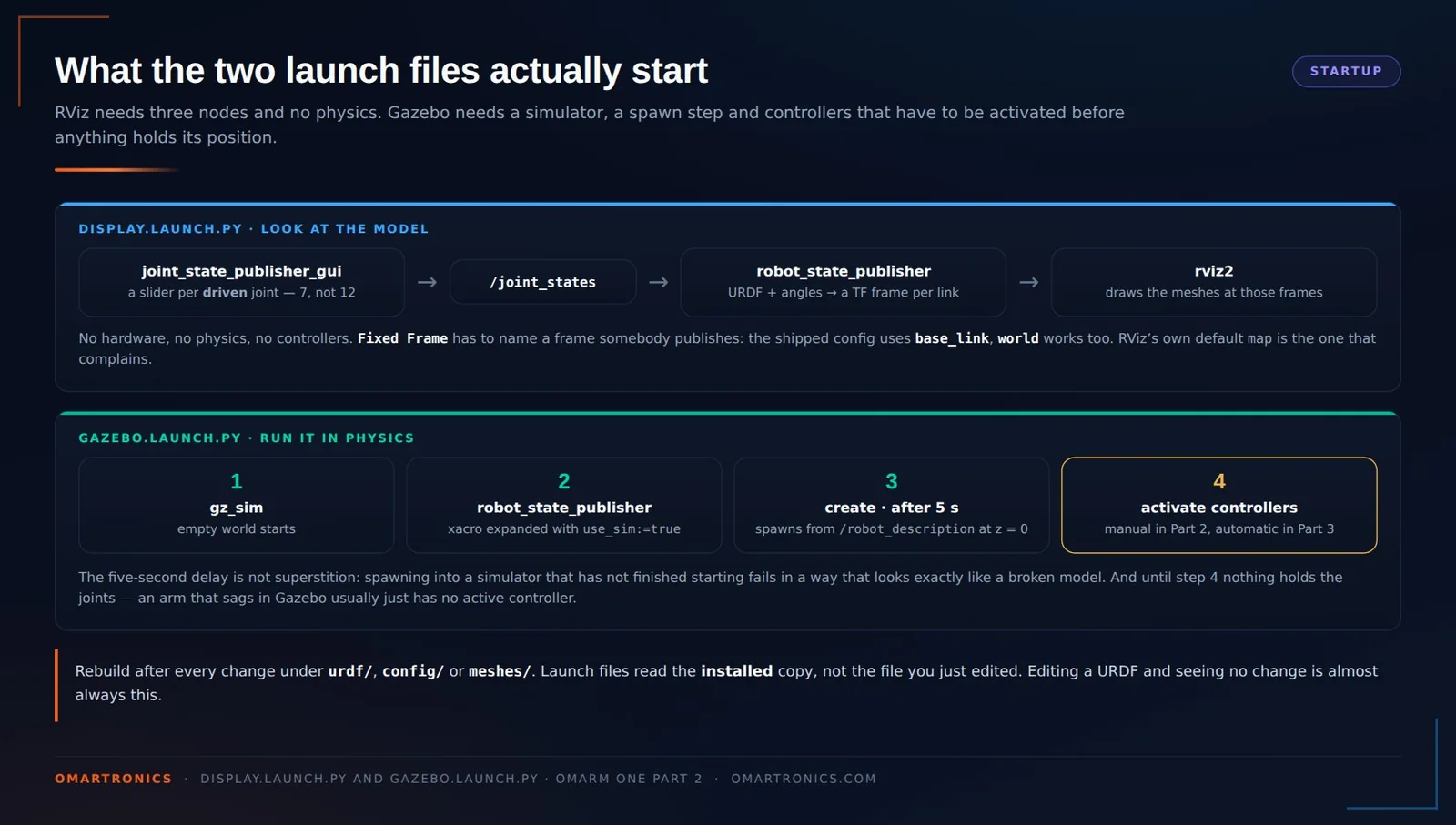
display.launch.py starts three nodes; gazebo.launch.py runs four launch actions. The controllers are activated afterwards in a second terminal (section 12). If the simulated arm sags, this step is usually missing.
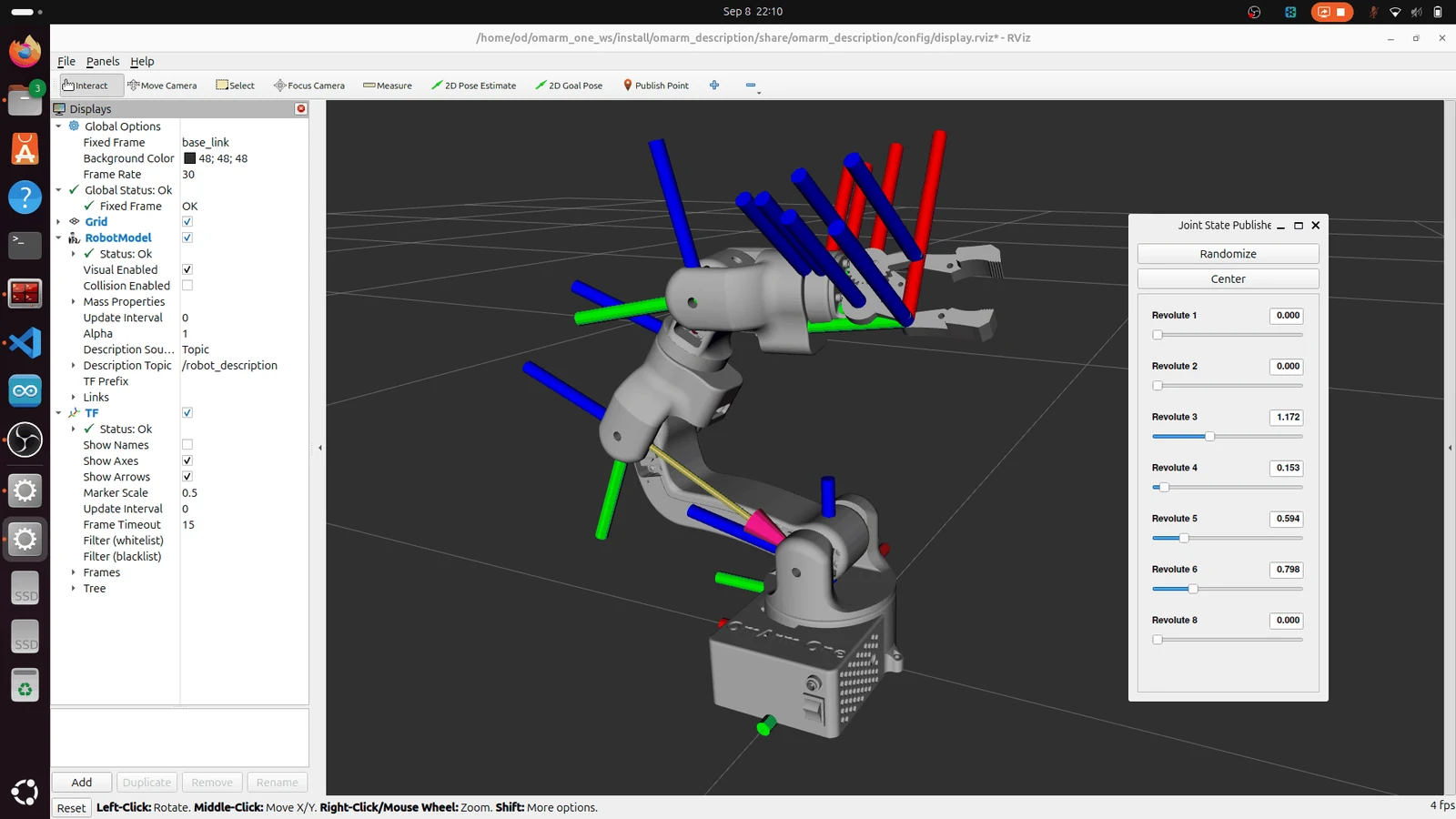
The joint state publisher GUI gives you a slider per driven joint and publishes the slider angles on /joint_states. There are seven sliders, not twelve: the four fixed joints cannot move, and Revolute 9 is computed from Revolute 8 by the mimic tag. robot_state_publisher turns these joint angles into TF frames (section 2), and RViz draws the meshes at those frames. In Part 3 only the source of /joint_states changes, from a slider window to the real arm.
With the Fixed Frame set as in section 8, check the model in this order:
Does each joint turn the right way? Move one slider at a time in the positive direction and check that the real arm turns the same way. The check tests the direction claim from section 8.
Do the numbers match? Drive the real arm to 90° on one joint and set the slider to 90°. The picture and the number must agree.
Then compare the silhouette in several poses (section 13).
12. Dropping it into physics: Gazebo
ros2 launch omarm_description gazebo.launch.py

Gazebo uses the mass and inertia values; RViz ignores them. The Source File Path in the entity panel reads <urdf-string>, because the model was spawned from the /robot_description topic rather than from a file on disk.
This launch file starts Gazebo with an empty world, starts robot_state_publisher and the ros_gz parameter bridge, then waits five seconds and spawns the robot from the /robot_description topic. The wait matters: spawning into a simulator that has not finished starting fails in a way that looks like a broken model.
Because the URDF was processed with use_sim:=true, the gz_ros2_control plugin comes up inside Gazebo and starts a controller manager for the joints. The controllers themselves still have to be activated, in a second terminal sourced the same way (the first one is busy running Gazebo).
cd ~/omarm_one_ws && source install/setup.bash

ros2 control list_controllers
ros2 control load_controller --set-state active joint_state_broadcaster
ros2 control load_controller --set-state active omarm_arm_controller
ros2 control load_controller --set-state active omarm_gripper_controller
Then you can command a trajectory directly, without a planner:
ros2 topic pub --once /omarm_arm_controller/joint_trajectory \
  trajectory_msgs/msg/JointTrajectory \
  '{joint_names: ["Revolute 1","Revolute 2","Revolute 3","Revolute 4","Revolute 5","Revolute 6"],
    points: [{positions: [1.57, 1.2, 1.57, 1.57, 1.57, 1.57], time_from_start: {sec: 3}}]}'
Note the quotes around every joint name. The names carry a space, Revolute 1 rather than Revolute_1, because that is what the CAD export produced. Unquoted names would work in this command, but they break as soon as a name contains a comma or bracket, or the outer single quotes are removed. Quoting every name avoids both.
Renaming them would be cleaner. It would also touch the URDF, the controller configuration and, in Part 3, the semantic description and the driver. I kept the exported names.
13. Verifying the twin
One check runs on the file, the other on the bench.
Mechanical, on the file. The audit script from section 7, run against both expansions:
cd ~/omarm_one_ws
colcon build --packages-select omarm_description && source install/setup.bash

xacro src/omarm_description/urdf/omarm.xacro > /tmp/robot.urdf
python3 tools/check_description.py /tmp/robot.urdf

xacro src/omarm_description/urdf/omarm.xacro use_sim:=true > /tmp/robot_sim.urdf
python3 tools/check_description.py /tmp/robot_sim.urdf
Both runs must end with the line all checks passed. On failure the script exits with a non-zero code, so you can run it in automated checks (continuous integration, CI). Before and after in one table:
| Check | Raw export | After post-processing |
|---|---|---|
| links / joints | 12 / 11 | 13 / 12 |
| root link | base_link |
world |
| arm joint velocity | 100 rad/s = 5730 °/s | 5.2 rad/s = 298 °/s |
| gripper joint velocity | 100 rad/s = 5730 °/s | 8.0 rad/s = 458 °/s |
| zero inertia values | 4 | 0 |
| mimic joints | none | Revolute 9 mimics Revolute 8 |
joints under ros2_control |
none | 7 |
Gazebo plugin with use_sim:=true |
none | gz_ros2_control-system |
| joint effort limit | 100 N·m | 3.5 N·m arm, 0.18 N·m gripper |
| total mass | 1284.4 g | 1284.4 g, against 1283 g measured |
| audit result | 17 problems | all checks passed |
By eye, against the machine. Drive the arm to three or four clearly different poses and compare the silhouette each time. One pose only ever proves the zero at that pose. If the silhouette matches at one pose and not at others, you have a direction or scale problem, so go back and measure two points at least 60° apart. If it never matches although the numbers agree, the CAD zero pose itself is wrong (section 8).

Photograph the arm in poses like these, set the sliders to the same numbers, and compare shapes.
You can also inspect the TF tree directly. The quickest look is inside RViz: expand the TF display and it lists every frame it is receiving, each with its own status.

Thirteen frames, one per link, world among them, all with an OK status. If a link is missing from this list, robot_state_publisher is not publishing its frame. The usual cause is that no node publishes that joint’s angle on /joint_states; a moving joint’s frame appears only after its first angle arrives. The other cause is a joint missing from the URDF. A missing frame is never a mesh problem.
For the tree structure rather than the list (parent, child, and the publishing rate on every edge), write it out as a PDF:
ros2 run tf2_tools view_frames
view_frames writes a frames_<timestamp>.pdf to the current directory. It is the better file to attach to a bug report; the RViz list is the better one for a five-second check.
14. Troubleshooting
| Symptom | Cause | Fix |
|---|---|---|
Package 'omarm_description' not found |
the workspace was built but not sourced | source install/setup.bash in every new terminal |
| RViz shows nothing, red error about a frame | Fixed Frame names a frame nobody publishes, usually RViz’s default map |
set Fixed Frame to base_link or world |
| Meshes missing, links drawn as small axes | the STL paths do not resolve, or the package was built before the meshes were added | rebuild; check setup.py installs meshes/ |
| Robot is a thousand times too big | mesh scale missing | every mesh needs scale="0.001 0.001 0.001" for millimetre STLs |
| A link is in the right place, mesh is elsewhere | wrong <origin> inside <visual> |
compare with the CAD assembly coordinates; the TF tree being correct does not prove this |
| Arm falls over in Gazebo | no world link and fixed joint |
section 9 |
| Arm collapses under gravity | no controllers active, so nothing holds the joints | ros2 control load_controller --set-state active ... |
Simulated joints never move, log mentions /dev/ttyUSB0 |
the model was expanded with the hardware back end | check use_sim is declared in omarm.xacro and passed by the launch file |
| Controller reports an unknown joint | the name in the config does not match the URDF character for character (a lost space, an underscore, a stray bracket) | copy the name straight out of the audit script’s joint table |
| Right finger stays still, left one moves | the mimic joint is missing or Revolute 9 is commanded | one mimic tag, and keep Revolute 9 out of ros2_control |
Joint ... from the starting state is outside bounds |
the joint sits exactly on its limit, and the stored limit has fewer decimals than the computed value | leave a degree or two of margin at the end you park on |
| A joint moves the wrong way | axis direction | negate the axis vector, not the sign of your commands |
| Model and arm agree at one pose, not at others | direction or scale, not zero | re-measure with two points at least 60° apart |
15. FAQ
Can I export a URDF from SolidWorks or Onshape instead? Yes, both have exporters. What comes out differs in detail, but the audit in section 7 and the corrections in sections 8 and 9 apply the same way.
Why does the model use meshes for collision as well as for visuals? Accuracy, at the cost of computation. Simplified collision shapes are faster and are the usual production choice; for a desktop arm with twelve small parts the saving does not justify a second set of files.
Will regenerating from CAD keep my corrections? No. A fresh export overwrites the files the exporter writes (the four files in urdf/, both launch files, the RViz and bridge configs, package.xml and setup.py), including every correction in them. Only the controller YAML survives, because the exporter does not write it. Keep the corrected package in version control and diff a new export against it instead of replacing it.
16. What comes next
In Part 3, MoveIt 2 uses this model to compute which joint angles put the gripper at a point and to plan a collision-free path there. The ESP32 driver fills the use_sim:=false branch as the second ros2_control back end.
If you build a twin of your own arm, I would like to see the before-and-after audit. And if your exporter produces something these sections do not cover, tell me which one in the comments below; I add new cases to the checklist in section 7.
Resources
- ROS 2 URDF Tutorial: Fusion 360 to RViz and Gazebo Harmonic: this post as a video, 16 minutes.
- github.com/OmArTronics/OmArm-One: the arm on GitHub, CAD analysis, electronics and firmware.
- Part 2 download: the same workspace plus this guide as a 48-page PDF.
- OmArm One complete package: STLs, firmware and both build guides.
- Part 1: the build and Part 1.5: the game controller.
- OmArm Zero URDF tutorial: the same workflow on the smaller arm.