
This post contains affiliate links, marked with *. As an Amazon Associate I earn from qualifying purchases, at no extra cost to you. It helps keep the tutorials free.
The video loads from YouTube (Google), which may set cookies. Privacy policy
📋 Quick Summary
This build upgrades the potentiometer-controlled 3D printed robotic arm from my previous tutorial to Bluetooth control. An HC-05 module receives commands from an Android app made in MIT App Inventor, and an Arduino Uno drives the six servos through a PCA9685 servo driver. The arm can store up to 10 poses and play them back once or in a loop. The Arduino sketch and the app are on GitHub; the STL files (the 3D model files for printing) are in the OmArTronics Shop.
What Is a 6-DOF Robotic Arm?
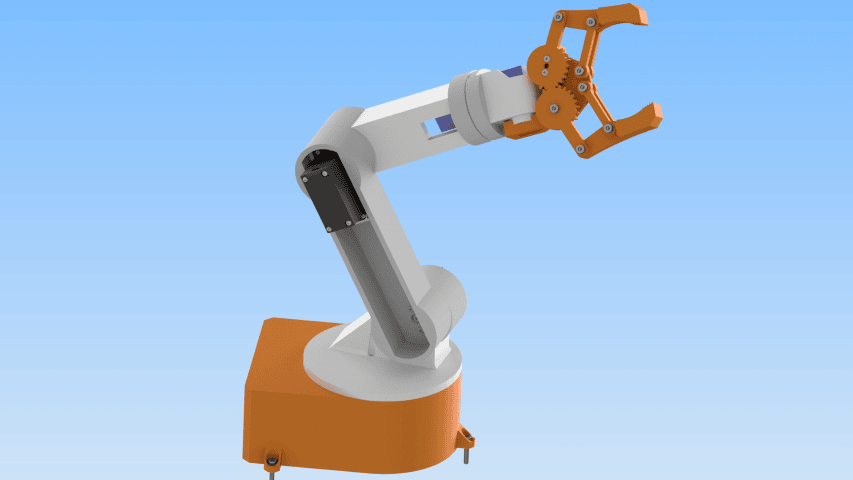
DOF stands for Degrees of Freedom. It is the number of joints a robot can move independently. This arm has six servo-driven joints. Five are rotational axes that set the arm’s pose (the set of all joint angles at one moment). The sixth opens and closes the gripper (the end effector, the tool at the tip of the arm). The five axes are base rotation, shoulder, elbow, wrist pitch (the wrist tilts up and down) and wrist roll (the wrist rotates around its own axis). Strictly, the gripper is not a degree of freedom, but hobby arms usually count it.
For an introduction to how servo motors work and how to control them with an Arduino, see my servo motor control guide.
Project Overview and System Architecture
At the center of the system is the Arduino Uno. It talks to the PCA9685 servo driver over I2C, a two-wire bus (SDA carries the data, SCL the clock) on which one controller can address several chips. The PCA9685 generates six independent PWM signals (pulse-width modulation: the length of a repeating pulse tells the servo which angle to hold). Movement commands from your phone reach the Arduino through the HC-05 module.
The app is built in MIT App Inventor, a free browser-based tool from MIT that creates Android apps from visual code blocks instead of typed code. The app sends short text commands over Bluetooth: slider values for live joint control, and one command each for saving, playing, stopping, resetting and looping poses (see the command table in the code section). When a command arrives, the Arduino parses it, picks the matching servo channel and moves the servo there step by step so the arm does not jerk.
Bill of Materials
Compared with the potentiometer-controlled build, this version adds the HC-05 module and drops the six potentiometers. Without them, the Uno’s pins A4 and A5 are free for the I2C lines, so an Uno is enough here; the potentiometer version needs a Mega.
| Item | Quantity | Part | Description |
|---|---|---|---|
| 1 | 1 | Base_1 | Base plate (fixed) |
| 2 | 1 | base_link_upper1 | Upper platform (rotating) |
| 3 | 1 | arm_link_1 | First arm link |
| 4 | 1 | arm_link_2 | Second arm link |
| 5 | 1 | arm_link_3 | Third arm link |
| 6 | 1 | gripper_base | Gripper base |
| 7 | 1 | Gripper_2 | Gripper finger |
| 8 | 1 | Gear_right | Gripper gear (right) |
| 9 | 1 | Gear_left | Gripper gear (left) |
| 10 | 1 | Gripper | Gripper assembly |
| 11 | 4 | Link | Gripper link parts |
| 12 | 2 | Spacer | Gripper joint spacers |
| 12a | 1 | Joint pin | Printed joint pin (pin.stl) |
| 13 | 3 | MG996R Servo Motor | High-torque servo, 180° version (base, shoulder, elbow) |
| 14 | 3 | SG90 Micro Servo Motor | Micro servo (wrist, gripper) |
| 15 | 16 | ANSI B18.6.4 No.2-32 3/8″ | Truss head screw, No.2-32 |
| 16 | 2 | ANSI B18.6.4 No.2-32 1/4″ | Truss head screw, No.2-32 |
| 17 | 3 | DIN 7985 M1.6×2-Z | M1.6×2 cross-recess screw |
| 18 | 7 | ISO 4762 M3x16 (AS 1420) | M3×16 hex socket screw |
| 19 | 12 | ISO 4032 M3 (AS 1112) | M3 hex nut |
| 20 | 2 | ANSI B18.6.4 No.2-32 1/2″ | Truss head screw, No.2-32 |
| 21 | 3 | MG996R servo horn | Horn supplied with the MG996R |
| 22 | 3 | DIN 7985 M3x6-Z | M3×6 cross-recess screw |
| 23 | 3 | SG90 Servo Horn | Horn for the SG90 |
| 24 | 12 | ANSI B18.6.4 No.3-28 1/2″ | Truss head screw, No.3-28 |
| 25 | 1 | Ball Bearing 6806ZZ (30x42x7) | Deep-groove bearing (30×42×7 mm) |
| 26 | 1 | Arduino Uno or Mega | Main controller |
| 27 | 1 | PCA9685 Servo Driver Board | 16-channel PWM driver (I2C) |
| 28 | 1 | HC-05 module | Bluetooth module for wireless control |
| 29 | 1 | Breadboard | Wiring base for connections |
| 30 | 1 | 5 V 10 A Power Supply | Servo power source |
| 31 | 1 | Jumper wires (male-female) | Arduino to PCA9685 |
| 32 | 1 | Jumper wires (male-male) | Breadboard to Arduino |
| 33 | 1 | Wooden board | Arm mounting platform |
| 34 | 1 each | 1 kΩ and 2 kΩ resistors | Voltage divider for the HC-05 RX pin |
Mechanical Design in Autodesk Inventor
I designed every part in Autodesk Inventor, a parametric CAD program. Each dimension is a stored value, so changing one number, for example the width of a servo pocket, updates the whole part. If you are new to Inventor or 3D printing, start with my introduction to 3D printing and 3D design with Inventor.
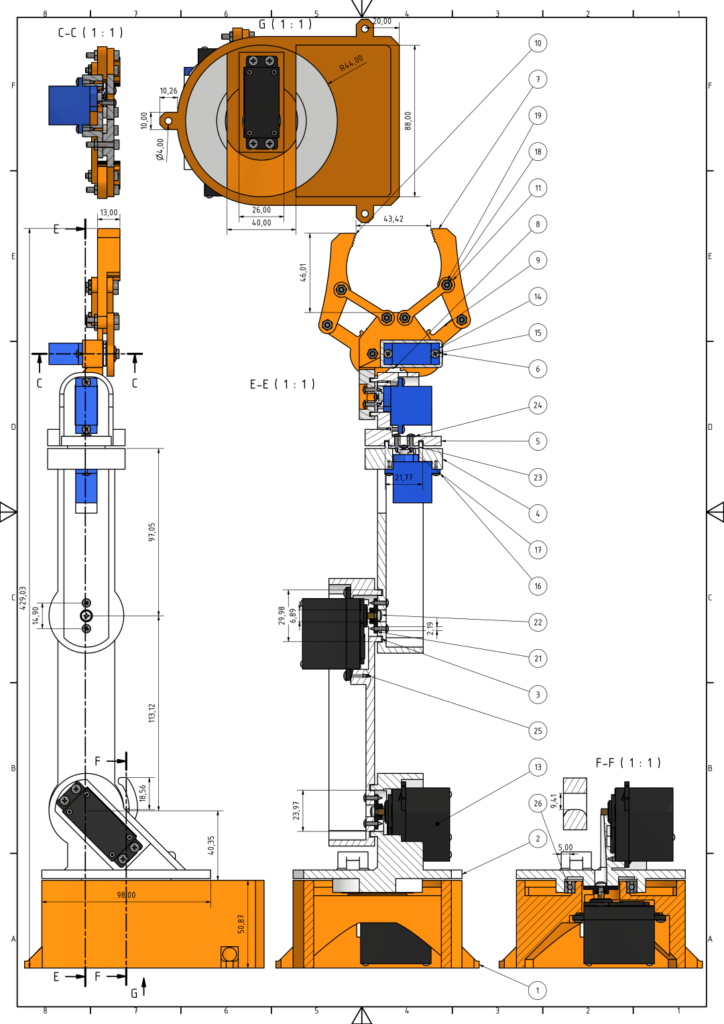
Every servo pocket, horn mount and bearing seat is drawn to the datasheet dimensions of the MG996R and the SG90. I added a cylindrical rim to every joint to keep its rotation centered. The technical drawing shows part dimensions, sectional views and how the parts fit together. Use it as a reference when you check print accuracy.
At the shoulder, the rotating upper platform and the first arm link have attachment points for a rubber band or an extension spring. The band or spring carries part of the arm’s weight and takes load off the shoulder servo. I use a spring from an old desk lamp, about 2 cm long at rest and 9 mm in diameter. The spring is optional and is not in the parts list.
3D Printing the Components
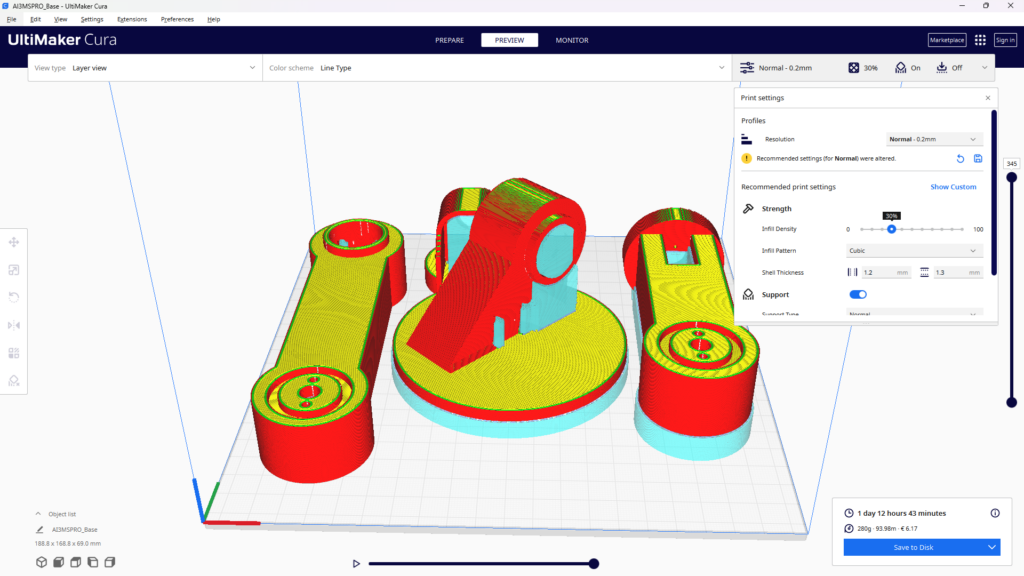
Print the parts from the STL files. PLA filament prints easily and holds tight dimensions. For structural parts like the base and arm links, use a layer height (the thickness of each printed layer) of 0.2 mm. Give them at least 40 percent infill (the share of the inside filled with material). For thin parts like the gripper gears, 20 percent infill is enough and saves material.
Pay attention to the servo mount pockets. They need to be accurate so each servo sits in a press fit (held tight by friction) without wobble. After printing, remove the supports (temporary structures printed under overhanging parts), sand the mating surfaces with 220-grit paper and test-fit each servo before assembly. If a pocket is too tight, a pass with a hobby knife or a needle file is faster than reprinting. Cura, the slicer in the screenshot below, turns the STL files into instructions for the printer. For this plate (upper base and two arm links), it estimated 280 g of PLA and a print time of 1 day, 12 hours and 43 minutes.

Servo Motor Selection: SG90 vs MG996R
The base, shoulder and elbow carry the weight of everything above them, so they use MG996R servos with metal gears. The datasheet gives a stall torque (the maximum torque before the servo stops) of 11 kg·cm at 6 V and about 9.4 kg·cm at 4.8 V; I run them at 6 V. A torque of 11 kg·cm means the servo can hold 11 kg at 1 cm from its shaft, or 1.1 kg at 10 cm. The wrist pitch, wrist roll and gripper carry little load, so SG90 micro servos (1.8 kg·cm, 23 × 12 × 29 mm) are enough and keep the end of the arm light.
Both servo types accept the standard 50 Hz PWM signal (the sketch sets 60 Hz, which these servos tolerate), so they plug into the PCA9685 headers without changes. The difference that matters for wiring is current. An MG996R draws about 0.5 to 0.9 A while it moves and up to about 2.5 A when it is blocked (stall current). An SG90 draws about 100 mA while it turns without load and up to about 650 mA at stall. If all six servos stall at the same time, they draw up to 3 × 2.5 A + 3 × 0.65 A = 9.45 A. This is why the parts list has a separate 5 V 10 A supply for the servos. Do not try to power six servos from the Arduino’s 5 V pin.
Assembling the Arm Step by Step
Work from the base upward, and test each joint for smooth rotation before you move on. Take your time with screws, because over-torquing into 3D printed plastic strips threads fast.

Step 1: Assembling the Base
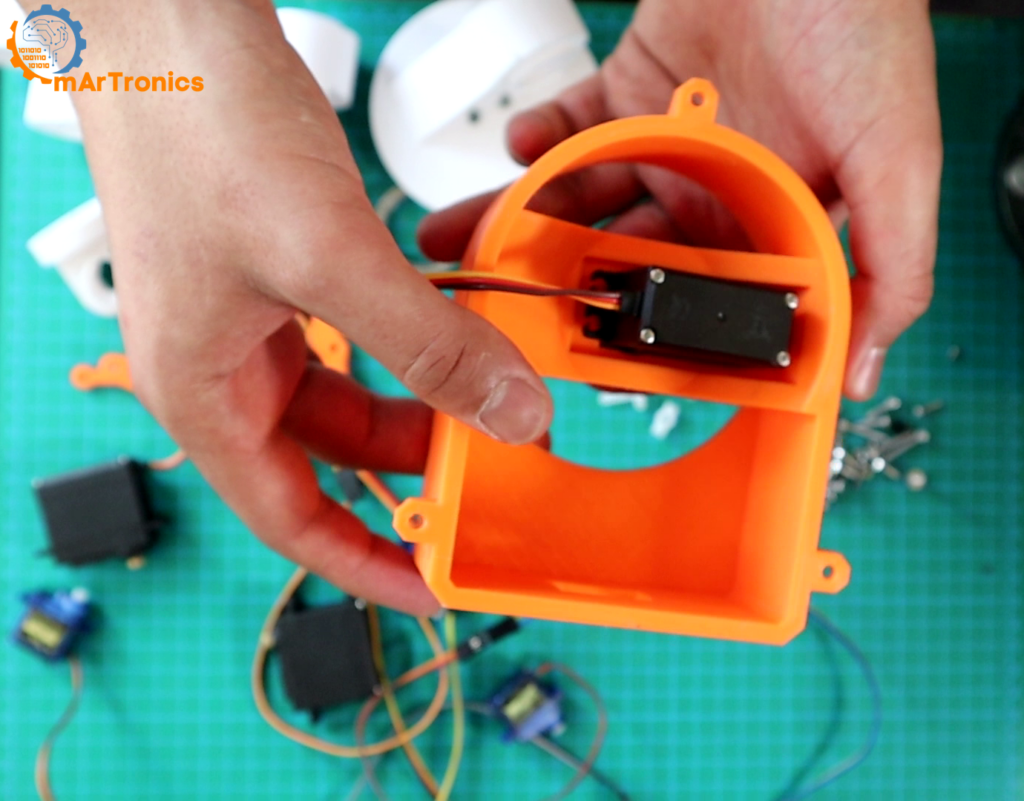
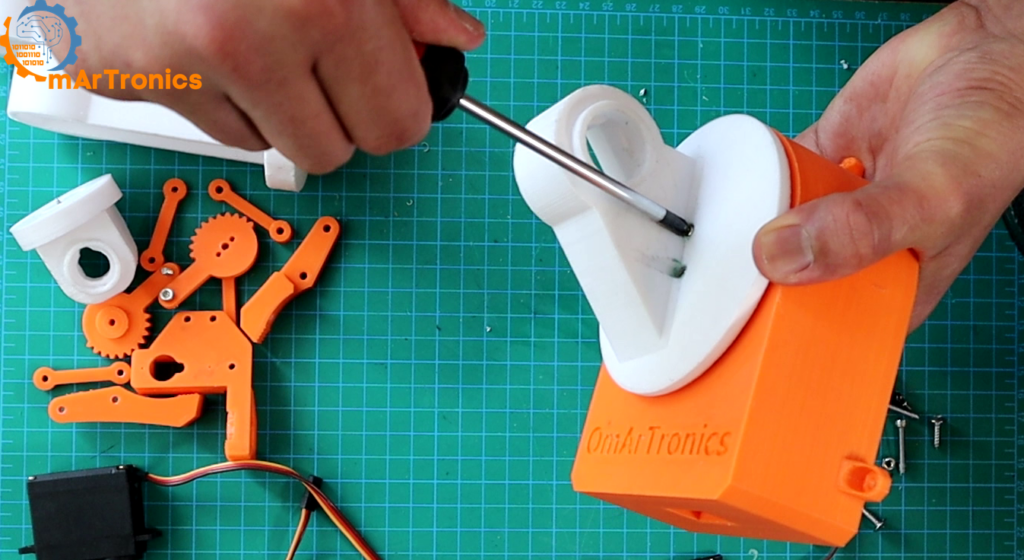
Install the first MG996R servo in the base mount with the included screws. This servo gives the base its 180 degrees of rotation. Press the deep-groove ball bearing (6806ZZ, 30 × 42 × 7 mm) straight down into its seat in the rotating upper platform. The bearing sits between this platform and the fixed base plate. It keeps the platform centered and lets it turn smoothly without tilting. The bearing is optional, but I recommend it. Attach the servo horn to the rotating upper platform with M2×12 self-tapping screws (screws that cut their own thread into the plastic). This horn transfers the rotation of the base servo to the rest of the arm. Press the platform straight down onto the servo shaft and fix it with the center screw from the servo package.

Step 2: Mounting Servo Horns to the Arm Links
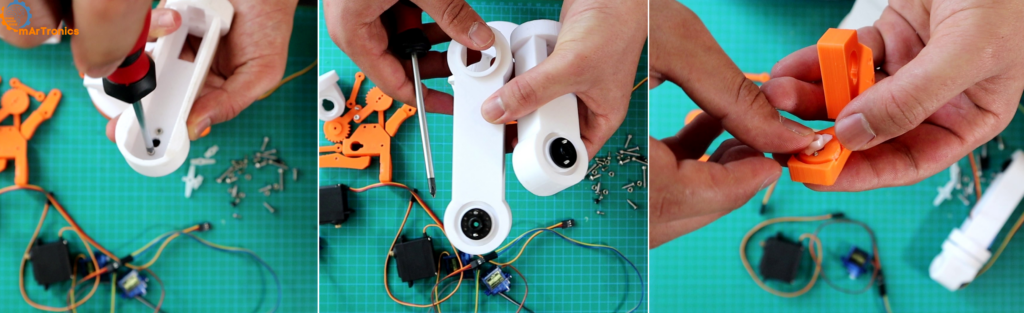
Before you fit a horn, center the servo: connect it to the PCA9685, upload the sketch and switch on the servo power. The setup() function of the sketch sends the PWM value 375 (90°) to every channel. With the servo at 90°, fit the horn so the link points to the middle of its range and fasten it with two screws. If the screw holes do not line up, the horn binds and the joint moves unevenly. The SG90 horns were too long for the holes I designed in the printed parts, so I cut both ends of each horn with a knife. Cut away from your fingers.
Step 3: Mounting Servo Motors to the Arm Links
Seat each servo in its 3D printed pocket on the arm link. Its output shaft must line up with the joint axis shown in the technical drawing. Fasten it with two screws and press gently to test the fit. The servo should not shift or rock.

Step 4: Connecting the Arm Links
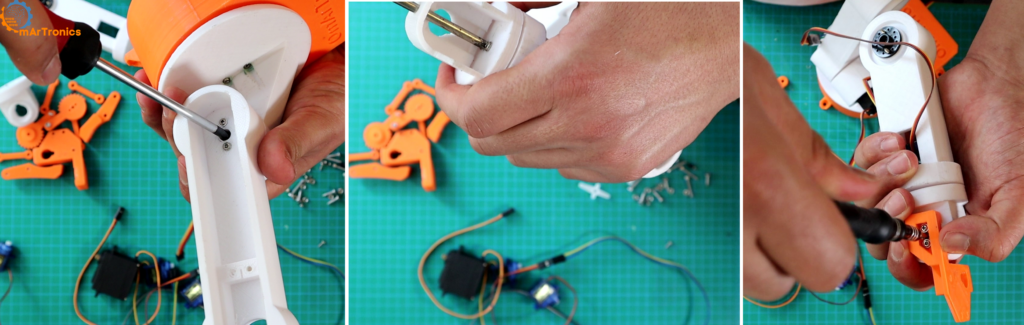
Join the link-and-servo assemblies. Position the horn on one link so it slots into the next, then fasten it with screws. Tighten evenly so the joint moves smoothly over its full range.
Step 5: Assembling the Gripper
Attach the gripper sub-assembly to the end link of the arm. The gripper uses an SG90 micro servo and a pair of 3D printed gears to open and close the fingers. Use M3×20 screws for the gripper joints. Check that the fingers open and close freely before you move on.

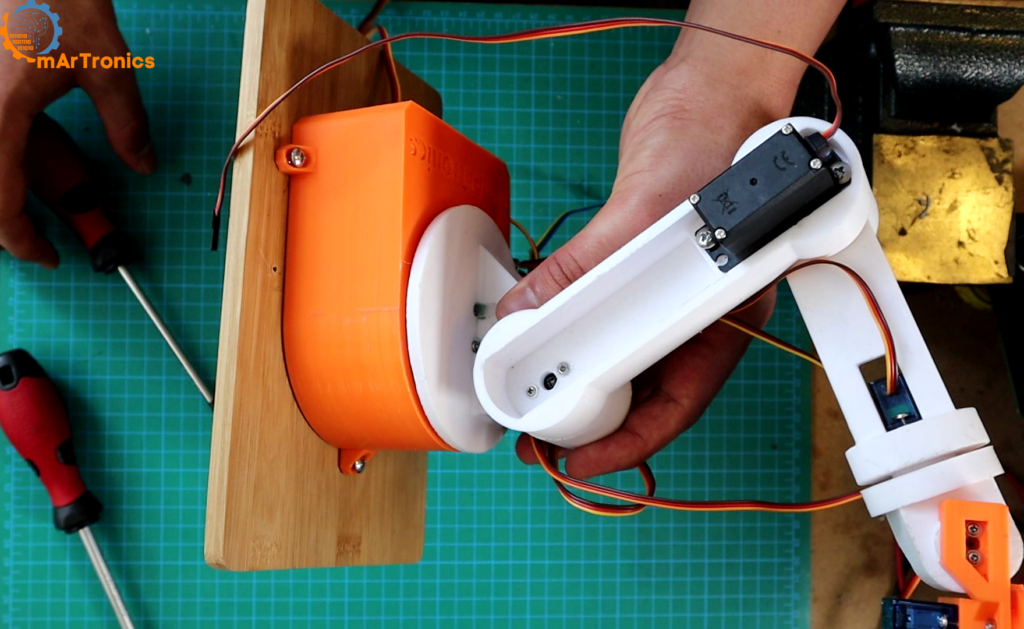
Step 6: Mounting the Arm on a Wooden Base
Mount the assembled arm on a flat wooden board with M3×12 self-tapping screws. The board keeps the arm from tipping and gives you a place for the breadboard, the Arduino and the power supply.
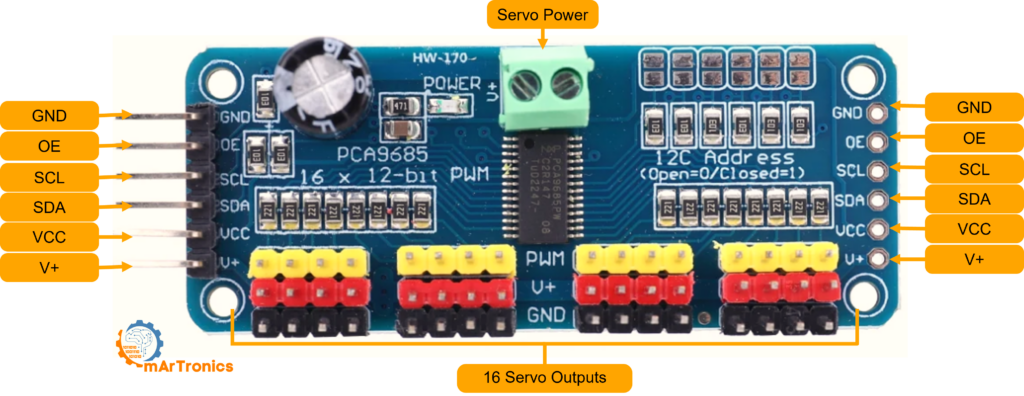
Understanding the PCA9685 Servo Driver
The Arduino Servo library can drive up to 12 servos on an Uno, but it creates the pulses in software with a timer interrupt. SoftwareSerial, which this build uses for Bluetooth, blocks interrupts while it receives a byte, so servos driven by the Servo library twitch. The PCA9685 generates all pulses in hardware, so incoming Bluetooth data cannot disturb them, and it needs only two signal wires (SDA and SCL). One board has 16 channels, so six servos leave ten channels free.
PCA9685 Pinout Reference
- GND: common ground with the Arduino.
- OE (Output Enable): active low, so the outputs are on while the pin is LOW. Leave it unconnected; the board holds it LOW.
- SCL / SDA: I2C clock and data.
- VCC: 3.3 to 5 V logic power for the chip only, not for the servos.
- V+: servo power from the external supply, up to 6 V, through the screw terminal.
- Channels 0 to 15: one 3-pin header each (PWM, V+, GND) for a standard servo plug.
Bluetooth Communication with the HC-05 Module
The HC-05 is a Bluetooth module that creates a wireless serial link between your Android phone and the Arduino. It runs at 3.3 V logic, and 5 V can damage its RX pin. The line from the Arduino’s TX pin (5 V) to the HC-05 RX pin therefore needs a voltage divider. A voltage divider is two resistors in series that split the voltage. Connect 1 kΩ from Arduino pin 11 to the HC-05 RX pin, and 2 kΩ from the HC-05 RX pin to GND. The HC-05 then receives 5 V × 2/3 ≈ 3.3 V. The line from HC-05 TX to Arduino RX needs no divider, because the Arduino reads 3.3 V as logic HIGH.
SoftwareSerial is a library that turns two ordinary digital pins into a serial port. In SoftwareSerial BTSerial(10, 11), the first number is the Arduino’s receive pin (RX) and the second its transmit pin (TX). The lines cross over: HC-05 TX goes to pin 10, HC-05 RX to pin 11. Pins 0 and 1 stay free for uploading the sketch and for the Serial Monitor (the text window in the Arduino IDE). The HC-05 defaults to 9600 baud (transmission speed in bits per second), which matches the SoftwareSerial setup in the sketch. For HC-05 setup and AT commands (text commands that change settings such as the module name, PIN and baud rate), see my HC-05 Bluetooth module tutorial.
Electronics Wiring with Bluetooth
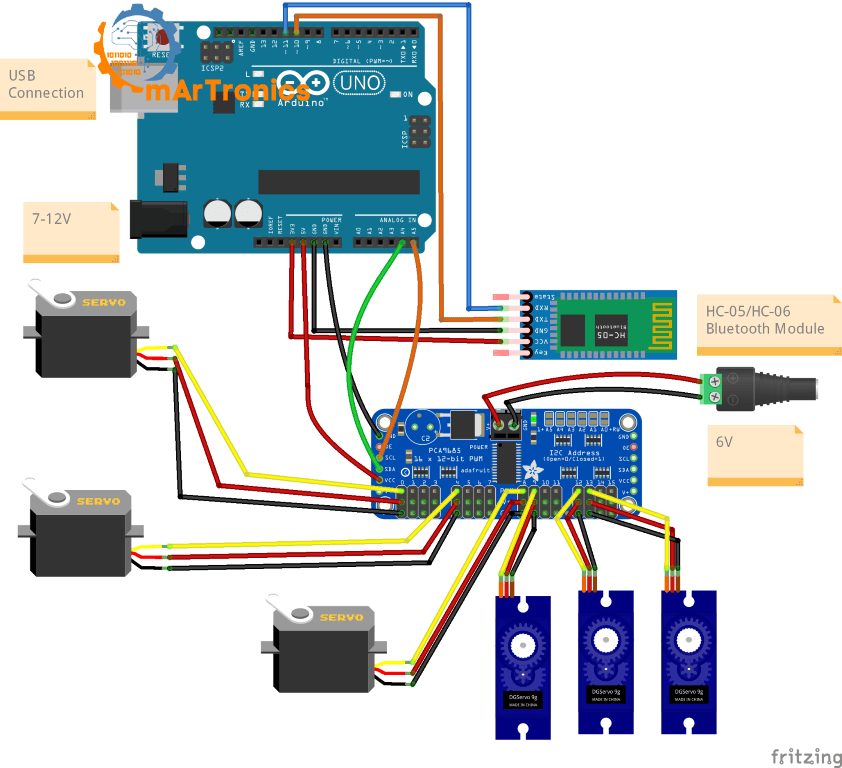
The control system has four parts: the Arduino Uno, the PCA9685 for PWM generation, the HC-05 for wireless communication, and a 5 V 10 A power supply for the servos.
Wiring Table: Arduino to PCA9685
| Arduino Pin | PCA9685 Pin | Function |
|---|---|---|
| 5 V | VCC | Logic power for PCA9685 chip |
| GND | GND | Common ground |
| A4 (SDA) | SDA | I2C data line |
| A5 (SCL) | SCL | I2C clock line |
Wiring Table: Arduino to HC-05 Module
| Arduino Pin | HC-05 Pin | Function |
|---|---|---|
| Pin 10 (SoftwareSerial RX) | TX | Receives data from Bluetooth |
| Pin 11 (SoftwareSerial TX) | RX (via voltage divider) | Sends data to Bluetooth |
| 5 V | VCC | Powers the HC-05 module |
| GND | GND | Common ground |
Servo Power and PCA9685 Connections
Plug the servos into the channels listed in the servoChannels array. Slider 1 controls the servo on channel 0, slider 2 channel 4, slider 3 channel 8, slider 4 channel 9, slider 5 channel 12 and slider 6 channel 13. In the Fritzing diagram, the three MG996R servos sit on channels 0, 4 and 8 and the three SG90 servos on channels 9, 12 and 13. The channels do not have to be consecutive: to use others, change the numbers in the servoChannels array. Match the servo’s ground wire (brown or black) to the header row marked GND on the board.
Connect the 5 V 10 A supply to the V+ and GND screw terminals of the PCA9685, and power the Arduino over USB. This keeps the servo current away from the Arduino. A current spike on the Arduino’s 5 V supply line can pull the voltage down (a brownout) and reset the board. I run the servos at 6 V from my Hanmatek HM305P bench power supply, as in the Fritzing diagram. Both 5 V and 6 V work, because V+ accepts up to 6 V. The HM305P delivers up to 5 A, which is enough for normal moves of my arm. The 10 A supply in the parts list also covers several joints stalling at once.
The diagram below leaves out the two resistors of the voltage divider, so add them on the breadboard as described in the HC-05 section. It also feeds the HC-05 from the 3.3 V pin; 5 V as in the wiring table works as well, because the module’s VCC pin accepts 3.3 to 5 V. Its signal pins stay at 3.3 V.
Arduino Sketch
The sketch handles four jobs: Bluetooth input, command parsing, step-by-step servo motion, and pose storage with playback. Before compiling, install the Adafruit PWM Servo Driver Library with the Library Manager (Wire and SoftwareSerial come with the Arduino IDE). Select Arduino Uno or Mega and the correct COM port (the serial port your computer assigns to the board’s USB connection), then click Upload.
#include <Wire.h>
#include <Adafruit_PWMServoDriver.h>
#include <SoftwareSerial.h>
// Constants and definitions
const int numServos = 6;
const int maxConfigurations = 10;
const int stepDelay = 10;
const int stepSize = 1;
// Servo channels on the PCA9685
const int servoChannels[numServos] = {0, 4, 8, 9, 12, 13};
// Storage structures
int savedConfigurations[maxConfigurations][numServos];
int currentServoPositions[numServos] = {375, 375, 375, 375, 375, 375};
int configCount = 0;
bool isPlaying = false;
bool loopPlayback = false;
bool stopPlaying = false;
int currentPoseIndex = 0;
bool initialized = false;
Adafruit_PWMServoDriver pwm = Adafruit_PWMServoDriver();
SoftwareSerial BTSerial(10, 11);
// Setup initialization
void setup() {
  Serial.begin(9600);
  BTSerial.begin(9600);
  pwm.begin();
  pwm.setPWMFreq(60);

  for (int i = 0; i < numServos; i++) {
    pwm.setPWM(servoChannels[i], 0, currentServoPositions[i]);
  }
  initialized = true;
  Serial.println("Bluetooth Servo Controller started. Waiting for commands...");
}
// Main loop
void loop() {
  if (BTSerial.available()) {
    String input = BTSerial.readStringUntil('\n');
    input.trim();

    Serial.println("Received data: " + input);
    if (input.equalsIgnoreCase("S")) {
      saveCurrentPose();
    } else if (input.equalsIgnoreCase("P")) {
      startPlayingPoses();
    } else if (input.equalsIgnoreCase("R")) {
      resetPoses();
    } else if (input.equalsIgnoreCase("St")) {
      stopPlayingPoses();
    } else if (input.equalsIgnoreCase("LoopON")) {
      loopPlayback = true;
      Serial.println("Loop playback enabled.");
    } else if (input.equalsIgnoreCase("LoopOFF")) {
      loopPlayback = false;
      Serial.println("Loop playback disabled.");
    } else if (input.indexOf(',') > 0) {
      processLastValue(input);
    } else {
      Serial.println("Unknown command: " + input);
    }
  }
  if (isPlaying && !stopPlaying) {
    if (loopPlayback) {
      playPosesInLoop();
    } else {
      playNextPose();
    }
  }
}
Servo Control and Command Processing
// Process servo commands
void processLastValue(String command) {
    int lastCommaIndex = command.lastIndexOf(',');
    if (lastCommaIndex > 0 && lastCommaIndex < command.length() - 1) {
        int servoIndex = command.substring(0, lastCommaIndex).toInt() - 1;
        float lastValue = command.substring(lastCommaIndex + 1).toFloat();

        int targetPos = (int)lastValue;

        int targetPwmValue = map(targetPos, 0, 180, 150, 600);

        moveToPositionSmoothly(servoIndex, targetPwmValue);
    } else {
        Serial.println("Invalid command for servo control: " + command);
    }
}

// Smooth movement function
void moveToPositionSmoothly(int servoIndex, int targetPwmValue) {
    int currentPwmValue = currentServoPositions[servoIndex];
    if (targetPwmValue > currentPwmValue) {
        for (int pos = currentPwmValue; pos <= targetPwmValue; pos += stepSize) {
            pwm.setPWM(servoChannels[servoIndex], 0, pos);
            delay(stepDelay);
        }
    } else {
        for (int pos = currentPwmValue; pos >= targetPwmValue; pos -= stepSize) {
            pwm.setPWM(servoChannels[servoIndex], 0, pos);
            delay(stepDelay);
        }
    }
    currentServoPositions[servoIndex] = targetPwmValue;
    Serial.println("Servo " + String(servoIndex + 1) + " set to PWM value: " + String(targetPwmValue));
}
Pose Save, Playback and Reset
// Save pose function
void saveCurrentPose() {
    if (configCount < maxConfigurations) {
        for (int i = 0; i < numServos; i++) {
            savedConfigurations[configCount][i] = currentServoPositions[i];
            Serial.print("Servo "); Serial.print(i + 1);
            Serial.print(" saved at PWM value: ");
            Serial.println(savedConfigurations[configCount][i]);
        }
        configCount++;
        Serial.println("Pose saved. Total saved poses: " + String(configCount));
    } else {
        Serial.println("Memory full, cannot save more poses.");
    }
}

// Start playback
void startPlayingPoses() {
    if (configCount == 0) {
        Serial.println("No poses saved, nothing to play.");
        return;
    }
    Serial.println("Playback of saved poses started...");
    isPlaying = true;
    stopPlaying = false;
    currentPoseIndex = 0;
}

// Play next pose
void playNextPose() {
    if (currentPoseIndex < configCount) {
        Serial.println("Playing pose " + String(currentPoseIndex + 1));
        for (int i = 0; i < numServos; i++) {
            moveToPositionSmoothly(i, savedConfigurations[currentPoseIndex][i]);
        }
        delay(1000);
        currentPoseIndex++;
    } else {
        isPlaying = false;
        Serial.println("Playback of poses finished.");
    }
}

// Loop playback
void playPosesInLoop() {
    for (int j = 0; j < configCount; j++) {
        Serial.println("Playing pose " + String(j + 1));
        for (int i = 0; i < numServos; i++) {
            moveToPositionSmoothly(i, savedConfigurations[j][i]);
        }
        delay(1000);
        if (stopPlaying) break;
    }
}

// Stop playback
void stopPlayingPoses() {
    stopPlaying = true;
    isPlaying = false;
    Serial.println("Playback of poses stopped.");
}

// Reset all poses
void resetPoses() {
    configCount = 0;
    isPlaying = false;
    loopPlayback = false;
    currentPoseIndex = 0;
    Serial.println("All saved poses have been deleted.");
}
How the Arduino Code Works
The library section pulls in Wire.h for I2C, Adafruit_PWMServoDriver.h for the PCA9685 and SoftwareSerial.h for Bluetooth. The constants define the number of servos (6), the step delay (10 ms) and the step size (each step changes the PWM value by 1). maxConfigurations (10) is the maximum number of stored poses. The sketch calls a saved pose a “configuration” (savedConfigurations), and processLastValue() is the function that handles a slider command such as 2,90.
setup() starts both serial ports at 9600 baud, starts the PCA9685 with a 60 Hz PWM frequency and sets all servos to their midpoint (PWM 375, which is 90°). This gives the sketch a known position for every servo, and all further moves run step by step. The servos jump to the midpoint at full speed when the power comes on, so keep your hands away from the arm when you switch it on. The main loop() checks for incoming Bluetooth data and sends each command to its handler. Any command with a comma is treated as a servo position in the format servoIndex,angle, where servoIndex runs from 1 to 6 and angle from 0 to 180.
| Command | Sent by | Effect |
|---|---|---|
| 1,90 … 6,90 | Sliders 1 to 6 | Move that servo to the given angle (0 to 180°) |
| S | Save | Store the current positions as a pose (max. 10) |
| P | Play | Play the saved poses in order |
| St | Stop | End playback (after the current pose or loop cycle, see Calibrating and Testing) |
| R | Reset | Delete all saved poses |
| LoopON / LoopOFF | Loop switch | Turn loop playback on or off (the loop repeats until Stop) |
The app ends every command with a line break (\n), and readStringUntil(‘\n’) in the sketch reads up to that character.
moveToPositionSmoothly() changes the PWM value by stepSize (1) every stepDelay (10 ms) until it reaches the target, so a full sweep from 150 to 600 takes about 4.5 seconds. It moves one servo at a time: during playback the joints move one after another, not together. While a servo moves, the sketch does not read new Bluetooth commands. The slow steps keep the arm from sudden snaps that could damage the gears or tip the arm over.
The Android App (MIT App Inventor)
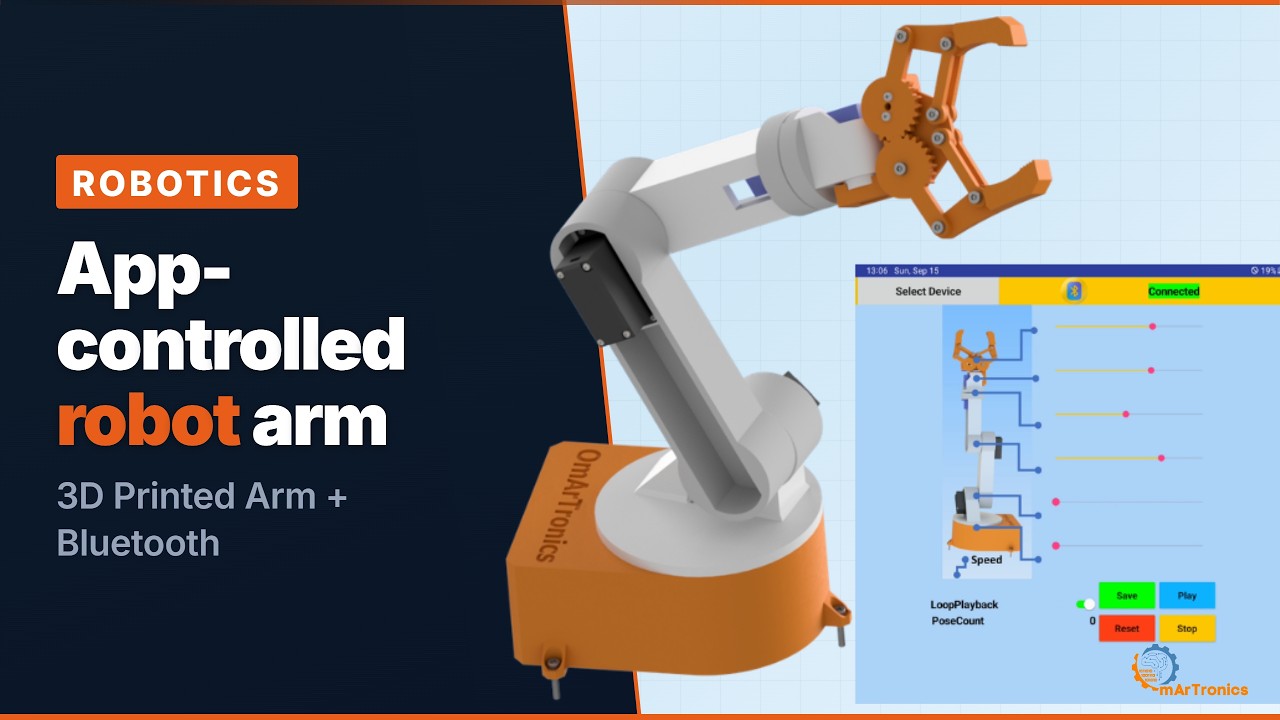
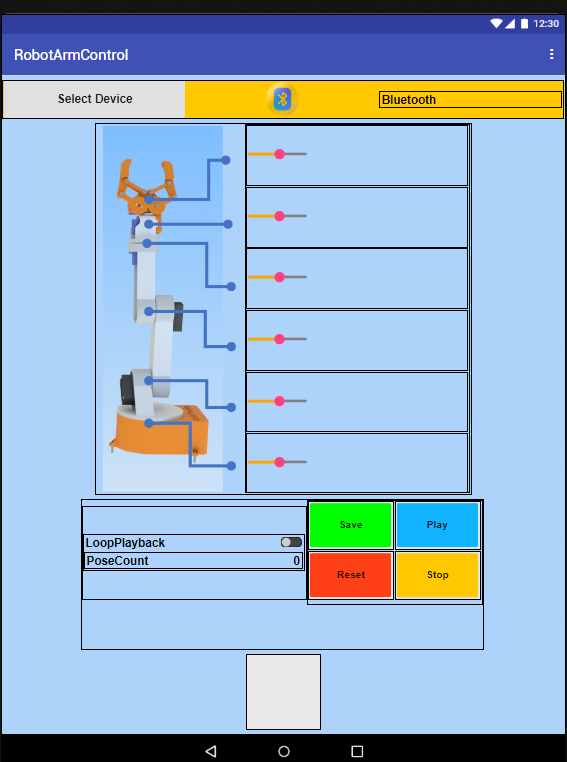
RobotArmControl is the Android app for this arm, built in MIT App Inventor. It has a Bluetooth connect button, six sliders (one per servo), Save, Play, Stop and Reset buttons, a Loop switch and a label (PoseCountLabel) that shows how many poses are saved. Each control sends one of the commands from the table above.
The App Inventor Blocks
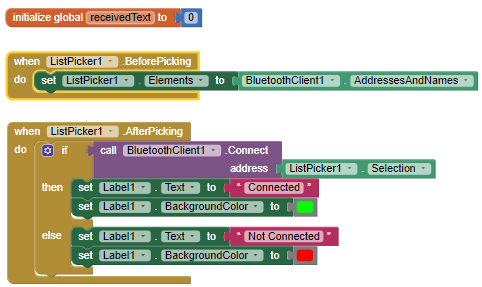
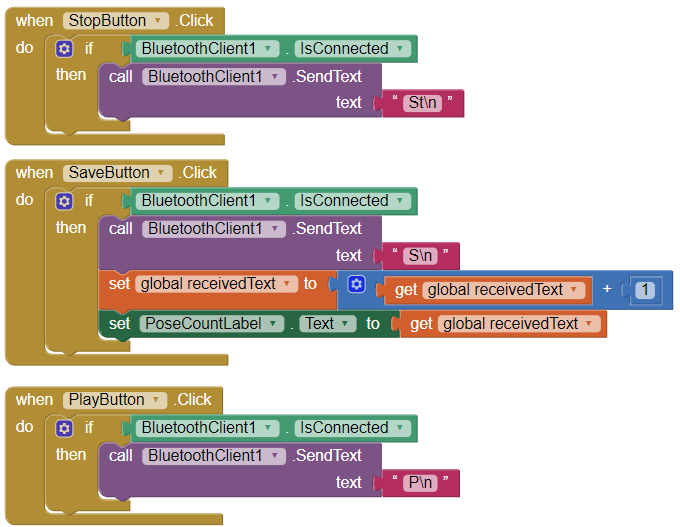
The global initialization block creates a variable called receivedText and sets it to 0. Despite its name, it counts the saved poses: each tap on Save adds 1 and shows the new count in PoseCountLabel. The ListPicker BeforePicking block fills the Bluetooth device list so you can pick the HC-05, and the AfterPicking block opens the Bluetooth serial connection once you select a device. Label1 then shows Connected on a green background or Not Connected on red.
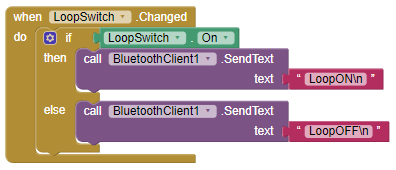
Each slider’s PositionChanged block formats the servo index and the angle into a string like 2,90 and sends it with BluetoothClient.SendText. The Save, Play, Stop and Reset buttons each send their short text command (S, P, St or R). The LoopSwitch.Changed block reads the switch state and sends LoopON or LoopOFF.

Installing the App and Pairing
Download the RobotArmControl APK (the Android installation file) from GitHub and install it. Android asks once whether to allow installs from this source. Pair your phone with the HC-05 in the Android Bluetooth settings (default PIN 1234), then open the app, tap the Bluetooth list picker and select the HC-05.
Calibrating and Testing the Arm
Move each slider slowly and check that the right joint responds. processLastValue() converts the slider angle (targetPos in the code) into a PWM value with map(targetPos, 0, 180, 150, 600): 0° becomes 150, 90° becomes 375 and 180° becomes 600. The PWM value counts ticks, the 4096 steps of each PWM period. At the sketch’s 60 Hz one tick is about 4.07 µs, so 150 to 600 ticks are about 0.61 to 2.44 ms. If a joint moves the wrong way, swap the slider’s minimum and maximum in App Inventor, or swap 150 and 600 in this map() call.
Fine-tune the PWM range (150 to 600 in the code) for each servo. Some servos need slightly different min and max values to avoid buzzing at the end stops (the mechanical limits of the servo’s rotation). Test the arm under load by picking up small objects with the gripper at full reach. In the video of the potentiometer version, I used this arm to pick up a small Eiffel Tower model and set it down on a board.
To test the pose system, move the arm to a position and tap Save. Repeat this for several positions, then tap Play: the arm replays the whole sequence. Turn on Loop mode and tap Play: the arm repeats the sequence. Tap Stop to end it. The sketch reads the Stop command only after the current cycle, so the arm finishes the sequence first. To stop the arm at once, switch off the servo power supply.
Future Improvements
You could add inverse kinematics, so the arm moves to X-Y-Z coordinates instead of individual joint angles. You could also use the phone’s built-in accelerometer (the AccelerometerSensor component in App Inventor) to move the arm by tilting the phone. Replacing the HC-05 with an ESP32 (a microcontroller with built-in Wi-Fi) would let you control the arm from a browser over Wi-Fi, as in OmArm Zero.
On the software side, you could move pose storage to EEPROM (memory on the Arduino that keeps its data without power) so saved sequences survive a power cycle. Variable speed per joint is another option, or a teach-and-playback mode where you move the arm by hand and it records the positions. OmObiArm combines this arm with a mobile rover base.
Related tutorials: the line-following robot and the servo motor joystick controller.
Downloads
- Arduino sketch (.ino) and Android app (APK): GitHub repository
- STL files: OmArTronics Shop
The wiring diagram and the parts list are in this post.
Frequently Asked Questions (FAQ)
Yes. The Mega runs the same code. Only the I2C pins differ: SDA is pin 20 and SCL is pin 21 instead of A4 and A5. Pins 10 and 11 work for SoftwareSerial on the Mega as well.
Jitter usually means the PWM value hits the servo’s end stop. Adjust the map() range and check your power supply current.
The HC-05 uses the classic Bluetooth serial profile (SPP), which iPhone apps cannot use. To use an iPhone, replace the HC-05 with an HM-10 module, which uses Bluetooth Low Energy (BLE), and rebuild the app on a BLE platform.
The code stores up to 10 poses in RAM by default. You can increase maxConfigurations, but the Uno has only 2 KB of SRAM (working memory, cleared when the power goes off). For persistent storage, save the poses to EEPROM.
All my robot arms compared: How to build a 6-axis robot arm at home explains what 6-axis means, puts the four designs in one table and tells you which one to build first.
I bought the model but it doesn’t have the bearing measurement valueReport
Thanks for your comment, Fernando! Please add a ball bearing 6806ZZ with dimensions 30*42*7.
Hello,
Can you tell me where are the parts list, to can to buy the parts,I have your stl’s to Cults
Thank you
Antonio Mayor
I live near Barcelona
Hi, interesting project also to do with a teenager. Regarding the servo MG996R, it exists in 2 configurations : either 180° or 360°. What you recommend?
Best regards,
Emmanuel
Hi Emmanuel, thank you for your kind words! I recommend using the 180° version of the MG996R servo for this project. This is because the 180° servo allows precise control of the angle, which is essential for positioning and movement in robotic arms or similar applications. The 360° servo is designed for continuous rotation and is better suited for tasks like driving wheels, where angle control is not required. Best regards, OmArTronics.
sir i did the same connection but it is not working ,please tell me how much
current give the pca9685 servo controller
The PCA9685 servo controller itself draws very little current, typically less than 10mA. However, the total current needed depends on the servos you are using. Each MG996R servo, for example, can draw up to 2A (max 2,5 A) under load. Make sure your power supply can provide enough current for all connected servos, considering their combined maximum draw.
please sir reply it fast as soon as possible
hey, im trying to make it work but keep getting error 507. and not able to connect the app and the robot . how do I make it work ?
Hello, how can I find these bolts & screws in one place? Is there an online shopping site where they are all available on the internet?
for the 6 motors working how much power is needed thatnis voltage and amphere and which adapter you have used for this
I’m using six servos powered through a PCA9685 driver with an external 6 V power supply.
Each servo typically draws 300–600 mA depending on the load, so for six servos you should plan around 3–5 A total current.
I use a Hanmatek HM305P adjustable power supply, but any 5 V–6 V adapter rated for at least 5 A will work fine.
The Arduino itself is powered separately via USB.
hi, i hope you are well, i had a question about the screws, so what typr of screws are needed for the assmbling pat, and i blives so that iwoud get screw for servos with them, so could you please tell me the screw that needed and the quantity for the assmbling parts.