
This post contains affiliate links, marked with *. As an Amazon Associate I earn from qualifying purchases, at no extra cost to you. It helps keep the tutorials free.
The video loads from YouTube (Google), which may set cookies. Privacy policy
Quick summary
This guide explains how hobby servos and their PWM (pulse width modulation) signal work. It compares the SG90 with the MG996R and then builds three projects: Sweep, potentiometer control (Knob), and two servos on a PCA9685 board, a servo driver with 16 channels. Tested code for all three projects is included.
A servo turns to a commanded angle and holds it there. Robotic arms, pan-tilt camera mounts (which turn a camera sideways and up or down) and automated door locks use servos for this. Typical beginner problems are jitter (the servo twitches instead of holding still), wrong wiring and an overloaded power supply. The video at the top of this page shows the projects running.
How servo motors work
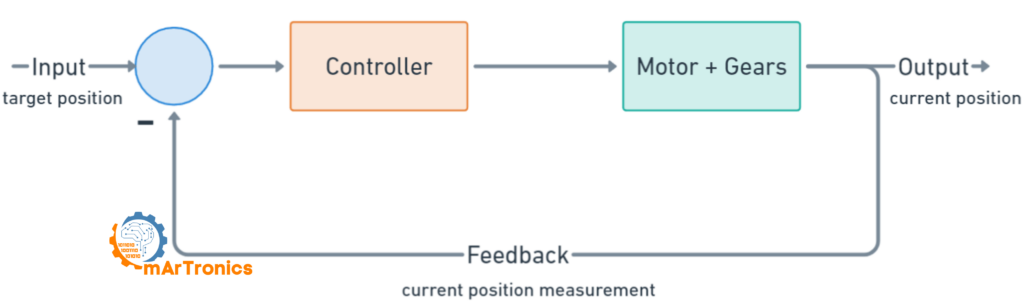
A plain DC motor spins as long as it has power. A servo adds a position sensor and a control circuit, so it moves to the angle you command and stays there. This is called closed-loop control: the servo measures its own position and corrects the difference to the target. Steering mechanisms and camera gimbals (stabilized camera mounts) are two more typical uses.
Inside a hobby servo
A hobby servo has four parts:
- DC motor: converts electrical energy into rotation.
- Gear train: reduction gears (plastic in the SG90, metal in the MG996R) that turn the motor’s high RPM (rotations per minute) into a slower rotation with more torque (turning force) at the output shaft.
- Potentiometer: a variable resistor connected to the output shaft. It reports the shaft’s current angle to the control circuit.
- Control circuit: a small PCB (printed circuit board). It compares the target position, which the Arduino sends as a PWM signal (a series of timed pulses), with the potentiometer reading and drives the motor until the two match.
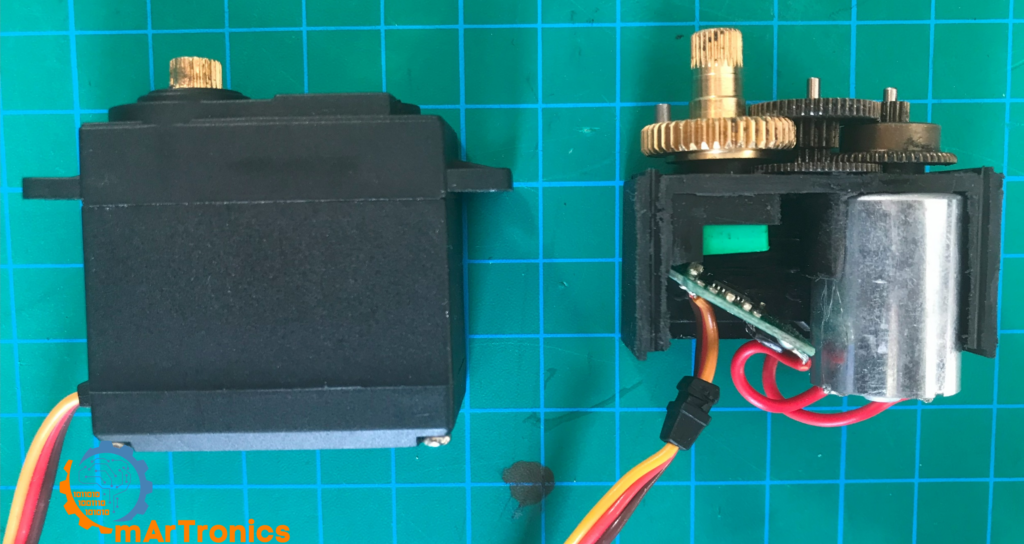
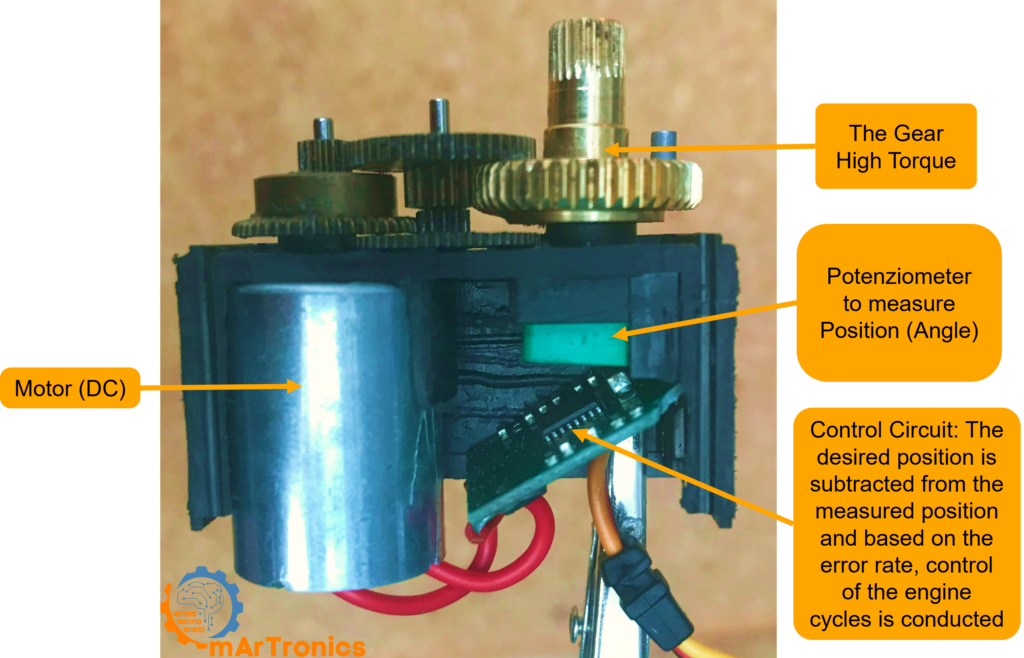
I took the servo in these photos apart myself to show its internal parts.
Closed-loop control
The control circuit runs this loop all the time:
- The Arduino sends a PWM signal that encodes the target angle.
- The control circuit measures the pulse width and derives the target position.
- It reads the potentiometer to get the current shaft position.
- If the two differ, it drives the DC motor toward the target.
- When they match, the motor stops and the servo holds the position.
The servo keeps correcting itself and holds the commanded angle under load, as long as the load stays below its torque rating.
The servo PWM signal
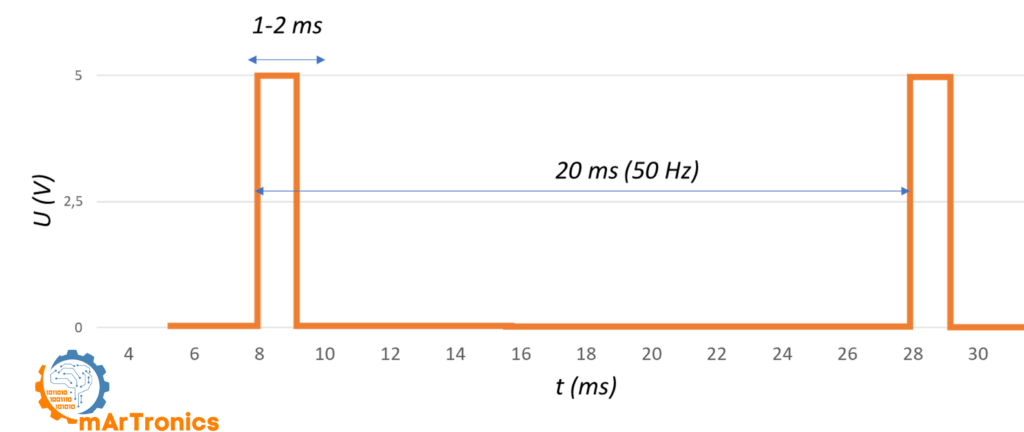
The Arduino sets the servo angle with a PWM signal: a train of digital pulses at a fixed frequency. The pulse width, the time the signal stays HIGH in each pulse, encodes the angle.
Hobby servos expect 50 Hz, one pulse every 20 ms. Only the HIGH part of each 20 ms period matters. The nominal range is 1.0 to 2.0 ms, but many hobby servos need about 0.5 to 2.5 ms for a full 180°. The exact range differs by model. The Arduino Servo library uses 544 to 2400 µs by default.
Pulse width and servo position
The duty cycle is the share of each 20 ms period in which the signal is HIGH. The table shows how pulse width, angle and duty cycle relate; the exact values vary by servo model.
| Pulse width | Servo position | Duty cycle at 50 Hz |
|---|---|---|
| 0.5 ms | 0° (minimum, some servos) | 2.5 % |
| 1.0 ms | 0° (standard minimum) | 5 % |
| 1.25 ms | 45° | 6.25 % |
| 1.5 ms | 90° (center position) | 7.5 % |
| 1.75 ms | 135° | 8.75 % |
| 2.0 ms | 180° (standard maximum) | 10 % |
| 2.5 ms | 180° (maximum, some servos) | 12.5 % |
The Arduino Servo library generates these pulses for you. When you call servo.write(90), the library sends a pulse of about 1.5 ms (1472 µs with the default limits) at 50 Hz, and the servo moves to the center. You need the pulse widths when you troubleshoot jitter, set custom ranges, or use a PCA9685 board.
SG90 vs MG996R: which servo for which job
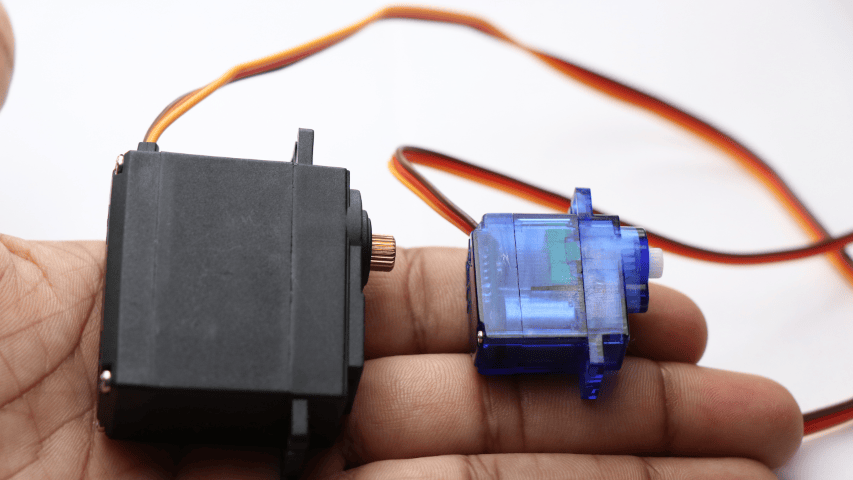
The SG90 micro servo and the MG996R standard servo are two common hobby servos for Arduino projects. Torque is given in kg·cm: 1.8 kg·cm means the servo can hold 1.8 kg on a lever arm 1 cm from the shaft. Choose by torque, size and durability.

| Specification | SG90 micro servo | MG996R servo |
|---|---|---|
| Stall torque (the torque at which the motor stops turning) | 1.8 kg·cm at 4.8 V, 2.2 kg·cm at 6 V | 9.4 kg·cm at 4.8 V, 11 kg·cm at 6 V |
| Operating voltage | 4.8 to 6 V | 4.8 to 7.2 V |
| No-load current (the current while the servo turns without a load) | 100 mA | 220 mA at 4.8 V, 250 mA at 6 V |
| Stall current (the current the motor draws when it is blocked) | 650 mA | 2.5 A at 6 V |
| Operating speed | 0.1 s per 60° at 4.8 V | 0.17 s per 60° at 4.8 V |
| Weight | 9 g | 55 g |
| Gear type | Plastic gears | Metal gears |
| Rotation range | 180° | 180° |
| Typical use | Lightweight projects, pan-tilt, small robots | Robotic arms, high-load joints, RC (radio-controlled) vehicles |
| Pros | Cheap, lightweight, low power draw | High torque, durable metal gears |
| Cons | Low torque, plastic gears can strip | Heavier, higher current draw, more expensive |
The MG996R torque and stall current, the SG90 torque at 4.8 V and both speeds follow the TowerPro datasheets. The other values are typical dealer figures.
Use the SG90 when weight and space are limited and the load is light. Pick the MG996R when the load comes close to the SG90’s stall torque of 1.8 kg·cm. My 6-DOF robotic arm (six degrees of freedom, six joints) uses both. Three MG996R drive the base, shoulder and elbow, which carry the weight of the arm. Three SG90 move the lighter wrist and gripper. Size the power supply for the combined current of all servos.
Servo testers
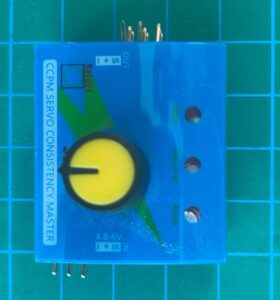
A servo tester checks a servo without an Arduino or any code. These inexpensive modules move the servo through its range or to a position set with a knob. Many also have a neutral mode that outputs a 1.5 ms pulse, so you can center each servo before you mount the horn.
Powering servos safely
Do not power servos from the Arduino 5 V pin. A single SG90 with a light load may run from it; several servos or a heavier load overload it.
Why the Arduino 5 V pin is not enough
On USB power, the Uno can supply about 500 mA in total, limited by the board’s USB fuse. On barrel-jack power (the round DC socket of the Uno), the 5 V comes from the onboard voltage regulator. This regulator gets hot well below its 1 A rating when the input is 9 V or more. A single SG90 draws up to 650 mA at stall, an MG996R up to 2.5 A. When a servo demands more than the board can deliver, the 5 V rail sags for a moment. This short voltage drop is called a brownout; it resets the Arduino or makes it behave erratically.
External power supply
Use a separate supply of 5 to 6 V. Size it for the sum of the stall currents of all servos: 650 mA per SG90 and 2.5 A per MG996R. Two SG90 draw up to 1.3 A, so a 5 V 2 A adapter is enough. My 6-DOF robotic arm has three MG996R and three SG90: 3 × 2.5 A + 3 × 0.65 A = 9.45 A. Its parts list therefore has a 5 V 10 A supply.
Wiring rules:
- Common ground: connect the ground (GND, the 0 V reference) of the external supply to a GND pin of the Arduino. Without a common ground, the PWM signal has no reference and the servo does not respond.
- Separate power rails: the servo’s red wire goes to the positive terminal of the external supply, not to the Arduino 5 V pin.
- Signal and ground only: apart from the shared ground, the only wire from the Arduino to the servo is the signal (PWM) wire.
- Capacitor: place a 470 µF electrolytic capacitor (rated 10 V or more) across the servo supply, between its positive line and GND, close to the servos. It reduces voltage spikes and jitter. An electrolytic capacitor has a fixed polarity: the side marked with the minus stripe goes to GND.
Current draw quick reference
| Servo model | No-load current | Stall current | Supply for a single servo |
|---|---|---|---|
| SG90 | 100 mA | 650 mA | 5 V, at least 1 A |
| MG996R | 220 mA | 2500 mA | 6 V, at least 3 A |
Six SG90 servos at stall draw 6 × 650 mA = 3.9 A.
The three servo wires
All standard hobby servos use a three-wire connector:
| Pin | Signal | Wire color |
|---|---|---|
| 1 | Ground (GND) | Black or brown |
| 2 | Power (VCC, 4.8 to 6 V) | Red |
| 3 | Control signal (PWM) | Orange or yellow |
Most servos use this pinout: ground on one edge, power in the middle, signal on the other edge. If unsure, check the servo’s datasheet.
Project 1: Servo sweep
The Sweep sketch (a sketch is an Arduino program) moves the servo back and forth between 0° and 180°. It checks your wiring and introduces the Servo library.
Parts needed
- Arduino Uno (or any Arduino board).
- SG90 micro servo (or similar).
- External 5 V power supply for the servo (recommended).
- Breadboard and jumper wires.
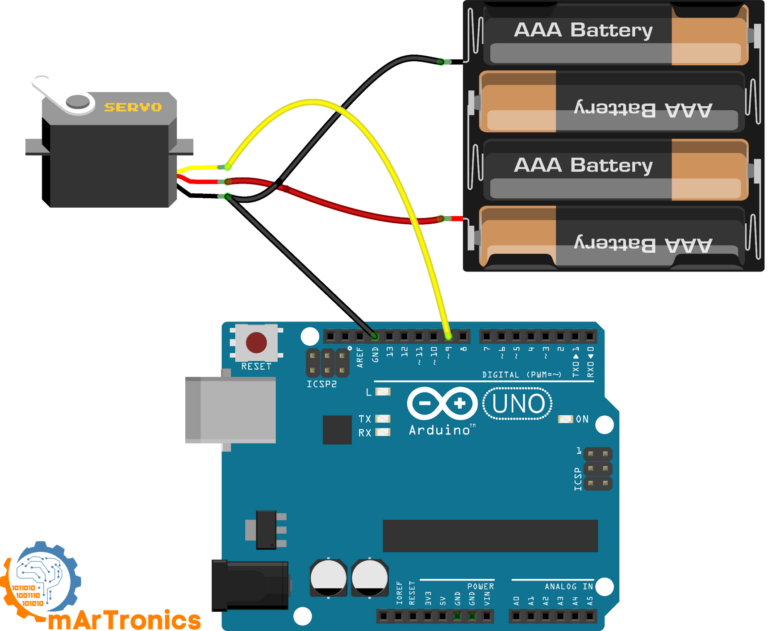
Sweep wiring
| Servo wire | Connects to |
|---|---|
| Brown or black (GND) | Arduino GND and external supply GND |
| Red (VCC) | External 5 V supply positive |
| Orange or yellow (signal) | Arduino digital pin 9 |
Sweep code
Open the Arduino IDE and go to File > Examples > Servo > Sweep, or copy the code below. The Sweep example ships with the Servo library.
/* Sweep
 by BARRAGAN http://barraganstudio.com
 This example code is in the public domain.
 modified 8 Nov 2013
 by Scott Fitzgerald
 https://www.arduino.cc/en/Tutorial/LibraryExamples/Sweep
 */
#include <Servo.h>
Servo myservo;  // create servo object to control a servo
// twelve servo objects can be created on most boards
int pos = 0;    // variable to store the servo position
void setup() {
    myservo.attach(9);  // attaches the servo on pin 9 to the servo object
}
void loop() {
    for (pos = 0; pos <= 180; pos += 1) { // goes from 0 degrees to 180 degrees
        // in steps of 1 degree
        myservo.write(pos);              // tell servo to go to position in variable 'pos'
        delay(15);                       // waits 15 ms for the servo to reach the position
    }
    for (pos = 180; pos >= 0; pos -= 1) { // goes from 180 degrees to 0 degrees
        myservo.write(pos);              // tell servo to go to position in variable 'pos'
        delay(15);                       // waits 15 ms for the servo to reach the position
    }
}
How the Sweep code works
The Sweep sketch is short and uses the basic functions of the Servo library:
- The #include line imports the Servo library, which generates the PWM pulses for you.
- Servo myservo; creates a Servo object. You can create up to 12 servo objects on an Arduino Uno.
- myservo.attach(9); tells the library to output the pulses on digital pin 9.
- myservo.write(pos); moves the servo to the angle stored in pos, from 0 to 180.
- The two for loops step the angle from 0 to 180 and back to 0, with a 15 ms delay per step so the servo can follow.
If the servo does not reach the full range, adjust the pulse limits in attach() (see Troubleshooting) and check the power supply. Jitter at the end positions usually means that the servo cannot physically reach those angles. It then presses against its mechanical end stop, the physical limit of the output shaft’s travel.
Project 2: Servo control with a potentiometer (Knob)
The Knob sketch adds a potentiometer as input: turning it sets the servo angle. The sketch reads an analog input and scales it to an angle. Potentiometer-controlled robot arms use the same method.
Parts needed
- Arduino Uno (or any Arduino board).
- SG90 micro servo (or similar).
- 10 kΩ potentiometer.
- External 5 V power supply for the servo (recommended).
- Breadboard and jumper wires.
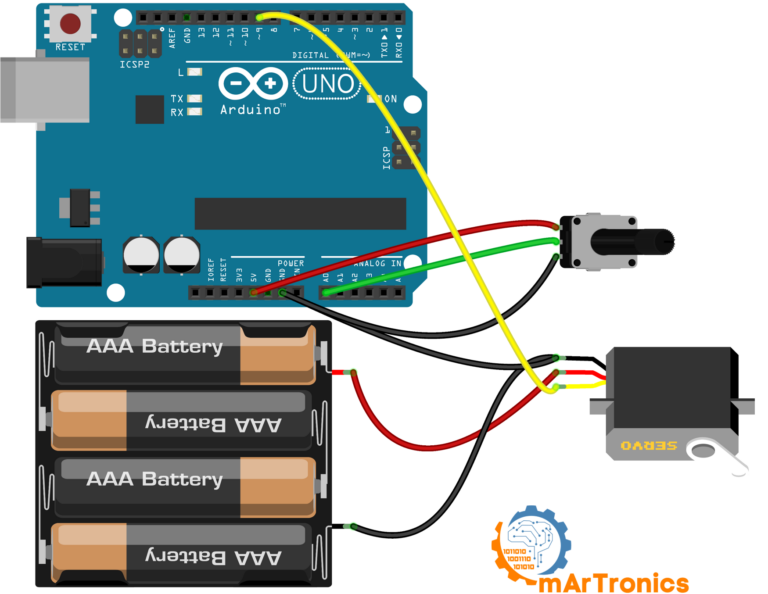
Knob wiring
| Component | Pin or wire | Connects to |
|---|---|---|
| Servo GND (brown or black) | GND | Arduino GND and external supply GND |
| Servo VCC (red) | VCC | External 5 V supply positive |
| Servo signal (orange or yellow) | Signal | Arduino digital pin 9 |
| Potentiometer pin 1 | Outer pin | Arduino 5 V |
| Potentiometer wiper | Middle pin | Arduino analog pin A0 |
| Potentiometer pin 3 | Outer pin | Arduino GND |
Knob code
Open File > Examples > Servo > Knob in the Arduino IDE, or use the code below.
/*
 Controlling a servo position using a potentiometer (variable resistor)
 by Michal Rinott http://people.interaction-ivrea.it/m.rinott
 modified on 8 Nov 2013
 by Scott Fitzgerald
 http://www.arduino.cc/en/Tutorial/Knob
 */
#include <Servo.h>
Servo myservo;  // create servo object to control a servo
int potpin = A0;  // analog pin used to connect the potentiometer
int val;    // variable to read the value from the analog pin
void setup() {
    myservo.attach(9);  // attaches the servo on pin 9 to the servo object
}
void loop() {
    val = analogRead(potpin);            // reads the value of the potentiometer (value between 0 and 1023)
    val = map(val, 0, 1023, 0, 180);     // scale it for use with the servo (value between 0 and 180)
    myservo.write(val);                  // sets the servo position according to the scaled value
    delay(15);                           // waits for the servo to get there
}
How the Knob code works
The sketch uses three functions:
- analogRead(A0) reads the voltage at the potentiometer’s middle pin and returns a value from 0 to 1023. The Uno’s ADC (analog-to-digital converter) has a resolution of 10 bits, which gives 1024 steps.
- map(val, 0, 1023, 0, 180) scales the 0 to 1023 range to 0 to 180 degrees.
- myservo.write(val) sends the angle to the servo.
For finer control, use myservo.writeMicroseconds() instead of myservo.write(). It sets the pulse width directly in microseconds, for example 1000 to 2000, which gives more steps than the 0 to 180 degree scale.
If the servo hums at the ends of its travel, narrow the output range, for example map(val, 0, 1023, 10, 170). If it does not reach the full range, check whether the potentiometer reaches 0 and 1023. Add Serial.begin(9600) to setup() and Serial.println(val) directly after the analogRead() line, before map() overwrites val. The Serial Monitor of the Arduino IDE then shows the raw values while you turn the potentiometer to both ends. Use the measured minimum and maximum as the input range of map().
PCA9685 board (16 servo channels)
With the Servo library, an Uno drives up to 12 servos from any digital pins. The library uses Timer1, one of the Uno’s hardware timers, to time the pulses. While servos are attached, analogWrite() (the PWM output function, for example for dimming an LED) no longer works on pins 9 and 10. An interrupt pauses the main program so that time-critical code, such as the servo timing, runs at once. Libraries that disable interrupts, for example SoftwareSerial or Adafruit NeoPixel, delay the servo pulses and can cause jitter. A PCA9685 board avoids these limits.
The PCA9685 chip
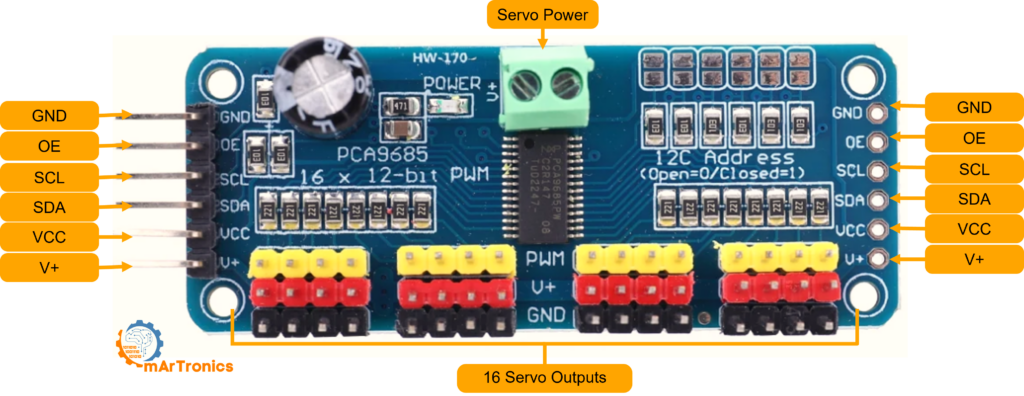
The PCA9685 chip is a 16-channel PWM driver with 12-bit resolution (4096 steps per cycle). It communicates with the Arduino over I2C, a two-wire bus (SDA for data, SCL for the clock) that several devices can share. The chip generates all 16 PWM signals in hardware, so the Arduino pins and Timer1 stay free and other code cannot delay the pulses. For hobby use, the chip sits on a breakout board, a small board that makes the chip’s pins easy to connect. You can connect up to 62 PCA9685 boards to one I2C bus, each with its own address, which gives 992 channels in theory.
Use a PCA9685 board for more than two or three servos, or when you need the Arduino pins and Timer1 for other tasks. For one or two servos, direct control is enough.
PCA9685 board connections
- VCC: logic power (3.3 V or 5 V from the Arduino). It powers only the PCA9685 chip, not the servos.
- GND: ground. It must be shared with the Arduino and the servo power supply.
- SDA: I2C data line. Connect to Arduino A4 (Uno) or the SDA pin.
- SCL: I2C clock line. Connect to Arduino A5 (Uno) or the SCL pin.
- V+: servo power input. Connect an external 5 V to 6 V supply here. It powers all 16 servo channels.
- OE: output enable. Leave it disconnected (pulled LOW internally) to keep all outputs active.
Project 3: Two servos with PCA9685 and potentiometers
This project controls two servos independently with a PCA9685 board and two potentiometers.
Parts needed
| Component | Quantity |
|---|---|
| Arduino Uno | 1 |
| PCA9685 board | 1 |
| SG90 micro servo (or similar) | 2 |
| 10 kΩ potentiometer | 2 |
| External 5 V or 6 V power supply (at least 2 A) | 1 |
| Breadboard and jumper wires | As needed |
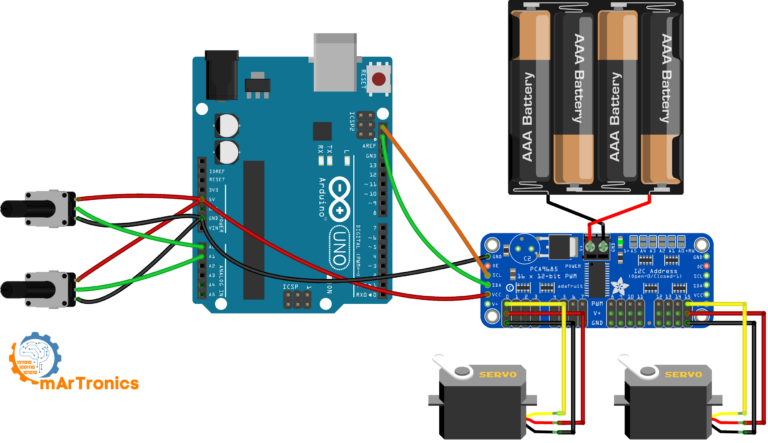
Project 3 wiring
| Connection | From | To |
|---|---|---|
| I2C data | Arduino A4 (SDA) | PCA9685 SDA |
| I2C clock | Arduino A5 (SCL) | PCA9685 SCL |
| Logic power | Arduino 5 V | PCA9685 VCC |
| Common ground | Arduino GND | PCA9685 GND and external supply GND |
| Servo power | External 5 V supply positive | PCA9685 V+ terminal |
| Servo 1 | 3-pin connector | PCA9685 channel 0 |
| Servo 2 | 3-pin connector | PCA9685 channel 15 |
| Potentiometer 1 wiper | Middle pin | Arduino A0 |
| Potentiometer 2 wiper | Middle pin | Arduino A1 |
| Potentiometer outer pins | Outer pins | Arduino 5 V and GND |
Any two channels work; the first argument of pwm.setPWM() in the code selects the channel.
Project 3 code
The sketch needs the Adafruit PWM Servo Driver library. Install it from the Arduino Library Manager (search for “Adafruit PWM Servo Driver”). The code reads both potentiometers and maps their values to pulse lengths:
/**
 * Author: Omar Draidrya
 * Date: 2024/05/05
 * This code controls servos using the PCA9685 PWM driver and potentiometers.
 */
#include <Wire.h>
#include <Adafruit_PWMServoDriver.h>

// Initialize the PCA9685 using the default address (0x40).
Adafruit_PWMServoDriver pwm = Adafruit_PWMServoDriver();

void setup() {
    Serial.begin(9600);   // Start serial communication for debugging purposes.
    pwm.begin();          // Initialize the PCA9685 module.

    // Set the frequency to 50 Hz, good for servo control.
    pwm.setPWMFreq(50);  // standard servo refresh rate

    // Setup the analog pins as input.
    pinMode(A0, INPUT);
    pinMode(A1, INPUT);
}

void loop() {
    // Read the potentiometers.
    int potVal0 = analogRead(A0);  // Read the first potentiometer.
    int potVal1 = analogRead(A1);  // Read the second potentiometer.

    // Map the potentiometer values to servo pulse lengths.
    int servoPos0 = map(potVal0, 0, 1023, 150, 600); // Change values 150 to 600 depending on your servo specifications.
    int servoPos1 = map(potVal1, 0, 1023, 150, 600);

    // Set the servo positions.
    pwm.setPWM(0, 0, servoPos0);   // Set servo on channel 0.
    pwm.setPWM(15, 0, servoPos1);  // Set servo on channel 15.

    delay(20);  // Small delay to reduce jitter.
}
The PCA9685 pulse range values
The values 150 and 600 in the two map() lines are neither degrees nor milliseconds. They are 12-bit PWM counts (also called ticks) out of 4096 per cycle (20 ms at 50 Hz): 150 counts are about 0.73 ms and 600 counts about 2.93 ms. map() turns each potentiometer reading into a count in this range, and setPWM() sends that count to the servo channel.
Treat 150 to 600 as a starting range. Its upper end of 2.93 ms is longer than the 2.5 ms maximum in the table above. Narrow the range until the servo no longer hums at either end. The chip’s internal oscillator is not exact, so the real pulse widths can differ from these values by a few percent. The potentiometer version of my 6-DOF robotic arm runs the PCA9685 at 60 Hz instead of 50 Hz and maps to 125 to 575 counts. At 60 Hz the period is 16.67 ms, so one count is 16.67 ms / 4096 = 4.07 µs, and this range is about 0.51 to 2.34 ms.
To test the setup, upload the code and turn each potentiometer slowly. Each servo should follow its own potentiometer. If a servo does not move, check the I2C wiring and confirm that the external supply is connected to V+ on the PCA9685 board.
Troubleshooting
Servo jitter or twitching
Cause: the supply voltage drops each time the servo draws a current peak. Fix: use a separate supply with enough current and a 470 µF capacitor across the servo supply. If several servos move at once and the Arduino resets, keep the servo supply wires short and thick to reduce the voltage drop.
A second cause is other code that delays the Servo library’s timer interrupts. Fix: remove the conflicting library or use a PCA9685 board, which generates the pulses in hardware.
Servo not moving
Check in this order:
- The signal wire is on the pin set in servo.attach(pin).
- The Arduino GND and the servo supply GND are connected. Without a shared ground, the servo ignores the signal or moves erratically.
- The supply is switched on and delivers 4.8 to 6 V at the servo.
- The sketch includes Servo.h and calls servo.attach() in setup().
Servo overheating
A servo overheats when it is stalled: it holds a position against a load above its torque rating and draws stall current the whole time, which heats the motor. Reduce the mechanical load, use a servo with more torque, or detach the servo in your code when it does not need to hold a position.
Calling servo.detach() stops the pulses, so the motor stops driving and its temperature can drop. The servo then no longer holds its position: a loaded joint, such as the shoulder of a robot arm, will drop. Support the joint or move it to a resting position before you detach.
Limited rotation or wrong pulse range
If the servo does not reach 0° or 180°, the cause is probably the pulse limits in your code, because each servo model has a slightly different range. For direct Arduino control, set custom limits with servo.attach(pin, minPulse, maxPulse), for example servo.attach(9, 500, 2500). The library default is 544 to 2400 µs. Widen the range in small steps and stop as soon as the servo hums at one end. On a PCA9685 board, set the count limits in the map() lines instead. At 50 Hz, 2.5 ms equals 512 counts (2.5 / 20 × 4096), so keep the upper limit at or below 512 and test each end slowly.
Frequently asked questions
How many servos can I control with one Arduino Uno?
Up to 12 with the standard Servo library. The library uses one timer (Timer1 on the Uno) for all servos, so analogWrite() does not work on pins 9 and 10 while servos are attached. For more servos, a PCA9685 board adds 16 channels.
Can I use a servo motor without a library?
Yes, with digitalWrite() and delayMicroseconds(), but the timing is less precise and blocks the CPU (the processor waits and can do nothing else). For real projects, use the Servo library; manual timing is mainly useful for understanding the signal.
Can I power a servo from a 9 V battery?
A 9 V battery exceeds the 6 V limit of most hobby servos, stores only about 500 mAh and cannot supply the current peaks of a servo. Use a 5 V supply rated for the servo’s stall current.
How do I control a continuous rotation servo with Arduino?
A continuous rotation servo turns without an end position, so the pulse width sets speed and direction instead of angle. A 1.5 ms pulse stops the motor, shorter pulses spin it one way, longer pulses the other way. The Servo library still works: servo.write(90) stops, servo.write(0) is full speed one way, servo.write(180) full speed the other.
Can I control a servo over Bluetooth with Arduino?
Yes. With an HC-05 or HC-06 Bluetooth module, you send angle commands from a phone or computer. The Arduino receives them over serial and moves the servo. My HC-05 Bluetooth module guide shows the setup.
Libraries and code
- Servo.h: built into the Arduino IDE, no installation needed. Used for Project 1 (Sweep) and Project 2 (Knob).
- Adafruit PWM Servo Driver: install from the Arduino Library Manager (search for “Adafruit PWM Servo Driver”). Used for Project 3.
- Wire.h: built into the Arduino IDE. Required for I2C communication with the PCA9685 board.
All three sketches are complete in this post. Code for my other projects is on GitHub.
Next tutorials
- DIY 6-DOF Robotic Arm Build: a complete robotic arm with six servos controlled by potentiometers.
- Bluetooth-Controlled Robotic Arm: wireless control of the robotic arm with an HC-05 module and a custom Android app.
- Servo Control with Joystick and OLED Display: servos controlled by a joystick, with the position shown on an OLED screen.
- Mobile Robot Arm (OmObiArm): a robotic arm on a mobile rover base.
- HC-05 Bluetooth Module Complete Tutorial: Bluetooth serial communication with Arduino.
3 thoughts on “Arduino Servo Control Guide: SG90, PWM, and PCA9685”