

This post contains affiliate links, marked with *. As an Amazon Associate I earn from qualifying purchases, at no extra cost to you. It helps keep the tutorials free.
The video loads from YouTube (Google), which may set cookies. Privacy policy
Quick summary
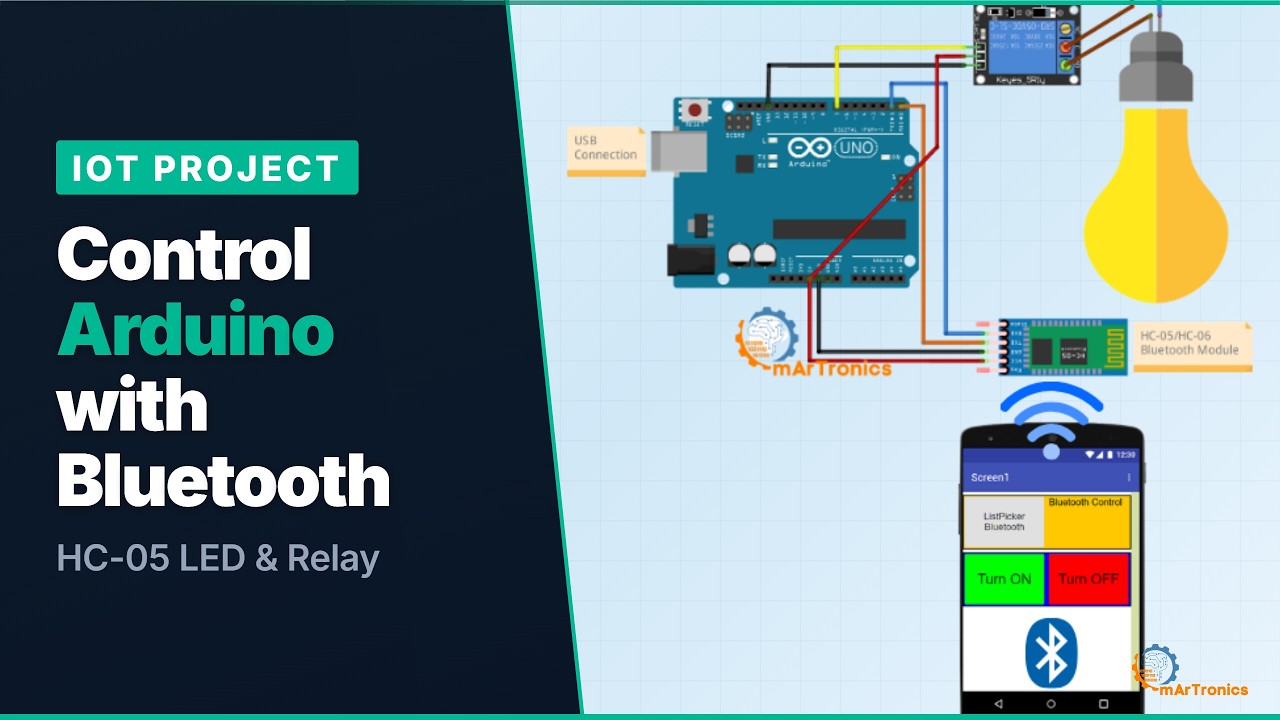
You connect an HC-05 or HC-06 Bluetooth module to an Arduino. An Android app built in MIT App Inventor switches the Arduino’s outputs. Project 1 switches an LED. Project 2 uses the same module and app and switches a 230 V lamp through a relay. If you are new to Arduino, start with the Arduino programming basics guide.
HC-05 vs. HC-06: which module to choose
The HC-05 and HC-06 are two of the most common Bluetooth modules in Arduino projects. Both are Bluetooth Classic modules (version 2.0). Bluetooth Classic is the original Bluetooth standard; Bluetooth Low Energy (BLE) is a newer, separate standard. The modules connect to the Arduino through its serial port, the TX (transmit) and RX (receive) pins. The main difference: the HC-05 can work as master or slave, the HC-06 only as slave. A master starts a connection; a slave waits for one.
- HC-06: enough when a phone or PC sends commands to the Arduino, as in both projects here. Your smartphone is the master, the module is the slave. It is slightly cheaper.
- HC-05: needed for master mode, for example when two Arduinos talk to each other; at least one side must be an HC-05 set as master.
I used an HC-05 in my Bluetooth robot car, my 6-DOF robotic arm with Bluetooth control and the OmObiArm mobile robot. In all three, the phone is the master, so an HC-06 would work as well.
Technical comparison table
| Feature | HC-05 | HC-06 |
|---|---|---|
| Role | Master and slave | Slave only |
| Bluetooth version | 2.0 (Bluetooth Classic) | 2.0 (Bluetooth Classic) |
| Range | Class 2, about 10 m | Class 2, about 10 m |
| VCC (breakout board) | 3.6 to 6 V, powered from the Arduino’s 5 V pin | 3.6 to 6 V, powered from the Arduino’s 5 V pin |
| Default baud rate | 9600 on most modules (AT command mode: 38400) | 9600 |
| Baud rate configurable | Yes, 2400 to 1382400 with AT commands | Yes, with AT+BAUD commands on most firmware versions |
| Default PIN | 1234 | 1234 (some modules: 0000) |
Class 2 is a Bluetooth power class; Class 2 devices reach about 10 m. VCC is the supply pin of the breakout board, the small carrier board with pins that holds the module. AT commands are short text commands that read or change module settings such as name, PIN and baud rate. The HC-05 accepts them in its AT command mode, which runs at 38400 baud.
How the Bluetooth link works
- Arduino serial port: the Arduino sends data on its TX pin (pin 1) and receives data on its RX pin (pin 0). Serial.begin() sets the speed in bits per second (baud rate); Serial.read() reads one received byte.
- Bluetooth module: a wireless serial bridge. Every byte the phone sends arrives at the Arduino’s RX pin unchanged, as if it came through the USB cable.
- Phone app: sends one character per command, ‘1’ for ON and ‘0’ for OFF.
- Arduino sketch (the program on the board): reads the character and sets pin 7 HIGH (5 V) or LOW (0 V), which switches the LED or the relay.

The same one-character pattern works for motors, servos or displays. For the board itself, see what Arduino is and how it works.
Components
Core components (both projects)
| Component | Quantity | Notes |
|---|---|---|
| HC-05 or HC-06 Bluetooth module | 1 | Either module works for both projects |
| Arduino Uno, Nano or Mega | 1 | For other boards, see the FAQ |
| 1 kΩ resistor | 1 | Voltage divider |
| 2 kΩ resistor | 1 | Voltage divider (or two 1 kΩ in series) |
| Breadboard | 1 | For prototyping connections |
| Jumper wires (male-to-male) | Several | Connections between board, breadboard and module |
| USB cable for your board | 1 | USB-B for Uno/Mega; Mini-USB, Micro-USB or USB-C for Nano, depending on the version |
| Android smartphone or tablet | 1 | Runs the control app |
Additional components for Project 1: LED control
| Component | Quantity | Notes |
|---|---|---|
| LED (any color) | 1 | Standard 5 mm through-hole LED |
| 220 Ω resistor | 1 | Current-limiting resistor: limits the current through the LED |
Additional components for Project 2: relay and lamp
| Component | Quantity | Notes |
|---|---|---|
| Relay module (5 V, single channel) | 1 | Opto-isolated module recommended (an optocoupler separates the Arduino input from the relay coil circuit) |
| Lamp (230 V or 110 V) | 1 | A small mains lamp within the relay’s contact rating (printed on the relay, often 10 A at 250 V AC; AC means alternating current) |
| Lamp holder and power cable | 1 | For safe mains wiring |
Project 1: Bluetooth LED control
The phone switches an LED on pin 7.
Circuit wiring for LED control
Connect the module and the LED as in the two tables below. The module’s TXD pin (transmit) goes to the Arduino’s RX (pin 0), and the module’s RXD pin (receive) goes to the Arduino’s TX (pin 1). They cross over.
The module’s RXD input works at 3.3 V, but the Arduino’s TX pin outputs 5 V, so this line needs a voltage divider: two resistors in series that reduce the voltage. Wire Arduino TX (pin 1) → 1 kΩ → module RXD, and module RXD → 2 kΩ → GND (ground, 0 V). The module then sees 5 V × 2 kΩ / (1 kΩ + 2 kΩ) ≈ 3.3 V.
| Module pin | Arduino pin | Notes |
|---|---|---|
| VCC | 5 V | Power supply for the module |
| GND | GND | Common ground |
| TXD | RX (pin 0) | Module transmit → Arduino receive |
| RXD | TX (pin 1) | Through the voltage divider (1 kΩ + 2 kΩ) |
| LED pin | Arduino pin | Notes |
|---|---|---|
| Anode (long leg) | Pin 7, through the 220 Ω resistor | Digital output pin |
| Cathode (short leg) | GND | Common ground |
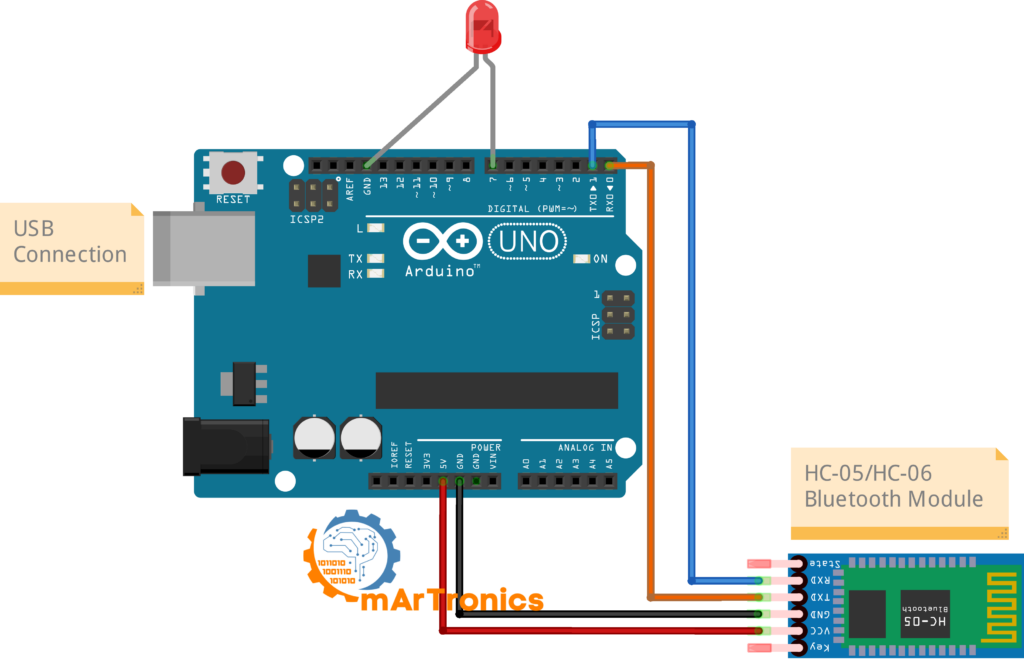
The diagram shows the direct connections only. Add the voltage divider and the 220 Ω resistor from the tables above.
Arduino code for Bluetooth LED control
The sketch listens for incoming characters on the serial port and switches the LED on pin 7.
Before uploading: disconnect the Bluetooth module from pins 0 and 1. The Arduino uses the same two pins for USB programming. If the module stays connected, the upload usually fails with an error such as “avrdude: stk500_getsync(): not in sync”. This caused me problems on my Bluetooth robot car. Reconnect the module after the upload.
/**
 * Author: Omar Draidrya
 * Date: 2024/06/26
 * Bluetooth LED Control -- HC-05 / HC-06 Arduino Tutorial
 * Receives '1' or '0' from a smartphone via Bluetooth
 * and turns an LED on or off.
 */

#define ledPin 7 // Pin for the LED

char state = 0; // Variable to store incoming data

void setup() {
  pinMode(ledPin, OUTPUT);      // Set the LED pin as output
  digitalWrite(ledPin, LOW);    // Initialize the LED state to OFF
  Serial.begin(9600);           // Start serial at 9600 baud
}

void loop() {
  if (Serial.available() > 0) {       // Check if data is available
    state = Serial.read();             // Read the incoming byte

    if (state == '0') {                // If '0' is received
      digitalWrite(ledPin, LOW);       // Turn LED OFF
      Serial.println("LED: OFF");      // Send confirmation back
    } else if (state == '1') {         // If '1' is received
      digitalWrite(ledPin, HIGH);      // Turn LED ON
      Serial.println("LED: ON");       // Send confirmation back
    }
  }
}
Code explanation: LED sketch
- #define ledPin 7: before compiling, every ledPin in the sketch is replaced by 7. It is a fixed value, not a variable. Change the number to use another digital pin.
- Serial.begin(9600): starts serial communication at 9600 baud. The value must match the baud rate of your module. The HC-06 and most HC-05 modules use 9600, and so does the HC-05 in my video. If yours ships at 38400, change this line to Serial.begin(38400) or set the module to 9600 with AT commands.
- Serial.available(): returns the number of received bytes waiting in the serial buffer, a small memory area where incoming bytes wait until the sketch reads them. When the phone sends a character, this becomes greater than 0.
- Serial.read(): reads one byte from the serial buffer and stores it in the state variable.
- if (state == ‘1’): compares the received character to ‘1’. If it matches, digitalWrite(ledPin, HIGH) turns the LED on. If ‘0’ arrives, the LED turns off. ‘1’ in quotes is the character; 1 without quotes would be the number, and the comparison would fail.
- Serial.println(): sends a confirmation text back over Bluetooth. The app built here does not display it; a Bluetooth serial terminal app on the phone does.
To put the HC-05 into AT command mode, hold its KEY/EN pin HIGH while you power it up. In this mode, commands such as AT+UART? read or change the module settings.
Building the control app with MIT App Inventor
The Arduino needs an Android app that sends the characters. MIT App Inventor is a free visual programming platform: you program with blocks instead of typed code. The same app works for both projects. The Arduino code decides what happens when ‘1’ or ‘0’ arrives, not the app.
Step 1: Create a project
- Open MIT App Inventor and log in with your Google account.
- Click “Start New Project” and name it “BluetoothControl”.
Step 2: Design the user interface
Set the Title of Screen1 to “Bluetooth Control”. In the Designer view, add these components and keep their default names, because the blocks below use them:
- Label1: text “Not Connected”. It shows the connection status.
- ListPicker1: text “Select Bluetooth Device”. It lists the Bluetooth devices already paired with the phone.
- Button1: text “Turn ON”.
- Button2: text “Turn OFF”.
- BluetoothClient1 from the Connectivity palette. It is a non-visible component: it does not appear on the screen and handles the Bluetooth connection.
Step 3: Program the blocks
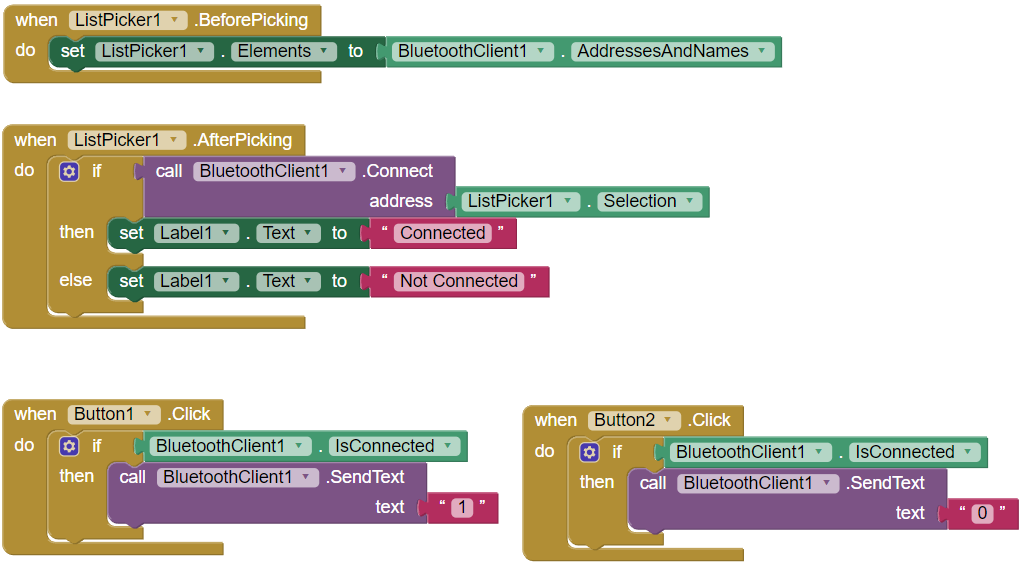
Switch to the Blocks editor and build this logic:
when ListPicker1.BeforePicking
  set ListPicker1.Elements to BluetoothClient1.AddressesAndNames

when ListPicker1.AfterPicking
  if call BluetoothClient1.Connect address ListPicker1.Selection
    then set Label1.Text to "Connected"
    else set Label1.Text to "Not Connected"

when Button1.Click
  if BluetoothClient1.IsConnected
    call BluetoothClient1.SendText text "1"

when Button2.Click
  if BluetoothClient1.IsConnected
    call BluetoothClient1.SendText text "0"
- ListPicker1.BeforePicking loads the names and addresses of all paired devices into the list before it opens.
- ListPicker1.AfterPicking connects to the selected device. On success, Label1 shows “Connected”; otherwise it stays at “Not Connected”.
- Button1.Click and Button2.Click send the text “1” or “0” while a connection is open. The Arduino reads these characters and acts on them.
Step 4: Build and install the app
In MIT App Inventor, open Build → Android App (.apk) and scan the QR code with your phone to install the app. An .apk file is the installation file of an Android app. Allow installation from this source when Android asks. On Android 12 or newer, allow the Nearby devices permission; if the device list stays empty, enable it under Settings → Apps → BluetoothControl → Permissions.
I downloaded the .apk to my computer instead, copied it to my Android tablet and installed it with the file manager. On the tablet, the app’s device list stayed empty until I allowed Nearby devices and paired the module.
Connecting your smartphone to the module
You pair each module with your phone only once.
Step 1: Pair the Bluetooth module
- Power the Arduino via USB or an external supply. The module’s LED blinks fast: it is in pairing mode and waits for a connection.
- On your Android phone, open Settings → Bluetooth and switch Bluetooth on.
- Scan for devices. The module appears as “HC-05” or “HC-06”; some modules use another name, for example “linvor” on older HC-06 firmware.
- Tap it to pair and enter the PIN 1234 (on some HC-06 modules: 0000).
- The module now appears under “Paired devices”. Pairing alone does not change the LED. Once the app connects, the HC-05 LED blinks twice about every 2 s and the HC-06 LED stays on.
Step 2: Connect via the app
- Open the BluetoothControl app.
- Tap “Select Bluetooth Device”. The list shows the paired devices.
- Select the module. Label1 changes to “Connected”.
- Press “Turn ON” to send ‘1’ and “Turn OFF” to send ‘0’.
If the module is missing from the list, check that it has power and that you paired it in the phone’s Bluetooth settings. The ListPicker only shows paired devices.
Project 2: Relay and 230 V lamp control
Project 2 replaces the LED with a relay module. A relay is an electrically controlled switch: the Arduino drives its coil, and its contact opens or closes the 230 V (or 110 V) lamp circuit. The contact has two terminals you need here: COM (common) and NO (normally open). NO is connected to COM only while the relay is on.
⚠ Safety warning: Mains voltage (230 V or 110 V) can cause serious injury or death. If you have no experience with mains wiring, do not build Project 2; work with a qualified electrician. Test first with a low-voltage load on the relay’s COM and NO terminals, for example a 5 V buzzer or a 12 V LED strip with its own supply. Check that the relay clicks. Insulate every mains connection and put the relay module and all mains wiring in a closed, insulated enclosure with strain relief on the cable. Cheap relay modules leave little distance between the mains contacts and the low-voltage side, so never touch the circuit while it is plugged in. The low-voltage test needs no code change: the sketch and the wiring on the Arduino side stay the same.
Circuit wiring for relay lamp control
The Bluetooth wiring is the same as in Project 1. Only the output changes: pin 7 now drives the relay module’s IN pin.
| Relay module pin | Arduino pin | Notes |
|---|---|---|
| VCC | 5 V | Power for the relay module |
| GND | GND | Common ground |
| IN | Pin 7 | Control signal from the Arduino |
| Wire | Connects to | Notes |
|---|---|---|
| Mains live (L) | Relay COM | Only the live wire is switched |
| Lamp live wire | Relay NO | Connected to COM while the relay is on |
| Mains neutral (N) | Lamp neutral wire, directly | Does not pass through the relay |
| Protective earth (PE, green-yellow) | Lamp earth terminal, directly | Required for lamps with a metal housing; never through the relay |
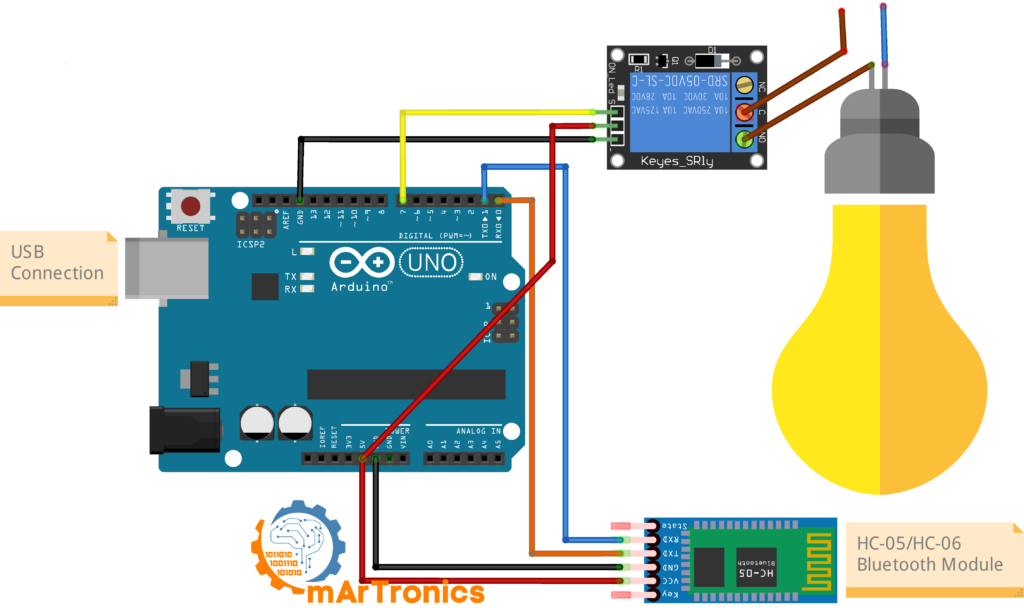
This diagram also shows the direct connections only. Keep the voltage divider from Project 1 on the module’s RXD line.
Arduino code for Bluetooth relay control
The relay sketch follows the LED sketch; pin 7 now drives the relay’s IN pin. Upload it with the module disconnected from pins 0 and 1, as in Project 1.
/**
 * Author: Omar Draidrya
 * Date: 2024/06/26
 * Bluetooth Relay/Lamp Control -- HC-05 / HC-06 Arduino Tutorial
 * Receives '1' or '0' from a smartphone via Bluetooth
 * and switches a relay (connected to a lamp) on or off.
 */

#define relayPin 7   // Pin connected to relay IN

int state = 0;       // Variable to store incoming data

void setup() {
  pinMode(relayPin, OUTPUT);       // Set relay pin as output
  digitalWrite(relayPin, LOW);     // Initialize relay to OFF
  Serial.begin(9600);              // same baud rate as Project 1
}

void loop() {
  if (Serial.available() > 0) {        // Check if data is available
    state = Serial.read();              // Read the incoming byte
  }

  if (state == '0') {
    digitalWrite(relayPin, LOW);        // Turn Relay OFF
    Serial.println("Lamp: OFF");        // Send confirmation back
    state = 0;                          // Reset state
  } else if (state == '1') {
    digitalWrite(relayPin, HIGH);       // Turn Relay ON
    Serial.println("Lamp: ON");         // Send confirmation back
    state = 0;                          // Reset state
  }
}
Code explanation: relay sketch
- state = 0; after each action: the if/else check runs outside the Serial.available() block. Without the reset, the sketch would repeat the last command and send “Lamp: ON” in every pass of loop(). The reset makes each command run once.
- Relay logic: relay modules differ. Some switch on when IN is HIGH (active-HIGH); many opto-isolated modules switch on when IN is LOW (active-LOW), and some have a jumper to choose. My module in the video is active-HIGH: 5 V on IN closes the relay contact and the lamp lights, 0 V opens it. If the lamp is on right after power-up or reacts inverted, swap HIGH and LOW in the sketch, including the line in setup().
Reconnect the module and test with the same app. The relay clicks when you press “Turn ON” and releases when you press “Turn OFF”.
Troubleshooting
Wiring and hardware issues
| Problem | Likely cause | Solution |
|---|---|---|
| Phone cannot find the module | Module not powered or not in pairing mode | Check that the module’s LED blinks fast. Verify VCC and GND. Check that Bluetooth is on in the phone. |
| Communication fails, or the TX/RX wiring looks wrong | TX and RX swapped | Module TXD goes to Arduino RX (pin 0), module RXD goes to Arduino TX (pin 1). They cross over. |
| LED does not switch on or off | Wrong pin or missing resistor | LED anode to pin 7 through the 220 Ω resistor, cathode to GND. Verify pin 7 in the code. |
| Relay clicks but lamp stays off | Incorrect mains wiring at the relay | Live wire to COM, lamp live wire to NO, neutral directly to the lamp. |
| Lamp is on right after power-up, or reacts inverted | Active-LOW relay module | Swap HIGH and LOW in the sketch, including setup(). Check the module for an H/L jumper. |
Serial communication and app issues
| Problem | Likely cause | Solution |
|---|---|---|
| No response from the Arduino after uploading | Module was connected during upload | Disconnect the module from pins 0 and 1 before uploading. USB and the module share these pins. |
| App connects, Arduino does not react | Baud rate in Serial.begin() does not match the module, or the buttons send the wrong characters | Set Serial.begin(9600) (or 38400). Check that Button1 sends the text “1” and Button2 the text “0”, not numbers; the sketch compares character literals. |
| HC-05 LED blinks slowly, one blink about every 2 s (not the double blink of a connection) | Module is in AT command mode (KEY pin HIGH at power-up) | Disconnect the KEY pin and switch the module’s power off and on. |
| HC-06 LED stays on, app cannot connect | Module is already connected to another device | Disconnect the other device. |
| App shows “Not Connected” after selecting the device | Module connected to another device, or pairing expired | Unpair and re-pair the module in the phone’s Bluetooth settings. Make sure no other phone or app is connected to the module. |
| Device list in the app is empty (Android 12 or newer) | Nearby devices permission missing | Settings → Apps → BluetoothControl → Permissions, allow Nearby devices. |
Frequently asked questions
Can I control more than one LED or relay with this setup? Yes. Extend the code with more characters (‘2’, ‘3’, ‘A’, ‘B’), each assigned to a different pin, and add one button per character in the app. The Bluetooth-controlled robot car uses this approach for its motor commands.
Does this work with an iPhone? No. The HC-05 and HC-06 use Bluetooth Classic with the Serial Port Profile (SPP), which iOS does not support for this kind of module. An iPhone needs a BLE module such as the HM-10, or the ESP32 with its built-in BLE.
How far does the Bluetooth connection reach? Both modules are Class 2 Bluetooth devices with a range of about 10 m (33 feet) in open air. Walls and furniture reduce it.
Can I use SoftwareSerial instead of pins 0 and 1? Yes. The SoftwareSerial library turns two other digital pins into a serial port. This avoids the upload conflict and keeps the Serial Monitor (the Arduino software’s window for serial text) free for finding errors. SoftwareSerial becomes unreliable at high baud rates, so keep it at 9600. Wire module TXD to pin 10 and module RXD to pin 11 through the same voltage divider. With the Adafruit Motor Shield V1 of my robot cars, pin 11 drives motor M1; use A0 and A1 there.
Can I use this with other Arduino boards? Yes. On the Uno and Nano, use the wiring and code as shown. On the Mega, Serial1 (pins 18/19), Serial2 (16/17) or Serial3 (14/15) are alternatives that avoid the upload conflict on pins 0 and 1. On the Leonardo and Micro, Serial is the USB port; a module on pins 0 and 1 is Serial1, so replace Serial with Serial1 in the sketch.
Resources and next projects
Beginner follow-up projects
- Arduino Programming Basics: digital I/O, variables and serial communication.
- Arduino Servo Motor Control Guide: add servo movement to the Bluetooth commands.
- L298N Motor Driver with Arduino: DC motor control for Bluetooth-controlled vehicles. The L298N contains two H-bridges, circuits that drive a DC motor in both directions. My robot cars use motor shields that work on the same principle.
Advanced Bluetooth projects
- Bluetooth-Controlled Robot Car: a smartphone-controlled car with Arduino, HC-05 and the Adafruit Motor Shield.
- OmObi Robot Car: an upgraded version of the Bluetooth robot car with a custom 3D-printed chassis.
- DIY 6-DOF Robotic Arm with Bluetooth Control: a six-axis arm controlled from a phone through an HC-05 and a custom app.
- OmObiArm: Mobile Robot with Integrated Robotic Arm: a mobile platform plus arm, controlled from one app.
- Obstacle-Avoiding Robot Car: an autonomous car that avoids obstacles with an ultrasonic sensor.
Next step: map more characters to more pins (see the FAQ), or build the Bluetooth-controlled robot car from the list above. If your module behaves differently, post its version and baud rate in the comments.
2 thoughts on “Arduino and HC-05/HC-06 Bluetooth Module Complete Tutorial”