
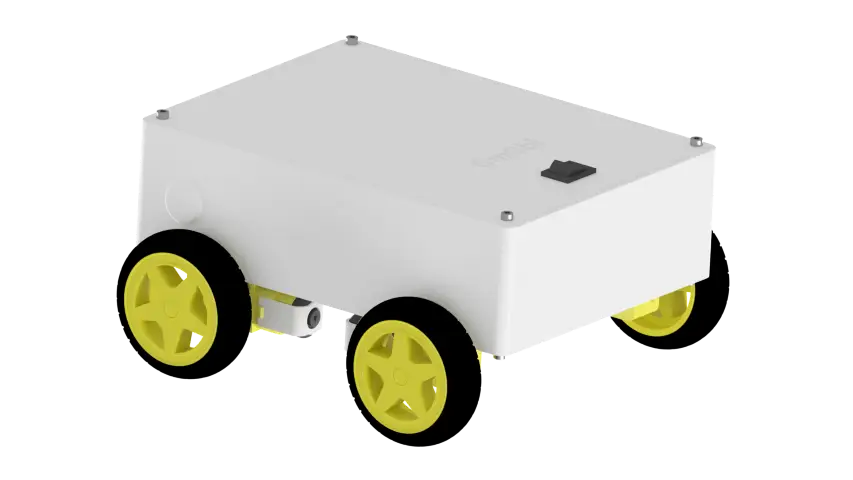

📋 Quick Summary
Build OmObi, a Bluetooth-controlled robot car using Arduino Uno, HC-05 Bluetooth module, and Adafruit Motor Shield V1. This tutorial covers 3D-printed chassis design, motor wiring, Bluetooth pairing, and smartphone control with a MIT App Inventor app. Drive forward, backward, turn, and stop your robot wirelessly.
Have you ever wanted to build a robot car you can drive from your phone? In this OmObi robot car tutorial, I will walk you through building a Bluetooth controlled robot car using an Arduino Uno, an HC-05 Bluetooth module, and the Adafruit Motor Shield V1.2. It is a great DIY Bluetooth controlled car Arduino project whether you are just starting out or already have some experience.
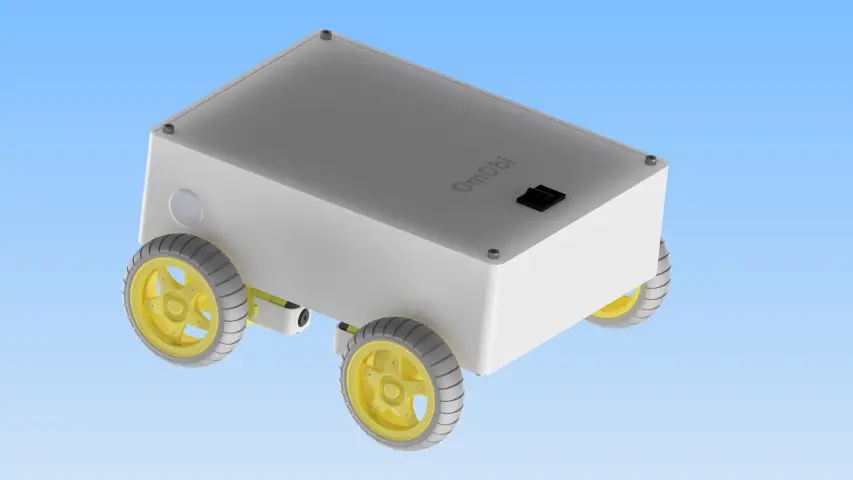
We will cover everything from assembling the four-wheel-drive chassis and wiring the motors to uploading the Arduino code and creating an Android control app with MIT App Inventor. Once you are done, your robot car will respond to forward, backward, left, right, and stop commands sent wirelessly from your smartphone.
If you are new to Bluetooth communication with Arduino, consider reading our complete HC-05/HC-06 Arduino Bluetooth tutorial first. For a general introduction to Arduino programming, see our Arduino programming basics guide.
What You Will Learn
By the time you finish this OmObi robot car tutorial, you will know how to:
- Build the OmObi four-wheel-drive robot car chassis using a 3D-printed frame and motor mounts
- Understand how the Adafruit Motor Shield controls four DC motors simultaneously
- Wire the HC-05 Bluetooth module to the Arduino for wireless serial communication
- Write Arduino code that interprets single-character Bluetooth commands and drives motors accordingly
- Build a simple Android control app using MIT App Inventor with directional buttons
- Test, tune, and troubleshoot the finished Bluetooth controlled robot car
How the OmObi Robot Car Works
Before you start building, it helps to understand how all the parts fit together. There are four main components in this Adafruit Motor Shield robot car project: the Android phone, the HC-05 Bluetooth module, the Arduino Uno, and the Adafruit Motor Shield with four DC motors.
The Android phone runs a custom app built with MIT App Inventor. When you press a directional button (forward, backward, left, or right), the app sends a single character command (F, B, L, R, or S for stop) over Bluetooth.
Next, the HC-05 Bluetooth module receives that command wirelessly and passes it to the Arduino through the serial connection on pins 0 (RX) and 1 (TX). Essentially, the HC-05 acts as a wireless serial bridge between the phone and the Arduino. To learn more about how the HC-05 and HC-06 modules work, see our complete HC-05/HC-06 Arduino Bluetooth tutorial.
Then, the Arduino Uno reads the incoming character from the serial buffer. Based on the command received, it calls the appropriate movement function (forward, backward, turnLeft, turnRight, or stop).
Finally, the Adafruit Motor Shield V1.2 sits on top of the Arduino and drives four DC motors through its M1, M2, M3, and M4 output terminals. The shield uses the AFMotor library to control motor direction (FORWARD, BACKWARD, RELEASE) and speed (0 to 255). In this project, the left-side motors connect to M1 and M2, while the right-side motors connect to M3 and M4. For turning, one side runs forward while the other runs backward, which creates a tank-style turn.
For a deeper look at motor driver principles, see our L298N motor driver tutorial with Arduino.
Complete Bill of Materials for the OmObi Robot Car
Here is the bill of materials for this DIY Bluetooth controlled car Arduino project. You can find most of these parts online or in electronics starter kits.
| Component | Qty | Required? | Purpose | Notes |
|---|---|---|---|---|
| Arduino Uno | 1 | Required | Main microcontroller | Any Uno-compatible board works |
| Adafruit Motor Shield V1.2 | 1 | Required | Drives four DC motors | Stacks directly on top of the Arduino |
| HC-05 Bluetooth Module | 1 | Required | Wireless serial communication with phone | HC-06 also works (slave-only) |
| DC Motors with Gearboxes | 4 | Required | Drive the four wheels | Typically 3-6 V geared motors |
| Wheels | 4 | Required | Attach to motor shafts | Match to your gearbox shaft size |
| 3D-Printed Chassis | 1 | Required | Robot car base frame | Plexiglas or acrylic sheet also works |
| 3D-Printed Motor Mounts | 4 | Optional | Secure motors to chassis | Can substitute with metal L-brackets |
| 3D-Printed Arduino Holder | 1 | Optional | Mount Arduino to chassis | Double-sided tape or standoffs also work |
| Battery Pack (4xAA or similar) | 1 | Required | Powers motors and Arduino | 6 V pack recommended; use fresh batteries |
| Jumper Wires | Several | Required | Connect HC-05 to Arduino | Use jumper wires with pin headers for HC-05 |
| Screws, Nuts, Standoffs | Assorted | Required | Mechanical assembly | M3 size is common |
| Android Smartphone | 1 | Required | Runs the MIT App Inventor control app | Must support Bluetooth Classic |
Step 1: Mounting the Motors and Wheels
The first thing you need to do when building the OmObi robot car is mount the DC motors and wheels to the chassis.
Attach the Motors
Start by using screws and nuts to secure the four DC motors to the 3D-printed motor mounts. Make sure the motor shafts point outward and that all four motors are oriented the same way so the wheels spin in the expected direction. If you do not have 3D-printed mounts, you can also use metal L-brackets or hot glue as a temporary fix.
Mount the Wheels
Next, press the wheels onto the motor shafts. Make sure they are firmly attached and spin freely without rubbing on the chassis or each other.
Step 2: Mounting the Arduino and Motor Shield
With the motors in place, now secure the Arduino Uno and the Adafruit Motor Shield to the chassis.
Secure the Arduino Holder
First, attach the 3D-printed Arduino holder to the center or rear of the chassis. Leave enough room at the front or sides for the battery pack. Alternatively, use standoffs with M3 screws through the Arduino mounting holes, or simply attach the board with double-sided foam tape.
Place the Arduino and Shield
After that, set the Arduino Uno into the holder and secure it with screws. Then place the Adafruit Motor Shield on top of the Arduino, pressing it down gently so that all header pins are properly aligned and fully seated. The shield should sit flush with no pins misaligned.
Step 3: Wiring the Components
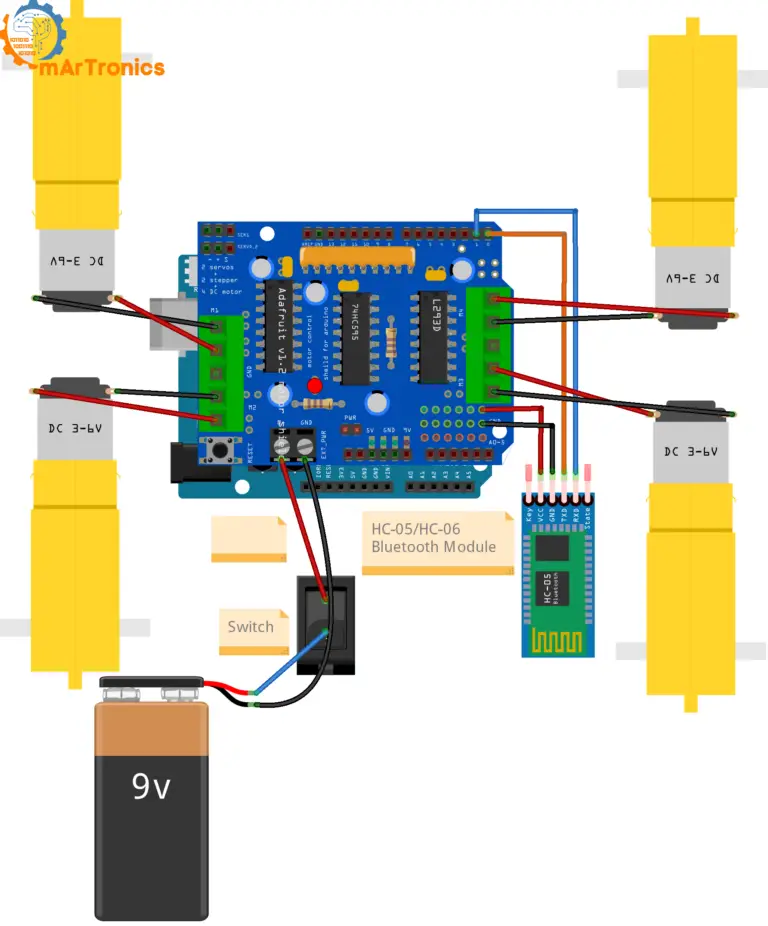
Getting the wiring right matters a lot because a single wrong connection can mean motors spinning the wrong way or Bluetooth not working at all. This section covers the motor connections, HC-05 Bluetooth wiring, and power connections. Use the wiring diagram below as a reference.
Motor Connections
| Motor | Shield Terminal | Position on Car |
|---|---|---|
| Motor 1 | M1 | Left side (front or rear) |
| Motor 2 | M2 | Left side (front or rear) |
| Motor 3 | M3 | Right side (front or rear) |
| Motor 4 | M4 | Right side (front or rear) |
To wire the motors, connect the two left-side motors to terminals M1 and M2, and the two right-side motors to terminals M3 and M4. Each motor has two wires; insert them into the screw terminals on the shield and tighten securely.
HC-05 Bluetooth Module Connections
| HC-05 Pin | Arduino Pin | Notes |
|---|---|---|
| VCC | 5V | Powers the HC-05 module |
| GND | GND | Common ground |
| TXD | RX (Pin 0) | HC-05 transmits data to Arduino |
| RXD | TX (Pin 1) | Arduino transmits data to HC-05 |
Important: Hardware Serial (Pins 0/1) and Upload Conflicts
Warning: In this project, the HC-05 is connected to Arduino pins 0 (RX) and 1 (TX). These are the same pins used by the USB serial connection for uploading sketches and Serial Monitor communication. Because of this, you must disconnect the HC-05 module (at least the RX/TX wires) every time you upload new code to the Arduino. If the HC-05 stays connected during upload, the upload will fail because the Bluetooth module interferes with the USB serial data. Once the upload is done, reconnect the HC-05 and reset the Arduino.
On top of that, you will not be able to use Serial Monitor for debugging while the HC-05 is connected to pins 0/1. However, if you need simultaneous Bluetooth and Serial Monitor, use the SoftwareSerial library on different pins (for example, pins 2 and 3). For more details on wiring and using the HC-05 module, refer to our HC-05/HC-06 Arduino Bluetooth tutorial.
Power Connections
For power, connect the positive and negative terminals of the battery pack to the power input terminals on the Adafruit Motor Shield. As a result, the shield passes power to the motors and can also power the Arduino through its onboard regulator. Make sure the ground connections between the battery pack, the shield, and the Arduino are all common. Use fresh batteries (6V recommended) for reliable motor performance.
Step 4: Powering the Bluetooth-Controlled Car
For this OmObi robot car project, a 4xAA battery pack (6V total) works well and is easy to find. Connect the battery pack to the external power terminals on the Adafruit Motor Shield. From there, the shield distributes power to the motors and can supply the Arduino through its power jumper.
If you are using a power switch, make sure it is easy to reach so you can turn the car on and off quickly. Avoid 9V block batteries here because they cannot provide enough current for four DC motors under load. If you want longer run time or more torque, a rechargeable Li-ion pack with a voltage regulator is a better choice.
Step 5: Programming the Arduino for Bluetooth Control
The Arduino sketch below receives single-character commands from the HC-05 Bluetooth module over the hardware serial connection and drives the four DC motors accordingly. This is the code that makes your Bluetooth controlled robot car work.
If you want a broader introduction to controlling DC motors with Arduino, see our tutorial on DC motor control with the L298N driver and Arduino Motor Shield.
Important: Before uploading this sketch, disconnect the HC-05 module from pins 0 and 1. Reconnect after the upload completes, and then reset the Arduino.
GitHub Repository: App and Code
/**
 * Author: Omar Draidrya
 * Date: 2024/07/03
 * Bluetooth-controlled 4WD robot car (OmObi) using Adafruit Motor Shield V1.2 and HC-05.
 * Receives single-character commands (F/B/L/R/S) via serial from the HC-05
 * Bluetooth module and drives four DC motors on terminals M1-M4 accordingly.
 */
#include <AFMotor.h>
AF_DCMotor motor1(1);  // Create motor #1 using M1 connector
AF_DCMotor motor2(2);  // Create motor #2 using M2 connector
AF_DCMotor motor3(3);  // Create motor #3 using M3 connector
AF_DCMotor motor4(4);  // Create motor #4 using M4 connector

char command;

void setup() {
  Serial.begin(9600);     // Start serial communication at 9600 baud rate
  motor1.setSpeed(255);   // Set initial motor speeds
  motor2.setSpeed(255);
  motor3.setSpeed(255);
  motor4.setSpeed(255);
}

void loop() {
  if (Serial.available() > 0) {
    command = Serial.read();  // Read the incoming command
    if (command == 'F') { forward(); }
    else if (command == 'B') { backward(); }
    else if (command == 'L') { turnLeft(); }
    else if (command == 'R') { turnRight(); }
    else if (command == 'S') { stop(); }
  }
}

void forward() {
  motor1.run(FORWARD);
  motor2.run(FORWARD);
  motor3.run(FORWARD);
  motor4.run(FORWARD);
}

void backward() {
  motor1.run(BACKWARD);
  motor2.run(BACKWARD);
  motor3.run(BACKWARD);
  motor4.run(BACKWARD);
}

void turnLeft() {
  motor1.run(BACKWARD);
  motor2.run(BACKWARD);
  motor3.run(FORWARD);
  motor4.run(FORWARD);
}

void turnRight() {
  motor1.run(FORWARD);
  motor2.run(FORWARD);
  motor3.run(BACKWARD);
  motor4.run(BACKWARD);
}

void stop() {
  motor1.run(RELEASE);
  motor2.run(RELEASE);
  motor3.run(RELEASE);
  motor4.run(RELEASE);
}
Code Explanation: AFMotor Library and Motor Setup
The code starts by including AFMotor.h, which is the Adafruit Motor Shield library. This library gives you a straightforward way to control DC motors connected to the shield. Then, four motor objects are created: motor1(1) through motor4(4), corresponding to the M1 to M4 terminals on the shield. During setup(), the serial communication is initialized at 9600 baud (matching the HC-05 default baud rate), and all four motors are set to full speed (255 out of 255).
Code Explanation: Motor Mapping (M1 to M4)
In this setup, motors 1 and 2 (M1, M2) are on the left side, and motors 3 and 4 (M3, M4) are on the right. This mapping matters because the turning logic depends on driving the left and right sides independently. If your car turns the wrong way or drives backward when you expect forward, you can swap the motor connections at the shield terminals or swap the FORWARD/BACKWARD constants in the code.
Code Explanation: Bluetooth Command Protocol
The command protocol is simple: the app sends a single ASCII character, and the Arduino reads it from the serial buffer in loop(). There are five commands: F (forward), B (backward), L (turn left), R (turn right), and S (stop). Since each command is just one character, the response time is fast enough for real-time control.
Code Explanation: Movement Functions
When called, forward() runs all four motors in the FORWARD direction, so the car drives straight ahead. Similarly, backward() runs all four motors in BACKWARD. turnLeft() runs the left motors (M1, M2) backward and the right motors (M3, M4) forward, creating a tank-style left turn. turnRight() does the opposite: left motors forward, right motors backward. stop() calls RELEASE on all motors, which cuts power and lets the car coast to a halt.
How to Change Speed
The motor speed is set in setup() using motor1.setSpeed(255). The value ranges from 0 (stopped) to 255 (full speed). If you want to slow the car down, just reduce this value. For instance, 150 gives roughly 60 percent speed. You can even set different speeds for turning versus straight driving by calling setSpeed() inside the movement functions.
How to Test the Code Safely
For your first test, I recommend propping the car up so the wheels do not touch the ground (use a box or a stack of books). That way you can verify each direction without the car driving off the table. Then connect via Bluetooth, send each command from the app, and confirm all four wheels spin in the expected direction. Once that checks out, set the car on the floor and test at low speed by reducing setSpeed() to around 120.
Step 6: Developing the Android App for Bluetooth Control
For the phone app, we will use MIT App Inventor to create a simple Android app that connects to the HC-05 module over Bluetooth and sends directional commands to the Arduino. MIT App Inventor is a free, browser-based visual programming tool, so you do not need to write any Java or Kotlin code to build your HC-05 robot car app.
To understand the basics of Arduino programming that the app communicates with, refer to our Arduino programming basics guide.
Register and Create a Project
Go to MIT App Inventor and log in with your Google account. Then, click “Start New Project” and name it “RobotCarControl”.
Design the User Interface
In the Designer view, you need to add the following components to your app screen:
- ListPicker – Set its text to “Select Bluetooth Device”. This lets the user choose which paired Bluetooth device to connect to.
- Label (Label1) – Add a Label component to display the connection status. The blocks will set this label to “Connected” or “Not Connected” depending on the Bluetooth connection result. This label is referenced as Label1 in the block code below, so make sure you add it to your interface.
- BluetoothClient – Drag this from the Connectivity palette. It is a non-visible component that handles Bluetooth communication.
- Four Buttons – Add buttons named ButtonForward, ButtonBackward, ButtonLeft, and ButtonRight. Set their text and colors to clearly indicate directions.
Program the Blocks
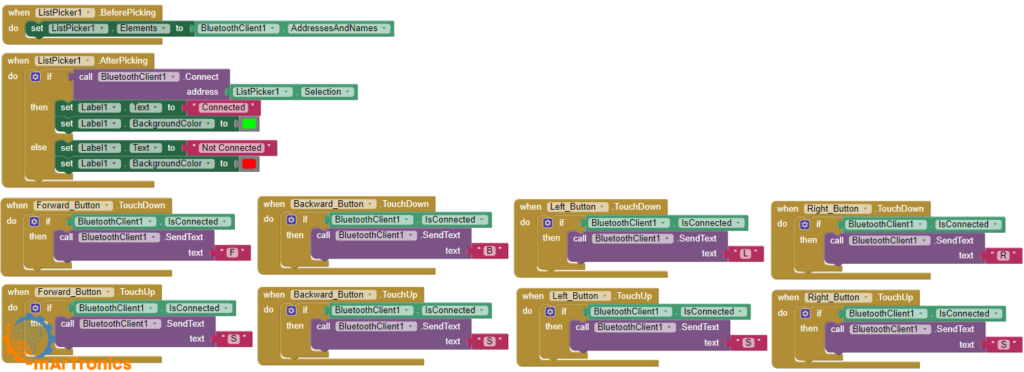
Next, switch to the Blocks view and add the following logic. These blocks handle Bluetooth device selection, connection, and sending movement commands when buttons are pressed and released.
when ListPicker1.BeforePicking
  set ListPicker1.Elements to BluetoothClient1.AddressesAndNames

when ListPicker1.AfterPicking
  if call BluetoothClient1.Connect address ListPicker1.Selection
    then set Label1.Text to "Connected"
    else set Label1.Text to "Not Connected"

when ButtonForward.TouchDown
  if BluetoothClient1.IsConnected
    call BluetoothClient1.SendText text "F"

when ButtonBackward.TouchDown
  if BluetoothClient1.IsConnected
    call BluetoothClient1.SendText text "B"

when ButtonLeft.TouchDown
  if BluetoothClient1.IsConnected
    call BluetoothClient1.SendText text "L"

when ButtonRight.TouchDown
  if BluetoothClient1.IsConnected
    call BluetoothClient1.SendText text "R"

when ButtonForward.TouchUp
  if BluetoothClient1.IsConnected
    call BluetoothClient1.SendText text "S"

when ButtonBackward.TouchUp
  if BluetoothClient1.IsConnected
    call BluetoothClient1.SendText text "S"

when ButtonLeft.TouchUp
  if BluetoothClient1.IsConnected
    call BluetoothClient1.SendText text "S"

when ButtonRight.TouchUp
  if BluetoothClient1.IsConnected
    call BluetoothClient1.SendText text "S"
Understanding the Block Logic
Here is how each block works. ListPicker.BeforePicking: When the user taps the ListPicker, it populates the list with all paired Bluetooth device addresses and names from BluetoothClient1.AddressesAndNames.
Then, ListPicker.AfterPicking: After the user selects a device, the app attempts to connect using BluetoothClient1.Connect with the selected address. If successful, Label1.Text is set to “Connected”; otherwise, it shows “Not Connected”. This is why the Label1 component must be present in your interface.
For the movement controls, TouchDown events: When the user presses (touches down on) a directional button, the app sends the corresponding command character (F, B, L, or R) via BluetoothClient1.SendText, but only if the Bluetooth connection is active.
TouchUp events: When the user releases (lifts their finger from) any directional button, the app sends “S” (stop). As a result, the robot moves only while you hold a button and stops immediately when you release it. This gives you precise real-time control.
Step 7: Connecting and Testing the Robot
At this point, the hardware is assembled, the code is uploaded, and the app is on your phone. It is time to bring everything together.
Pair the HC-05
First, turn on Bluetooth on your Android smartphone and go to Bluetooth settings. Then search for new devices. The HC-05 will appear as “HC-05” in the list. Pair with it using the default PIN code 1234 (or 0000 on some modules). You only need to pair once because the phone will remember the device after that.
Connect and Drive
Once paired, open the RobotCarControl app on your phone. Tap the “Select Bluetooth Device” ListPicker and choose the HC-05 from the list. The Label1 should display “Connected”. After that, press the directional buttons to drive the car. At that point, the robot should move forward, backward, turn left, turn right, and stop when you release the buttons.
How to Test and Tune the OmObi Robot Car
Getting the robot car to drive perfectly usually takes a bit of tuning after the initial build. Here are some practical steps I recommend for dialing in the performance of your Arduino Bluetooth car.
Test one direction at a time. To begin, send only the F command and confirming all four wheels spin forward. Then test B, L, and R individually.
Verify left/right motor orientation. For instance, if the car veers to one side during forward driving, one motor pair may be wired in reverse. Swap the two wires at the affected motor terminal on the shield.
Reduce speed during first tests. Instead of 255, try setSpeed(120). As a result, you get more reaction time and prevents crashes during indoor testing.
Fix wrong turning direction. If “Left” turns the car right, swap the left and right motor assignments in the code (change M1/M2 logic to M3/M4 and vice versa), or physically swap the motor wiring.
Improve responsiveness. If the car feels sluggish or delayed, first check that the HC-05 baud rate matches the Arduino serial baud rate (9600). In addition, make sure the batteries are fresh because low voltage causes slow motor response.
Troubleshooting Common Issues
If your Bluetooth controlled robot car is not working as expected, check the common issues below before starting over. In most cases, the problem comes down to a simple wiring mistake or a configuration mismatch.
HC-05 Pairs but the Car Does Not Move
The Bluetooth connection is established, but the motors do not respond. First, check that the HC-05 TXD pin is connected to Arduino RX (pin 0) and RXD to Arduino TX (pin 1). Also, verify that the baud rate in your Arduino code matches the HC-05 default (9600). Furthermore, make sure the motor shield is properly seated on the Arduino and that the battery pack is connected and turned on.
Arduino Upload Fails (RX/TX Conflict)
If you get upload errors like “avrdude: stk500_getsync(): not in sync”, the HC-05 is likely still connected to pins 0 and 1. Disconnect the HC-05 RX and TX wires, upload the sketch, then reconnect them. This is the most common issue when using hardware serial with a Bluetooth module.
Robot Moves in the Wrong Direction
If forward drives the car backward, try swapping the two wires for all four motors at the motor shield terminals. If the car turns opposite to the expected direction, swap the left-side and right-side motor connections or adjust the code.
One Side of the Car Does Not Move
Start by checking the wiring on the non-working side. Make sure the motor wires are firmly inserted into the screw terminals and that the terminal screws are tight. To narrow it down, test the motors individually by running only motor1 or motor3 in the code. Likewise, if a terminal on the shield is damaged, try using a different M-terminal.
App Connects but Buttons Do Nothing
First, verify that the app is sending the correct characters (F, B, L, R, S). In MIT App Inventor, also make sure the BluetoothClient component is properly linked in the blocks and that SendText uses the exact uppercase characters expected by the Arduino code. In addition, confirm that Label1 shows “Connected” after pairing.
Motors Are Weak or Inconsistent
Weak motors usually point to a power problem. Try replacing the batteries with fresh ones or switching to a higher-capacity battery pack. After all, four DC motors under load draw significant current, and depleted batteries cannot deliver enough. Also, check all power connections for loose wires.
Robot Keeps Moving After Button Release
This means the stop command (S) is not getting sent or received when you lift your finger. In the app, make sure every button has both a TouchDown block (to send the movement command) and a TouchUp block (to send “S”). In particular, if the TouchUp blocks are missing, the Arduino never receives the stop command.
Battery Power Is Insufficient
If the Arduino resets when motors start, or if the car behaves erratically, the battery pack probably cannot supply enough current. Instead, use a pack rated for at least 2A continuous output. For example, rechargeable NiMH AA batteries or a 2S Li-ion pack with a BMS work well for four-motor robot cars.
Frequently Asked Questions (FAQ)
Here are answers to common questions about this Bluetooth controlled robot car project, including compatible modules, app alternatives, and hardware troubleshooting.
Hardware and compatibility questions
Yes. The HC-06 works as a slave-only Bluetooth module, which is exactly what this project needs. The wiring and baud rate are the same. The only difference is that the HC-06 cannot initiate connections, but since the phone always initiates, this does not matter. See our HC-05 vs. HC-06 comparison for details.
This tutorial uses a custom app built with MIT App Inventor, which gives you full control over the interface and command mapping. Alternatively, you can use generic Bluetooth serial terminal apps from the Google Play Store, but you will need to type the command characters (F, B, L, R, S) manually instead of pressing buttons.
Not directly. The HC-05 uses Bluetooth Classic (SPP), which iOS does not support for third-party apps. To control the car from an iPhone, you would need to replace the HC-05 with a BLE (Bluetooth Low Energy) module like the HM-10 or use an ESP32 with BLE support, and modify the app accordingly.
This is almost always a power issue. When all four motors start simultaneously, the current spike can cause the supply voltage to drop below the Arduino minimum, triggering a reset. Use a battery pack with higher current capacity, and make sure the motor power and Arduino power share a common ground but ideally come from a source that can handle the load.
Yes, but the code library is different. The V2 shield uses the Adafruit_MotorShield library (I2C-based) instead of AFMotor.h. The wiring and motor terminal layout are similar, but you will need to rewrite the motor initialization and control portions of the code to use the V2 library API.
Customization and troubleshooting questions
The HC-05 has a typical range of about 10 meters (30 feet) in open air. Walls, interference from Wi-Fi routers, and other Bluetooth devices can reduce this range. For most indoor robot car projects, 10 meters is more than enough.
You can add a slider in MIT App Inventor that sends a speed value (for example, 0 to 255) as a separate command. In the Arduino code, read this value and call motorX.setSpeed(value) for all four motors. Use a different command prefix (like “V” followed by the number) to distinguish speed commands from direction commands.
Yes. For a two-wheel-drive car, connect the two motors to M1 and M3 (or any two terminals, one per side). Remove the unused motor objects from the code or simply leave them defined but unconnected. The turning and driving logic remains the same.
If the car turns in circles during a forward command, one side of the motors is wired in the reverse direction. Swap the two wires for the motors on the side that is spinning the wrong way at the shield screw terminals.
Yes. You need the Adafruit Motor Shield library (AFMotor.h). In the Arduino IDE, go to Sketch > Include Library > Manage Libraries, search for “Adafruit Motor Shield library”, and install it. This library is required for the AF_DCMotor class used in the code.
Resources and Next Projects
Now that you have the OmObi Bluetooth controlled robot car working, here are some related OmArTronics tutorials if you want to keep building:
- HC-05/HC-06 Arduino Bluetooth Module Complete Tutorial – Deep dive into Bluetooth serial communication, LED control, and relay-based lamp control with MIT App Inventor.
- L298N Motor Driver with Arduino: DC Motor Control Guide – Understand H-bridge motor driving, PWM speed control, and direction logic for DC motors.
- Building an Obstacle-Avoiding Robot Car with Arduino – Add ultrasonic sensors and autonomous navigation to a similar robot car platform.
- Advanced Autonomous and Bluetooth Robot Car with Arduino Mega – Scale up to an Arduino Mega with multiple ultrasonic sensors and combined autonomous and Bluetooth control modes.
- Building a Line Following Robot with KY-033 Sensors – Build a robot that follows lines autonomously using infrared sensors.
- Arduino Servo Control Guide: SG90, PWM, and PCA9685 – Learn servo motor fundamentals for adding steering or a sensor mount to your robot.
- Arduino Programming Basics: Complete Beginner Guide – If you are new to Arduino, start here to learn the IDE, sketch structure, and core concepts.
For further upgrades, consider adding obstacle avoidance with an ultrasonic sensor, a camera module for FPV driving, or switch to an ESP32 for Wi-Fi control and longer range.
Conclusion
If you have followed along, you now have a working OmObi Bluetooth controlled robot car built with an Arduino, HC-05, and Adafruit Motor Shield. You went through assembling the chassis, wiring four DC motors, connecting the HC-05 for Bluetooth communication, writing the Arduino code, and creating an Android control app with MIT App Inventor.
Along the way, you picked up some useful skills in motor control, wireless communication, and app development that will carry over to future projects. From here, you can expand the car with autonomous obstacle avoidance, add speed control via the app, or upgrade to a more powerful Arduino Mega platform with additional sensors.
If you run into any issues or have questions, drop a comment below. You can also check out our other Arduino tutorials for more project ideas.
Download the 3D Print Files (STL)
All 3D-printable STL files for this project are available for download. You can get them from our shop or browse them on Cults3D:
- OmArTronics Shop: Download project files from OmArTronics — Get the complete project package including STL files, wiring diagrams, and source code delivered to your email.
- Cults3D: View on Cults3D — Browse and download the 3D model files on Cults3D.
1 thought on “Building the Bluetooth-Controlled Robot Car OmObi with Arduino, HC-05, and Adafruit Motor Shield”