
This post contains affiliate links, marked with *. As an Amazon Associate I earn from qualifying purchases, at no extra cost to you. It helps keep the tutorials free.
The video loads from YouTube (Google), which may set cookies. Privacy policy
Quick summary
This guide explains how FDM 3D printing works and which filament to start with. It covers PLA, PETG and ABS, plus PVA and HIPS as support materials. It shows how to design a printable part in Autodesk Inventor, slice it in UltiMaker Cura and fix the most common print failures. This workflow is the basis for the 3D-printed parts in the OmArTronics robot projects.
What is 3D printing?
3D printing, also called additive manufacturing, builds an object from a digital file by depositing material layer by layer. Subtractive manufacturing removes material from a solid block. Additive manufacturing adds material only where the part needs it, which saves material and allows shapes that are hard to machine from a block.
Charles Hull patented stereolithography (SLA) in 1986. In 1989, S. Scott Crump filed the patent for Fused Deposition Modeling (FDM). FDM is now the most common technology for desktop printers, and the printers are affordable and widely available.
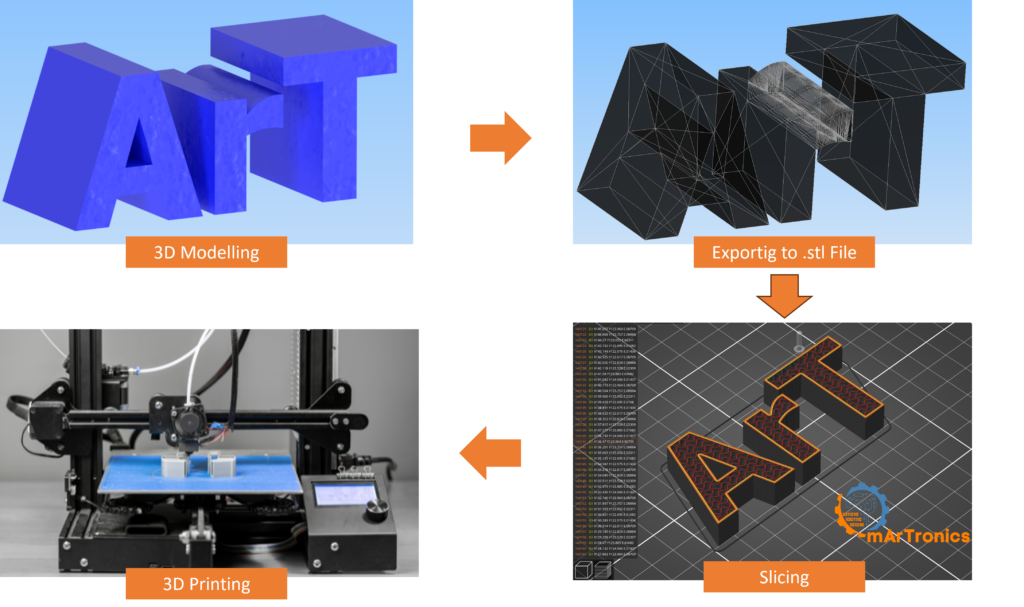
The workflow in seven steps
Every FDM print goes through the same seven steps:
- Create or download a 3D model. Suitable CAD (computer-aided design) programs include Autodesk Inventor, Autodesk Fusion (formerly Fusion 360) and Tinkercad. Ready-made models are available on Thingiverse and Printables.
- Export the model as STL. An STL file describes the outer surface of the model as a mesh of triangles. Choose an export resolution that balances file size and surface quality.
- Open the STL in a slicer such as UltiMaker Cura. The slicer divides the model into horizontal layers and calculates the toolpath, the route the nozzle follows in each layer.
- Choose the print settings: layer height (the thickness of each layer), infill (the internal pattern that fills the inside of the part), supports (temporary structures under overhanging areas), print speed and temperatures.
- Generate the G-code. G-code is a text file of machine commands that tells the printer where to move, how much filament (the plastic wire the printer melts) to extrude and which temperatures to hold.
- Copy the G-code to the printer by USB, SD card or network, start the print and watch the first layers.
- Post-process the part: remove it from the print bed, remove the supports, and sand, paint or assemble it if needed.
Technologies compared: FDM, SLA and SLS
The table compares the three most common technologies: FDM, SLA/DLP (stereolithography and digital light processing, both resin-based) and SLS.
| Feature | FDM (Fused Deposition Modeling) | SLA / DLP (resin-based) | SLS (Selective Laser Sintering) |
|---|---|---|---|
| How it works | Melts thermoplastic filament (plastic that softens when heated and hardens as it cools) and deposits it layer by layer | Cures liquid resin with UV light from a laser, a projector or an LCD screen | Fuses powdered material with a laser |
| Typical materials | PLA, ABS, PETG, TPU | Light-curing photopolymer resins (standard, tough, flexible) | Nylon, glass-filled nylon, TPU powder |
| Surface finish | Visible layer lines; moderate detail | Very smooth; high detail | Slightly grainy; good detail |
| Supports needed | Only for overhangs beyond about 45°; breakaway or soluble | Yes, resin supports | No (the powder supports the part) |
| Best for | Prototypes, functional parts, hobby projects | Detailed models, jewelry, dental applications | Strong functional parts, batch production |
| Cost | Low (entry printers from about USD 200) | Medium (entry printers from about USD 300, plus resin, gloves and wash/cure equipment) | High (industrial machines) |
| Beginner-friendly | Yes; the most common entry point | Moderate; needs resin handling and curing | No; mostly industrial |
For a first printer, FDM is the practical choice. The printers are cheap, and the filament is easy to handle. The printed parts are strong enough for brackets and robot frames.
How an FDM printer works
Knowing how an FDM printer builds a part helps you design printable parts and find the cause of a failed print.
The printing process
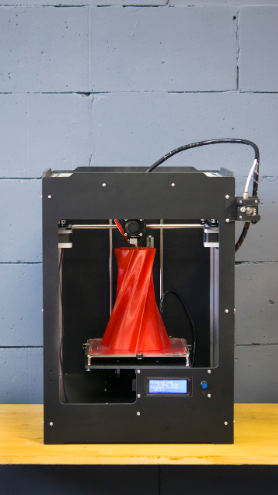
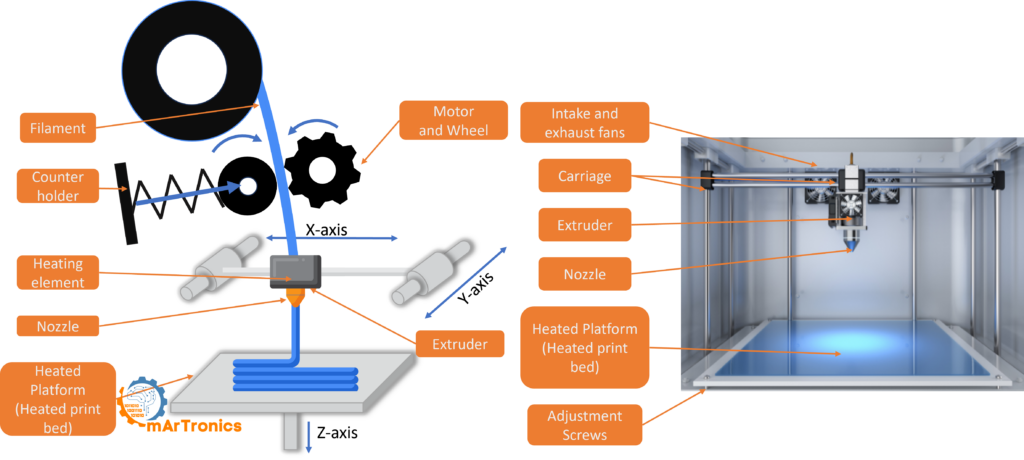
The printer feeds the filament, usually 1.75 mm in diameter, into the extruder. A motor-driven gear grips the filament and pushes it into the hot end, where it melts at about 190 °C to 260 °C depending on the material. The molten plastic leaves through a nozzle, commonly 0.4 mm in diameter, and is laid down on the print bed in the pattern the slicer calculated.
The print head moves along the X and Y axes to trace one layer. When a layer is complete, the print bed or the print head moves along the Z axis by one layer height, and the next layer is deposited. Each layer bonds to the one below as the plastic cools and hardens, until the whole part is built.
Key components
- Extruder and hot end: The extruder feeds the filament into the hot end, which melts it before it leaves through the nozzle. A direct-drive extruder sits directly above the hot end. A Bowden extruder sits on the frame and pushes the filament through a tube to the hot end.
- Nozzle: Sets the smallest feature the printer can produce. The standard size is 0.4 mm. Smaller nozzles give finer detail but print more slowly.
- Print bed (heated): The heated print bed helps the first layer stick and prevents warping (corners lifting off the print bed as the plastic cools and shrinks), especially with ABS and PETG. Common print bed surfaces are glass, PEI sheets and magnetic spring-steel plates. A PEI sheet is a heat-resistant plastic coating that holds the print while hot and releases it after cooling. You bend a spring-steel plate to release the part.
- Frame and motion system: Stepper motors turn in small fixed steps. They drive belts and lead screws (threaded rods that turn rotation into linear movement), which move the print head and the print bed along the X, Y and Z axes.
- Part-cooling fan: Blows air onto the freshly deposited plastic so that it hardens quickly. This improves overhangs and surface quality.
Materials for beginners
The filament determines strength, flexibility, surface finish and how easy the part is to print. The table lists the common FDM materials.
| Material | Full name | Properties | Nozzle temp. | Print bed temp. | Best for | Beginner notes |
|---|---|---|---|---|---|---|
| PLA | Polylactic acid | Compostable only in industrial facilities, easy to print, low warping, low odor | 190–220 °C | 20–60 °C (or no heated print bed) | Prototypes, decorative parts, cases, brackets | Best first material. Forgiving, widely available, little setup needed |
| ABS | Acrylonitrile butadiene styrene | Strong, heat-resistant, durable, prone to warping | 220–250 °C | 90–110 °C | Functional parts, mechanical components, housings | Needs a heated print bed; an enclosed printer is strongly recommended. Ventilate the room because of the fumes |
| PETG | Polyethylene terephthalate glycol | Strong, flexible, chemical-resistant, low warping | 220–250 °C | 70–90 °C | Functional parts, outdoor use, water-resistant parts | Good second material. Easier than ABS, stronger than PLA |
| PVA | Polyvinyl alcohol | Water-soluble, used as support material | 185–200 °C | 45–60 °C | Dissolvable supports for complex shapes | Needs a dual-extruder printer (two nozzles); used with PLA |
| HIPS | High impact polystyrene | Lightweight, soluble in d-Limonene (a solvent made from citrus peel) | 220–235 °C | 90–110 °C | Dissolvable supports for ABS prints | Needs an enclosed printer; used with ABS |
FDM prints are not recommended for food contact, because bacteria can collect in the gaps between layers.
Which filament to start with
Start with PLA. It is the easiest material to print, needs low temperatures, produces little odor and works on almost every FDM printer. It sticks well to most print beds and needs no enclosed printer. Once your PLA prints come out reliably, try PETG for stronger functional parts. Use ABS only when you need heat resistance and have good ventilation.
I print all my robot arms in PLA. For my OmArm Zero robot arm I accepted the two weak points of PLA because the arm is built for teaching: it softens at about 60 °C and creeps (deforms slowly) under a constant load.

Designing parts in Autodesk Inventor
Inventor suits functional parts because every dimension stays editable and you can test the fit of several parts in an assembly before printing. Students and educators get it free through the Autodesk Education plan. I draw my robot arms in Inventor because it is the CAD program I am fastest in.

Parametric modeling
Inventor is a parametric CAD program: every feature is defined by dimensions and constraints (rules such as parallel, horizontal or concentric) that you can change at any time. If you design a motor mount with a 28 mm bore and later need 30 mm, you change one value and the whole model updates. This saves redrawing the part after every test print.
Assemblies
In an Inventor assembly (.iam file) you place several parts together and run Analyze Interference, which shows where parts overlap. For a robot build, this check tells you before printing whether the joints, brackets and chassis parts fit together.
Example: modeling a part
In the video I model a simple part: I choose a sketch plane, draw two rectangles and extrude the sketch. In Inventor, a typical part takes five steps:
- Start a new part (.ipt) and draw a 2D sketch on the XY plane.
- Add dimensions and constraints until the sketch is fully constrained (every line has a fixed size and position).
- Extrude the sketch to the thickness of the part.
- Add holes and fillets (rounded edges).
- Export the part as STL.
Exporting STL
In Inventor, go to File > Export > CAD Format and choose STL. In the export options, set the resolution to High for detailed parts or Medium for larger structural parts. An excessively high resolution makes the file larger without a visible gain in print quality. After exporting, open the STL in the slicer and check the mesh. It must have no holes, no inverted normals (triangles whose outside faces inward) and no non-manifold edges (edges that do not join exactly two triangles, so the slicer cannot tell inside from outside).
Design rules
Designing for 3D printing is called DfAM (Design for Additive Manufacturing): you shape the part so that the printer can build it. Not every shape that looks good in CAD prints well on an FDM printer. Simpler models slice faster and print more reliably.
Walls, overhangs and bridges
- Wall thickness: Use at least twice the nozzle diameter (0.8 mm for a 0.4 mm nozzle) and three times the nozzle diameter (1.2 mm) for structural parts. Features thinner than 0.8 mm are too small for a 0.4 mm nozzle to produce.
- Overhangs: Measured from vertical, overhangs up to about 45° print without supports. Above 45°, enable supports in the slicer or change the design. Use chamfers (angled edges) instead of horizontal overhangs where possible.
- Bridges: A bridge is filament laid across a gap between two supported points. Keep unsupported bridges at 10–15 mm or shorter.
- Fillets: Add fillets to sharp internal corners to reduce stress concentrations (points where force collects and cracks start).
Tolerances
FDM parts are not dimensionally exact. For press-fit joints (parts pushed together and held by friction), add 0.1–0.2 mm clearance, the gap between the two parts. For sliding or rotating joints, add 0.3–0.5 mm. Make mounting holes 0.2–0.3 mm larger than the nominal size (the diameter of the screw or pin that goes into the hole). Print a small tolerance gauge (a test print with holes and pins in several sizes) before printing a large multi-part assembly. On the OmArm Zero I make the M3 holes 3.2 mm and give the pockets for the MG996R servo motors about 0.2 mm clearance on each side.
Orientation
Decide while you design how the part will sit on the print bed. The flat face with the largest area is usually the best base, and a part that lies flat has fewer overhangs. Orient the part so that the main load runs along the X/Y plane. Along Z, the part is held together only by the bond between layers, which is its weakest direction. Thin features that stand vertically tend to break along the layer lines. Surfaces that must look good should face upward, away from the print bed.
Supports and assembly features
Supports are temporary structures that the slicer adds under overhangs and that you remove after printing. They use extra material and leave marks on the surface. Design parts to be self-supporting where possible: use chamfers instead of horizontal overhangs, and split complex parts into printable sub-assemblies. For horizontal bores, use teardrop-shaped holes instead of round ones.
For multi-part assemblies such as a robot arm or a custom case, design the joints in the CAD model. Use snap-fit features (tabs that click into a matching slot), screw bosses (raised cylinders that take a screw) and alignment pins.
Slicing in UltiMaker Cura
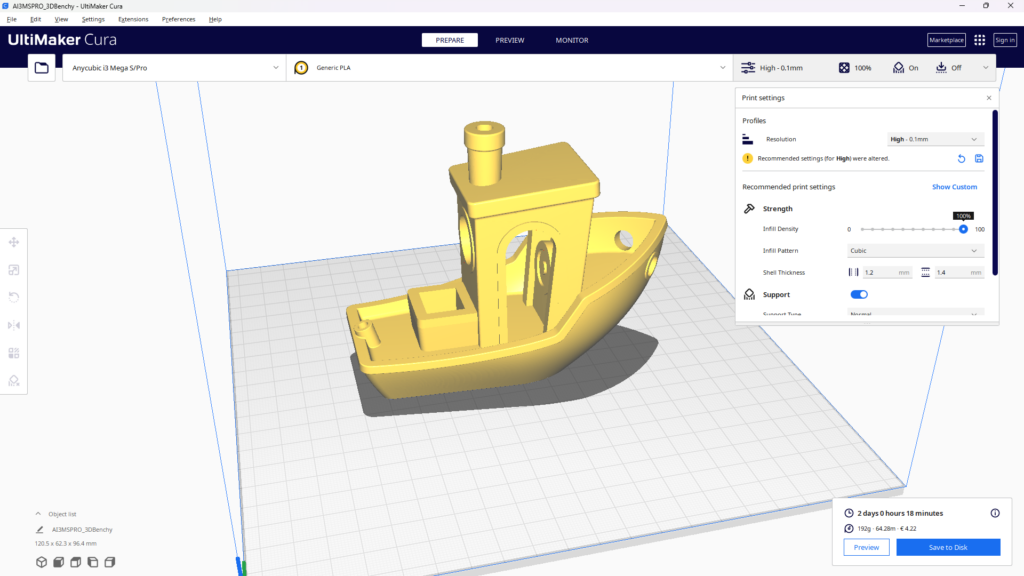
UltiMaker Cura is a free, open-source slicer with ready-made profiles for most FDM printers. It turns the STL file into the G-code your printer runs.
What a slicer does
The slicer cuts the STL into horizontal layers at the layer height you set. For each layer it calculates the toolpath, the route the nozzle follows to deposit the filament. It adds elements that are not in the CAD model: walls (the outer shell), infill, supports and an adhesion aid around the base of the part.
Key settings
- Layer height: The thickness of each layer. 0.2 mm is a good default value for functional parts. Use 0.12 mm for fine detail or visible surfaces, and 0.28 mm for rough prototypes where speed matters more than looks. The layer height should not exceed about 75 % of the nozzle diameter.
- Infill density and pattern: How much of the inside is filled. 100 % means a solid part, which is rarely needed. 15–20 % is enough for most prototypes. For structural parts such as robot arm joints, use 40–60 % and a pattern that is strong in all directions, such as cubic (stacked, tilted cubes) or gyroid (a continuous wave-shaped pattern). Grid (a simple crisscross of lines) is fine for simple parts. On my 6-DOF robotic arm (DOF: degrees of freedom, the number of independent joints), the base and arm links have at least 40 % infill and the thin gripper gears 20 %.
- Wall count (shell thickness): The number of perimeter lines per layer. Two or three walls balance strength and print time. Use more walls for parts that take impact or mechanical load.
- Supports: Enable supports for overhangs of more than 45° from vertical. In Cura, Support Placement can be “Touching Buildplate” (supports start only on the print bed) or “Everywhere” (supports may also rest on the model). Support Structure can be “Normal” or “Tree”; tree supports are easier to remove from organic shapes and leave fewer marks.
- Print speed: Start with the speed from your printer’s slicer profile. On older printers such as the Ender 3, that is about 50–60 mm/s for PLA in Cura. Newer printers with vibration compensation (input shaping) print much faster; Bambu Lab printers are normally used with Bambu Studio. Reduce the speed for small features. Increase it for large, simple parts once you have checked the quality at the default speed.
- Adhesion type: A skirt is a line around the part that gets the plastic flowing before the part starts. A brim adds extra lines to the base of the part for better grip. A raft is a full platform under the part. Use a brim for tall or narrow parts that tend to tip or warp.
In the video I slice the part with a 0.2 mm layer height, 20 % infill and no supports, because the simple shape does not need them. I also scale it down so that the test print finishes sooner.
Checking the preview
After slicing, check Cura’s preview before you send the G-code to the printer. It shows the toolpath layer by layer, color-coded by feature type (walls, infill, supports, travel moves). A travel move is a nozzle movement between two points without extruding filament. Check that the supports sit where you expect them, that the infill looks right and that no layer has gaps. A problem found here costs less time and material than a failed print.
Printer setup and first print
Leveling the print bed
A level print bed keeps the nozzle at the same distance from the print bed over the whole surface. Most printers have a manual procedure that uses a sheet of paper as a thickness gauge. Slide the paper between nozzle and print bed at each corner and turn the leveling knobs until the paper drags slightly. In the video I go around all four corners this way and then do a second round as a check. Printers with automatic bed leveling (ABL, where a sensor measures the print bed and the printer compensates for the deviation) still benefit from an occasional manual check.
Temperatures
Set the nozzle and print bed temperature to the filament manufacturer’s recommendation. For PLA, start with a nozzle temperature of about 200 °C and a print bed temperature of 50–60 °C. Print a temperature tower (a test print whose sections are printed at different nozzle temperatures) to find the best temperature for each filament brand.
First layer
The first layer decides whether the print succeeds, so watch it. The lines should be pressed slightly flat onto the print bed. If they are pressed too flat, the bottom edge of the part bulges outward (called “elephant’s foot”). If they stay round and loose, the nozzle is too far from the print bed. A good first layer is smooth, has no gaps between the lines and sticks firmly to the print bed.
Ventilation and safety
Even PLA emits ultrafine particles while printing, so print in a ventilated room or near an open window. For ABS, an enclosed printer with an air filtration system or an activated carbon filter is strongly recommended. Never leave the printer running unattended for long periods, and stay near it during your first prints. Keep a fire extinguisher in the room.
Calibration
Expect several test prints before the settings are right. Print calibration cubes (small test cubes for checking the dimensions), temperature towers and retraction tests to fine-tune your settings. Retraction means that the extruder pulls the filament back a little before each travel move, so the nozzle does not ooze. Even a new spool of the same brand and type may need small adjustments.
Troubleshooting
Adhesion and surface problems
- Poor print bed adhesion: The print detaches from the print bed during printing. It is one of the most common causes of failed prints. Causes are a dirty or uneven print bed, a print bed that is too cold, or a first layer printed too fast. Clean the print bed with isopropyl alcohol before each print; a glue stick, masking tape or a PEI sheet improves grip. Re-level the print bed. If the first layer still lifts, raise the print bed temperature in 5 °C steps, slow the first layer to 15–20 mm/s or add a brim.
- Stringing: Thin threads of filament appear between separate parts of the print. The nozzle oozes during travel moves. Enable retraction in the slicer, increase the retraction distance and speed, increase the travel speed and lower the nozzle temperature slightly.
- Warping: Corners of the print curl upward from the print bed. The plastic cools unevenly and shrinks; this is most common with ABS and also happens with PETG. Check the print bed temperature, add a brim and keep the printer out of drafts. An enclosed printer helps with both materials; for ABS it is strongly recommended.
- Weak layers, ripples or sagging overhangs: Printing too fast can cause these problems. It can weaken the bond between layers, cause ringing (ripples on the surface from vibration) and spoil overhangs. Reduce the print speed by 10–20 %. Small or detailed parts need slower speeds so that each layer cools before the next one is laid down.
- Rough or blobby surfaces: The surface shows blobs and rough patches. Causes are over-extrusion (the nozzle pushes out more filament than needed), too high a temperature or an inconsistent filament diameter. Reduce the flow rate (the slicer setting for how much filament is pushed out), lower the nozzle temperature and store the filament dry.
Extrusion and model problems
- Under-extrusion (too little filament comes out): The print has gaps, thin walls or missing layers. Check for a partially clogged nozzle, verify the filament diameter setting in the slicer, increase the flow rate slightly, or check whether the extruder gear grips the filament.
- Clogged nozzle: Filament stops extruding or extrudes unevenly. First, do a cold pull: heat the nozzle, push filament in by hand, wait until the nozzle has cooled to about 90 °C, then pull the filament out firmly. The filament brings the debris out with it. If the clog stays, use a nozzle cleaning needle or replace the nozzle; nozzles are cheap spare parts.
- Failed supports: Supports collapse or do not detach cleanly. In Cura, try tree supports instead of normal supports. Increase the support interface density (the dense layers between support and part) for a better surface. Adjust the support Z distance (the gap between the top of the support and the part) for easier removal.
- Bad STL export: The slicer shows holes or errors in the model. Re-export from the CAD program at a higher mesh resolution. In Inventor, check the export settings and look for open surfaces or non-manifold edges before exporting. Free repair tools are Blender’s 3D-Print Toolbox add-on and the repair function in Bambu Studio. Meshmixer is no longer developed, and Windows 3D Builder has been discontinued.
Examples from OmArTronics projects
- Robot chassis and frames: Custom-designed chassis parts let you fit the frame to your sensors and motors. The line-following robots with KY-033 and TCS34725 sensors use 3D-printed frames designed in CAD.
- Robot arm joints and brackets: The 6-DOF robotic arm is controlled by an Arduino and PCA9685 servo driver boards. It uses this workflow for its printed links, joint housings and servo mounts, parts that would be expensive to machine in small quantities. The Bluetooth version of the arm adds wireless control with an HC-05 module and a custom Android app built in MIT App Inventor. The OmObiArm combines a printed mobile platform with a printed arm.
- Sensor mounts and cases: 3D printing lets you make mounts that fit your ultrasonic sensors, cameras or Arduino boards, with your own hole pattern instead of a generic off-the-shelf bracket.
- Gears, pulleys and linkages: FDM can produce gears, timing pulleys and linkages for low-load applications. In Inventor, the Design Accelerator generates spur gears from the module (a measure of tooth size) and the number of teeth, so you do not have to draw the tooth profile yourself. The servo control guide for SG90 and PCA9685 shows how to drive the servos that move such printed parts.
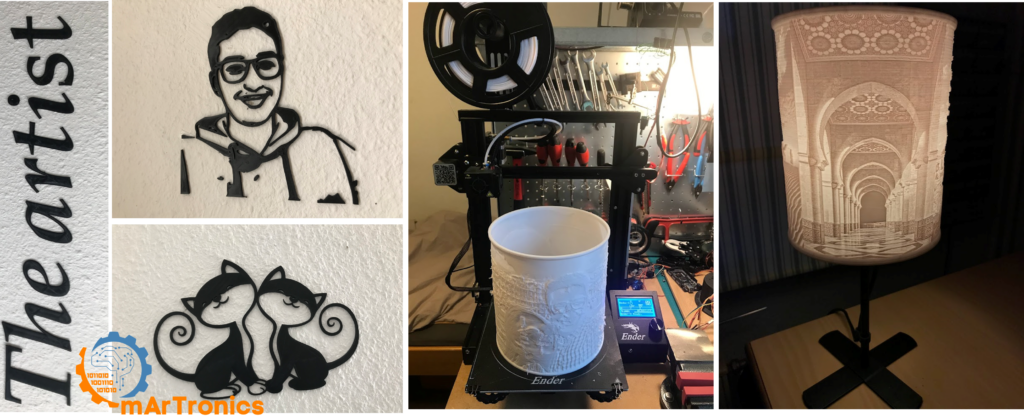
- Household items: 3D printing works for personal items such as wall art, lampshades, organizers and phone stands. The wall art and the lamp in the photo below are my own prints.
Frequently asked questions
For a first printer, an FDM printer for about USD 200–400 with automatic bed leveling, a heated print bed and an active user community is enough. Examples are the Bambu Lab A1 Mini and the Creality Ender 3 series. I printed my 2024 robot parts, such as the line-following robot, on a Creality Ender 3 with a Bowden extruder. My newer robot arms print on Bambu Lab printers with Bambu Studio: the OmArm Zero on an X1 Carbon, the OmArm One on a P1S.
It depends on the size of the part, the layer height, the infill density and the print speed. A small calibration cube takes 20–30 minutes, a phone stand 2–4 hours, and large structural parts for a robot chassis 8–20 hours or more. Together, the two print plates of my OmArm One take 15 h 06 min on a Bambu Lab P1S. The slicer estimates the time before you start.
Next steps
Software
| Tool | Purpose | License |
|---|---|---|
| Autodesk Inventor | Parametric CAD for engineering parts and assemblies | Free for students and educators through the Autodesk Education plan |
| Autodesk Fusion (formerly Fusion 360) | Cloud-based CAD/CAM with simulation and manufacturing tools | Limited free license for personal use |
| Tinkercad | Browser-based modeling for first simple shapes before you move to Inventor or Fusion | Free |
| UltiMaker Cura | Slicer with profiles for most FDM printers | Free, open source |
| PrusaSlicer | Slicer with more advanced settings; try it after you know the Cura basics | Free, open source |
First prints
Good first prints for a new printer:
- Calibration cube (20 mm XYZ): Checks dimensional accuracy and shows extrusion or leveling problems.
- Temperature tower: Finds the best nozzle temperature for your filament.
- 3D Benchy (a small boat-shaped test model): Tests overhangs, bridging, small details and stringing in one print.
- Phone stand or cable organizer: A first functional print for everyday use.
- Arduino Uno case: Design the case yourself as your first CAD-to-print exercise.
Start with the calibration cube and the temperature tower in PLA. Your next step is a simple bracket designed in Inventor and checked in Cura’s preview before you print it.
3 thoughts on “Introduction to 3D Printing: Workflow, Materials, Inventor, Cura, and Beginner Tips”