
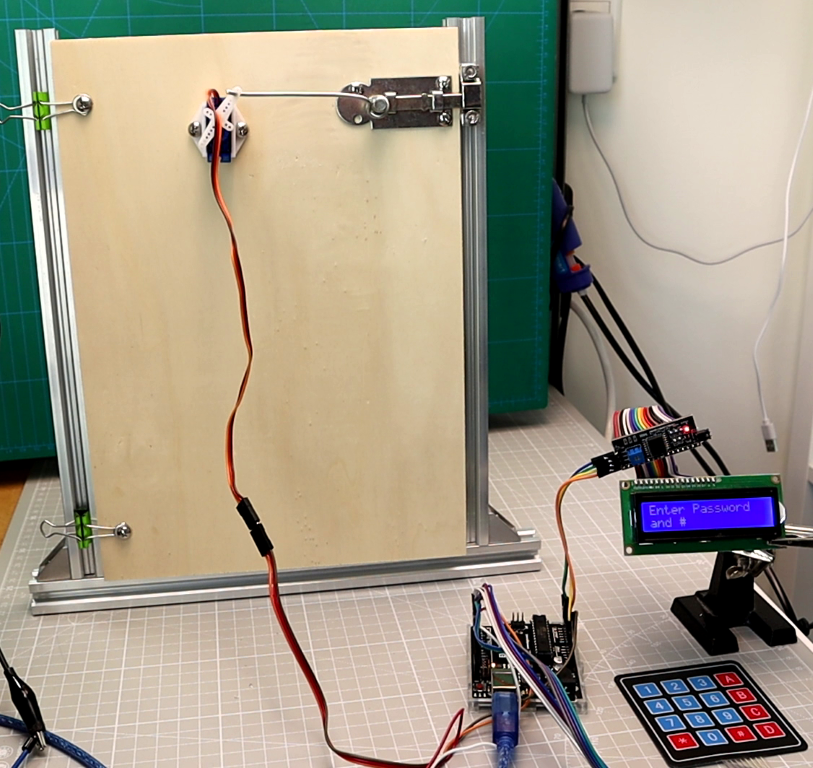
Quick summary
This tutorial guides you through building an Arduino password door lock system using a 4×4 matrix keypad for input, a 16×2 I2C LCD for display feedback, and an SG90 servo motor as the lock mechanism. In short, you will learn keypad scanning, password verification logic, servo control, and complete wiring for a working security system.
Want to build a working Arduino password door lock from scratch? In this tutorial, you will wire a 4×4 matrix keypad, a 16×2 I2C LCD display, and an SG90 servo motor to an Arduino Uno to build a working electronic door lock. The keypad captures your password, the LCD gives you feedback, and then the servo locks or unlocks the door. Whether you are learning Arduino for the first time or building a DIY security project for your home or makerspace, this Arduino keypad door lock tutorial covers everything you need: wiring, full code, a line-by-line code breakdown, testing tips, and upgrade ideas.
What You Will Learn
By the end of this Arduino password lock with LCD tutorial, you will know the following:
- The way the 4×4 matrix keypad sends password input to Arduino.
- What role the I2C LCD plays in giving live user feedback (prompts, masked input, error messages).
- How the servo motor simulates a physical lock/unlock mechanism.
- The way the password-check logic works in the Arduino sketch.
- Steps to test, calibrate, and troubleshoot the complete system.
- Ways to customize and upgrade the project for a real door enclosure or smart home setup.
How the Arduino Password Door Lock Works
Before we start wiring, here is a quick overview of how this keypad door lock Arduino servo system works. Knowing the flow makes the code and wiring easier to follow.
The keypad is the input device. It is a 4×4 matrix with 16 buttons (digits 0–9, letters A–D, and symbols * and #). When you press a key, the Keypad library scans the row and column lines to detect which button was pressed and returns the corresponding character to the Arduino.
The I2C LCD is the output display. For instance, it shows prompts such as “Enter Password” when the door is locked, displays asterisks as you type (to mask your input), shows “Door is OPEN” after a successful unlock, and displays “Wrong Password” if the code is incorrect. Because it uses I2C, it only needs two data wires (SDA and SCL) instead of six or more.
The servo motor is the physical lock mechanism. When you enter the correct password and confirm with #, the servo then rotates from the locked angle (default 0°) to the unlocked angle (default 90°), simulating a door latch opening. Pressing * sends it back to the locked position. If you are new to servo motors, check out our servo motor Arduino tutorial for a deeper introduction.
Password logic and system flow
The password logic is handled entirely in the Arduino sketch. The code stores a preset password string (default “1234”), so the logic is all in one place. As the user types digits, the sketch appends them to an input buffer. When the user presses #, the sketch compares the buffer to the stored password. If they match, the door unlocks. Otherwise, an error message appears. The * key clears input or relocks the door, and D works as a backspace key.
Here is the full system flow:
- The LCD shows “Enter Password and #”.
- Next, you type digits on the keypad. Meanwhile, the LCD masks each digit as an asterisk (*).
- Then press # to submit. The Arduino compares your input to the stored password.
- If correct, the servo rotates to the unlock angle and the LCD shows “Door is OPEN — Enter * to close”.
- The door stays open until you press *. Then the servo returns to the lock angle.
- If the password is wrong, the LCD shows “Wrong Password — Try again” for 1.5 seconds, then returns to the entry prompt.
Components required (bill of materials)
Below is everything you need to build this DIY Arduino password lock. Most of these parts come in standard Arduino starter kits.
| Component | Qty | Required / Optional | Purpose | Notes |
|---|---|---|---|---|
| Arduino Uno (or compatible board) | 1 | Required | Main microcontroller | Nano or Mega also work with minor pin changes |
| 4×4 Matrix Keypad | 1 | Required | Password input (8 pins) | Membrane type is easiest to mount |
| 16×2 LCD Display with I2C Adapter | 1 | Required | User feedback and prompts | Check I2C address: usually 0x27 or 0x3F |
| SG90 Servo Motor | 1 | Required | Physical lock/unlock mechanism | Use external 5 V supply for reliable operation |
| Jumper Wires | ~20 | Required | All connections | M-M and M-F type |
| Breadboard | 1 | Required | Prototyping | Half-size or full-size |
| External 5 V Power Supply (1 A+) | 1 | Recommended | Reliable servo power | USB power alone may cause resets |
| Small Door Latch or Lock Mechanism | 1 | Optional | Physical demo enclosure | 3D-printed or off-the-shelf latch |
| Buzzer (active or passive) | 1 | Optional | Audio feedback on wrong password | Connect to any free digital pin |
Circuit diagram and wiring
Below is the circuit diagram for the Arduino keypad LCD servo project, so you can follow along. The wiring is simple because the I2C LCD only needs two data lines, and the keypad connects directly to eight digital pins.
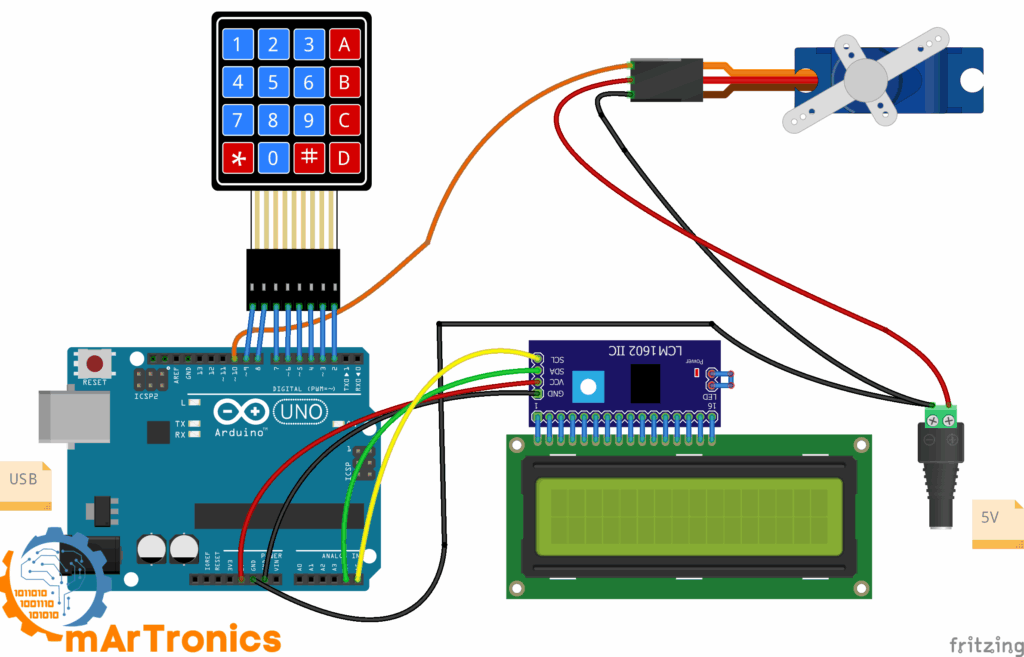
LCD I2C connections
| LCD I2C Pin | Arduino Pin | Notes |
|---|---|---|
| SDA | A4 | I2C data line |
| SCL | A5 | I2C clock line |
| VCC | 5 V | Power |
| GND | GND | Ground |
4×4 Keypad Connections
| Keypad Pin | Function | Arduino Pin |
|---|---|---|
| Pin 1 | Row 1 | D9 |
| Pin 2 | Row 2 | D8 |
| Pin 3 | Row 3 | D7 |
| Pin 4 | Row 4 | D6 |
| Pin 5 | Column 1 | D5 |
| Pin 6 | Column 2 | D4 |
| Pin 7 | Column 3 | D3 |
| Pin 8 | Column 4 | D2 |
Servo motor connections
| Servo Wire | Connects To | Notes |
|---|---|---|
| Signal (orange/yellow) | D10 | PWM-capable pin |
| VCC (red) | 5 V (external recommended) | Important: servo draws up to 500–700 mA under load |
| GND (brown/black) | GND | Also must share common ground with Arduino |
Important power note: Because the SG90 servo can draw enough current, it may reset the Arduino if powered only through USB. For reliable operation, use an external 5 V / 1 A (or higher) power supply for the servo. Also, connect the supply’s ground to the Arduino ground so they share a common reference. If you have worked with our Arduino IR remote servo project, the same power advice applies here.
Arduino code for the password door lock
Below is the complete Arduino sketch for this electronic door lock with Arduino. Before uploading, make sure you have installed the following libraries through the Arduino IDE Library Manager: Wire, LiquidCrystal_I2C, Keypad, and Servo.
Supported features
In summary, this sketch supports the following features:
- Password entry — first, type digits on the keypad to build the input string.
- Masked input — the LCD shows asterisks instead of the actual digits for privacy.
- Unlock on correct code — press # to submit; if the input matches the stored password, the servo unlocks.
- Relock with * — when the door is open, press * to lock it again.
- Backspace with D — press D to delete the last entered character.
- Clear input with * — while the lock is active, press * to clear all entered digits and start over.
- Wrong password feedback — the LCD shows an error message for 1.5 seconds before returning to the entry prompt.
/**
Password Door Lock
 */
#include <Wire.h>
#include <LiquidCrystal_I2C.h>
#include <Keypad.h>
#include <Servo.h>
// LCD
#define LCD_ADDR 0x27
LiquidCrystal_I2C lcd(LCD_ADDR, 16, 2);
// Servo
#define SERVO_PIN 10
#define LOCK_ANGLE   0
#define UNLOCK_ANGLE 90
Servo lockServo;
// Keypad
const byte ROWS = 4;
const byte COLS = 4;
char keys[ROWS][COLS] = {
  {'1','2','3','A'},
  {'4','5','6','B'},
  {'7','8','9','C'},
  {'*','0','#','D'}
};
byte rowPins[ROWS] = {9, 8, 7, 6};
byte colPins[COLS] = {5, 4, 3, 2};
Keypad keypad = Keypad(makeKeymap(keys), rowPins, colPins, ROWS, COLS);
// Password
String PASSWORD = "1234";
String input = "";
bool doorUnlocked = false;
void lcdPromptLocked() {
  lcd.clear();
  lcd.setCursor(0,0);
  lcd.print("Enter Password");
  lcd.setCursor(0,1);
  lcd.print("and #");
}
void lcdPromptUnlocked() {
  lcd.clear();
  lcd.setCursor(0,0);
  lcd.print("Door is OPEN");
  lcd.setCursor(0,1);
  lcd.print("Enter * to close");
}
void lockDoor() {
  lockServo.write(LOCK_ANGLE);
  doorUnlocked = false;
  lcdPromptLocked();
  input = "";
}
void unlockDoor() {
  lockServo.write(UNLOCK_ANGLE);
  doorUnlocked = true;
  lcdPromptUnlocked();
  input = "";
}
void wrongPasswordMsg() {
  lcd.clear();
  lcd.setCursor(0,0);
  lcd.print("Wrong Password");
  lcd.setCursor(0,1);
  lcd.print("Try again");
  delay(1500);
  lcdPromptLocked();
  input = "";
}
void handleKey(char k) {
  if (doorUnlocked) {
    if (k == '*') lockDoor();
    return;
  }
  if (k == '#') {
    if (input == PASSWORD) unlockDoor();
    else wrongPasswordMsg();
  } else if (k == '*') {
    input = "";
    lcdPromptLocked();
  } else if (k == 'D') {
    if (input.length() > 0) input.remove(input.length()-1);
  } else {
    if (input.length() < 8) input += k;
  }
  lcd.setCursor(0,1);
  lcd.print(String(input.length(), '*'));
}
void setup() {
  lcd.init();
  lcd.backlight();
  lockServo.attach(SERVO_PIN);
  lockDoor();
}
void loop() {
  char key = keypad.getKey();
  if (key) handleKey(key);
}
Code breakdown: understanding the Arduino password door lock sketch
This section walks through the code step by step. If you are new to Arduino programming, reading this breakdown alongside the full code above will help you understand exactly how each part works.
1) Libraries and Objects
#include <Wire.h>
#include <LiquidCrystal_I2C.h>
#include <Keypad.h>
#include <Servo.h>
// LCD
#define LCD_ADDR 0x27
LiquidCrystal_I2C lcd(LCD_ADDR, 16, 2);
// Servo
#define SERVO_PIN 10
#define LOCK_ANGLE   0
#define UNLOCK_ANGLE 90
Servo lockServo;
Together, these four libraries handle I2C communication (Wire), the LCD display (LiquidCrystal_I2C), keypad scanning (Keypad), and servo control (Servo). The lcd and lockServo objects are created here and used throughout the sketch.
2) Hardware Configuration (Pins and Angles)
#define LCD_ADDR 0x27
#define SERVO_PIN 10
#define LOCK_ANGLE 0
#define UNLOCK_ANGLE 90
First, LCD_ADDR is the I2C address of your LCD backpack. Most modules use 0x27, but some use 0x3F. If your LCD stays blank after uploading, try changing this value. You can run an I2C scanner sketch to detect the correct address. SERVO_PIN defines which Arduino pin drives the servo signal. LOCK_ANGLE and UNLOCK_ANGLE set the two positions of the servo — adjust these to match the physical range of your latch.
3) Keypad Layout and Wiring
const byte ROWS = 4, COLS = 4;
char keys[ROWS][COLS] = { ... };
byte rowPins[ROWS] = {9, 8, 7, 6};
byte colPins[COLS] = {5, 4, 3, 2};
Keypad keypad = Keypad(makeKeymap(keys), rowPins, colPins, ROWS, COLS);
The keys array maps the physical 4×4 button grid to characters. The row pins (9, 8, 7, 6) and column pins (5, 4, 3, 2) must match your physical wiring, so double-check these against your keypad pinout. If keys return the wrong characters, the most likely cause is that the row or column pin order does not match the keypad’s pinout. As a result, the Keypad library handles debouncing and key detection automatically.
4) Password State and Variables
String PASSWORD = "1234";
String input = "";
bool doorUnlocked = false;
Here, PASSWORD is the correct code the user must enter. You can change it to any combination of digits and letters up to 8 characters. input is a buffer that stores what the user has typed so far. Meanwhile, doorUnlocked tracks whether the door is currently open or closed. A note for advanced users: using the Arduino String class on small microcontrollers (like the ATmega328 on the Uno) can cause memory fragmentation over very long run times. For a door lock that runs 24/7, consider using a fixed char array instead.
5) LCD Helper Screens
void lcdPromptLocked() { ... }     // "Enter Password" / "and #"
void lcdPromptUnlocked() { ... }   // "Door is OPEN" / "Enter * to close"
These two functions define the two main LCD screens. Specifically, lcdPromptLocked() shows “Enter Password / and #” when the door is locked. lcdPromptUnlocked() shows “Door is OPEN / Enter * to close” when the door is unlocked. Keeping these as separate functions makes the code cleaner and easier to modify.
6) Door Control Helpers
void lockDoor() { ... }
void unlockDoor() { ... }
lockDoor() first moves the servo to LOCK_ANGLE, resets the state to locked, refreshes the LCD prompt, and clears the input buffer. On the other hand, unlockDoor() does the opposite — rotates the servo to UNLOCK_ANGLE, sets the state to unlocked, and shows the “Enter * to close” prompt.
7) Feedback on Wrong Password
void wrongPasswordMsg() { ... }
When the entered password does not match, the LCD displays “Wrong Password / Try again” for 1.5 seconds (delay(1500)), then then returns to the locked prompt and clears the input. The delay gives the user enough time to read the message before it disappears.
8) Central Input Logic — handleKey()
void handleKey(char k) { ... }
Basically, this is the brain of the Arduino password door lock. Here is exactly what happens for each key press:
- If the door is already open: only the * key is accepted, which calls
lockDoor(). All other keys are ignored for safety. - # (submit): compares the
inputbuffer toPASSWORD. If they match, the door unlocks. Otherwise, the wrong-password message appears. - * (clear): while locked, pressing * clears all entered digits and resets the LCD prompt, letting the user start fresh.
- D (backspace): removes the last character from the input buffer. This is useful, for example, if you make a typo. The reason D is chosen is that it is the last letter key on the 4×4 keypad and is intuitively placed in the bottom-right area.
- Any other key (digits, A, B, C): appended to the input buffer as long as the maximum length (8 characters) has not been reached.
At the end of handleKey(), the second line of the LCD is updated to show the masked input — one asterisk for each character entered. The actual password digits never show on the display, which adds some privacy.
9) Setup — One-Time Initialization
void setup() {
  lcd.init(); lcd.backlight();
  lockServo.attach(SERVO_PIN);
  lockDoor();                      // start locked
  // optional welcome screen...
  lcdPromptLocked();
}
As expected, setup() runs once when the Arduino powers on. First, it initializes the LCD, turns on the backlight, attaches the servo to pin D10, and calls lockDoor() to start in locked mode. So the first thing the user sees is the “Enter Password” prompt.
10) Loop — Read Keys and React
void loop() {
  char key = keypad.getKey();
  if (key) handleKey(key);
}
After that, the loop() function runs continuously. It polls the keypad using keypad.getKey(). When a key press is detected, it passes the character to handleKey(). Since all the logic lives in handleKey(), the loop stays clean and simple. Since there is no blocking code in the loop (except inside the wrong-password delay), so the system remains responsive.
How to test and calibrate the lock
Once you finish uploading the code and completing the wiring, follow these steps to verify that every part of the system works correctly before mounting it on a door or enclosure.
Verify keypad input
To start, open the Arduino Serial Monitor (add Serial.begin(9600); in setup() and Serial.println(key); in loop() temporarily). Then, press each key and then confirm the correct character appears. If you notice swapped or missing keys, double-check the row and column pin wiring order.
Verify LCD output
Once powered on, the LCD should display “Enter Password” on the first line and “and #” on the second line. If the screen is blank, adjust the contrast potentiometer on the I2C backpack (small blue screw on the back). However, if the backlight is on but no text appears, the I2C address may be wrong (try 0x3F instead of 0x27).
Test servo direction and angles
Next, enter the correct password and press #. The servo should rotate from 0° to 90° (or whatever you set for LOCK_ANGLE and UNLOCK_ANGLE). If the servo rotates the wrong way, swap the values of LOCK_ANGLE and UNLOCK_ANGLE in the code. Then fine-tune these values in small increments (for example, try 10° and 80°) until the latch mechanism engages and disengages smoothly.
Check mechanical alignment
If you are mounting the servo on a physical door latch, make sure you align the servo horn with the latch bolt at the locked position first. Attach the servo horn after setting the servo to LOCK_ANGLE so the starting position is correct. After that, test the unlock and relock cycle several times to make sure it works without binding.
Test with external servo power
If the servo jitters, moves erratically, or for instance causes the Arduino to reset, then switch to an external 5 V power supply. Connect the supply’s positive wire to the servo’s VCC, the supply’s ground wire to the servo’s GND and to the Arduino’s GND (common ground is essential). In fact, this is the most common hardware issue beginners run into.
Troubleshooting common issues
If something is not working, check this list of common problems and fixes.
Quick reference: problems and solutions
| Problem | Likely Cause | Solution |
|---|---|---|
| LCD screen stays completely blank | Wrong I2C address or contrast too low | Run an I2C scanner sketch to find the correct address. Adjust the contrast potentiometer on the back of the LCD module. |
| LCD backlight is on but no text | I2C address mismatch | Change LCD_ADDR from 0x27 to 0x3F (or vice versa) and re-upload. |
| Keypad does not respond at all | Wiring error or wrong pin mapping | Verify that the 8 keypad wires are connected to the correct Arduino pins (D9–D2). Check the keypad pinout datasheet. |
| Keys return wrong characters | Row/column pins are swapped | Reverse or rearrange the rowPins and colPins arrays in the code to match your physical wiring. |
| Servo jitters or resets the Arduino | Insufficient power from USB | Use an external 5 V / 1 A power supply for the servo. Connect grounds together. |
| Servo rotates in the wrong direction | Lock and unlock angles are swapped | Swap the values of LOCK_ANGLE and UNLOCK_ANGLE. |
| Unlock angle does not open the latch | Angle value does not match mechanism | Adjust UNLOCK_ANGLE in 5–10° increments until the latch disengages. |
| Correct password always shows “Wrong” | Trailing characters in input or typo in PASSWORD | Print the input variable to Serial Monitor to verify what is actually being compared. |
| Servo works once then stops | Brownout from power draw | Add a 470 µF capacitor across the servo power lines, or use a stronger power supply. |
| Compilation error: library not found | Libraries not installed | Install LiquidCrystal_I2C, Keypad, and Servo through the Arduino IDE Library Manager. |
Customize and upgrade your Arduino password door lock
The basic version works, but there is a lot of room to expand. Here are some practical upgrade ideas.
Software upgrades
- Change the password: simply edit the
PASSWORDvariable in the code (for example,String PASSWORD = "6789";). Also, use a mix of digits and letters A, B, C for a stronger code. - EEPROM-stored password: also save the password to Arduino EEPROM so it survives power cycles. You can add a “change password” mode triggered by pressing A, where the user enters the old password, then the new one.
- Lockout after failed attempts: add a counter that disables input for 30–60 seconds after 3 incorrect attempts. This prevents brute-force guessing.
- Multiple user codes: also store an array of valid passwords so different people can have different access codes.
- Auto-relock timer: also add a timeout that automatically relocks the door if the user does not press * within a set time (for example, 10 seconds).
Hardware upgrades
- Buzzer feedback: for example, add an active or passive buzzer to beep on each key press, play a tone on correct entry, and sound an alarm on repeated failures.
- Relay and electric strike lock: alternatively, replace the servo with a relay module driving an electric strike or magnetic door lock for a permanent installation. If you have worked with relays before, our Arduino IR remote and servo tutorial covers relay basics.
- Battery backup: also add a rechargeable lithium battery with a charging module so the lock stays functional during power outages.
- Adjust servo mechanics: tune
LOCK_ANGLEandUNLOCK_ANGLEto match your specific latch. For example, some latches need 0° to 180° while others only need 0° to 45°. - External 5 V power supply: always recommended for a permanent installation. Use a 5 V / 2 A supply and connect all grounds together.
Security improvements
- Bluetooth unlock: add an HC-05 Bluetooth module so the door can also be unlocked from a smartphone app. See our Arduino HC-05 Bluetooth module tutorial for wiring and pairing instructions.
- RFID access: for example, add an RFID reader (such as the RC522) alongside the keypad for two-factor authentication — card plus password.
- Data logging: for instance, log access attempts (with timestamps from a DS3231 RTC module) to an SD card for an audit trail.
- Tamper detection: also add a vibration sensor or magnetic reed switch to detect forced entry attempts and trigger an alarm.
- Encrypted communication: for advanced builds, encrypt the Bluetooth or Wi-Fi communication channel to prevent password sniffing.
Frequently asked questions (FAQ)
An Arduino password door lock is a DIY electronic access-control system that uses an Arduino microcontroller, a keypad for entering a code, an LCD display for user feedback, and a servo motor (or relay) to physically lock or unlock a door. It is a popular beginner project because it combines input handling, display output, and motor control in one build.
Overall, an Arduino Uno is the best board for this project because it has enough digital pins for the keypad (8 pins), the servo (1 pin), and the I2C LCD (2 analog pins used as I2C). An Arduino Nano or Mega will also work. However, if you use a Mega, the I2C pins are different (SDA = pin 20, SCL = pin 21).
Find the line String PASSWORD = "1234"; in the sketch and replace "1234" with your desired code. For instance, you can use digits (0–9) and letters (A, B, C). The maximum input length is 8 characters. Then re-upload the sketch.
First, check the I2C address. Most LCD I2C modules use 0x27, but some use 0x3F. Run an I2C scanner sketch to detect the correct address, then update LCD_ADDR in the code. Also check the contrast by turning the small potentiometer screw on the back of the I2C module. Finally, verify the SDA (A4) and SCL (A5) connections.
Servo motors can draw 500–700 mA under load, which is more than the USB port or the Arduino’s onboard regulator can safely supply. The voltage drop causes the Arduino to reset or the servo to jitter. The solution is to power the servo from an external 5 V power supply rated at 1 A or more. Always connect the ground of the external supply to the Arduino’s ground.
Yes, but then you will lose the A, B, C, and D letter keys. Since the code uses D as backspace and * as clear/relock, a 3×4 keypad will still work for basic password entry and submission with #. You will need to update the ROWS, COLS, keys array, and pin arrays in the code to match the 3×4 layout.
Use the Arduino EEPROM library to store the password in non-volatile memory. Write the password to EEPROM when it changes, and read it back in setup(). This way, the password persists even if the board loses power. However, however, be aware that EEPROM has a limited write lifespan (about 100,000 writes per cell), so only write when the password actually changes.
Yes. For a lightweight latch, the SG90 servo can directly push or rotate a simple bolt. For heavier locks, replace the servo with a relay module connected to an electric strike lock or a solenoid lock. In this setup, the relay is triggered by a digital pin instead of a servo signal, and the code change is small (replace lockServo.write() with digitalWrite()).
As a standalone project, this is suitable for low-security applications such as a workshop, a shared office cabinet, or a maker project demonstration. The Arduino stores the password in plain text in its flash memory, and the system does not encrypt the keypad input. For higher security, add a lockout mechanism after multiple failed attempts, use EEPROM with a password-change flow, and consider adding a second authentication factor like RFID or Bluetooth.
You need four libraries: Wire (included with Arduino IDE by default), LiquidCrystal_I2C (by Frank de Brabander), Keypad (by Mark Stanley and Alexander Brevig), and Servo (included with Arduino IDE by default). Install them through the Arduino IDE menu: Sketch → Include Library → Manage Libraries, then search for each name.
Yes, for example, add an HC-05 or HC-06 Bluetooth module connected to the Arduino’s serial pins (or use SoftwareSerial on other pins). You can then send an unlock command from a smartphone app. For a full guide on setting up Bluetooth with Arduino, see our HC-05/HC-06 Bluetooth module complete tutorial.
On a standard 4×4 keypad, on a standard keypad, the letter keys A, B, C, and D are on the right column. Because digits and # and * already have defined roles (input, submit, clear/relock), D is the most convenient remaining key for backspace. Alternatively, you can reassign it to any unused key by changing the condition in handleKey().
Resources and next projects
Here are some resources and project ideas that build on what you learned in this tutorial.
Project resources
- Video walkthrough: watch the full build and demo in our YouTube video tutorial.
- LiquidCrystal_I2C library: GitHub repository for documentation and examples.
- Keypad library: Arduino Playground documentation for advanced features and custom configurations.
Related OmArTronics tutorials
- Control a Servo Motor with Joystick and OLED Display — learn more about servo control and display output.
- Arduino IR Remote LED and Servo Door (DIY Guide) — another access-control project using an infrared remote instead of a keypad.
- Our HC-05/HC-06 Bluetooth Module Tutorial — the foundation for adding Bluetooth unlock to your door lock.
- Arduino Radar with Ultrasonic Sensor and Servo Motor — another servo-based project that teaches sweep mechanics and sensor integration.
Suggested follow-up projects
- Bluetooth door lock: combine this keypad lock with an HC-05 module so you can unlock via phone when your hands are full.
- RFID access control: add an RC522 RFID reader for card-based entry alongside the keypad.
- Smart home access panel: integrate this lock with a relay module, ESP8266/ESP32 Wi-Fi, and a cloud dashboard for remote monitoring and control.
- Multi-zone security system: expand to multiple doors with a central Arduino Mega and an LCD menu for managing zones.
Conclusion
In this tutorial, you built a complete Arduino password door lock using a 4×4 matrix keypad, a 16×2 I2C LCD display, and an SG90 servo motor. You wired the circuit, uploaded the full sketch, and learned how every part of the code works — from keypad scanning and masked input to password comparison and servo control.
The result is a working DIY electronic door lock that prompts for a password on the LCD, accepts input from the keypad, unlocks the servo on the correct code, and relocks when you press *. Along the way, you picked up how to troubleshoot common issues like blank LCDs, jittering servos, and wrong I2C addresses.
From here, you could also upgrade the project with EEPROM password storage, a buzzer for audio feedback, a lockout after failed attempts, Bluetooth smartphone unlock, or even a relay driving a real electric strike lock. Check out our other Arduino and robotics tutorials on OmArTronics for more project ideas.
1 thought on “Arduino Password Door Lock with Keypad and LCD”